Seeedstudio XIAO ESP32 S3 RS-485 test harness(nanoFramework)

As part of a project to read values from a MODBUS RS-485 sensor using a RS-485 Breakout Board for Seeed Studio XIAO and a Seeed Studio XIAO ESP32-S3 I built a .NET nanoFramework version of the Arduino test harness described in this wiki post.
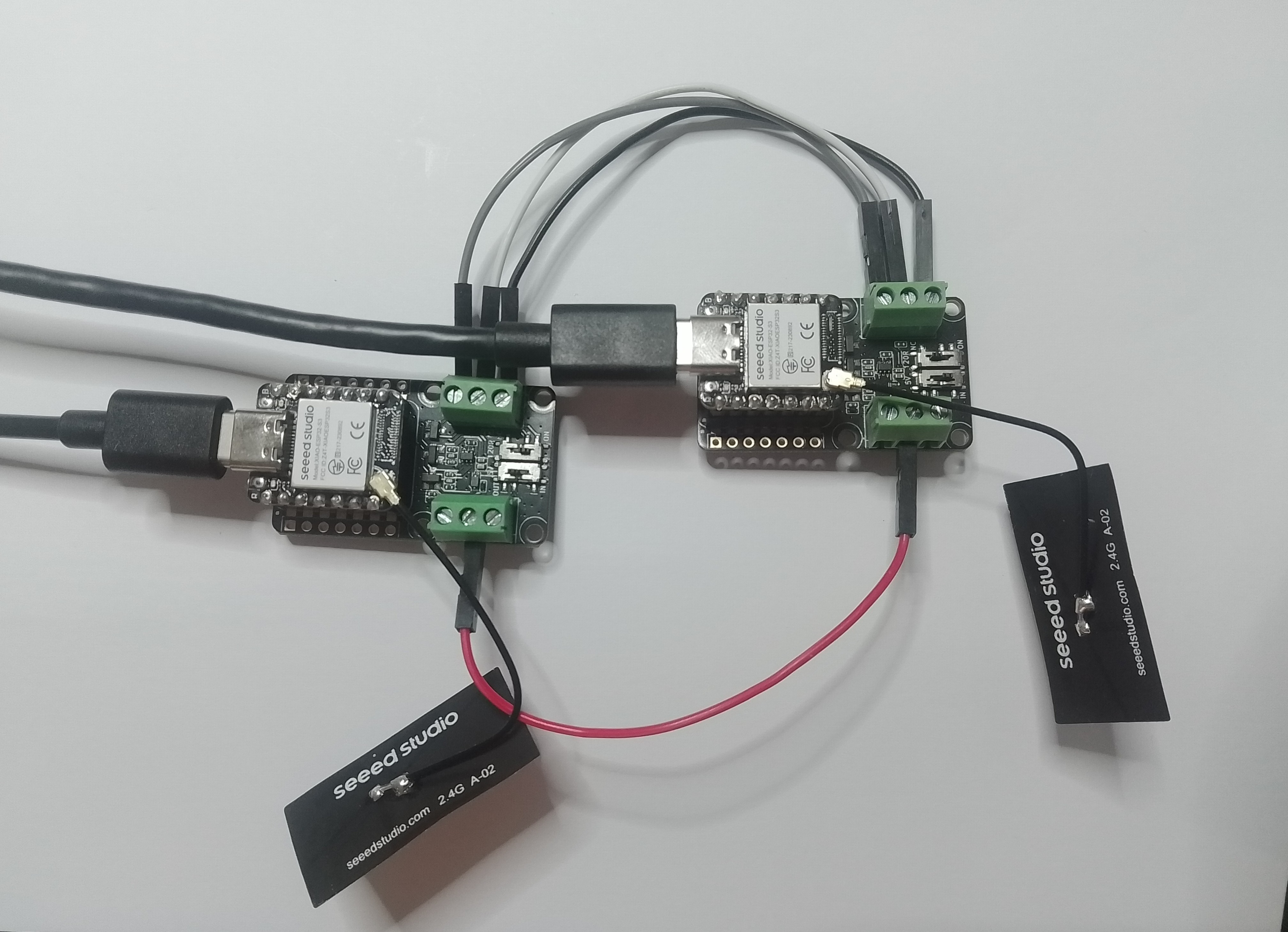
This took a bit longer than I expected mainly because running two instances of Visual Studio 2026 was a problem (running Visual Studio 2022 for one device and Visual Studio 2026 for the other, though not 100% confident this was an issue) as there were some weird interactions.
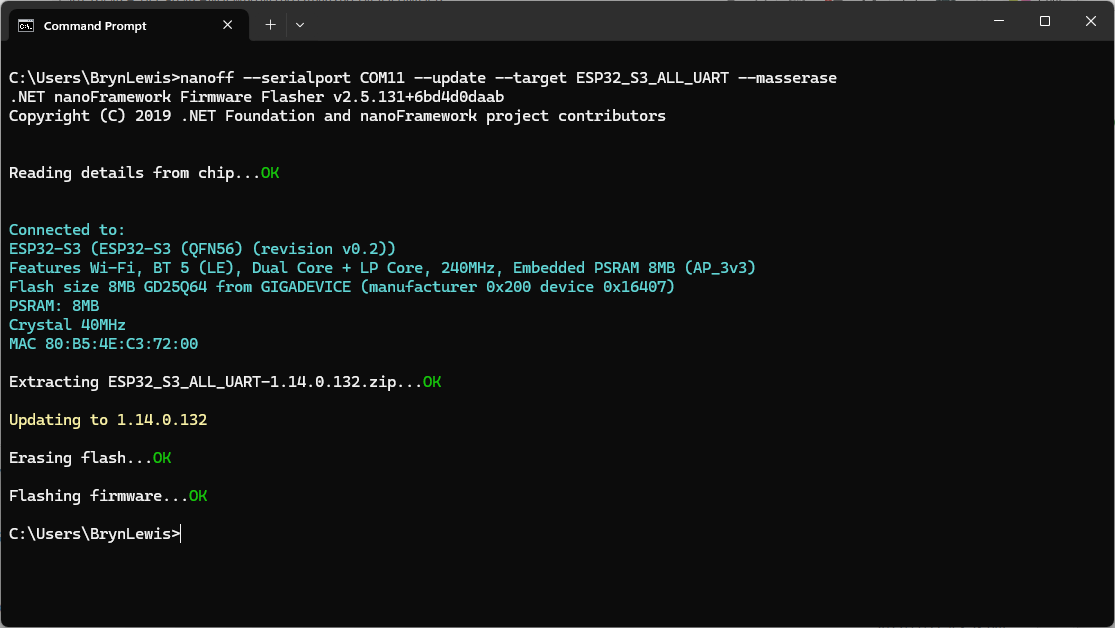
using nanoff to flash a device with the latest version of ESP32_S3_ALL_UART

As I moved between the Arduino tooling and flashing devices with nanoff the serial port numbers would change watching the port assignments in Windows Device Manager was key.
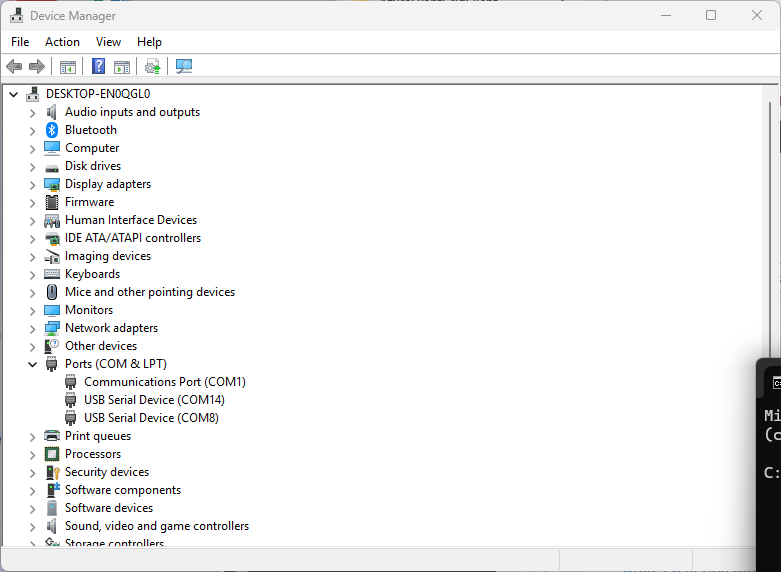
Windows Device manager displaying the available serial ports

Rather than debugging both the nanoFramework RS485Sender and RS485Receiver applications simultaneously, I used the Arduino RS485Sender and RS485 Receiver application but had similar issues with the port assignments changing.
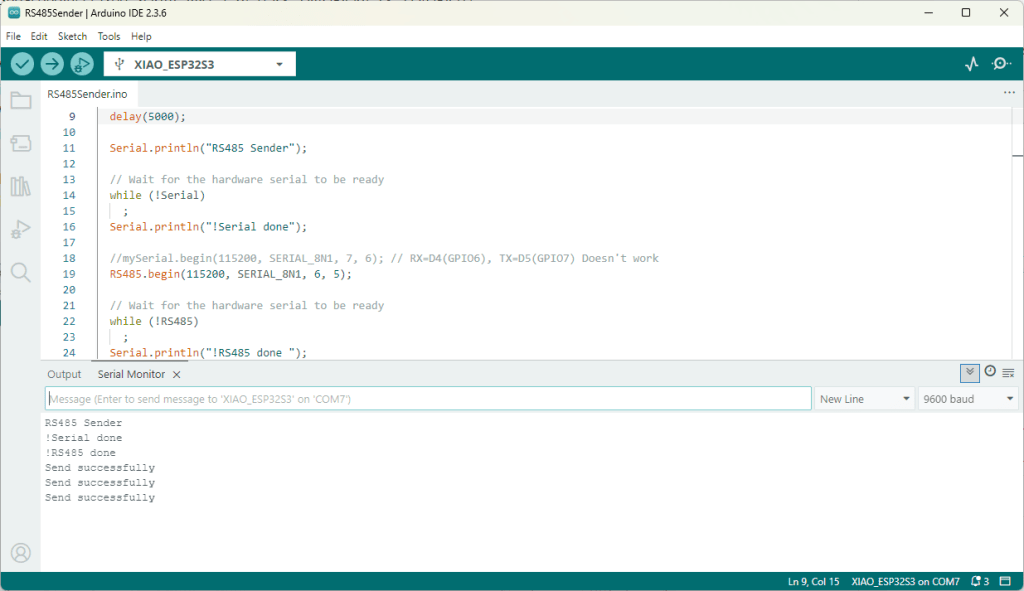
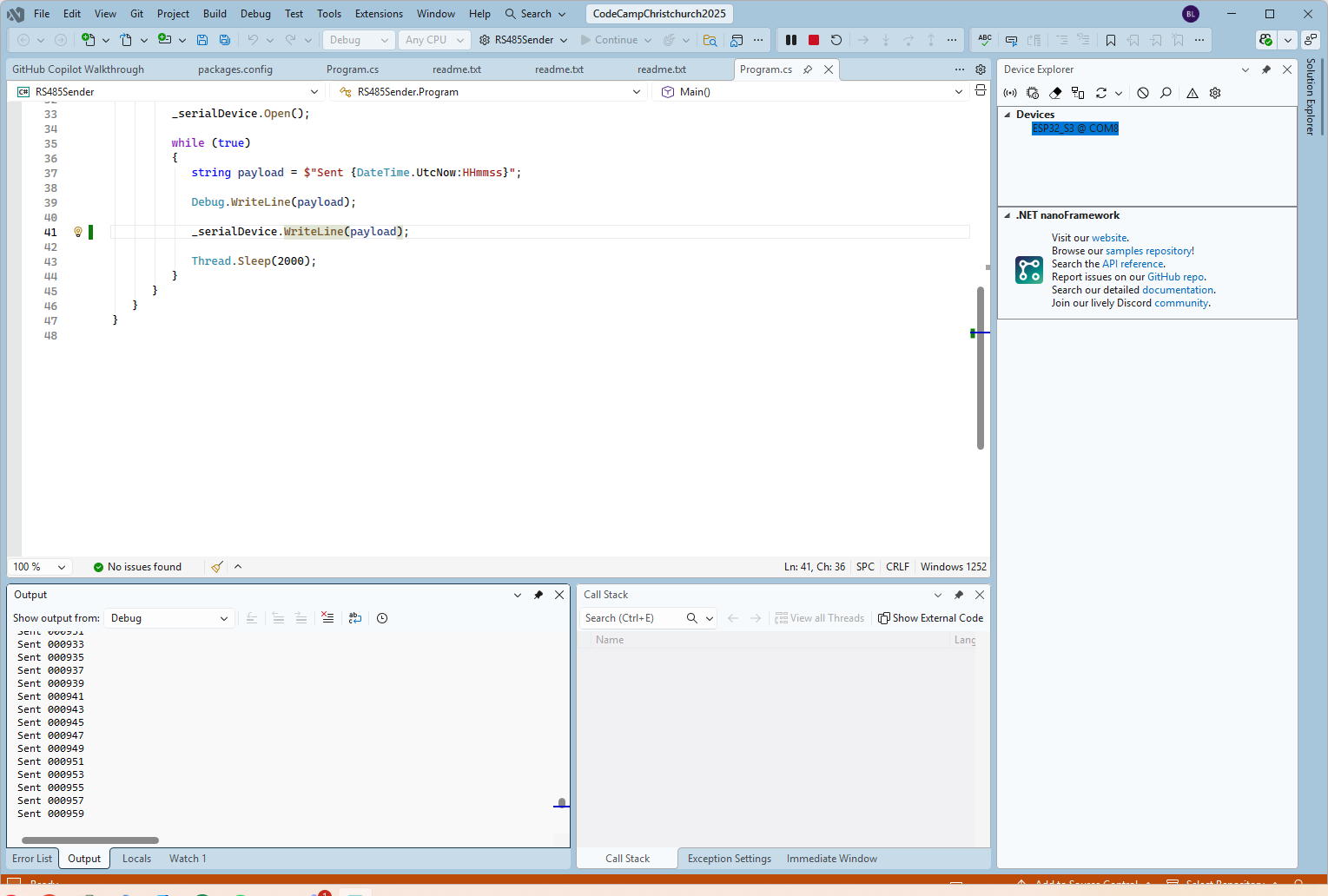
Arduino RS485 Sender application
The nanoFramework sender application
public class Program
{
   static SerialPort _serialDevice;

   public static void Main()
   {
      Configuration.SetPinFunction(Gpio.IO06, DeviceFunction.COM2_RX);
      Configuration.SetPinFunction(Gpio.IO05, DeviceFunction.COM2_TX);
      Configuration.SetPinFunction(Gpio.IO02, DeviceFunction.COM2_RTS);

      Debug.WriteLine("RS485 Sender: ");

      var ports = SerialPort.GetPortNames();

      Debug.WriteLine("Available ports: ");
      foreach (string port in ports)
      {
         Debug.WriteLine($" {port}");
      }

      _serialDevice = new SerialPort("COM2");
      _serialDevice.BaudRate = 9600;
      _serialDevice.Mode = SerialMode.RS485;

      _serialDevice.Open();

      Debug.WriteLine("Sending...");
      while (true)
      {
         string payload = $"{DateTime.UtcNow:HHmmss}";

         Debug.WriteLine($"Sent:{DateTime.UtcNow:HHmmss}");

         Debug.WriteLine(payload);

         _serialDevice.WriteLine(payload);

         Thread.Sleep(2000);
      }
   }
}

if I had built the nanoFramework RS485Sender and RS485Receiver applications first debugging the Arduino RS485Sender and RS485Receiver would been similar.
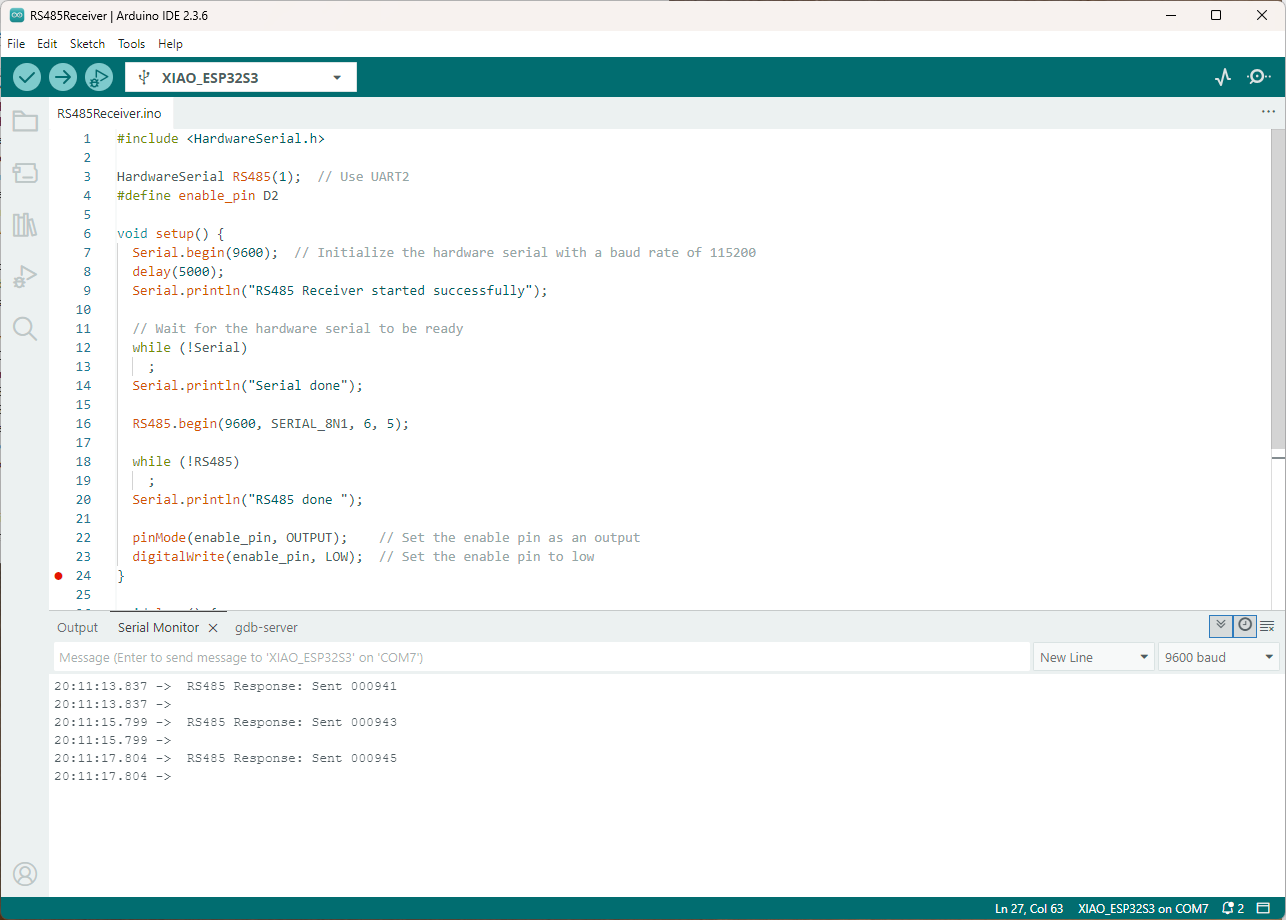
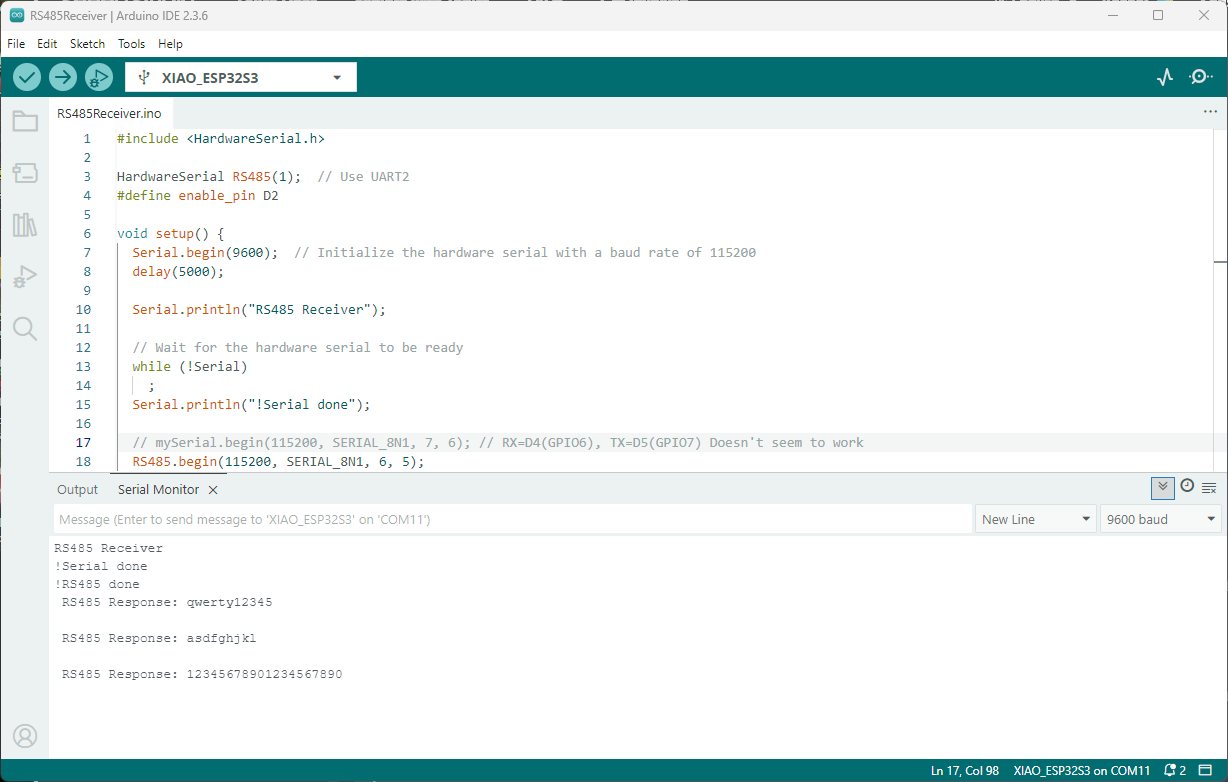
Arduino receiver application displaying messages from the nanoFramework sender application
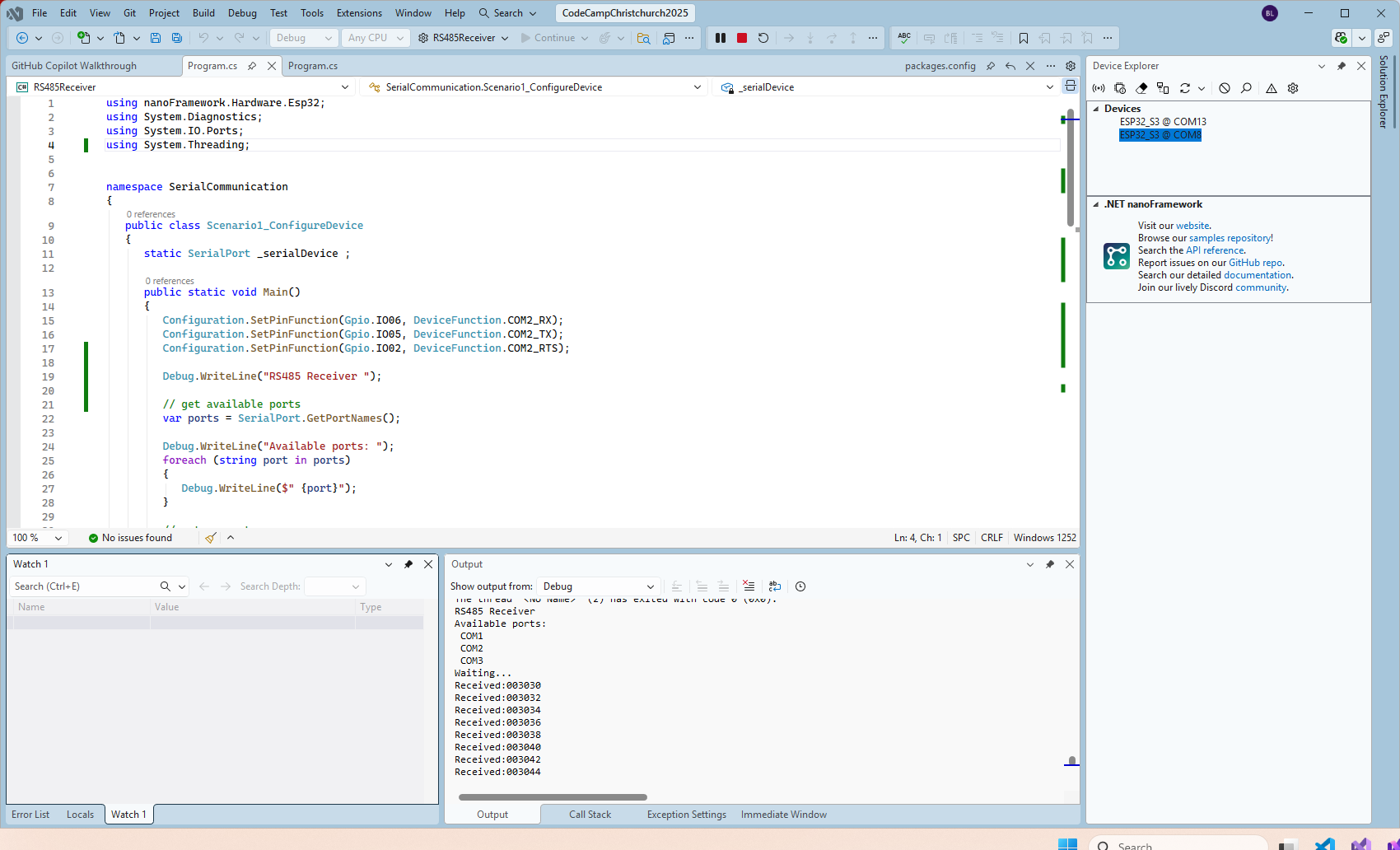
The nanoFramework Receiver receiving messages from the nanoFramework Sender
public class Program
{
   static SerialPort _serialDevice ;
 
   public static void Main()
   {
      Configuration.SetPinFunction(Gpio.IO06, DeviceFunction.COM2_RX);
      Configuration.SetPinFunction(Gpio.IO05, DeviceFunction.COM2_TX);
      Configuration.SetPinFunction(Gpio.IO02, DeviceFunction.COM2_RTS);

      Debug.WriteLine("RS485 Receiver ");

      // get available ports
      var ports = SerialPort.GetPortNames();

      Debug.WriteLine("Available ports: ");
      foreach (string port in ports)
      {
         Debug.WriteLine($" {port}");
      }

      // set parameters
      _serialDevice = new SerialPort("COM2");
      _serialDevice.BaudRate = 9600;
      _serialDevice.Mode = SerialMode.RS485;

      // set a watch char to be notified when it's available in the input stream
      _serialDevice.WatchChar = '\n';

      // setup an event handler that will fire when a char is received in the serial device input stream
      _serialDevice.DataReceived += SerialDevice_DataReceived;

      _serialDevice.Open();

      Debug.WriteLine("Waiting...");
      Thread.Sleep(Timeout.Infinite);
   }

   private static void SerialDevice_DataReceived(object sender, SerialDataReceivedEventArgs e)
   {
      SerialPort serialDevice = (SerialPort)sender;

      switch (e.EventType)
      {
         case SerialData.Chars:
         //break;

         case SerialData.WatchChar:
            string response = serialDevice.ReadExisting();
            Debug.Write($"Received:{response}");
            break;
         default:
            Debug.Assert(false, $"e.EventType {e.EventType} unknown");
            break;
      }
   }
}

The changing of serial port numbers while running different combinations of Arduino and nanoFramework environments concurrently combined with the sender and receiver applications having to be deployed to the right devices (also initially accidentally different baud rates) was a word of pain, and with the benefit of hindsight I should have used two computers.
Azure Event Grid nanoFramework Client – Publisher

Building a .NET nanoFramework application for testing Azure Event Grid MQTT Broker connectivity that would run on my Seeedstudio EdgeBox ESP100 and Seeedstudio Xiao ESP32S3 devices took a couple of hours. Most of that time was spent figuring out how to generate the certificate and elliptic curve private key

Create an elliptic curve private key

 openssl ecparam -name prime256v1 -genkey -noout -out device.key

Generate a certificate signing request

openssl req -new -key device.key -out device.csr -subj "/CN=device.example.com/O=YourOrg/OU=IoT"

Then use the intermediate certificate and key file from earlier to generate a device certificate and key.

 openssl x509 -req -in device.csr -CA IntermediateCA.crt -CAkey IntermediateCA.key -CAcreateserial -out device.crt -days 365 -sha256

In this post I have assumed that the reader is familiar with configuring Azure Event Grid clients, client groups, topic spaces, permission bindings and routing.

The PEM encoded root CA certificate chain that is used to validate the server
public const string CA_ROOT_PEM = @"-----BEGIN CERTIFICATE-----
CN: CN = Microsoft Azure ECC TLS Issuing CA 03
-----END CERTIFICATE-----
-----BEGIN CERTIFICATE-----
CN: CN = DigiCert Global Root G3
-----END CERTIFICATE-----";

The PEM encoded certificate chain that is used to authenticate the device
public const string CLIENT_CERT_PEM_A = @"-----BEGIN CERTIFICATE-----
-----BEGIN CERTIFICATE-----
 CN=Self signed device certificate
-----END CERTIFICATE-----
-----BEGIN CERTIFICATE-----
 CN=Self signed Intermediate certificate
-----END CERTIFICATE-----";

 The PEM encoded private key of device
public const string CLIENT_KEY_PEM_A = @"-----BEGIN EC PRIVATE KEY-----
-----END EC PRIVATE KEY-----";

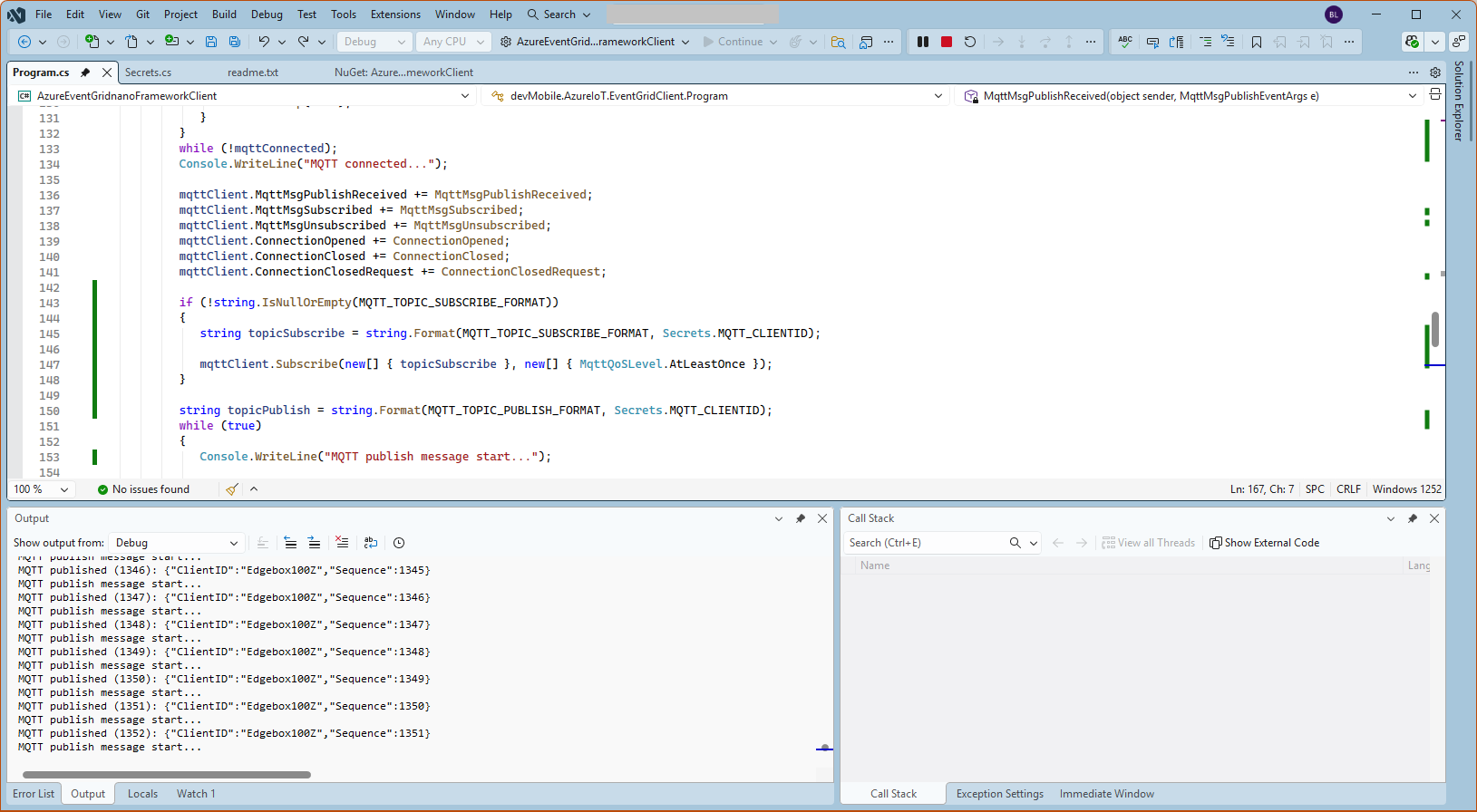
My application was “inspired” by the .NET nanoFramework m2mqtt example.

public static void Main()
{
   int sequenceNumber = 0;
   MqttClient mqttClient = null;
   Thread.Sleep(1000); // Found this works around some issues with running immediately after a reset

   bool wifiConnected = false;
   Console.WriteLine("WiFi connecting...");
   do
   {
      // Attempt to connect using DHCP
      wifiConnected = WifiNetworkHelper.ConnectDhcp(Secrets.WIFI_SSID, Secrets.WIFI_PASSWORD, requiresDateTime: true);

      if (!wifiConnected)
      {
         Console.WriteLine($"Failed to connect. Error: {WifiNetworkHelper.Status}");
         if (WifiNetworkHelper.HelperException != null)
         {
            Console.WriteLine($"Exception: {WifiNetworkHelper.HelperException}");
         }

         Thread.Sleep(1000);
      }
   }
   while (!wifiConnected);
   Console.WriteLine("WiFi connected");

   var caCert = new X509Certificate(Constants.CA_ROOT_PEM);

   X509Certificate2 clientCert = null;
   try
   {
      clientCert = new X509Certificate2(Secrets.CLIENT_CERT_PEM_A, Secrets.CLIENT_KEY_PEM_A, string.Empty);
   }
   catch (Exception ex)
   {
      Console.WriteLine($"Client Certificate Exception: {ex.Message}");
   }

   mqttClient = new MqttClient(Secrets.MQTT_SERVER, Constants.MQTT_PORT, true, caCert, clientCert, MqttSslProtocols.TLSv1_2);

   mqttClient.ProtocolVersion = MqttProtocolVersion.Version_5;

   bool mqttConnected = false;
   Console.WriteLine("MQTT connecting...");
   do
   {
      try
      {
         // Regular connect
         var resultConnect = mqttClient.Connect(Secrets.MQTT_CLIENTID, Secrets.MQTT_USERNAME, Secrets.MQTT_PASSWORD);
         if (resultConnect != MqttReasonCode.Success)
         {
            Console.WriteLine($"MQTT ERROR connecting: {resultConnect}");
            Thread.Sleep(1000);
         }
         else
         {
            mqttConnected = true;
         }
      }
      catch (Exception ex)
      {
         Console.WriteLine($"MQTT ERROR Exception '{ex.Message}'");
         Thread.Sleep(1000);
      }
   }
   while (!mqttConnected);
   Console.WriteLine("MQTT connected...");

   mqttClient.MqttMsgPublishReceived += MqttMsgPublishReceived;
   mqttClient.MqttMsgSubscribed += MqttMsgSubscribed;
   mqttClient.MqttMsgUnsubscribed += MqttMsgUnsubscribed;
   mqttClient.ConnectionOpened += ConnectionOpened;
   mqttClient.ConnectionClosed += ConnectionClosed;
   mqttClient.ConnectionClosedRequest += ConnectionClosedRequest;

   string topicPublish = string.Format(MQTT_TOPIC_PUBLISH_FORMAT, Secrets.MQTT_CLIENTID);
   while (true)
   {
      Console.WriteLine("MQTT publish message start...");

      var payload = new MessagePayload() { ClientID = Secrets.MQTT_CLIENTID, Sequence = sequenceNumber++ };

      string jsonPayload = JsonSerializer.SerializeObject(payload);

      var result = mqttClient.Publish(topicPublish, Encoding.UTF8.GetBytes(jsonPayload), "application/json; charset=utf-8", null);

      Debug.WriteLine($"MQTT published ({result}): {jsonPayload}");

      Thread.Sleep(100);
   }
}

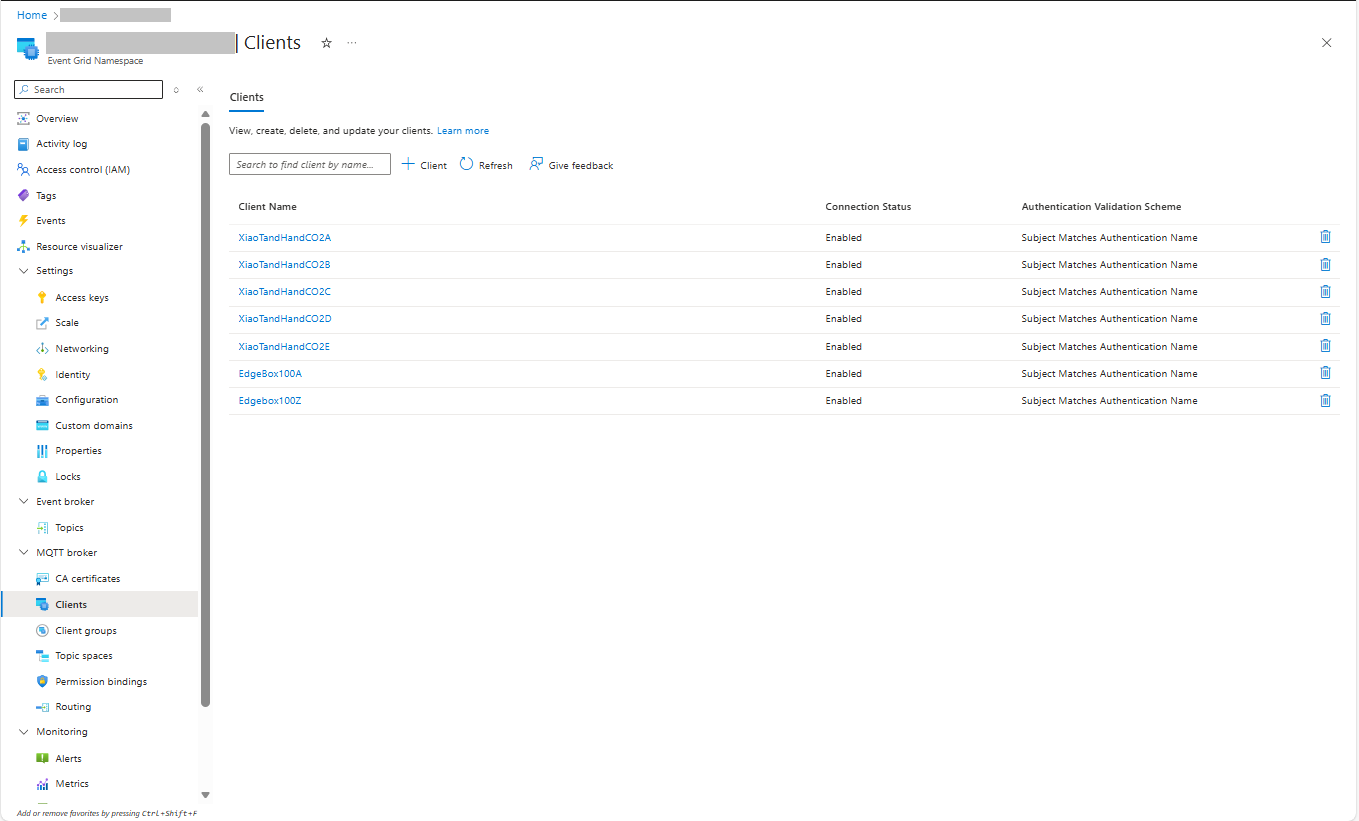
I then configured my client (Edgebox100Z) and updated the “secrets.cs” file

Azure Event Grid MQTT Broker Clients

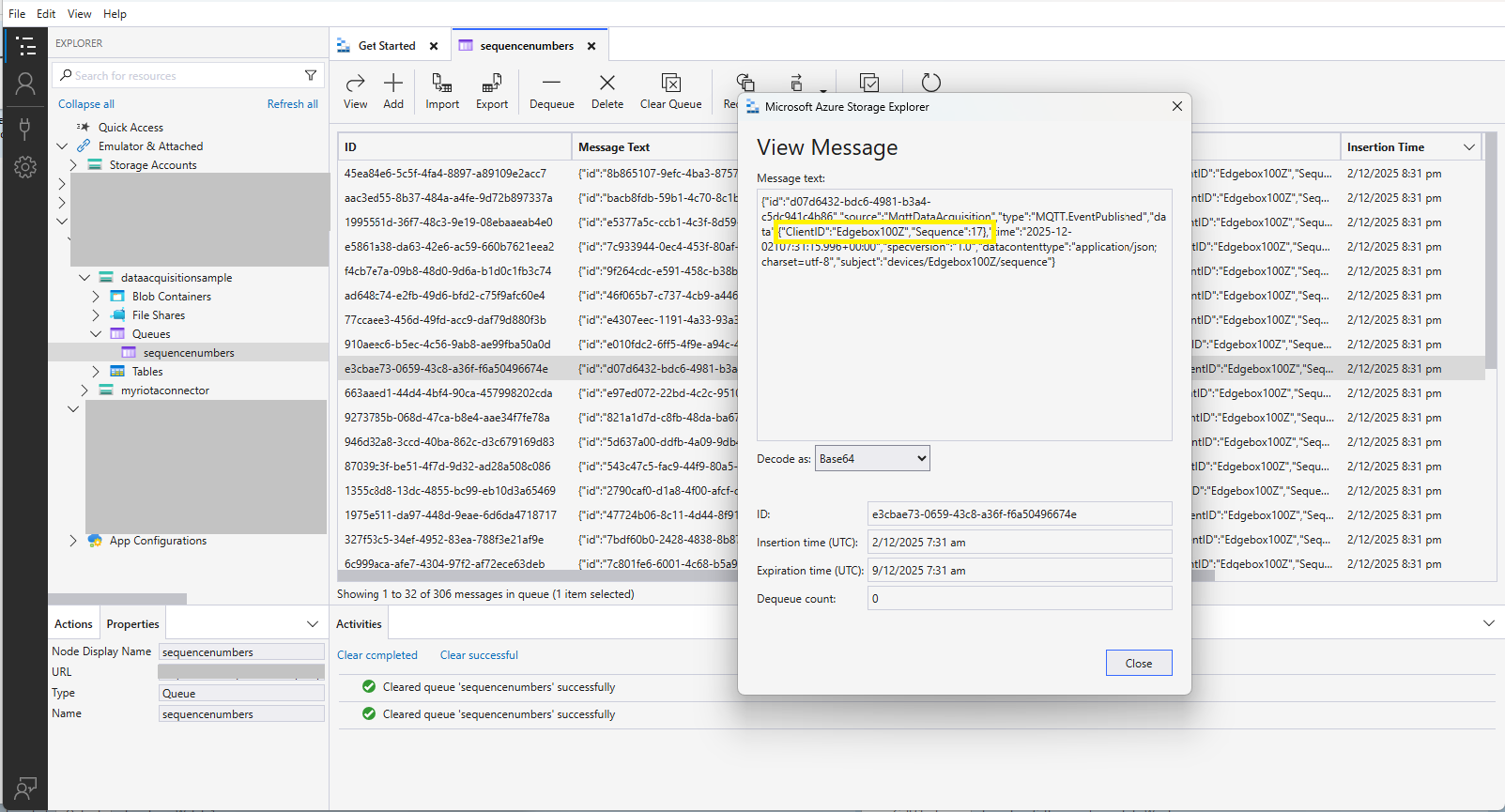
The application connected to the Azure Event Grid MQTT broker and started publishing the JSON payload with the incrementing sequence number.

Visual Studio debugger output of JSON payload publishing

The published messages were “routed” to an Azure Storage Queue where they could be inspected with a tool like Azure Storage Explorer.

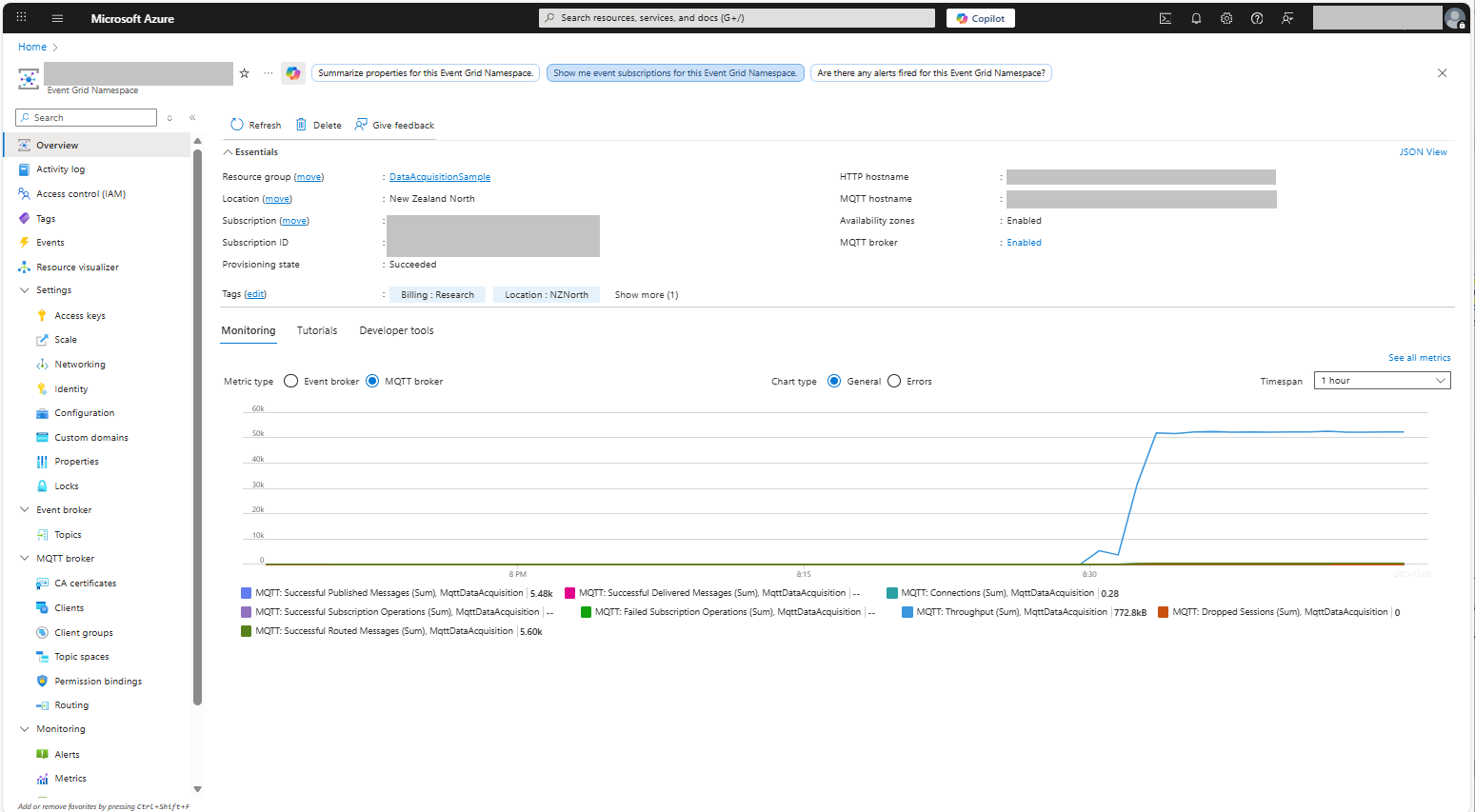
Azure Event Grid MQTT Broker metrics with messages published selected

I could see the application was working in the Azure Event Grid MQTT broker metrics because the number of messages published was increasing.

Seeedstudio XIAO ESP32 S3 RS-485 test harness(Arduino)

As part of a project to read values from a MODBUS RS-485 sensor using a RS-485 Breakout Board for Seeed Studio XIAO and a Seeed Studio XIAO ESP32-S3 I built the test harness described in the wiki post. The test harness setup for a Seeed Studio XIAO ESP32-C3/Seeed Studio XIAO ESP32-C6 didn’t work with my Seeed Studio XIAO ESP32-S3.

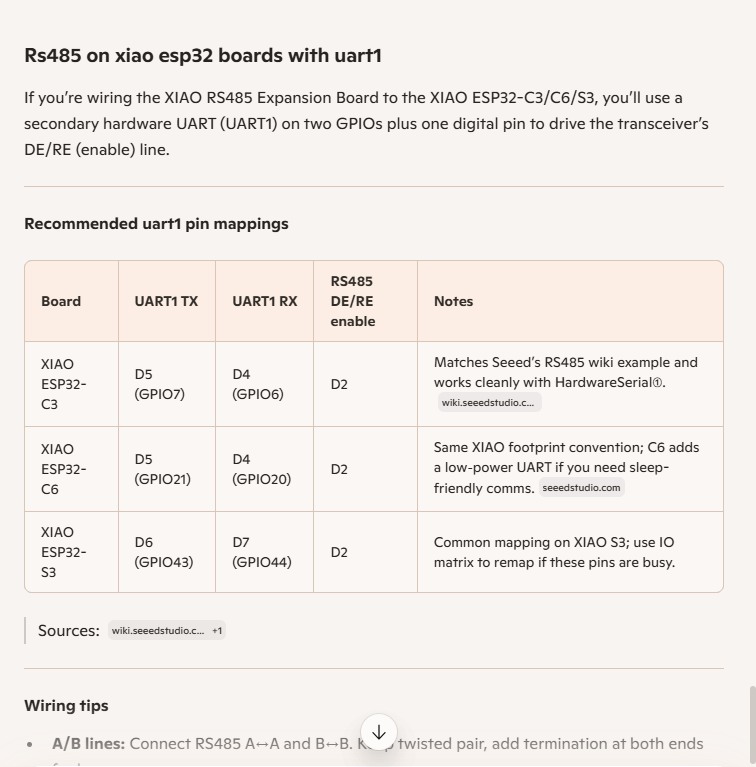
I then did some digging looked at schematics and figured out the port mappings were different. This took a while so I tried Microsoft Copilot

I then updated the port assigned for my RS485Sender application

#include <HardwareSerial.h>

HardwareSerial RS485(1);

#define enable_pin D2

void setup() {
  Serial.begin(9600);  // Initialize the hardware serial with a baud rate of 115200
  delay(5000);

  Serial.println("RS485 Sender");

  // Wait for the hardware serial to be ready
  while (!Serial)
    ;
  Serial.println("!Serial done");

  //mySerial.begin(115200, SERIAL_8N1, 7, 6); // RX=D4(GPIO6), TX=D5(GPIO7) Doesn't work
  RS485.begin(115200, SERIAL_8N1, 6, 5);

  // Wait for the hardware serial to be ready
  while (!RS485)
    ;
  Serial.println("!RS485 done ");

  pinMode(enable_pin, OUTPUT);     // Set the enable pin as an output
  digitalWrite(enable_pin, HIGH);  // Set the enable pin to high
}

void loop() {
  if (Serial.available()) {
    String inputData = Serial.readStringUntil('\n');  // Read the data from the hardware serial until a newline character

    // If the received data is not empty
    if (inputData.length() > 0) {
      Serial.println("Send successfully");  // Print a success message
      RS485.println(inputData);             // Send the received data to the hardware serial
    }
  }
}

I then updated the port assigned for my RS485Receiver application

#include <HardwareSerial.h>

HardwareSerial RS485(1);  // Use UART2
#define enable_pin D2

void setup() {
  Serial.begin(9600);  // Initialize the hardware serial with a baud rate of 115200
  delay(5000);

  Serial.println("RS485 Receiver");

  // Wait for the hardware serial to be ready
  while (!Serial)
    ;
  Serial.println("!Serial done");

  // mySerial.begin(115200, SERIAL_8N1, 7, 6); // RX=D4(GPIO6), TX=D5(GPIO7) Doesn't seem to work
  RS485.begin(115200, SERIAL_8N1, 6, 5); 
  
    // Wait for the hardware serial to be ready
  while (!RS485)
    ;
  Serial.println("!RS485 done ");

  pinMode(enable_pin, OUTPUT);    // Set the enable pin as an output
  digitalWrite(enable_pin, LOW);  // Set the enable pin to low
}

void loop() {
  // Check if there is data available from the hardware serial
  int x = RS485.available();

  if (x) {
    String response = RS485.readString();

    Serial.println(" RS485 Response: " + response);
  }

  delay(1000);
}

Getting my test harness RS485Sender and RS485Receiver applications (inspired by Seeedstudio wiki) took quite a bit longer than expected. Using Copilot worked better than expected but I think that might be because after doing some research my prompts were better.