Back in 2013 built a demo application which called the Chuck Norris API(ICNAPI) to demonstrate .NET Micro Framework Hypertext Transfer Protocol(HTTP) connectivity and this a new version for the .NET nanoFramework.
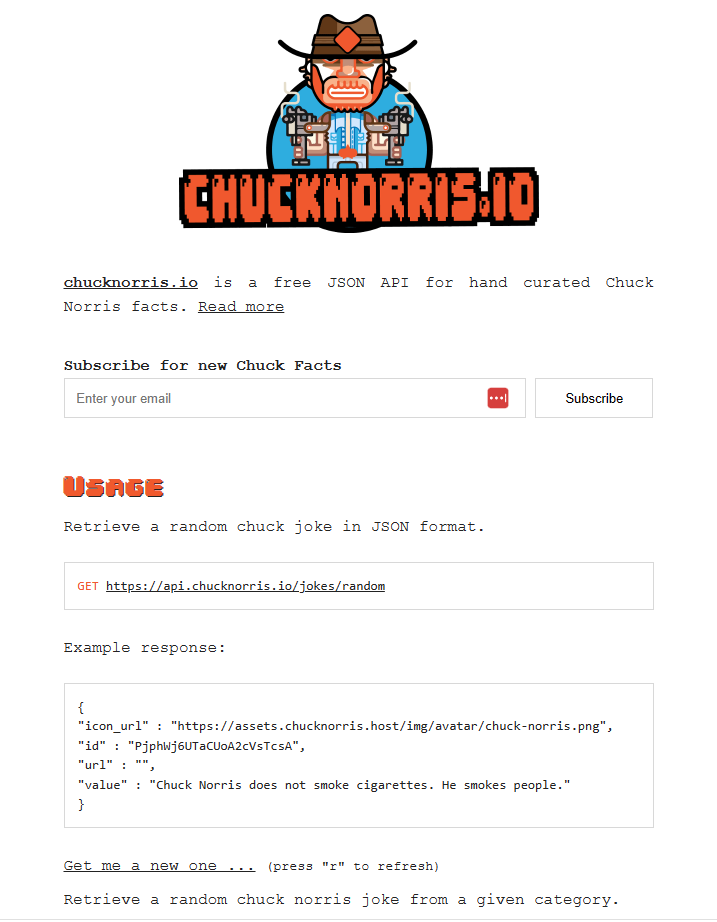
The application uses a System.Net.Http httpClient to call the ICNAPI and nanoFramework.Json to deserialize the responses.
namespace devMobile.IoT.WT32SC01.ChuckNorrisAPI
{
...
    internal class Joke
    {
        public string id { get; set; }
        public string url { get; set; }
        public string value { get; set; }
    }

    public class Program
    {
        public static void Main()
        {
            HttpClient httpClient;

            Debug.WriteLine($"{DateTime.UtcNow:HH:mm:ss} Wifi connecting");

            if (!WifiNetworkHelper.ConnectDhcp(Config.Ssid, Config.Password, requiresDateTime: true))
            {
                if (NetworkHelper.HelperException != null)
                {
                    Debug.WriteLine($"{DateTime.UtcNow:HH:mm:ss} WifiNetworkHelper.ConnectDhcp failed {NetworkHelper.HelperException}");
                }

                Thread.Sleep(Timeout.Infinite);
            }

            Debug.WriteLine($"{DateTime.UtcNow:HH:mm:ss} Wifi connected");

            using (httpClient = new HttpClient())
            {
                httpClient.SslProtocols = System.Net.Security.SslProtocols.Tls12;
                httpClient.HttpsAuthentCert = new X509Certificate(Config.LetsEncryptCACertificate);
                httpClient.BaseAddress = new Uri(Config.ChuckNorrisAPIUrl);

                while (true)
                {
                    Debug.WriteLine($"{DateTime.UtcNow:HH:mm:ss} HTTP request to: {httpClient.BaseAddress.AbsoluteUri}");

                    var response = httpClient.GetString("");

                    Debug.WriteLine($"{DateTime.UtcNow:HH:mm:ss} HTTP request done");

                    Joke joke = (Joke)JsonConvert.DeserializeObject(response, typeof(Joke));

                    Debug.WriteLine($"Joke: {joke.value} ");

                    Thread.Sleep(Config.RequestDelay);
                }
            }
        }
    }
}
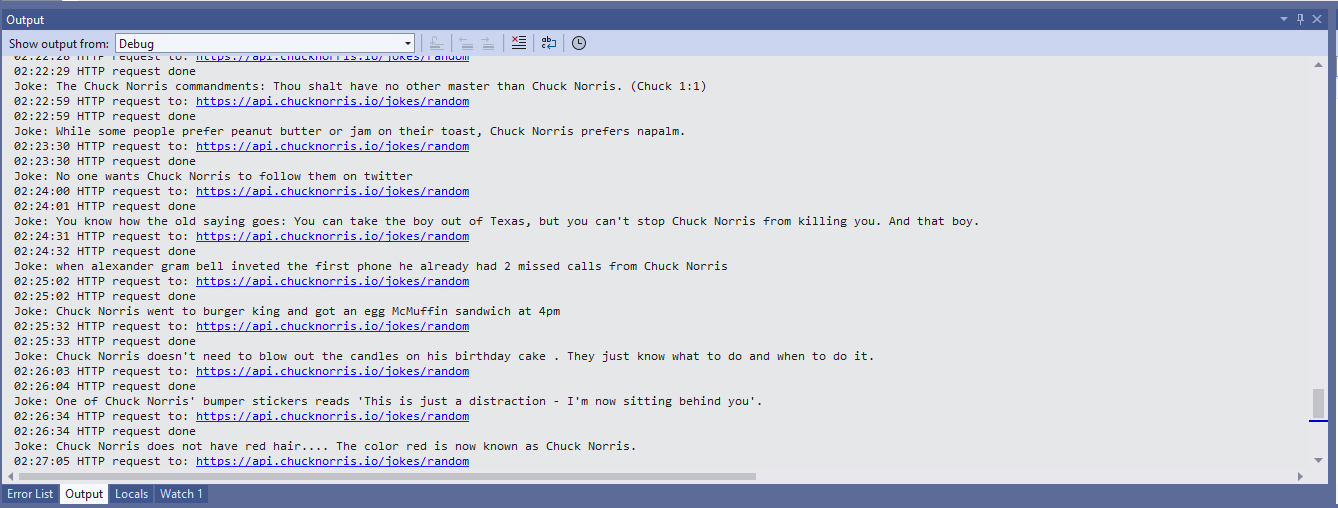
The application configuration is stored in a separate file(config.cs) to reduce the likelihood of me accidently checking it into source control.
namespace devMobile.IoT.WT32SC01.ChuckNorrisAPI
{
    internal class Config
    {
        public const string Ssid = "";
        public const string Password = "";
        public const string ChuckNorrisAPIUrl = "https://api.chucknorris.io/jokes/random";

        public const string LetsEncryptCACertificate =
                 @"-----BEGIN CERTIFICATE-----
MIICGzCCAaGgAwIBAgIQQdKd0XLq7qeAwSxs6S+HUjAKBggqhkjOPQQDAzBPMQsw
CQYDVQQGEwJVUzEpMCcGA1UEChMgSW50ZXJuZXQgU2VjdXJpdHkgUmVzZWFyY2gg
R3JvdXAxFTATBgNVBAMTDElTUkcgUm9vdCBYMjAeFw0yMDA5MDQwMDAwMDBaFw00
MDA5MTcxNjAwMDBaME8xCzAJBgNVBAYTAlVTMSkwJwYDVQQKEyBJbnRlcm5ldCBT
ZWN1cml0eSBSZXNlYXJjaCBHcm91cDEVMBMGA1UEAxMMSVNSRyBSb290IFgyMHYw
EAYHKoZIzj0CAQYFK4EEACIDYgAEzZvVn4CDCuwJSvMWSj5cz3es3mcFDR0HttwW
+1qLFNvicWDEukWVEYmO6gbf9yoWHKS5xcUy4APgHoIYOIvXRdgKam7mAHf7AlF9
ItgKbppbd9/w+kHsOdx1ymgHDB/qo0IwQDAOBgNVHQ8BAf8EBAMCAQYwDwYDVR0T
AQH/BAUwAwEB/zAdBgNVHQ4EFgQUfEKWrt5LSDv6kviejM9ti6lyN5UwCgYIKoZI
zj0EAwMDaAAwZQIwe3lORlCEwkSHRhtFcP9Ymd70/aTSVaYgLXTWNLxBo1BfASdW
tL4ndQavEi51mI38AjEAi/V3bNTIZargCyzuFJ0nN6T5U6VR5CmD1/iQMVtCnwr1
/q4AaOeMSQ+2b1tbFfLn
            -----END CERTIFICATE-----";

        public static readonly TimeSpan RequestDelay = new TimeSpan(0, 30, 0);
    }
}
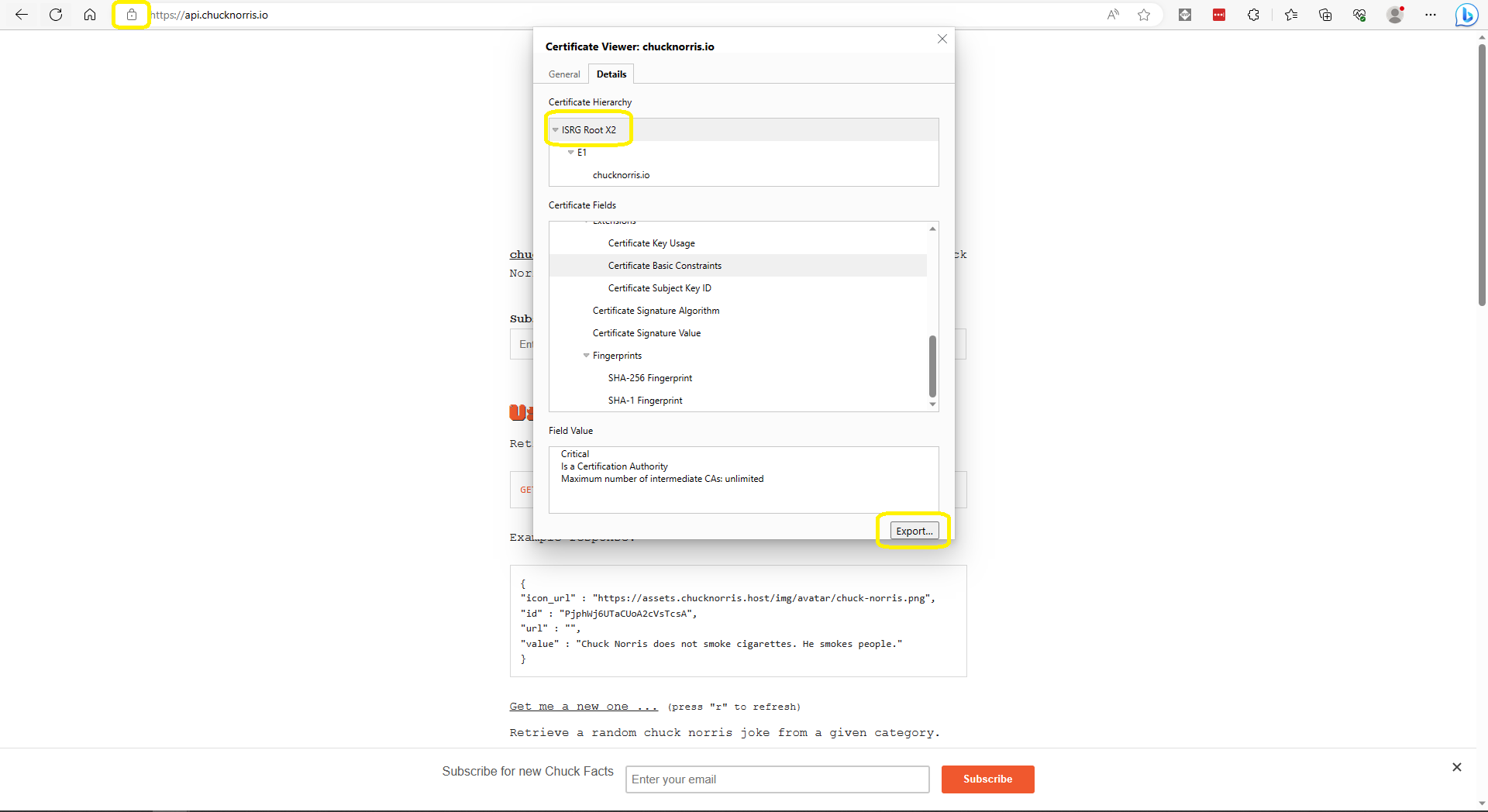
The ICNAPI supports HTTPS requests so I used the Micrsoft Edgium Certificate Viewer to download the Let’s Encrypt Internet Security Group(ISRG) Root X2 certificate.
Some of the Chuck Norris facts are not suitable for school students so the request Uniform Resource Locator (URL) can be modified to ensure only “age appropriate” ones are returned.



 devMobile's blog