Random wanderings through Microsoft Azure esp. PaaS plumbing, the IoT bits, AI on Micro controllers, AI on Edge Devices, .NET nanoFramework, .NET Core on *nix and ML.NET+ONNX
Swarm Space Azure IoT Connector Identity Translation Gateway Architecture
The new approach uses most of the existing building blocks but adds an Azure HTTP Trigger which receives the Swarm Space Bumble bee hive Webhook Delivery Method calls and writes them to an Azure Storage Queue.
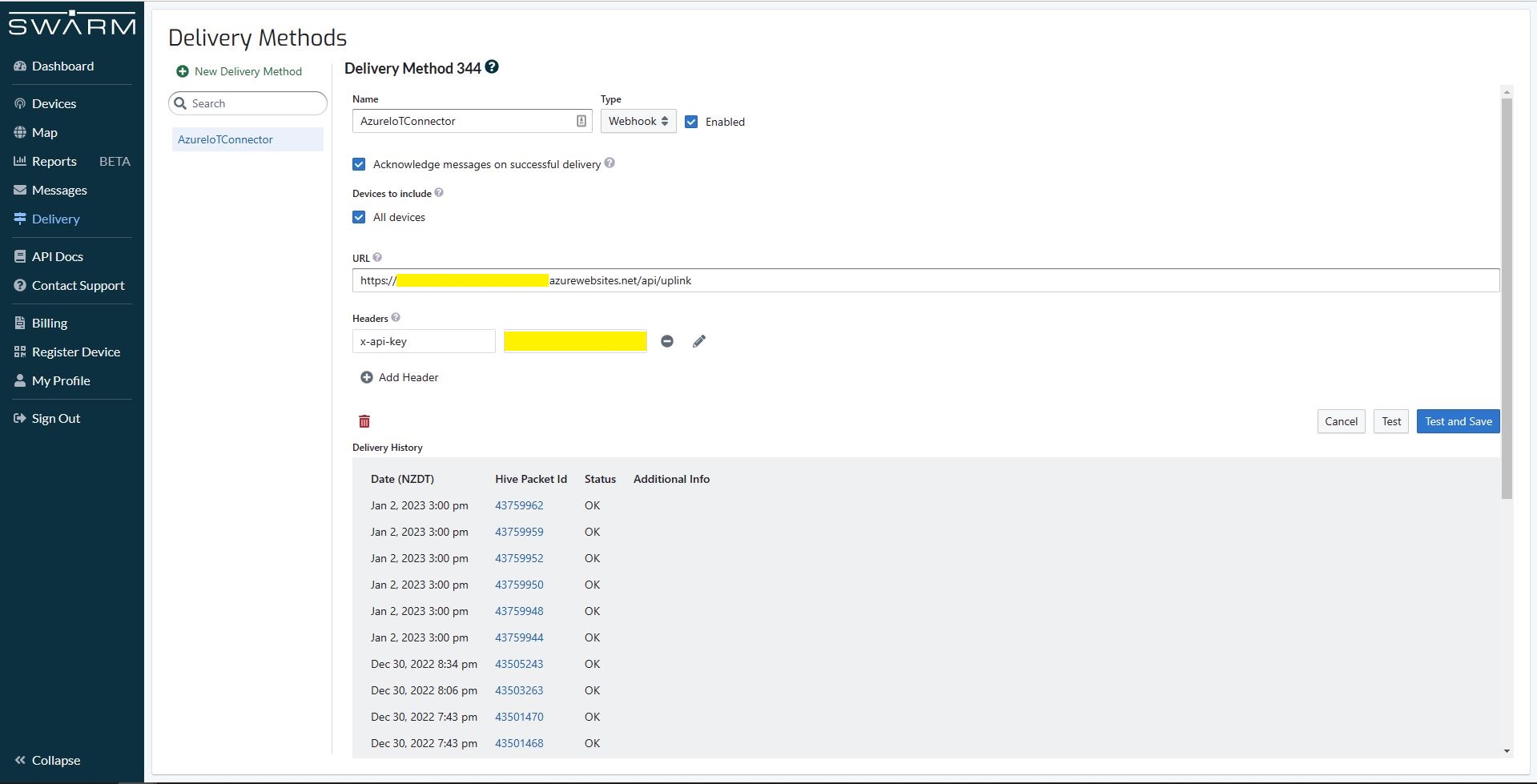
Swarm Space Bumble bee hive Web Hook Delivery method
The uplink and downlink formatters are now called asynchronously so they have limited impact on the overall performance of the application.
Azure IoT Central with consecutive duplicate PacketIds
Then I started to pay more attention and noticed that duplicate PacketIds could be interleaved
Azure IoT Central with interleaved duplicate PacketIds
Shortly after noticing the interleaved PacketIds I checked the Delivery Method and found there were message delivery timeouts.
Swarm Space Delivery with method timeouts
In Azure Application Insights I could see that the UplinkController was taking up to 15 seconds to execute which was longer than the bumblebee hive delivery timeout.
In Telerik Fiddler I could see calls to the UplinkController taking 16 seconds to execute. (I did see 30+ seconds)
Telerik Fiddler showing duration of Uplink controller calls
To see if the problem was loading CS-Script I added code to load a simple function as the application started. After averaging the duration over many executions there was little difference in the duration.
public interface IApplication
{
    public DateTime Startup(DateTime utcNow);
}
...
protected override async Task ExecuteAsync(CancellationToken cancellationToken)
{
    await Task.Yield();

    _logger.LogInformation("StartUpService.ExecuteAsync start");

    // Force the loading and startup of CS Script evaluator
    dynamic application = CSScript.Evaluator
        .LoadCode(
                @"using System;
                public class Application : IApplication
                {
                    public DateTime Startup(DateTime utcNow)
                    {
                        return utcNow;
                    }
                }");

    DateTime result = application.Startup(DateTime.UtcNow);

    try
    {
        await _swarmSpaceBumblebeeHive.Login(cancellationToken);

       await _azureIoTDeviceClientCache.Load(cancellationToken);
    }
    catch (Exception ex)
    {
        _logger.LogError(ex, "StartUpService.ExecuteAsync error");

        throw;
    }

    _logger.LogInformation("StartUpService.ExecuteAsync finish");
}
using System;
using System.Globalization;
using System.Text;

using Microsoft.Azure.Devices.Client;

using Newtonsoft.Json;
using Newtonsoft.Json.Linq;

public class FormatterUplink : PayloadFormatter.IFormatterUplink
{
    public Message Evaluate(int organisationId, int deviceId, int deviceType, int userApplicationId, JObject telemetryEvent, JObject payloadJson, string payloadText, byte[] payloadBytes)
    {
        if ((payloadText != "") && (payloadJson != null))
        {
            JObject location = new JObject();

            location.Add("lat", payloadJson.GetValue("lt"));
            location.Add("lon", payloadJson.GetValue("ln"));
            location.Add("alt", payloadJson.GetValue("a"));

            telemetryEvent.Add("DeviceLocation", location);
        }

        Message ioTHubmessage = new Message(Encoding.ASCII.GetBytes(JsonConvert.SerializeObject(telemetryEvent)));

        ioTHubmessage.Properties.Add("iothub-creation-time-utc", DateTimeOffset.FromUnixTimeSeconds((long)payloadJson.GetValue("d")).ToString("s", CultureInfo.InvariantCulture));

        return ioTHubmessage;
    }
}
I then added code to load the most complex uplink and downlink formatters as the application started. There was a significant reduction in the UplinkController execution durations, but it could still take more than 30 seconds.
I then added detailed telemetry to the code and found that the duration (also variability) was a combination of Azure IoT Device Provisoning Service(DPS) registration, Azure IoT Hub connection establishment, CS-Script payload formatter loading/compilation/execution, application startup tasks and message uploading durations.
After much experimentation It looks like that “synchronously” calling the payload processing code from the Uplink controller is not a viable approach as the Swarm Space Bumblebee hive calls regularly timeout resulting in duplicate messages.
public interface IFormatterUplink
{
    public Message Evaluate(int organisationId, int deviceId, int deviceType, int userApplicationId, JObject telemetryEvent, JObject payloadJson, string payloadText, byte[] payloadBytes);
}
public class FormatterUplink : PayloadFormatter.IFormatterUplink
{
    public Message Evaluate(int organisationId, int deviceId, int deviceType, int userApplicationId, JObject telemetryEvent, JObject payloadJson, string payloadText, byte[] payloadBytes)
    {
        Message ioTHubmessage = new Message(Encoding.ASCII.GetBytes(JsonConvert.SerializeObject(telemetryEvent)));

        return ioTHubmessage;
    }
}
Satellite Passes with gap in coverage from 16:18 to 18:42 highlighted
In the Swarm Hive Delivery Method messages from the Swarm Eval Kit and Swarm Tracker in my backyard arriving in “clusters”.
Swarm Hive Delivery Methods webhook calls.
The messages in each “cluster” were processed by a payload formatter then forwarded to Azure IoT Central for processing. All the messages in a cluster had similar event creation times which was “breaking” graphs and device tracking maps. After running the application locally using Telerik Fiddler to try different payloads I realised that the Microsoft.Azure.Azure.Devices.Client message iothub-creation-time-utc property was set to the when the message was received by Swarm Space infrastructure.
_logger.LogDebug("Uplink-DeviceId:{0} PacketId:{1} TelemetryEvent before:{0}", payload.DeviceId, payload.PacketId, JsonConvert.SerializeObject(telemetryEvent, Formatting.Indented));

telemetryEvent = swarmSpaceFormatterUplink.Evaluate(telemetryEvent, payload.Data, payloadBytes, payloadText, payloadJson);

_logger.LogDebug("Uplink-DeviceId:{0} PacketId:{1} TelemetryEvent after:{0}", payload.DeviceId, payload.PacketId, JsonConvert.SerializeObject(telemetryEvent, Formatting.Indented));

// Send the message to Azure IoT Hub
using (Message ioTHubmessage = new Message(Encoding.ASCII.GetBytes(JsonConvert.SerializeObject(telemetryEvent))))
{
   // Ensure the displayed time is the acquired time rather than the uploaded time.
   ioTHubmessage.Properties.Add("iothub-creation-time-utc", payload.HiveRxTime.ToString("s", CultureInfo.InvariantCulture));
   ioTHubmessage.Properties.Add("PacketId", payload.PacketId.ToString());
   ioTHubmessage.Properties.Add("OrganizationId", payload.OrganizationId.ToString());
   ioTHubmessage.Properties.Add("ApplicationId", payload.UserApplicationId.ToString());
   ioTHubmessage.Properties.Add("DeviceId", payload.DeviceId.ToString());
   ioTHubmessage.Properties.Add("deviceType", payload.DeviceType.ToString());

   await deviceClient.SendEventAsync(ioTHubmessage);

   _logger.LogInformation("Uplink-DeviceID:{deviceId} SendEventAsync success", payload.DeviceId);
}
The Swarm Eval Kit uplink (JSON) message generated by the sample firmware “d” field is the number of seconds since the Unix Epoch that the message payload was constructed.
Swarm Hive Messages with “d” field in the JSON payload highlighted
Online Unix Epoch Convertor displaying Unix Epoch 1672561286 in NZDT and UTC time
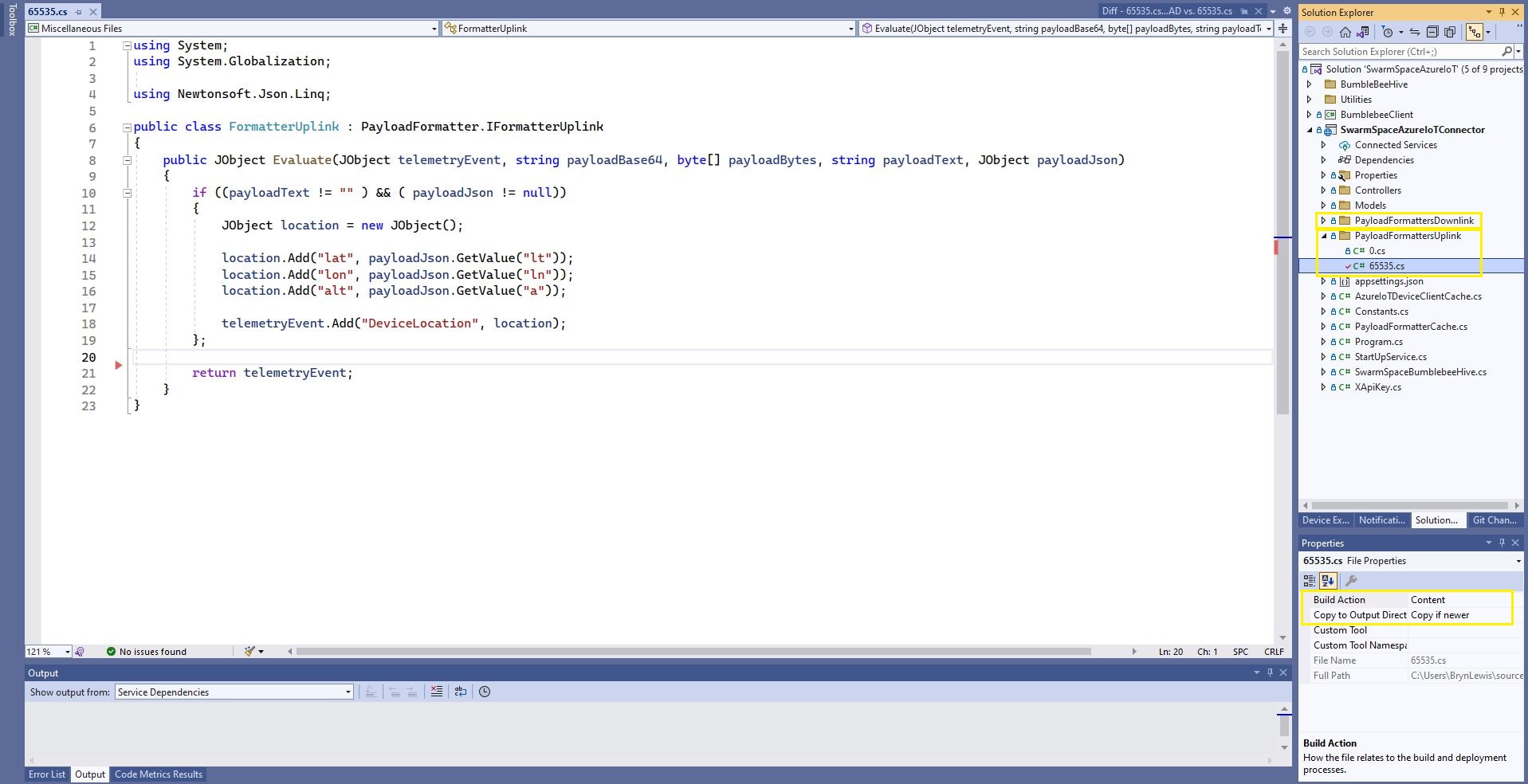
The revised 65355.cs payload formatter adds an “iothub-creation-time-utc” field to the TelemetryEvent
using System;
using System.Globalization;

using Newtonsoft.Json.Linq;

public class FormatterUplink : PayloadFormatter.IFormatterUplink
{
    public JObject Evaluate(JObject telemetryEvent, string payloadBase64, byte[] payloadBytes, string payloadText, JObject payloadJson)
    {
        if ((payloadText != "" ) && ( payloadJson != null))
        {
            JObject location = new JObject();

            location.Add("lat", payloadJson.GetValue("lt"));
            location.Add("lon", payloadJson.GetValue("ln"));
            location.Add("alt", payloadJson.GetValue("a"));

            telemetryEvent.Add("DeviceLocation", location);
        };

        telemetryEvent.Add("iothub-creation-time-utc", DateTimeOffset.FromUnixTimeSeconds((long)payloadJson.GetValue("d")).ToString("s", CultureInfo.InvariantCulture));

        return telemetryEvent;
    }
}
The payload formatters of my Azure IoT Hub Cloud Identity Translation Gateway use CS-Script and even a simple one was taking more than half a second to compile each time it was called.
using System;
using System.Globalization;

using Newtonsoft.Json.Linq;

public class FormatterUplink : PayloadFormatter.IFormatterUplink
{
    public JObject Evaluate(JObject telemetryEvent, string payloadBase64, byte[] payloadBytes, string payloadText, JObject payloadJson)
    {
        if ((payloadText != "" ) && ( payloadJson != null))
        {
            JObject location = new JObject();

            location.Add("lat", payloadJson.GetValue("lt"));
            location.Add("lon", payloadJson.GetValue("ln"));
            location.Add("alt", payloadJson.GetValue("a"));

            telemetryEvent.Add("Location", location);
        };

        return telemetryEvent;
    }
}
Azure IoT Central uplink telemetry message payload
The formatter files are currently part of the SwarmSpaceAzureIoTConnector project (moving to Azure Blob Storage) so are configured as “content” (bonus syntax highlighting works) and “copy if newer” so they are included in the deployment package.
public class FormatterCache : IFormatterCache
{
    private readonly ILogger<FormatterCache> _logger;
    private readonly Models.ApplicationSettings _applicationSettings;
    private readonly static IAppCache _payloadFormatters = new CachingService();

    public FormatterCache(ILogger<FormatterCache>logger, IOptions<Models.ApplicationSettings> applicationSettings)
    {
        _logger = logger;
        _applicationSettings = applicationSettings.Value;
    }

    public async Task<IFormatterUplink> UplinkGetAsync(int userApplicationId)
    {
        IFormatterUplink payloadFormatterUplink = await _payloadFormatters.GetOrAddAsync<PayloadFormatter.IFormatterUplink>($"U{userApplicationId}", (ICacheEntry x) => UplinkLoadAsync(userApplicationId), memoryCacheEntryOptions);

        return payloadFormatterUplink;
    }

    private async Task<IFormatterUplink> UplinkLoadAsync(int userApplicationId)
    {
        string payloadformatterFilePath = $"{_applicationSettings.PayloadFormattersUplinkFilePath}\\{userApplicationId}.cs";

        if (!File.Exists(payloadformatterFilePath))
        {
            _logger.LogInformation("PayloadFormatterUplink- UserApplicationId:{0} PayloadFormatterPath:{1} not found using default:{2}", userApplicationId, payloadformatterFilePath, _applicationSettings.PayloadFormatterUplinkDefault);

            return CSScript.Evaluator.LoadFile<PayloadFormatter.IFormatterUplink>(_applicationSettings.PayloadFormatterUplinkDefault);
        }

        _logger.LogInformation("PayloadFormatterUplink- UserApplicationId:{0} loading PayloadFormatterPath:{1}", userApplicationId, payloadformatterFilePath);

        return CSScript.Evaluator.LoadFile<PayloadFormatter.IFormatterUplink>(payloadformatterFilePath);
    }
...
}
The default uplink and downlink formatters are configured in application settings and are used when a UserApplicationId specific formatter is not configured.
Fiddler Composer illustrating compiled formatter timings before and after caching
const string codeSwarmSpaceUplinkFormatterCode = @"
   using Newtonsoft.Json.Linq;

   public class UplinkFormatter : PayloadFormatter.ISwarmSpaceFormatterUplink
   {
       public JObject Evaluate(JObject telemetryEvent, string payloadBase64, byte[] payloadBytes, string payloadText, JObject payloadJson)
       {
           if ((payloadText != """" ) && ( payloadJson != null))
           {
               JObject location = new JObject() ;

               location.Add(""Lat"", payloadJson.GetValue(""lt""));
               location.Add(""Lon"", payloadJson.GetValue(""ln""));
               location.Add(""Alt"", payloadJson.GetValue(""a""));

               telemetryEvent.Add( ""location"", location);
           };

           return telemetryEvent;
       }
   }";
}
The PayloadFormatter namespace was added to reduce the length of the payload formatter C# interface declarations.
namespace PayloadFormatter
{
    using Newtonsoft.Json.Linq;

    public interface ISwarmSpaceFormatterUplink
    {
        public JObject Evaluate(JObject telemetry, string payloadBase64, byte[] payloadBytes, string payloadText, JObject payloadJson);
    }

    public interface ISwarmSpaceFormatterDownlink
    {
        public string Evaluate(JObject payloadJson, string payloadText, byte[] payloadBytes, string payloadBase64);
    }
}

namespace devMobile.IoT.SwarmSpace.AzureIoT.Connector
{
    using System.Threading.Tasks;
    using Microsoft.Extensions.Logging;

    using CSScriptLib;

    using PayloadFormatter;

    public interface ISwarmSpaceFormatterCache
    {
        public Task<ISwarmSpaceFormatterUplink> PayloadFormatterGetOrAddAsync(int userApplicationId);

    }

    public class SwarmSpaceFormatterCache : ISwarmSpaceFormatterCache
    {
        private readonly ILogger<SwarmSpaceFormatterCache> _logger;

        public SwarmSpaceFormatterCache(ILogger<SwarmSpaceFormatterCache>logger)
        {
            _logger = logger;
        }

        public async Task<ISwarmSpaceFormatterUplink> PayloadFormatterGetOrAddAsync(int deviceId)
        {
            return CSScript.Evaluator.LoadCode<PayloadFormatter.ISwarmSpaceFormatterUplink>(codeSwarmSpaceUplinkFormatterCode);
        }
...
}
The parameters of the formatter are Base64 encoded, textual and a Newtonsoft JObject representations of the uplink payload and a telemetry event populated with some uplink message metadata.
Azure IoT Central uplink telemetry message payload
The initial “compile” of an uplink formatter was taking approximately 2.1 seconds so they will be “compiled” on demand and cached in a Dictionary with the UserApplicationId as the key. A default uplink formatter will be used when a UserApplicationId specific uplink formatter is not configured.
My Azure IoT Central client application displays the generated message including the decoded payload field which is used by the built in Low Power Protocol(LPP) decoder/encoder and other custom encoders/decoders.
Azure IoT Central commands for TTN/TTI integration
From the “Device Commands” form I can send commands and a queued commands which have float parameters or object parameters which contain one or more float values in a JSON payload.
For commands which call the methodHander which was been registered by calling SetMethodDefaultHandlerAsync the request payload can be JSON or plain text. If the payload is valid JSON it is “grafted”(couldn’t think of a better word) into the decoded_payload field. If the payload is not valid a JSON object with the method name as the “name” and the text payload as the value is added the decoded_payload.
private static async Task<MethodResponse> MethodCallbackDefaultHandler(MethodRequest methodRequest, object userContext)
{
   AzureIoTMethodHandlerContext receiveMessageHandlerConext = (AzureIoTMethodHandlerContext)userContext;

   Console.WriteLine($"Default handler method {methodRequest.Name} was called.");

   Console.WriteLine($"Payload:{methodRequest.DataAsJson}");
   Console.WriteLine();

   if (string.IsNullOrWhiteSpace(methodRequest.Name))
   {
      Console.WriteLine($"   Method Request Name null or white space");
      return new MethodResponse(400);
   }

   string payloadText = Encoding.UTF8.GetString(methodRequest.Data);
   if (string.IsNullOrWhiteSpace(payloadText))
   {
       Console.WriteLine($"   Payload null or white space");
       return new MethodResponse(400);
   }

   // At this point would check to see if Azure DeviceClient is in cache, this is so nasty
   if ( String.Compare( methodRequest.Name, "Analog_Output_1", true) ==0 )
   {
      Console.WriteLine($"   Device not found");
      return new MethodResponse(UTF8Encoding.UTF8.GetBytes("Device not found"), 404);
   }

   JObject payload;

   if (IsValidJSON(payloadText))
   {
      payload = JObject.Parse(payloadText);
   }
   else
   {
      payload = new JObject
      {
         { methodRequest.Name, payloadText }
      };
   }

   string downlinktopic = $"v3/{receiveMessageHandlerConext.ApplicationId}@{receiveMessageHandlerConext.TenantId}/devices/{receiveMessageHandlerConext.DeviceId}/down/push";

   DownlinkPayload downlinkPayload = new DownlinkPayload()
   {
      Downlinks = new List<Downlink>()
      {
         new Downlink()
         {
            Confirmed = false,
            //PayloadRaw = messageBody,
            PayloadDecoded = payload,
            Priority = DownlinkPriority.Normal,
            Port = 10,
            /*
            CorrelationIds = new List<string>()
            {
               methodRequest.LockToken
            }
            */
         }
      }
   };

   Console.WriteLine($"TTN Topic :{downlinktopic}");
   Console.WriteLine($"TTN downlink JSON :{JsonConvert.SerializeObject(downlinkPayload, Formatting.Indented)}");

   return new MethodResponse(200);
}
Configuration of unqueued Commands with a typed payloadThe output of my test harness for a Command for a typed payloadConfiguring fields of object payload(JSON)
A JSON request payload also supports downlink messages with more that one value.
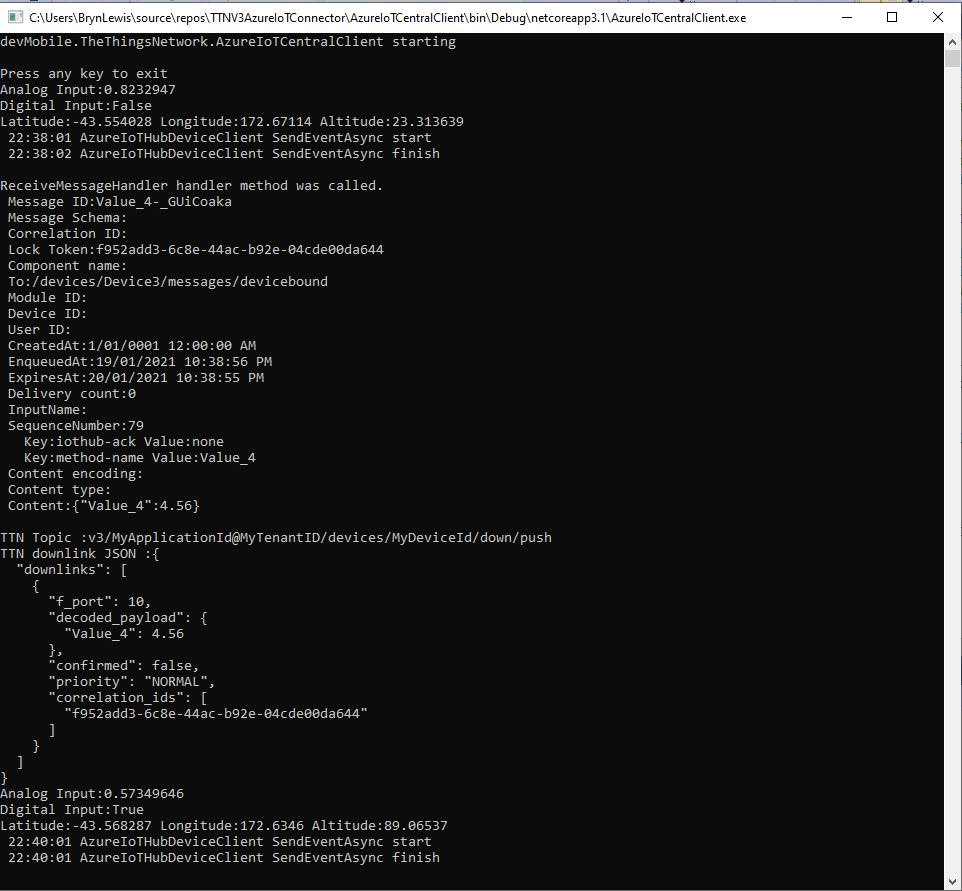
The output of my test harness for a Command with an object payload(JSON)
For queued commands which call the ReceiveMessageHandler which has was registered by calling SetReceiveMessageHandler the request payload is JSON or plain text.
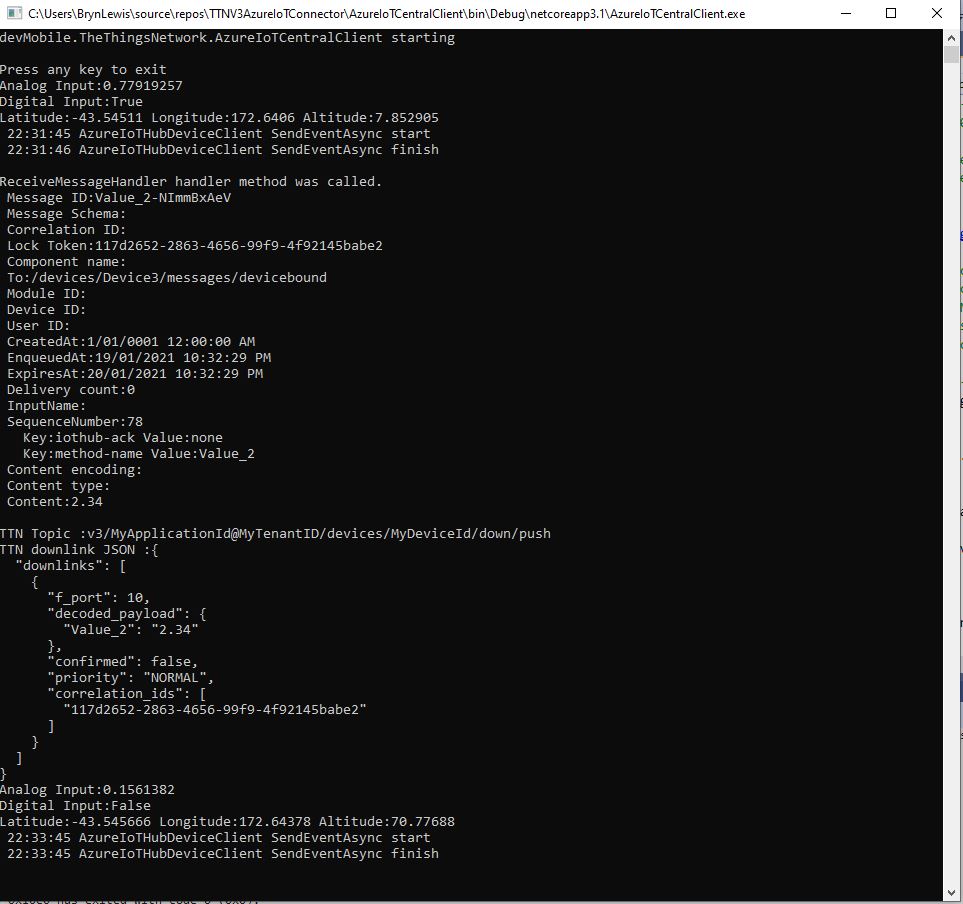
When I initiated an Analog queued command the message handler was invoked with the name of the command capability (Analog_Output_2) in a message property called “method-name”. For a typed parameter the message content was a string representation of the value. For an object parameter the payload contains a JSON representation of the request field(s)
The output of my test harness for a Queued Command with a typed payload
A JSON request payload supports downlink message with more that one value.
The output of my test harness for a Queued Command with an object payload(JSON)
The context information for both comments and queued commands provides additional information required to construct the MQTT topic for publishing the downlink messages.
If the device is not known the Abandon method will be called immediately. For command messages Completed will be called as soon as the message is “sent”
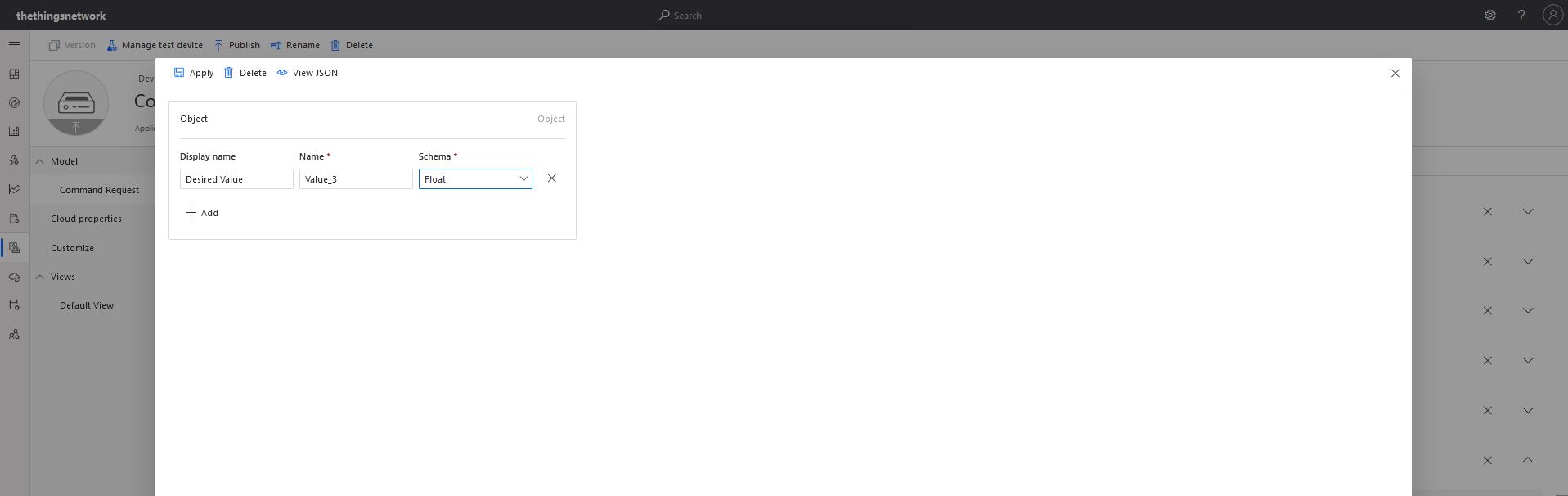
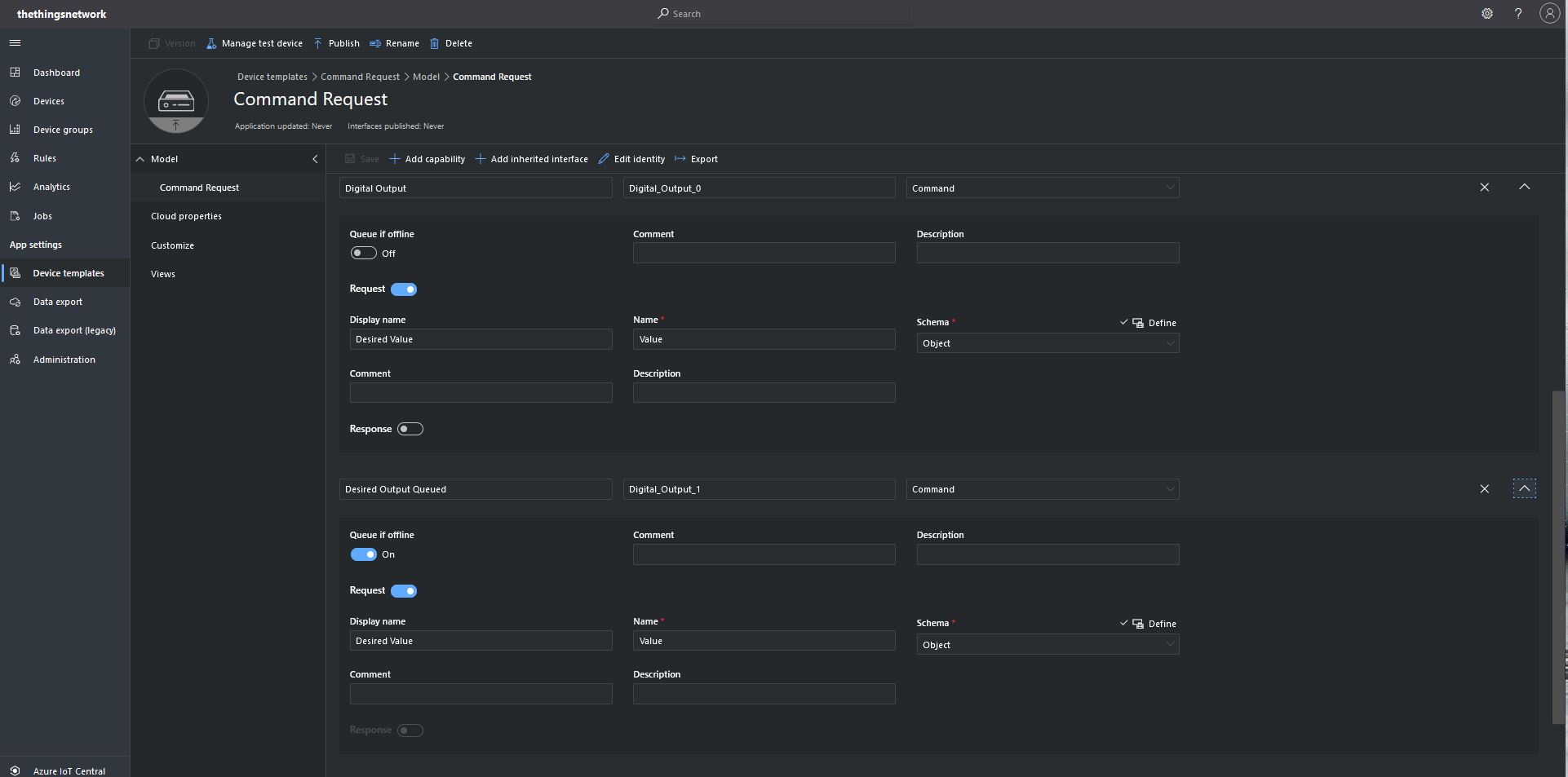
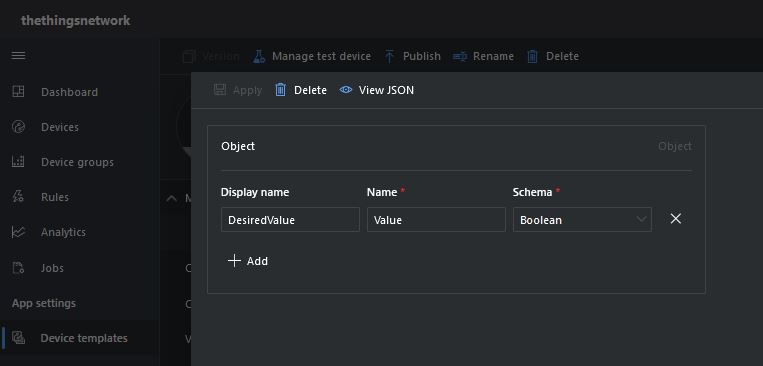
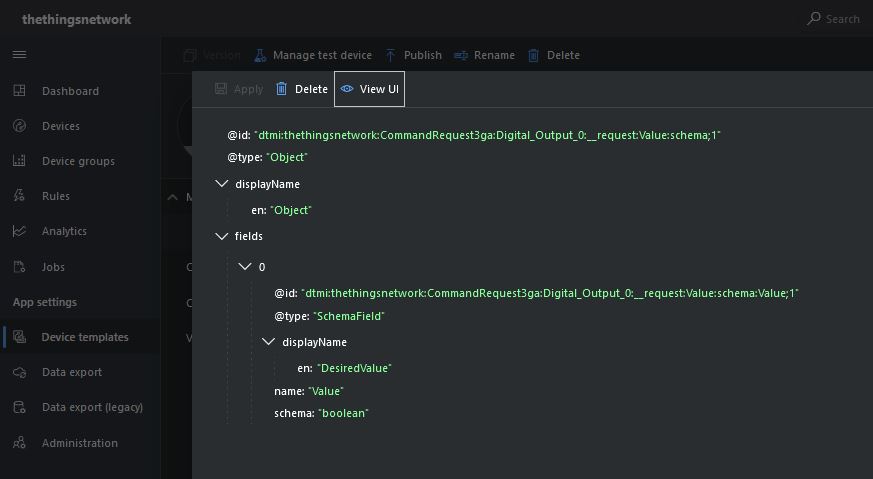
With object based parameters the request JSON could contain more than one value though the validation of user provided information didn’t appear to be as robust.
Object parameter schema definition
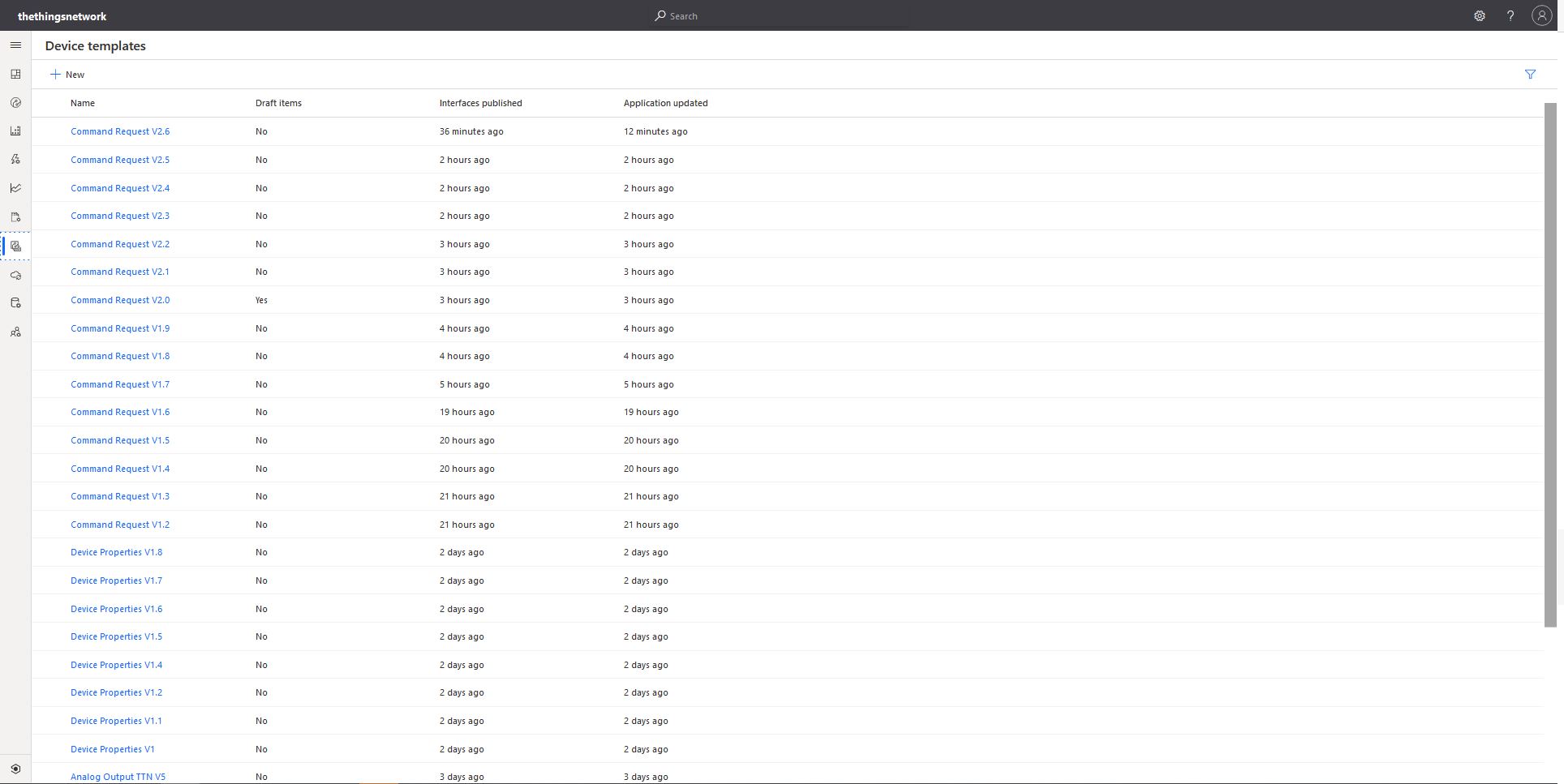
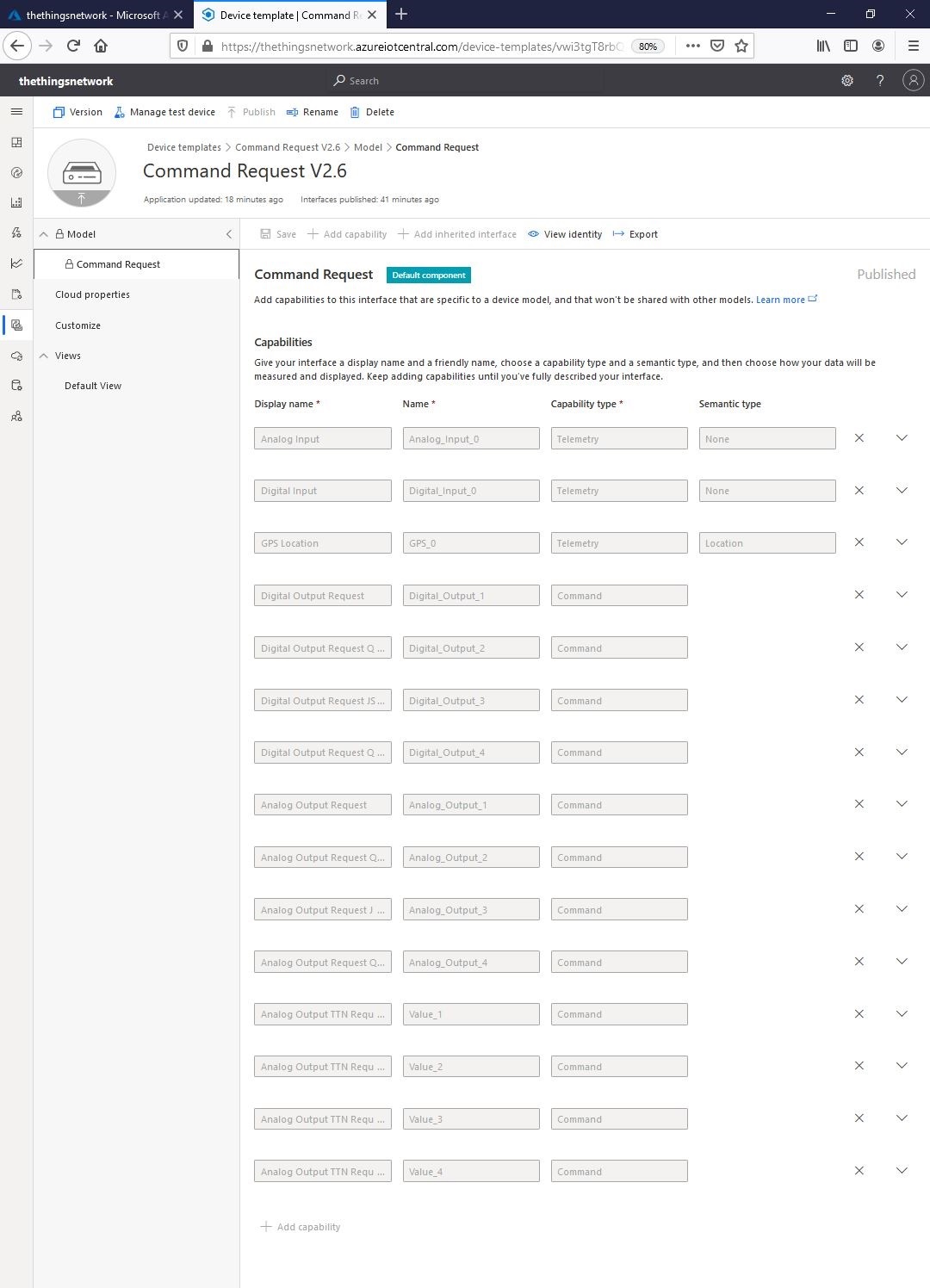
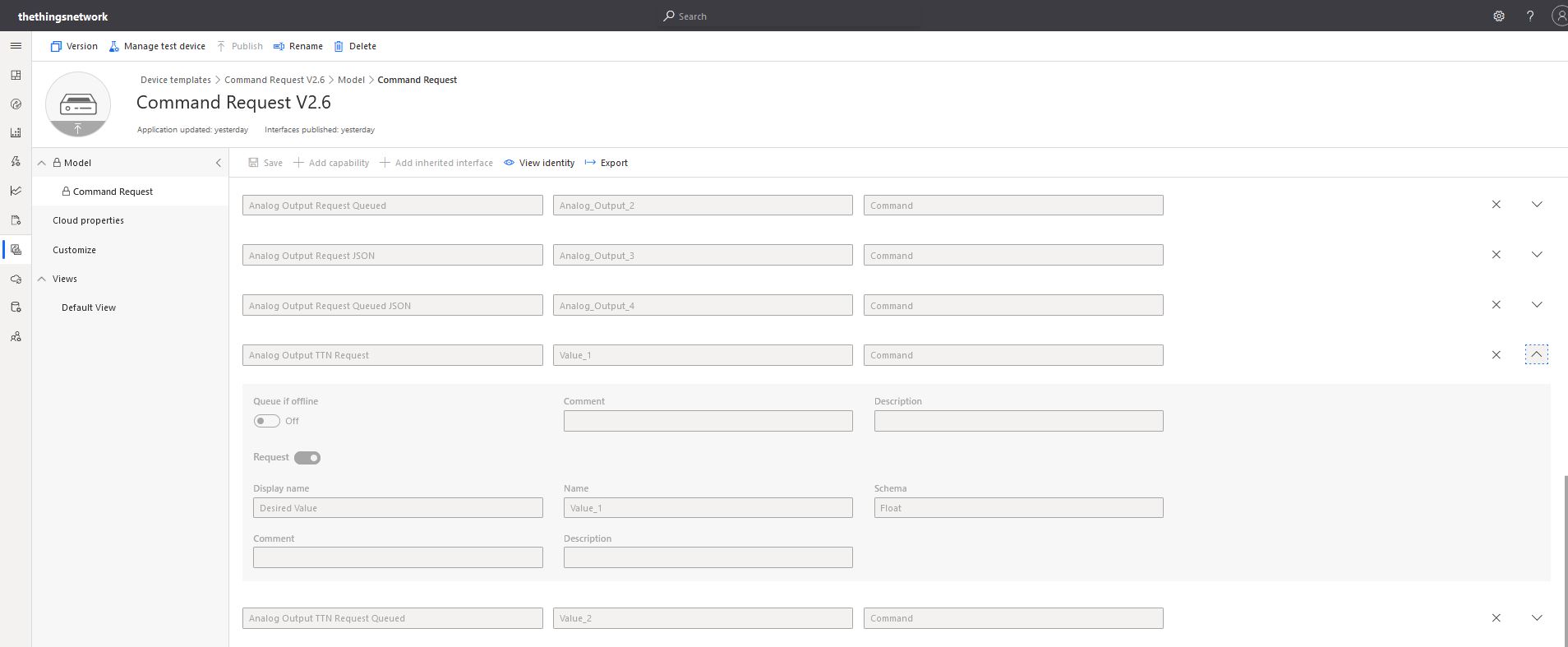
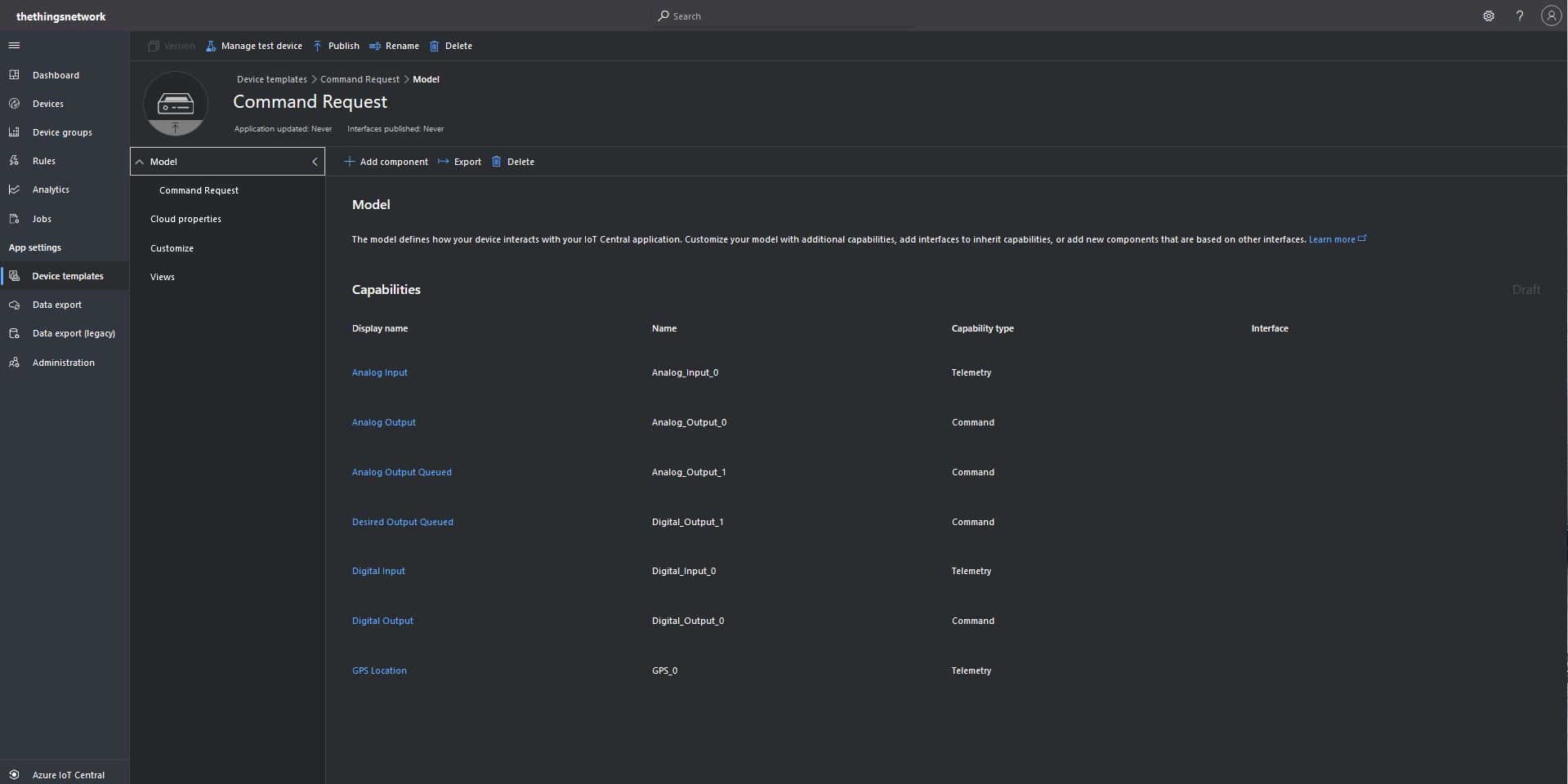
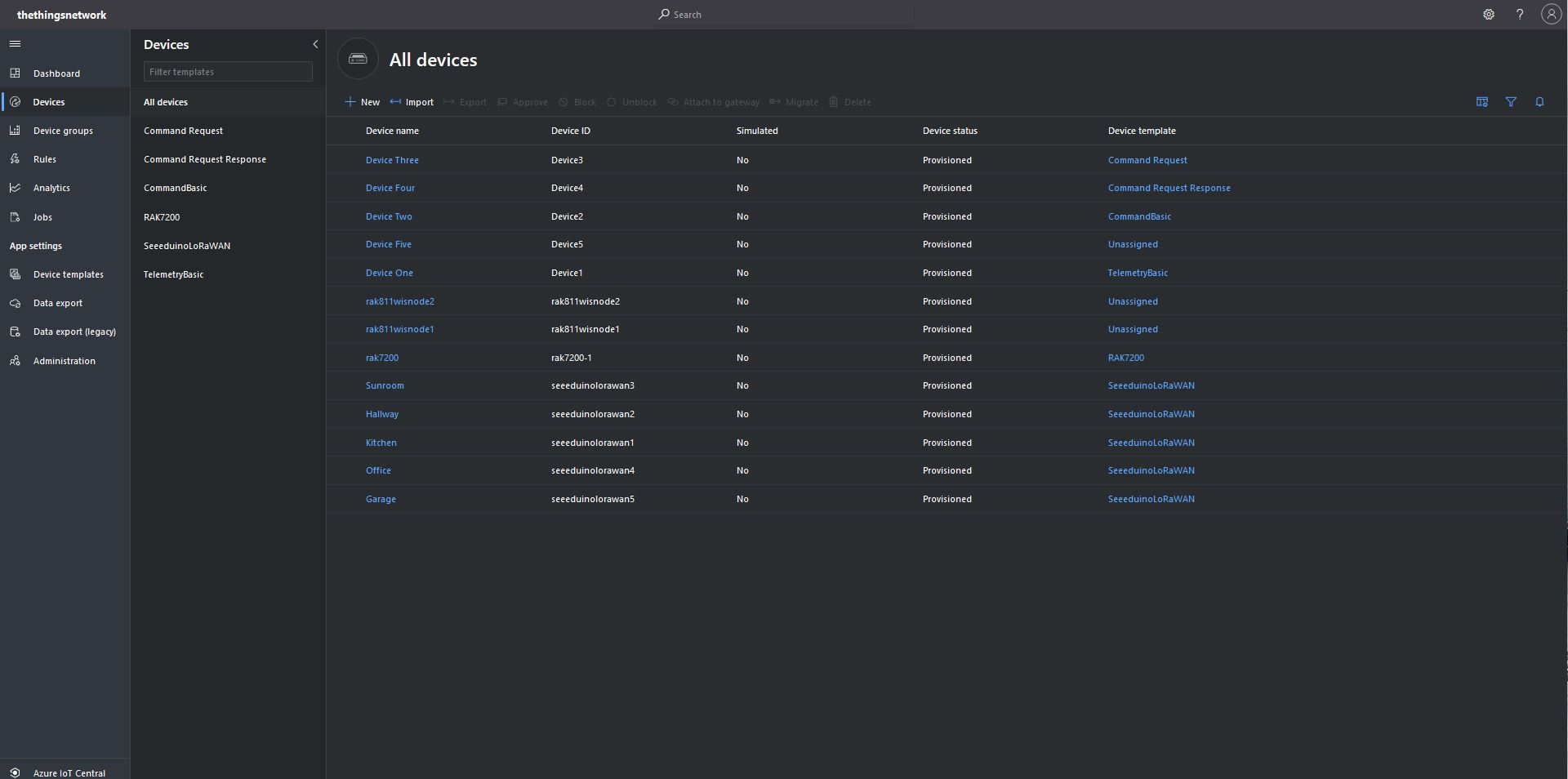
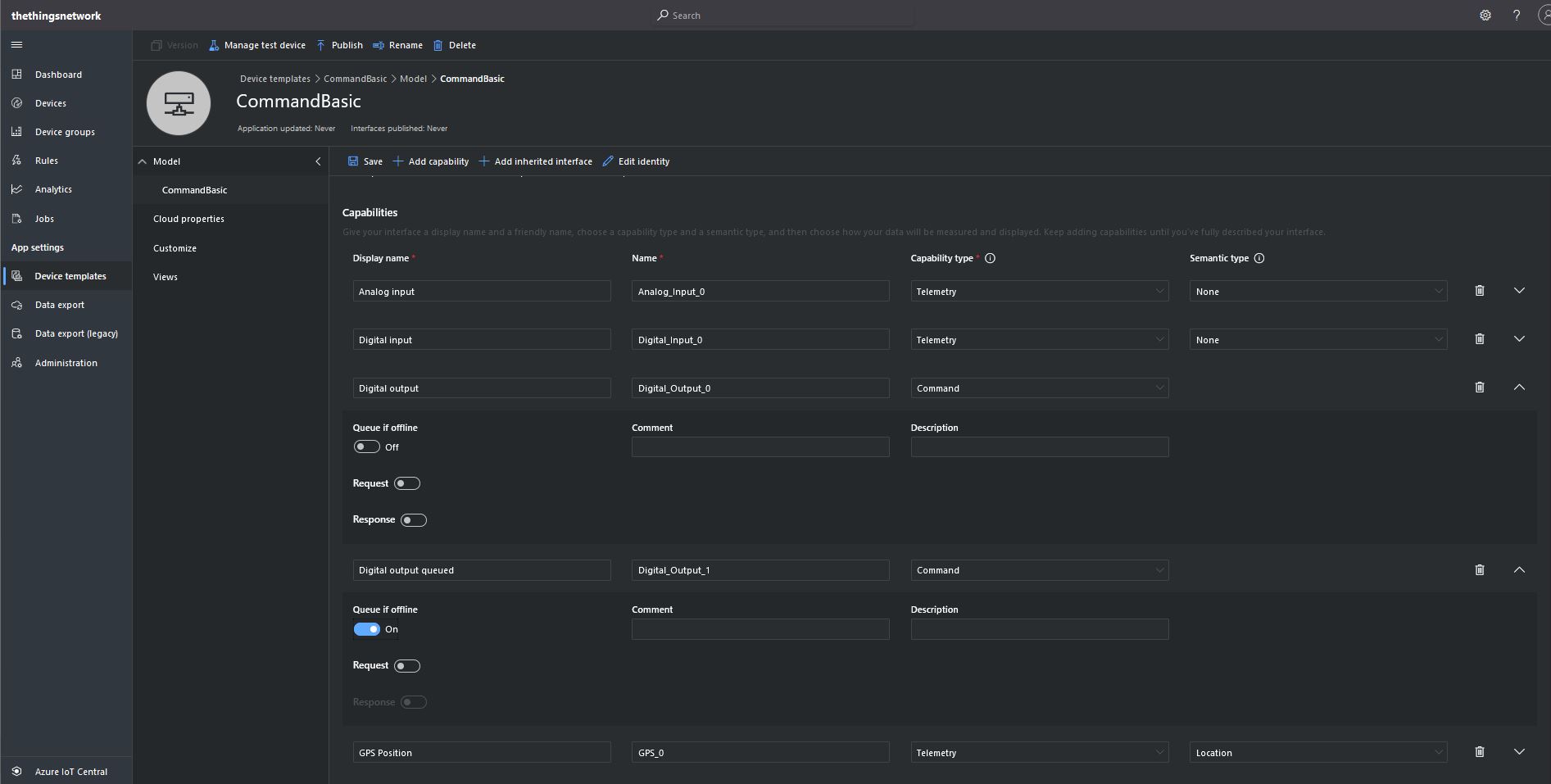
I “migrated” my third preconfigured device to the CommandRequest template to see how the commands with Request parameters interacted with my PoC application.
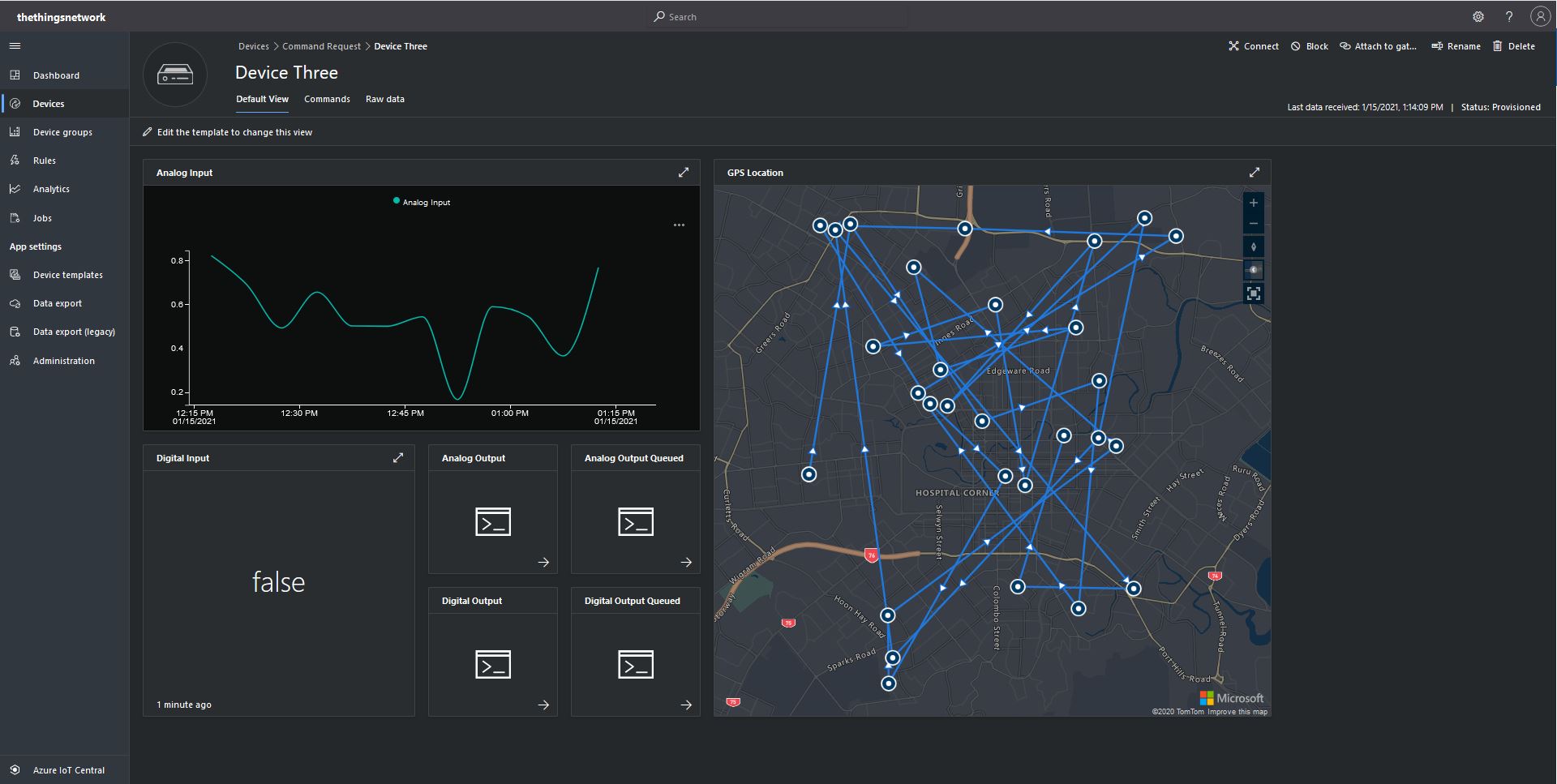
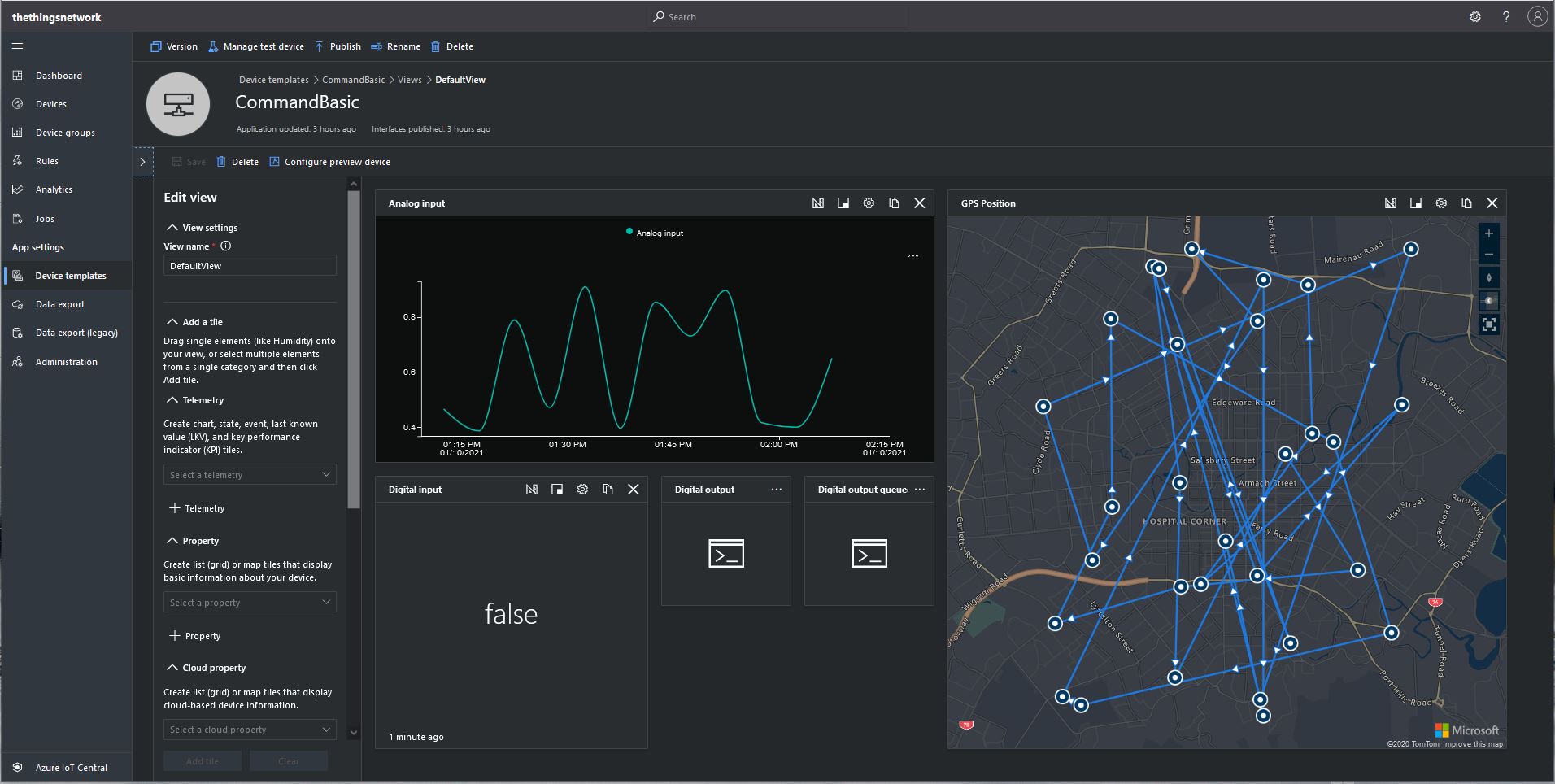
After “migrating” my device I went back and created a Template view so I could visualise the simulated telemetry from my PoC application and provide a way to initiate commands (Didn’t really need four command tiles as they all open the Device commands form).
CommandRequest device template default view
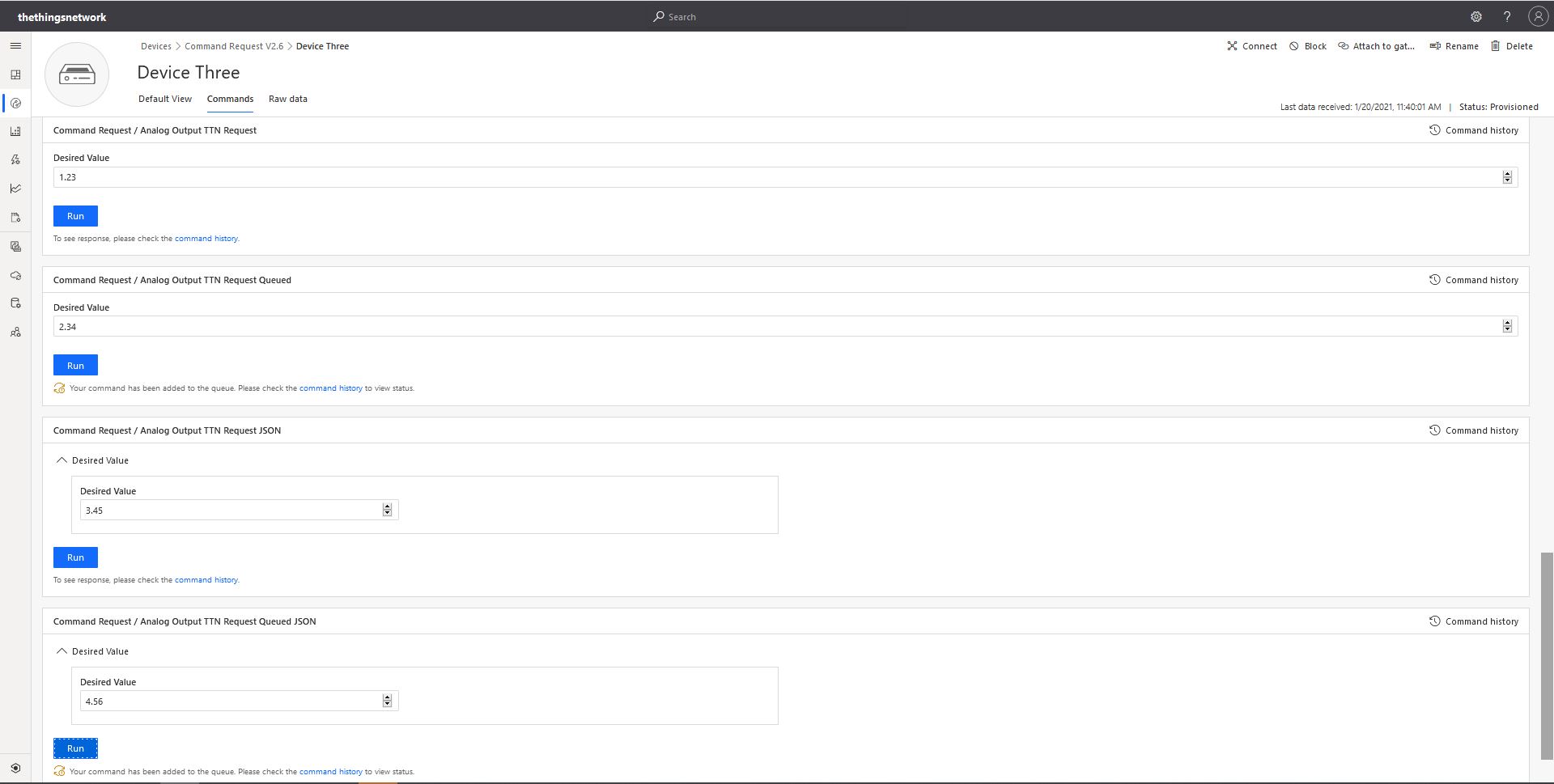
From the Device Commands form I could send commands and a queued commands which had analog or digital parameters.
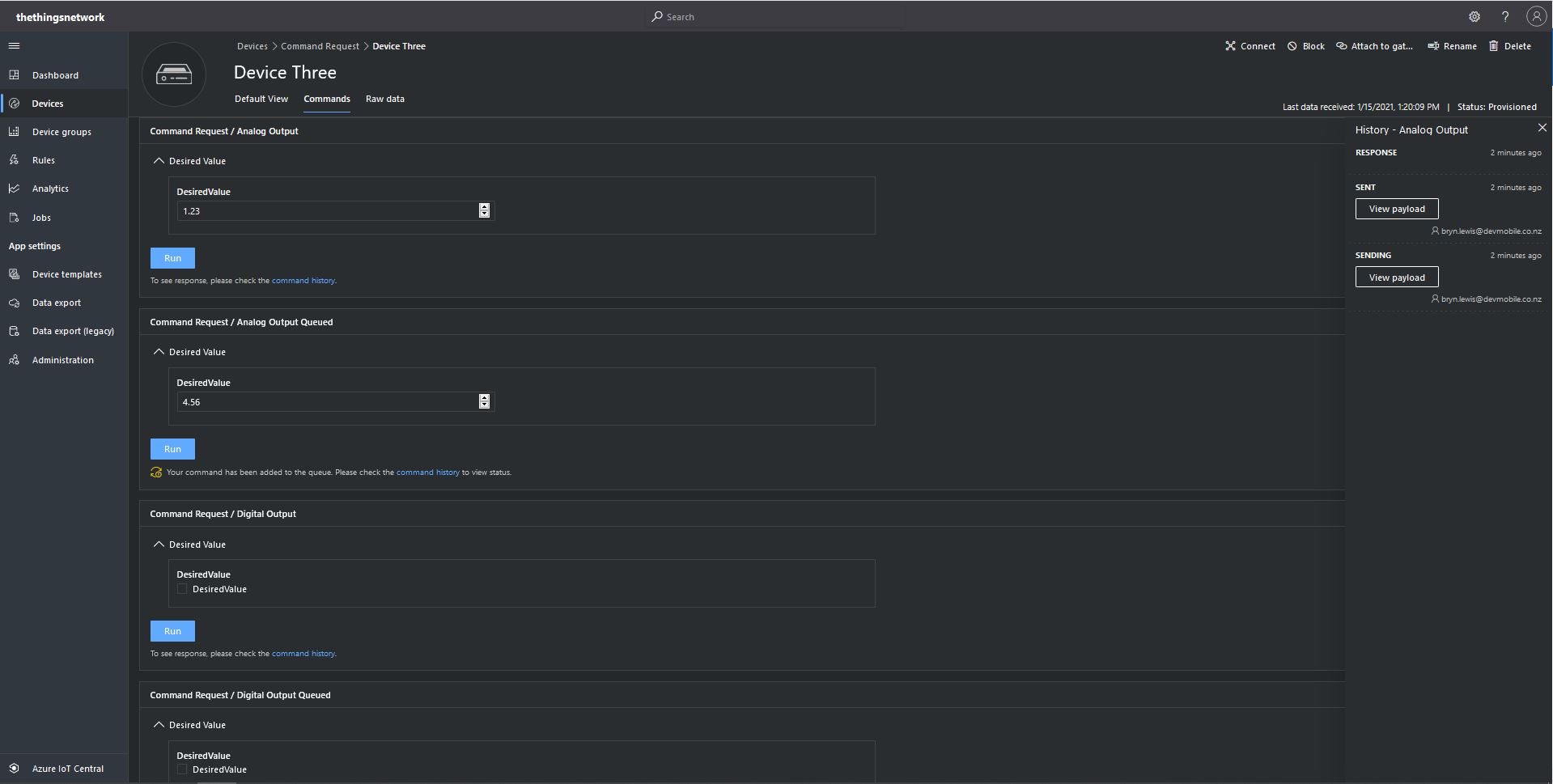
Device Three Command Tab
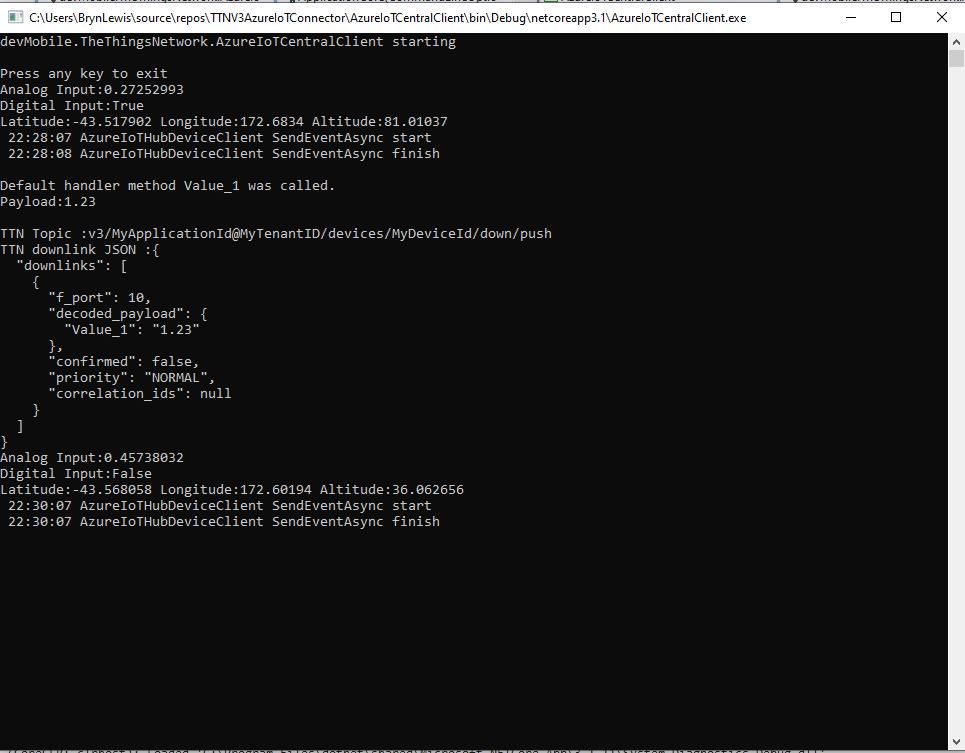
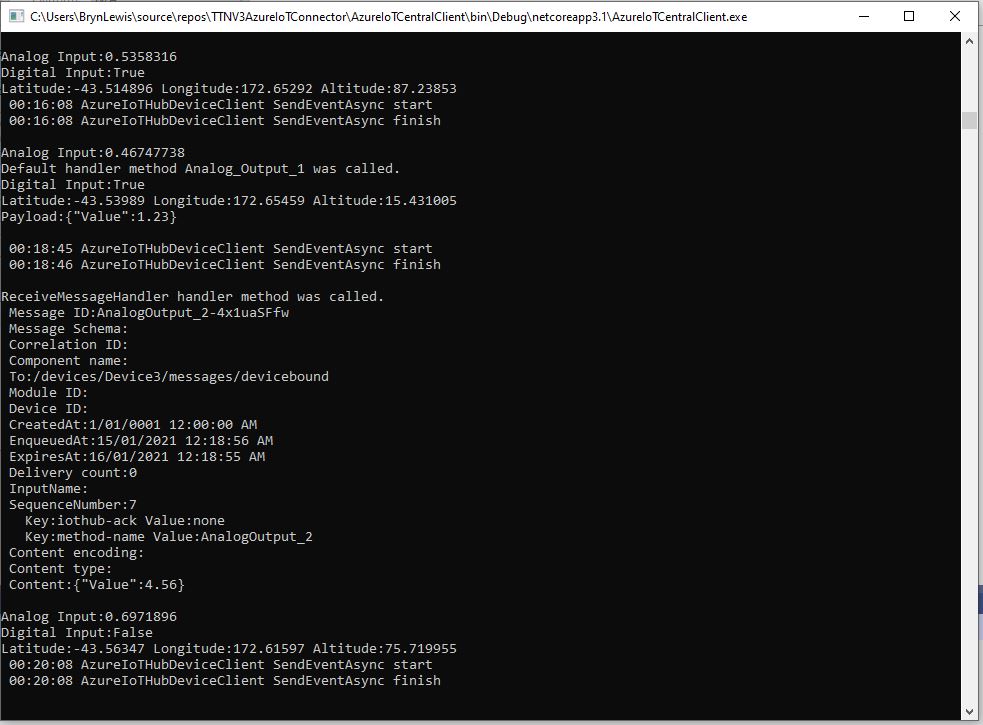
When I initiated an Analog non-queued command the default method handler was invoked with the name of the command capability (Analog_Output_1) as the method name and the payload contained a JSON representation of the request values(s). With a typed parameter a string representation of the value was in the message payload. With a typed parameter a string representation of the value was in the message payload rather than JSON.
Console application displaying Analog request and Analog Request queued commands
When I initiated an Analog queued command the message handler was invoked with the name of the command capability (Analog_Output_2) in a message property called “method-name” and the payload contained a JSON representation of the request value(s). With a typed parameter a string representation of the value was in the message payload rather than JSON.
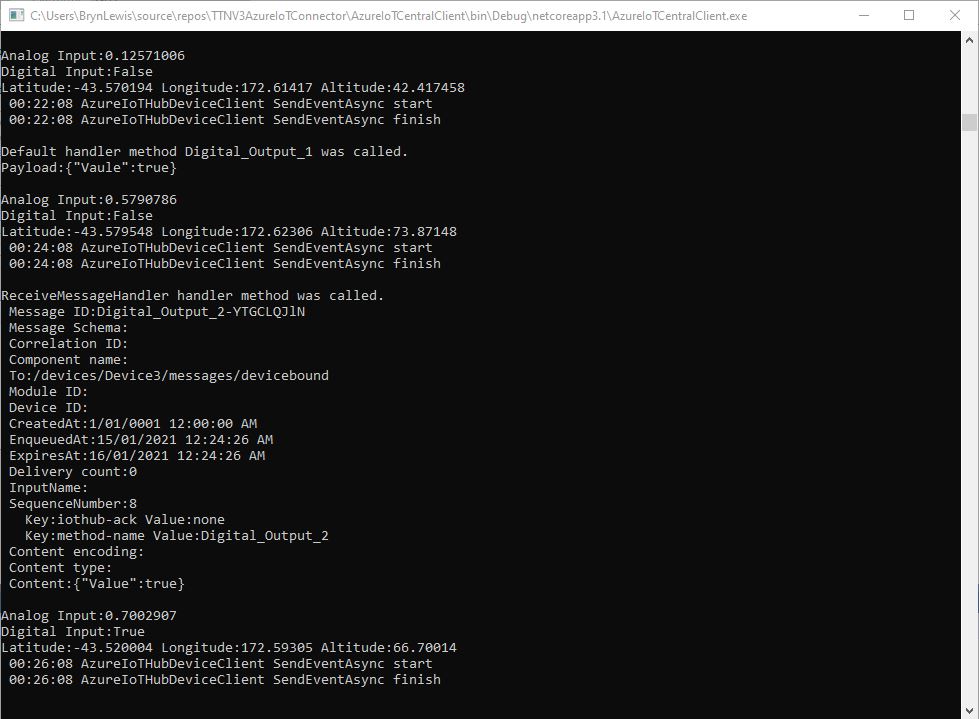
When I initiated a Digital non-queued command the default method handler was invoked with the name of the command capability (Digital_Output_1) as the method name and the payload contained a JSON representation of the request values(s). With a typed parameter a string representation of the value was in the message payload rather than JSON.
Console application displaying Digital request and Digital Request queued commands
When I initiated a Digital queued command the message handler was invoked with the name of the command capability(Digital_Output_2) in a message property called “method-name” and the payload contained a JSON representation of the request value(s). With a typed parameter a string representation of the value was in the message payload rather than JSON.
The validation of user input wasn’t as robust as I expected, with problems selecting checkboxes with a mouse when there were several Boolean fields. I often had to click on a nearby input field and use the TAB button to navigate to the desired checkbox. I also had problems with ISO 8601 format date validation as the built in Date Picker returned a month, day, year date which was not editable and wouldn’t pass validation.
The next logical step would be to look at commands with a Response parameter but as the MQTT interface is The Things Network(TTN) and The Things Industries(TTI) is asynchronous and devices reporting every 5 minutes to a couple of times a day there could be a significant delay between sending a message and receiving an optional delivery confirmation or response.
I have been struggling with making The Things Network(TTN) and The Things Industries(TTI) uplink/downlink messages work well Azure IoT Central. To explore different messaging approaches I have built a proof of Concept(PoC) application which simulates TTN/TTI connectivity to an Azure IoT Hub, or Azure IoT Central.
This blog post is about queued and non queued Cloud to Device(C2D) commands without request or response parameters. I have mostly used non queued commands in other projects (my Azure IoT HubLoRa and RF24L01 gateways) to “Restart” devices etc..
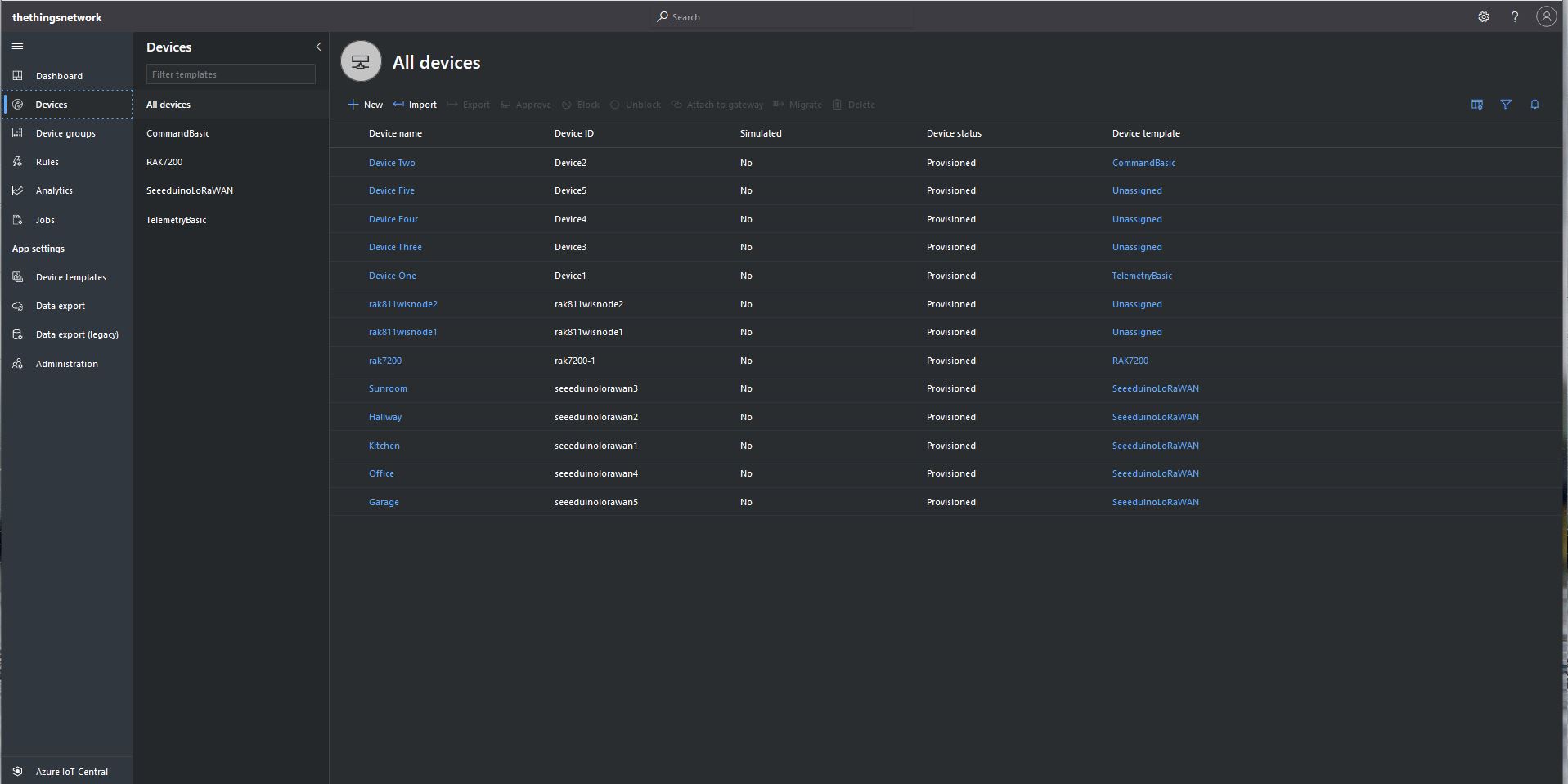
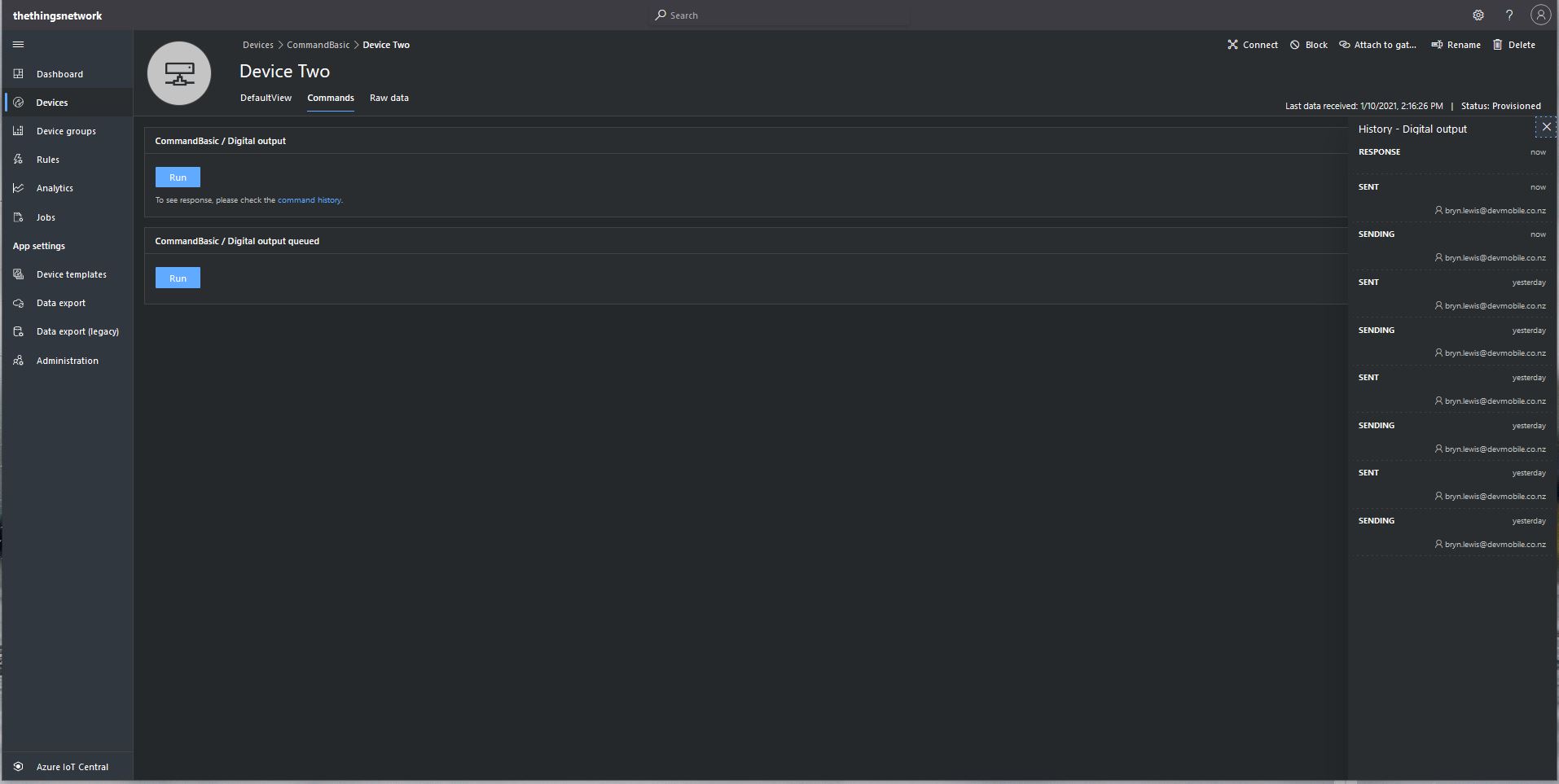
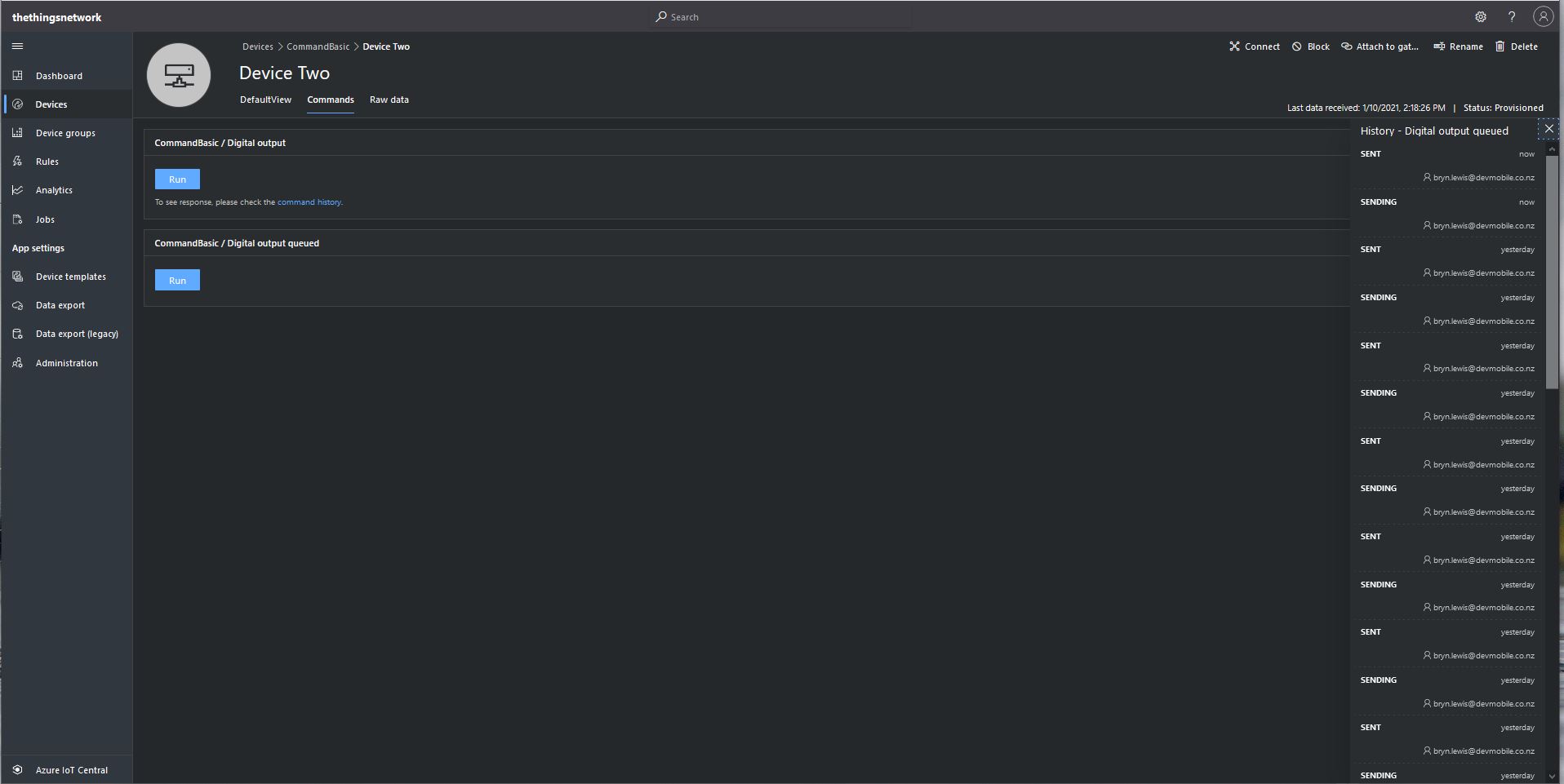
From the Device Commands tab I can could non queued and a queued commands
Device Two Commands tab
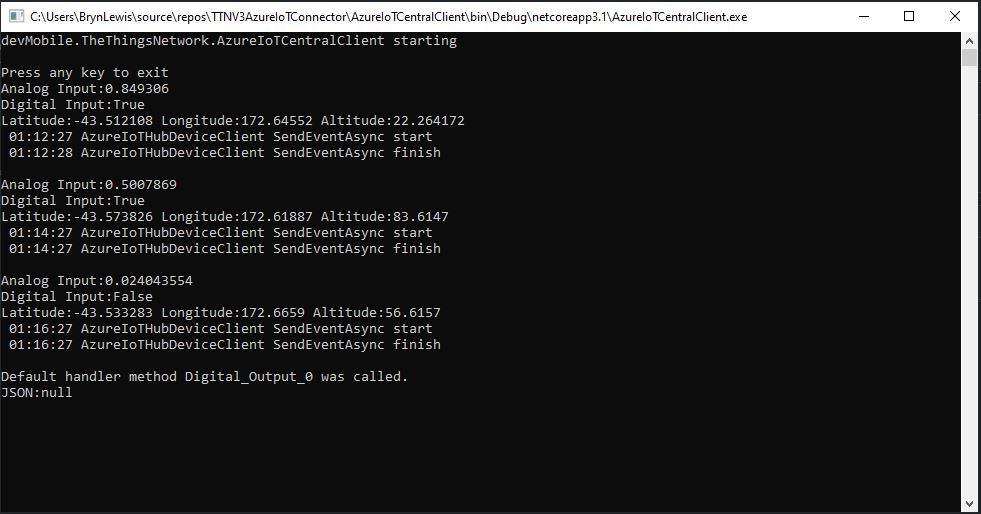
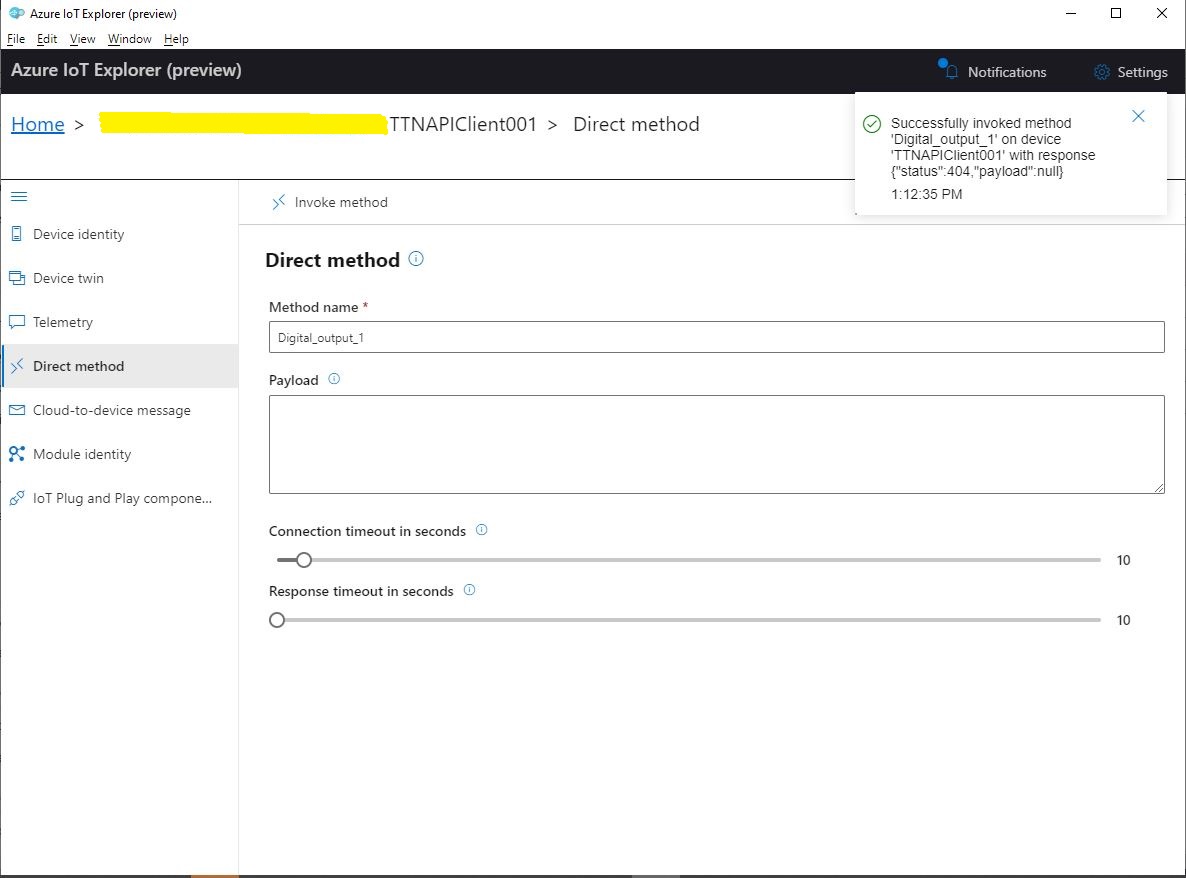
When I sent a non-queued command the default method handler was invoked with the name of the command capability (Digital_Output_0) as the method name and an empty payload. In the Azure IoT Central interface I couldn’t see any difference for successful (HTTP 200 OK) or failure (HTTP 400 Bad Request or HTTP 404 Not Found) responses. If the application was not running the command failed immediately.
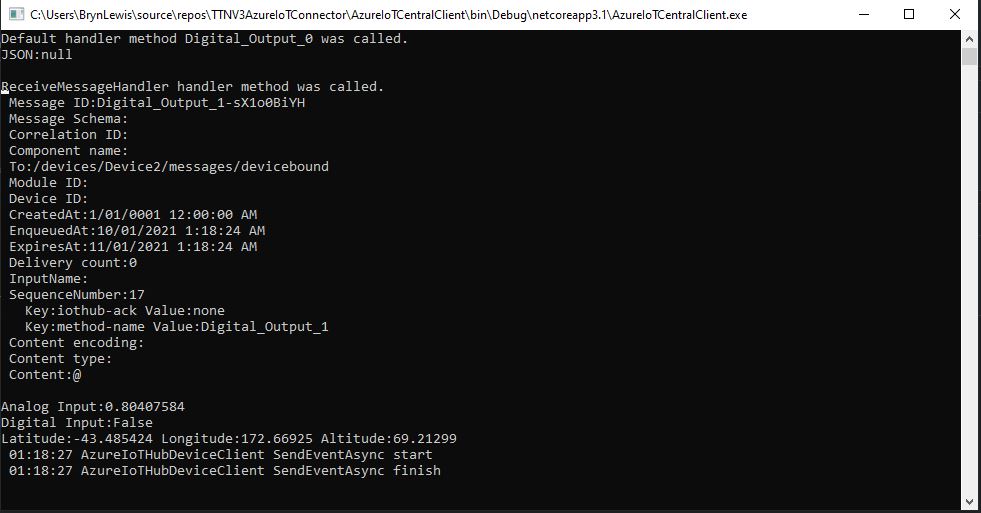
When I sent a queued command the message handler was invoked with the name of the command capability(Digital_Output_1) in a message property called “method-name” and the payload contained only an “@” character.
Console application displaying queued call
If the application was not running the command was queued until the Console application was started. When the console application was running and AbandonAsync was called rather than CompleteAsync the message was retried 10 times. If RejectAsync was called rather than CompleteAsync the message was deleted from the queue and not retried. There didn’t appear to be any difference for the displayed Azure IoT Central or Azure IoT Hub explorer results when AbandonAsync or RejectAsync were called.
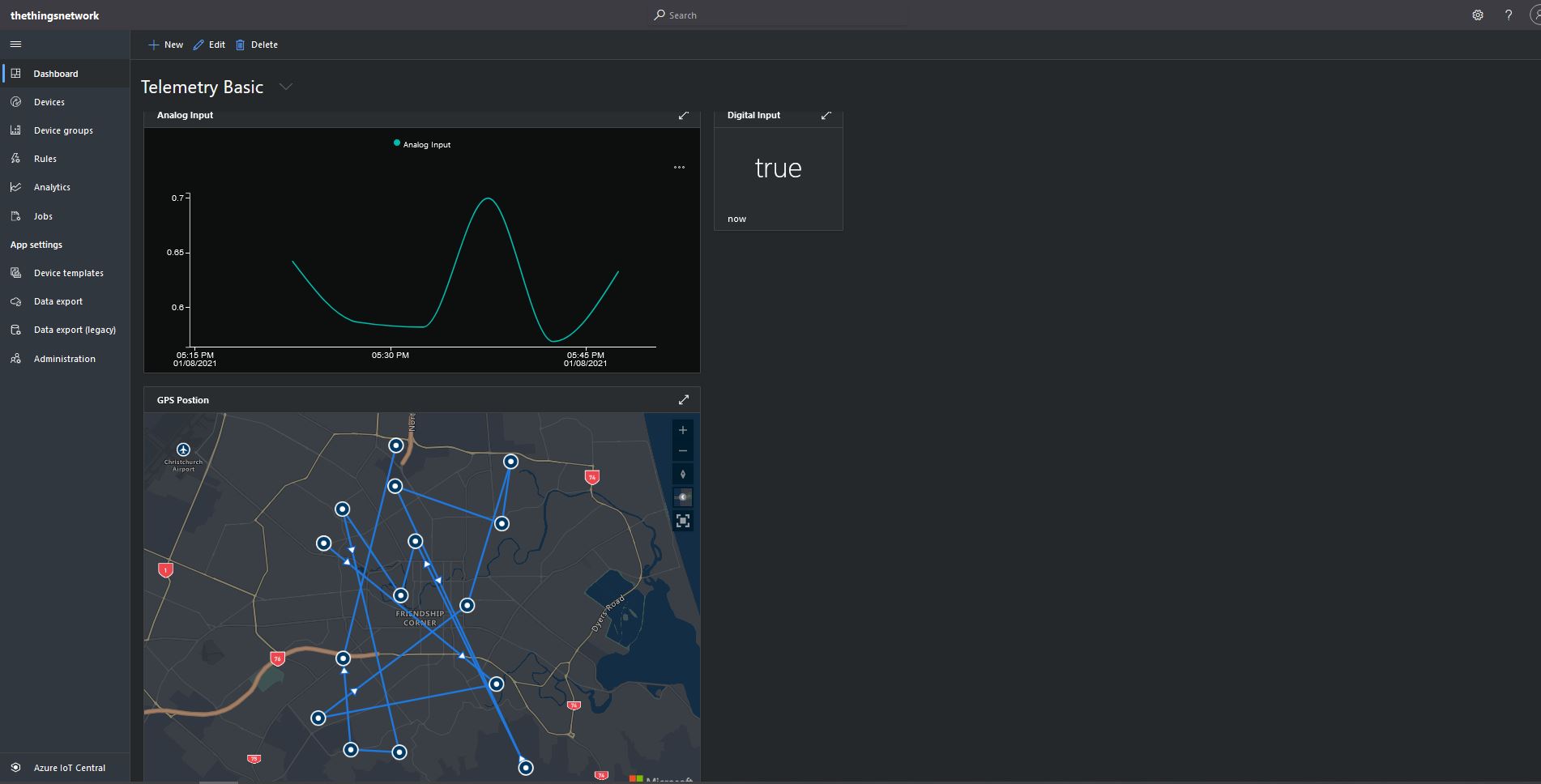
I also created a personal dashboard to visualise the telemetry data and initiate commands. The way the two commands were presented on the dashboard was quite limited so I will go back to the documentation and see what I missed
I have been struggling with making The Things Network(TTN) and The Things Industries(TTI) uplink/downlink messages Azure IoT Central compatible. To explore the messaging approaches used I have built a proof of Concept(PoC) application which simulates TTN/TTI connectivity to an Azure IoT Hub, or Azure IoT Central.
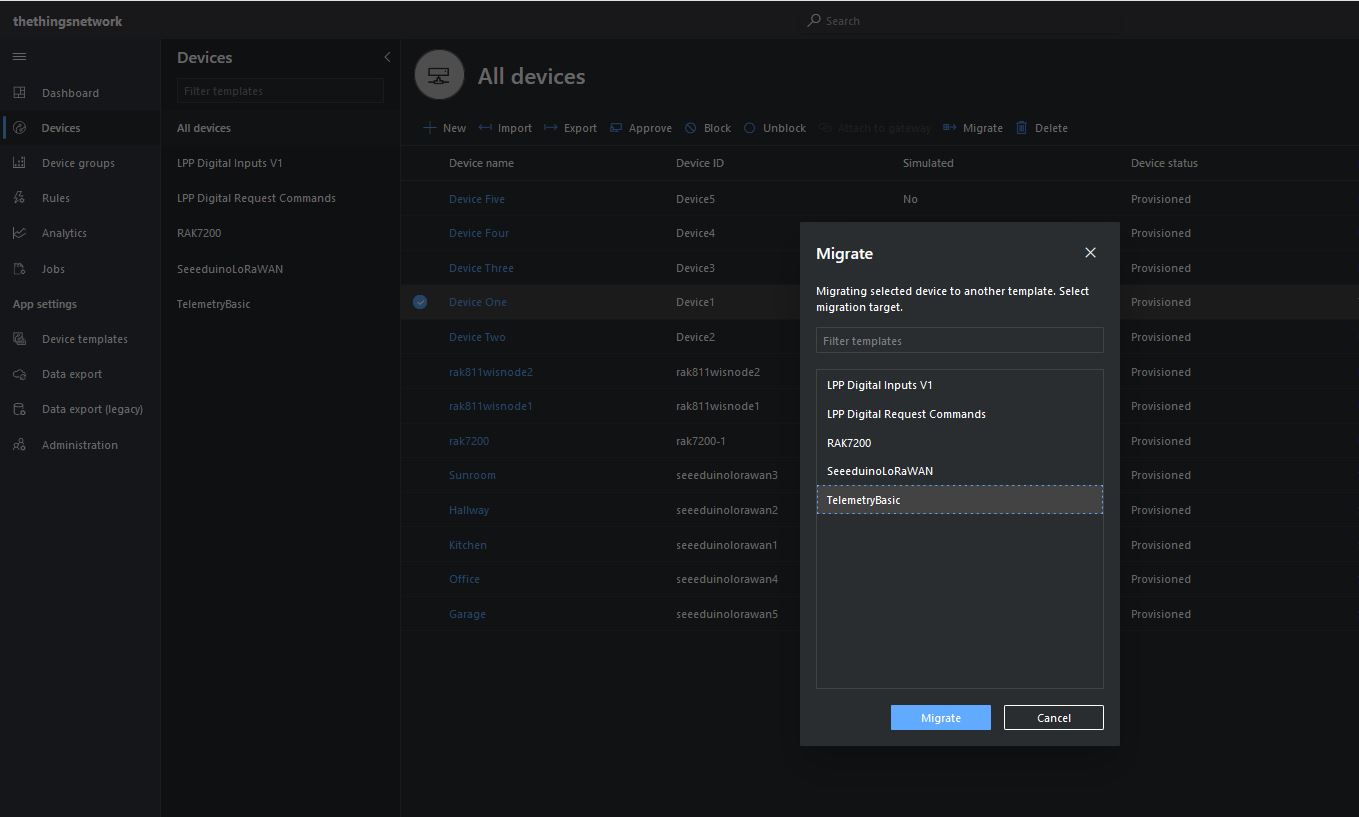
I then “migrated” the first device to my BasicTelemetry template
Migrating a device to TelemetryBasic template
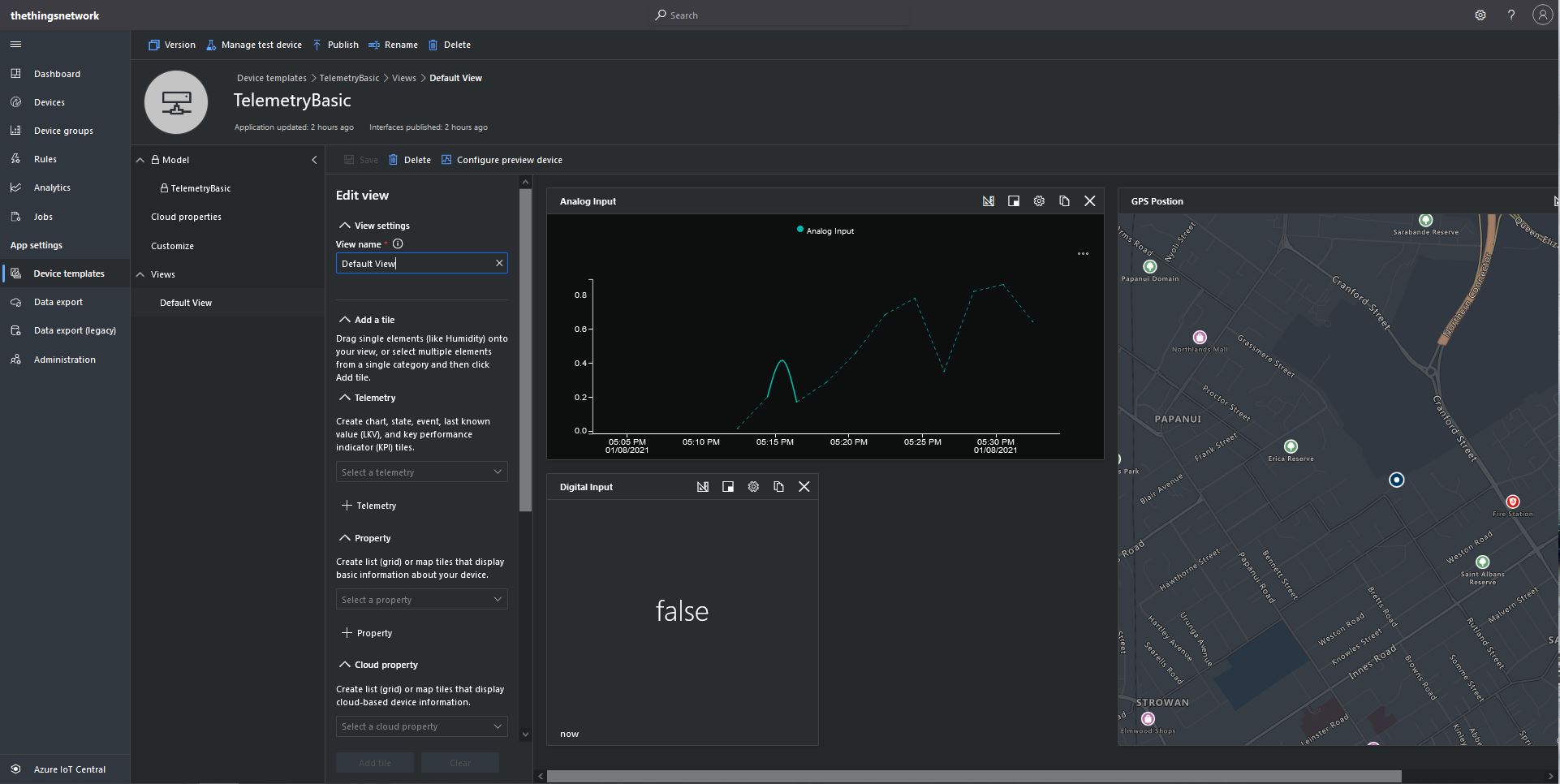
I then went back and created a Template view to visualise the telemetry from my console application.
TelemetryBasic device template default view
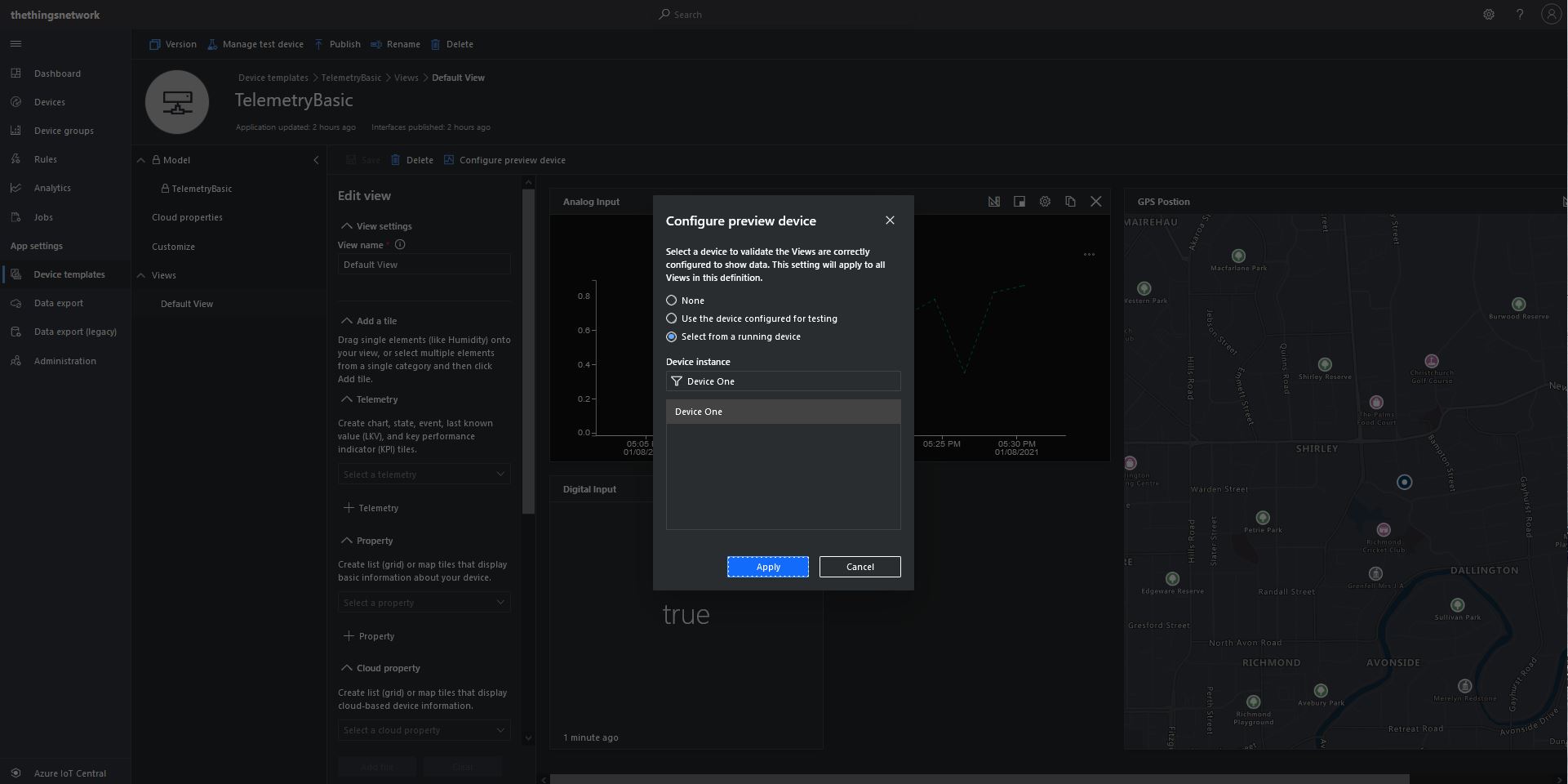
Then I configured a preview device so the template view was populated with “realistic” data.
TelemetryBasic device template default view configuring a device as data source
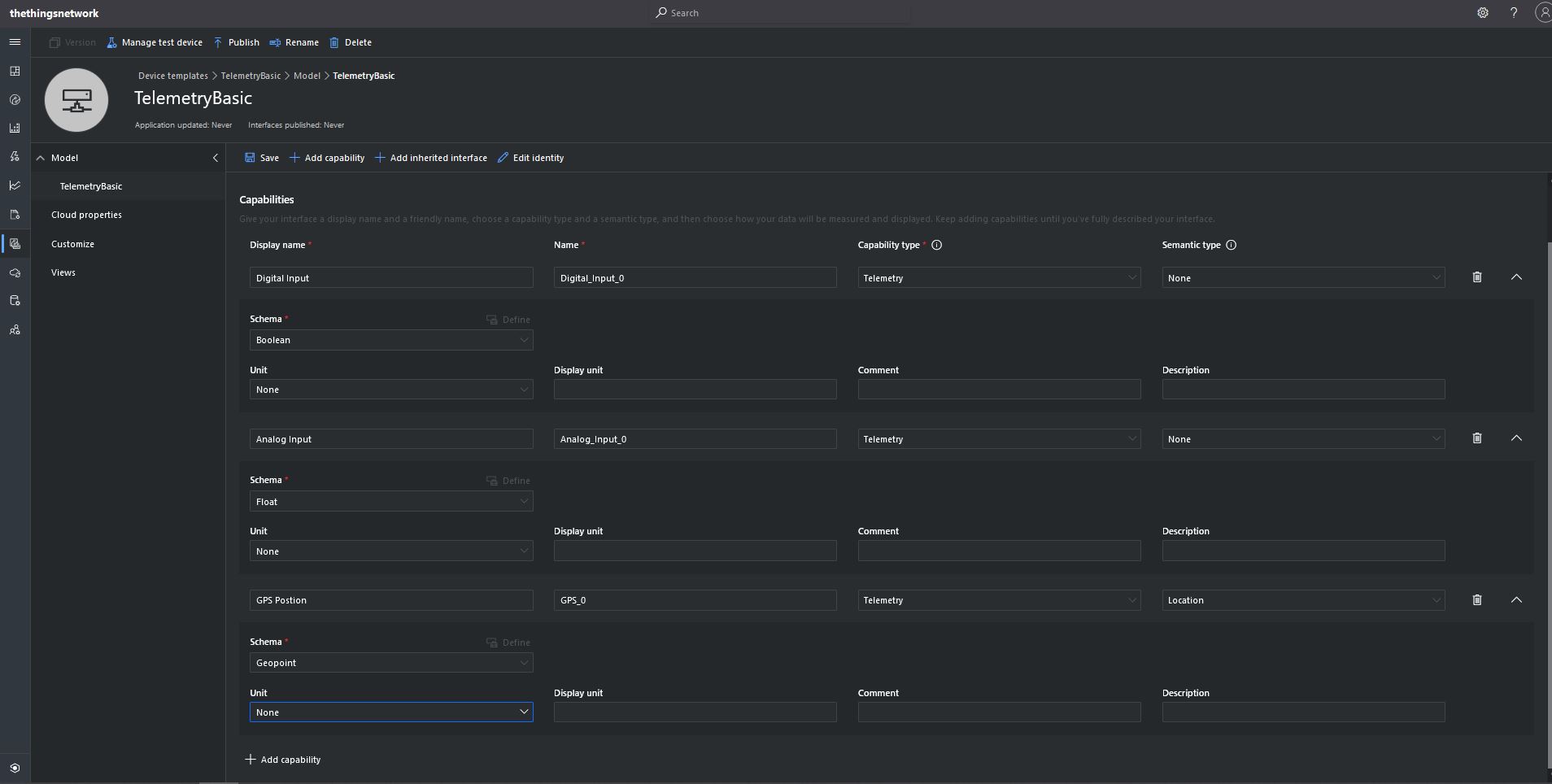
The console application simulates a digital input (random true/false), analog input (random value between 0.0 and 1.0) and a Global Positioning System(GPS) location (Christchurch Anglican Cathedral with a random latitude, longitude and altitude offset) .









 devMobile's blog