Windows 10 IoT Core triggered image upload to Azure Blob storage

Uploading the web camera images to Azure Storage was the next step.
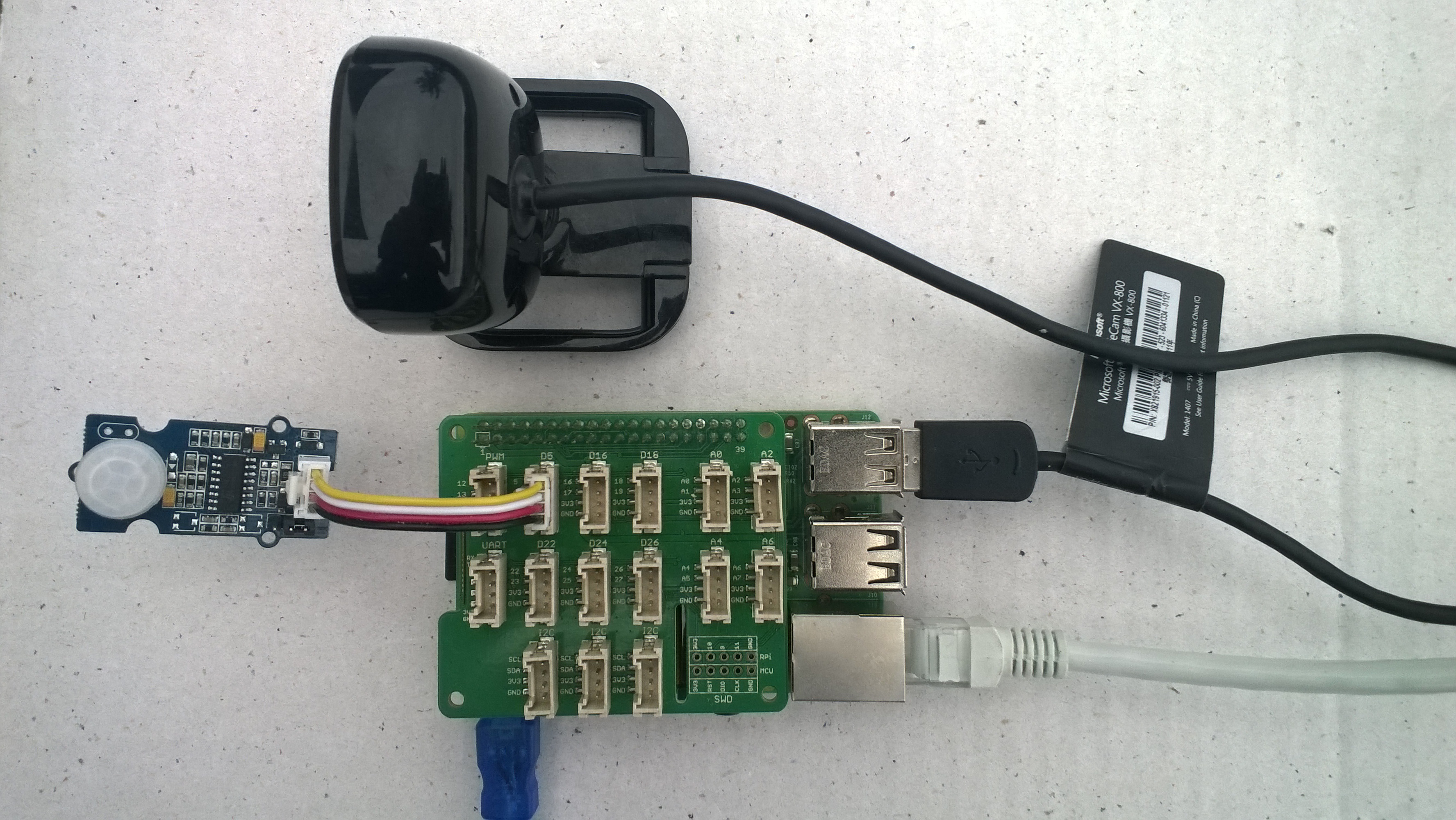
PIR Sensor trigger

For my test harness (in addition to a RaspberryPI & generic USB Web camera) I’m using some Seeedstudio Grove devices

While working on this code I realised I had made some invalid assumptions about the stream and the image properties so I refactored the code (which also made it simpler).

The Windows 10 IoT Core application has support for a JSON configuration file using Microsoft.Extensions.Configuration namespace functionality which took a bit of trial and error to get going.

IConfiguration configuration = new ConfigurationBuilder().
   AddJsonFile(localFolder.Path + @"\" + ConfigurationFilename, 
   false, 
   true).Build();

This gets the configuration subsystem to use the specified file in the application’s localstate folder. If there is no configuration file present i.e. the application has just been deployed for the first time or installed a template file is copied from the application install directory.
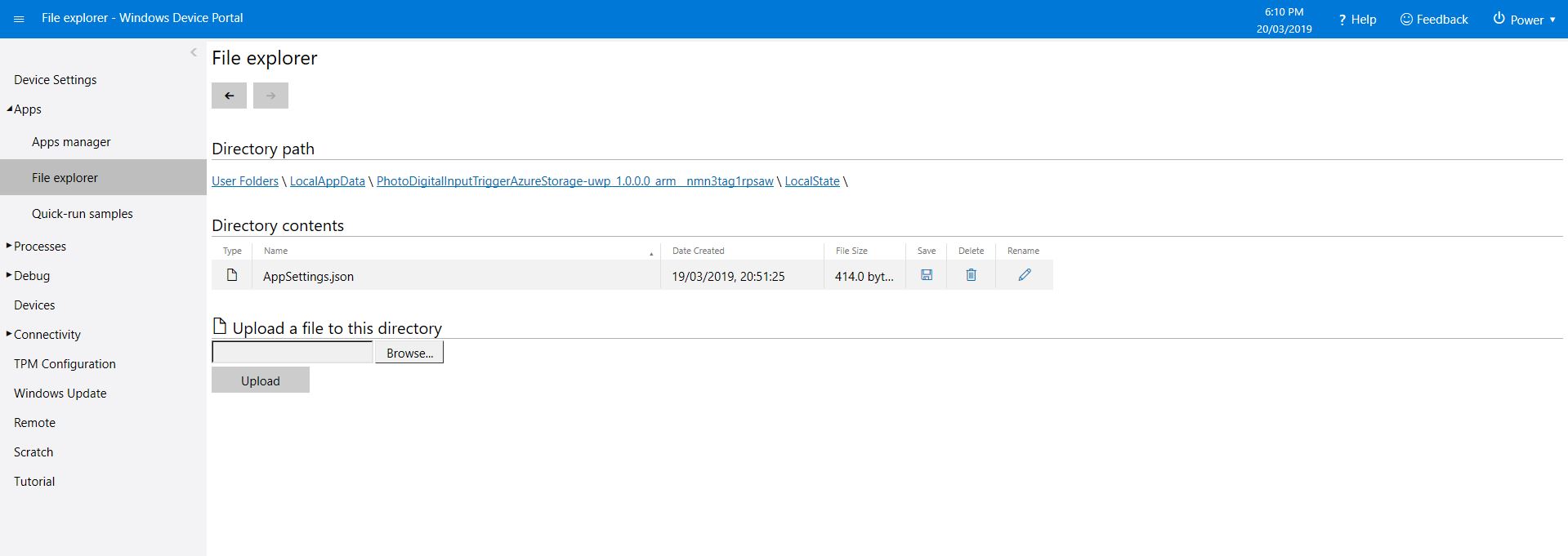
In the application configuration file you can specify the azure storage connection string, digital input port number, azure container name format (formatted machine name + Universal Coordinated Time(UTC)), the azure storage file name (formatted machine name + UTC) and the name of the file with the most recently uploaded image. These configuration settings are provided so that the image files can stored in “buckets” best suited to the way they are going to be processed.

{
  "AzureStorageConnectionString": "",
  "InterruptPinNumber": 5,
  "AzureContainerNameFormat": "{0}{1:yyMMdd}",
  "AzureImageFilenameFormat": "image{1:yyMMddHHmmss}.jpg",
  "AzureImageFilenameLatest": "latest.jpg"
} 

In my testing the pictures were stored in folders for each device/day and each image file had a timestamp in its name.
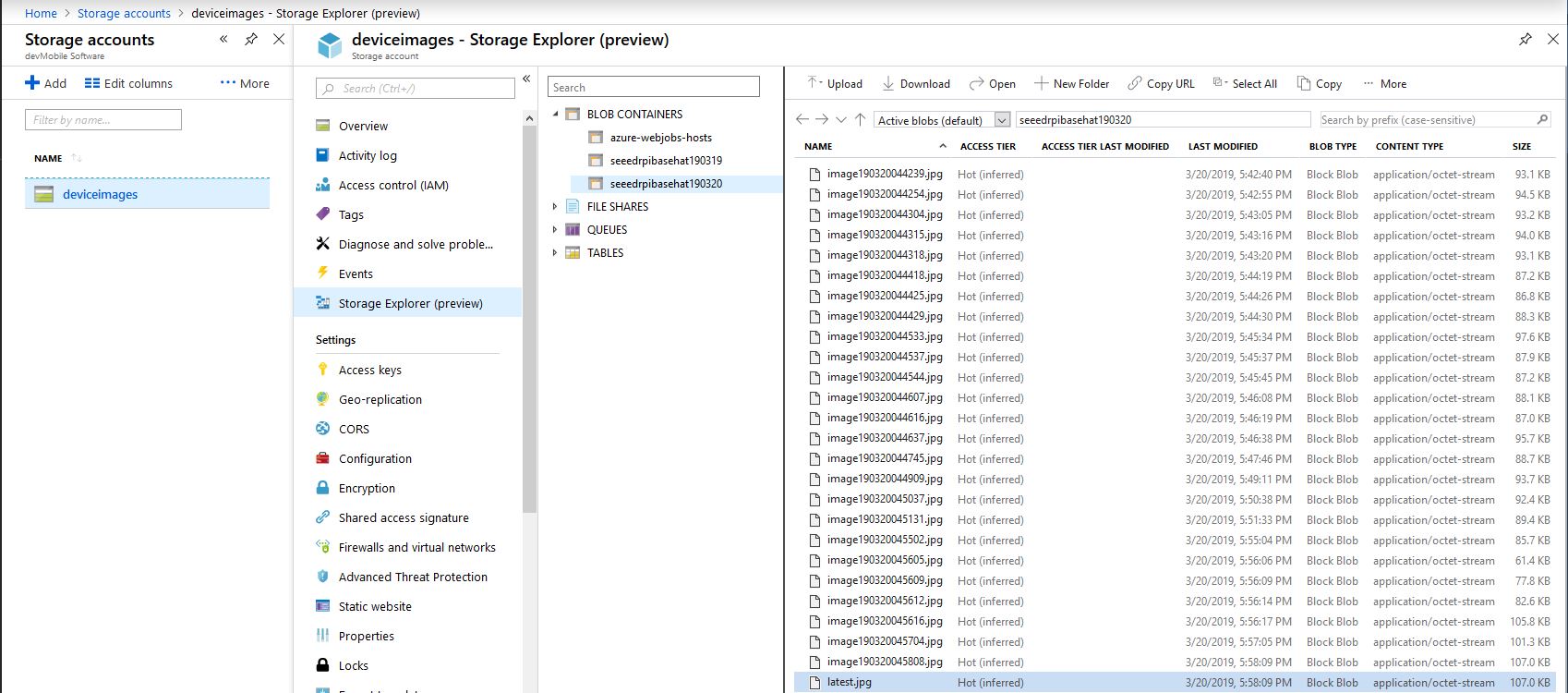
Azure Storage Explorer
/*
    Copyright ® 2019 March devMobile Software, All Rights Reserved
 
    MIT License
    ...
*/
namespace devMobile.Windows10IotCore.IoT.PhotoDigitalInputTriggerAzureStorage
{
	using System;
	using System.Diagnostics;

	using Microsoft.Extensions.Configuration;
	using Microsoft.WindowsAzure.Storage;
	using Microsoft.WindowsAzure.Storage.Blob;

	using Windows.ApplicationModel;
	using Windows.ApplicationModel.Background;
	using Windows.Devices.Gpio;
	using Windows.Foundation.Diagnostics;
	using Windows.Media.Capture;
	using Windows.Media.MediaProperties;
	using Windows.Storage;
	using Windows.System;

	public sealed class StartupTask : IBackgroundTask
	{
		private BackgroundTaskDeferral backgroundTaskDeferral = null;
		private readonly LoggingChannel logging = new LoggingChannel("devMobile Photo Digital Input Trigger Azure Storage demo", null, new Guid("4bd2826e-54a1-4ba9-bf63-92b73ea1ac4a"));
		private const string ConfigurationFilename = "appsettings.json";
		private GpioPin interruptGpioPin = null;
		private int interruptPinNumber;
		private MediaCapture mediaCapture;
		private string azureStorageConnectionString;
		private string azureStorageContainerNameFormat;
		private string azureStorageimageFilenameLatest;
		private string azureStorageImageFilenameFormat;
		private const string ImageFilenameLocal = "latest.jpg";
		private volatile bool cameraBusy = false;

		public void Run(IBackgroundTaskInstance taskInstance)
		{
			StorageFolder localFolder = ApplicationData.Current.LocalFolder;

			this.logging.LogEvent("Application starting");

			// Log the Application build, shield information etc.
			LoggingFields startupInformation = new LoggingFields();
			startupInformation.AddString("Timezone", TimeZoneSettings.CurrentTimeZoneDisplayName);
			startupInformation.AddString("OSVersion", Environment.OSVersion.VersionString);
			startupInformation.AddString("MachineName", Environment.MachineName);

			// This is from the application manifest 
			Package package = Package.Current;
			PackageId packageId = package.Id;
			PackageVersion version = packageId.Version;
			startupInformation.AddString("ApplicationVersion", string.Format($"{version.Major}.{version.Minor}.{version.Build}.{version.Revision}"));

			try
			{
				// see if the configuration file is present if not copy minimal sample one from application directory
				if (localFolder.TryGetItemAsync(ConfigurationFilename).AsTask().Result == null)
				{
					StorageFile templateConfigurationfile = Package.Current.InstalledLocation.GetFileAsync(ConfigurationFilename).AsTask().Result;
					templateConfigurationfile.CopyAsync(localFolder, ConfigurationFilename).AsTask();
					this.logging.LogMessage("JSON configuration file missing, templated created", LoggingLevel.Warning);
					return;
				}

				IConfiguration configuration = new ConfigurationBuilder().AddJsonFile(localFolder.Path + @"\" + ConfigurationFilename, false, true).Build();

				azureStorageConnectionString = configuration.GetSection("AzureStorageConnectionString").Value;
				startupInformation.AddString("AzureStorageConnectionString", azureStorageConnectionString);

				azureStorageContainerNameFormat = configuration.GetSection("AzureContainerNameFormat").Value;
				startupInformation.AddString("ContainerNameFormat", azureStorageContainerNameFormat);

				azureStorageImageFilenameFormat = configuration.GetSection("AzureImageFilenameFormat").Value;
				startupInformation.AddString("ImageFilenameFormat", azureStorageImageFilenameFormat);

				azureStorageimageFilenameLatest = configuration.GetSection("AzureImageFilenameLatest").Value;
				startupInformation.AddString("ImageFilenameLatest", azureStorageimageFilenameLatest);

				interruptPinNumber = int.Parse( configuration.GetSection("InterruptPinNumber").Value);
				startupInformation.AddInt32("Interrupt pin", interruptPinNumber);
			}
			catch (Exception ex)
			{
				this.logging.LogMessage("JSON configuration file load or settings retrieval failed " + ex.Message, LoggingLevel.Error);
				return;
			}

			try
			{
				mediaCapture = new MediaCapture();
				mediaCapture.InitializeAsync().AsTask().Wait();
			}
			catch (Exception ex)
			{
				this.logging.LogMessage("Camera configuration failed " + ex.Message, LoggingLevel.Error);
				return;
			}

			try
			{
				GpioController gpioController = GpioController.GetDefault();
				interruptGpioPin = gpioController.OpenPin(interruptPinNumber);
				interruptGpioPin.SetDriveMode(GpioPinDriveMode.InputPullUp);
				interruptGpioPin.ValueChanged += InterruptGpioPin_ValueChanged;
			}
			catch (Exception ex)
			{
				this.logging.LogMessage("Digital input configuration failed " + ex.Message, LoggingLevel.Error);
				return;
			}

			this.logging.LogEvent("Application started", startupInformation);

			//enable task to continue running in background
			backgroundTaskDeferral = taskInstance.GetDeferral();
		}

		private async void InterruptGpioPin_ValueChanged(GpioPin sender, GpioPinValueChangedEventArgs args)
		{
			DateTime currentTime = DateTime.UtcNow;
			Debug.WriteLine($"{DateTime.UtcNow.ToLongTimeString()} Digital Input Interrupt {sender.PinNumber} triggered {args.Edge}");

			if (args.Edge == GpioPinEdge.RisingEdge)
			{
				return;
			}

			// Just incase - stop code being called while photo already in progress
			if (cameraBusy)
			{
				return;
			}
			cameraBusy = true;

			try
			{
				StorageFile photoFile = await KnownFolders.PicturesLibrary.CreateFileAsync(ImageFilenameLocal, CreationCollisionOption.ReplaceExisting);
				ImageEncodingProperties imageProperties = ImageEncodingProperties.CreateJpeg();
				await mediaCapture.CapturePhotoToStorageFileAsync(imageProperties, photoFile);

				string azureContainername = string.Format(azureStorageContainerNameFormat, Environment.MachineName.ToLower(), currentTime);
				string azureStoragefilename = string.Format(azureStorageImageFilenameFormat, Environment.MachineName.ToLower(), currentTime);

				LoggingFields imageInformation = new LoggingFields();
				imageInformation.AddDateTime("TakenAtUTC", currentTime);
				imageInformation.AddString("LocalFilename", photoFile.Path);
				imageInformation.AddString("AzureContainerName", azureContainername);
				imageInformation.AddString("AzureStorageFilename", azureStoragefilename);
				imageInformation.AddString("AzureStorageFilenameLatest", azureStorageimageFilenameLatest);
				this.logging.LogEvent("Image saving to Azure storage", imageInformation);

				CloudStorageAccount storageAccount = CloudStorageAccount.Parse(azureStorageConnectionString);
				CloudBlobClient blobClient = storageAccount.CreateCloudBlobClient();

				CloudBlobContainer container = blobClient.GetContainerReference(azureContainername);
				await container.CreateIfNotExistsAsync();

				CloudBlockBlob blockBlob = container.GetBlockBlobReference(azureStoragefilename);
				await blockBlob.UploadFromFileAsync(photoFile);

				blockBlob = container.GetBlockBlobReference(azureStorageimageFilenameLatest);
				await blockBlob.UploadFromFileAsync(photoFile);

				this.logging.LogEvent("Image saved to Azure storage");
			}
			catch (Exception ex)
			{
				this.logging.LogMessage("Camera photo save or upload failed " + ex.Message, LoggingLevel.Error);
			}
			finally
			{
				cameraBusy = false;
			}
		}
	}
}

I need to add some code to ensure there is a minimum gap between photos and trial some different sensors. For example, an Adjustable Infrared Switch has proved to be a better option for some of my projects.

The code is available on GitHub and is a bit of a work in progress.

Windows 10 IoT Core image capture

Initiating image capture in response to a trigger was the next step, my plan is to use a button, or a proximity sensor like the passive infrared (PIR) module in the second image to trigger a photo.

Simple mechanical button trigger
PIR Sensor trigger

For my test rig (in addition to a RaspberryPI & generic USB Web camera) I’m using some Seeedstudio gear

The first step was to write an interrupt handler for the digital input, I figured triggering on the button push rather than release would make device more responsive.

/*
    Copyright ® 2019 Feb devMobile Software, All Rights Reserved
 
    MIT License
...
*/
namespace devMobile.Windows10IotCore.IoT.DigitalInputTrigger
{
	using System;
	using System.Diagnostics;
	using Windows.ApplicationModel.Background;
	using Windows.Devices.Gpio;

	public sealed class StartupTask : IBackgroundTask
	{
		private BackgroundTaskDeferral backgroundTaskDeferral = null;
		private GpioPin InterruptGpioPin = null;
		private const int InterruptPinNumber = 5;

		public void Run(IBackgroundTaskInstance taskInstance)
		{
			Debug.WriteLine("Application startup");

			try
			{
				GpioController gpioController = GpioController.GetDefault();

				InterruptGpioPin = gpioController.OpenPin(InterruptPinNumber);
				InterruptGpioPin.SetDriveMode(GpioPinDriveMode.InputPullUp);
				InterruptGpioPin.ValueChanged += InterruptGpioPin_ValueChanged;

				Debug.WriteLine("Digital Input Interrupt configuration success");
			}
			catch (Exception ex)
			{
				Debug.WriteLine($"Digital Input Interrupt configuration failed " + ex.Message);
				return;
			}

			//enable task to continue running in background
			backgroundTaskDeferral = taskInstance.GetDeferral();
		}

		private void InterruptGpioPin_ValueChanged(GpioPin sender, GpioPinValueChangedEventArgs args)
		{
			Debug.WriteLine($"{DateTime.UtcNow.ToLongTimeString()} Digital Input Interrupt {sender.PinNumber} triggered {args.Edge}");
		}
	}
}

Then I added in the camera functionality and made the interrupt handler async and await the camera and file system calls.

/*
    Copyright ® 2019 Feb devMobile Software, All Rights Reserved
 
    MIT License
...
*/
namespace devMobile.Windows10IotCore.IoT.PhotoDigitalInputTrigger
{
	using System;
	using System.Diagnostics;
	using Windows.ApplicationModel.Background;
	using Windows.Devices.Gpio;
	using Windows.Foundation.Diagnostics;
	using Windows.Media.Capture;
	using Windows.Media.MediaProperties;
	using Windows.Storage;

	public sealed class StartupTask : IBackgroundTask
	{
		private readonly LoggingChannel logging = new LoggingChannel("devMobile Photo Digital Input Trigger demo", null, new Guid("4bd2826e-54a1-4ba9-bf63-92b73ea1ac4a"));
		private BackgroundTaskDeferral backgroundTaskDeferral = null;
		private GpioPin InterruptGpioPin = null;
		private const int InterruptPinNumber = 5;
		private MediaCapture mediaCapture;
		private const string ImageFilenameFormat = "Image{0:yyMMddhhmmss}.jpg";
		private volatile bool CameraBusy = false;

		public void Run(IBackgroundTaskInstance taskInstance)
		{
			LoggingFields startupInformation = new LoggingFields();

			this.logging.LogEvent("Application starting");

			try
			{
				mediaCapture = new MediaCapture();
				mediaCapture.InitializeAsync().AsTask().Wait();
				Debug.WriteLine("Camera configuration success");

				GpioController gpioController = GpioController.GetDefault();

				InterruptGpioPin = gpioController.OpenPin(InterruptPinNumber);
				InterruptGpioPin.SetDriveMode(GpioPinDriveMode.InputPullUp);
				InterruptGpioPin.ValueChanged += InterruptGpioPin_ValueChanged;
				Debug.WriteLine("Digital Input Interrupt configuration success");
			}
			catch (Exception ex)
			{
				this.logging.LogMessage("Camera or digital input configuration failed " + ex.Message, LoggingLevel.Error);
				return;
			}

			startupInformation.AddString("PrimaryUse", mediaCapture.VideoDeviceController.PrimaryUse.ToString());
			startupInformation.AddInt32("Interrupt pin", InterruptPinNumber);

			this.logging.LogEvent("Application started", startupInformation);

			//enable task to continue running in background
			backgroundTaskDeferral = taskInstance.GetDeferral();
		}

		private async void InterruptGpioPin_ValueChanged(GpioPin sender, GpioPinValueChangedEventArgs args)
		{
			DateTime currentTime = DateTime.UtcNow;
			Debug.WriteLine($"{DateTime.UtcNow.ToLongTimeString()} Digital Input Interrupt {sender.PinNumber} triggered {args.Edge}");

			if (args.Edge == GpioPinEdge.RisingEdge)
			{
				return;
			}

			// Just incase - stop code being called while photo already in progress
			if (CameraBusy)
			{
				return;
			}
			CameraBusy = true;

			try
			{
				string filename = string.Format(ImageFilenameFormat, currentTime);

				IStorageFile photoFile = await KnownFolders.PicturesLibrary.CreateFileAsync(filename, CreationCollisionOption.ReplaceExisting);
				ImageEncodingProperties imageProperties = ImageEncodingProperties.CreateJpeg();
				await mediaCapture.CapturePhotoToStorageFileAsync(imageProperties, photoFile);

				LoggingFields imageInformation = new LoggingFields();

				imageInformation.AddDateTime("TakenAtUTC", currentTime);
				imageInformation.AddString("Filename", filename);
				imageInformation.AddString("Path", photoFile.Path);

				this.logging.LogEvent("Captured image saved to storage", imageInformation);
			}
			catch (Exception ex)
			{
				this.logging.LogMessage("Camera photo or save failed " + ex.Message, LoggingLevel.Error);
			}
			CameraBusy = false;
		}
	}
}

I found that contactor bounce was an issue (Grove- Touch Sensor OK) with larger mechanical buttons so I added the CameraBusy boolean flag to try and prevent re-entrancy problems. I’ll trial some other types of proximity and beam based on real-world student projects.

ETW logging or PIR triggered image capture

The code is available on GitHub and is a bit of a work in progress.
Windows 10 IoT Core image capture, upload and processing

One of my students wanted to do some image processing so to help her project along I am writing a series posts about capturing images on a Windows 10 IoT Core device. I’ll cover initiating the capturing of an image, uploading the image too Azure Blob storage, uploading the image to Azure blob storage associated with an Azure IoT Hub, then processing the images with the Azure Custom Vision Service.

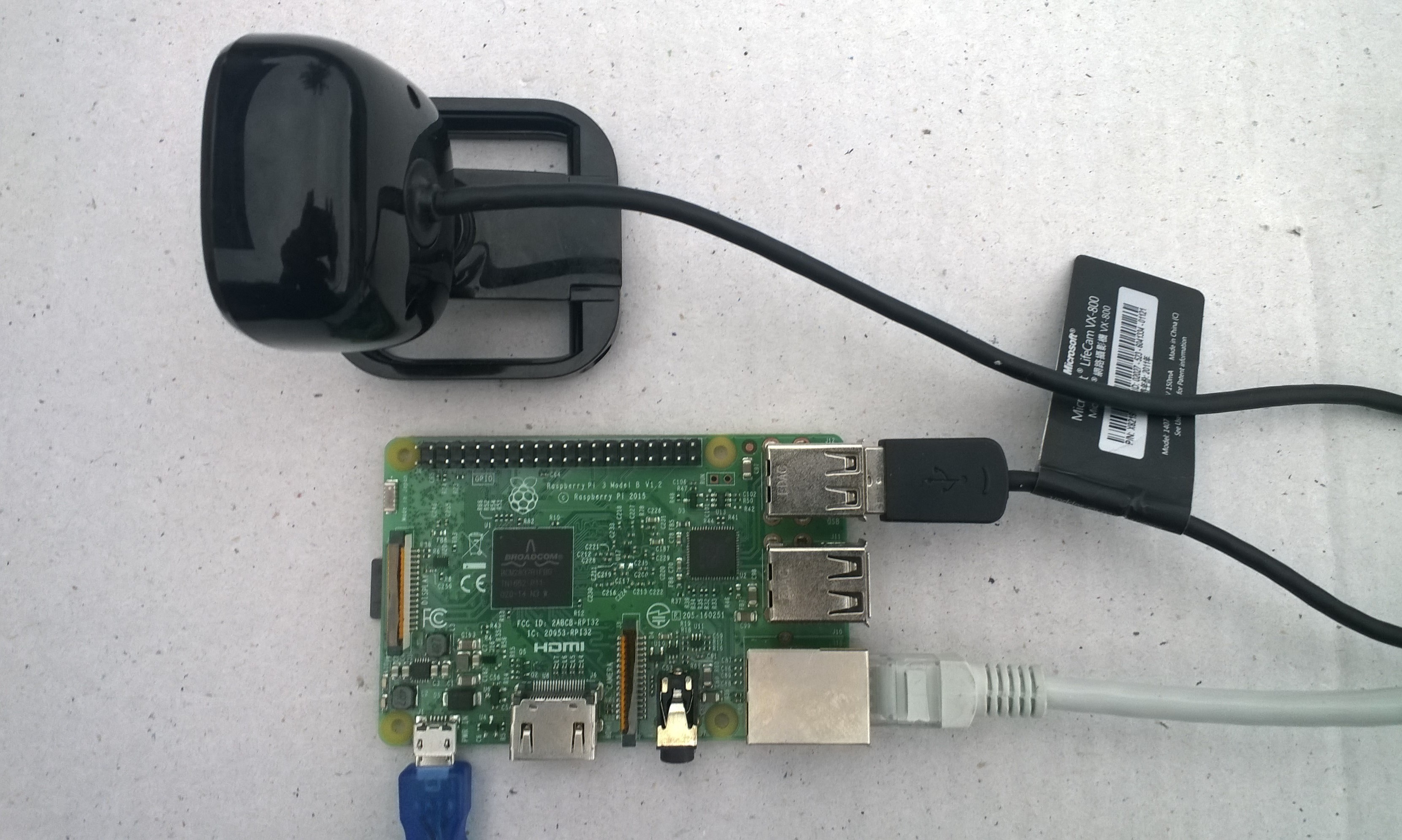
USB Camera test rig

First step was to capture an image from a USB web camera and store it in the local file system.

/*
    Copyright ® 2019 Feb devMobile Software, All Rights Reserved

    MIT License
…
*/
namespace devMobile.Windows10IotCore.IoT.PhotoTimer
{
	using System;
	using System.Threading;
	using Windows.ApplicationModel.Background;
	using Windows.Foundation.Diagnostics;
	using Windows.Media.Capture;
	using Windows.Media.MediaProperties;
	using Windows.Storage;

	public sealed class StartupTask : IBackgroundTask
	{
		private readonly LoggingChannel logging = new LoggingChannel("devMobile Timer Photo demo", null, new Guid("4bd2826e-54a1-4ba9-bf63-92b73ea1ac4a"));
		private BackgroundTaskDeferral backgroundTaskDeferral = null;
		private Timer ImageUpdatetimer;
		private readonly TimeSpan ImageUpdateDueDefault = new TimeSpan(0, 0, 15);
		private readonly TimeSpan ImageUpdatePeriodDefault = new TimeSpan(0, 5, 0);
		private MediaCapture mediaCapture;
		private const string ImageFilenameFormat = "Image{0:yyMMddhhmmss}.jpg";

		public void Run(IBackgroundTaskInstance taskInstance)
		{
			LoggingFields startupInformation = new LoggingFields();

			this.logging.LogEvent("Application starting");

			try
			{
				mediaCapture = new MediaCapture();
				mediaCapture.InitializeAsync().AsTask().Wait();

				ImageUpdatetimer = new Timer(ImageUpdateTimerCallback, null, ImageUpdateDueDefault, ImageUpdatePeriodDefault);

			}
			catch (Exception ex)
			{
				this.logging.LogMessage("Camera configuration failed " + ex.Message, LoggingLevel.Error);
				return;
			}

			startupInformation.AddString("PrimaryUse", mediaCapture.VideoDeviceController.PrimaryUse.ToString());
			startupInformation.AddTimeSpan("Due", ImageUpdateDueDefault);
			startupInformation.AddTimeSpan("Period", ImageUpdatePeriodDefault);

			this.logging.LogEvent("Application started", startupInformation);

			//enable task to continue running in background
			backgroundTaskDeferral = taskInstance.GetDeferral();
		}

		private void ImageUpdateTimerCallback(object state)
		{
			DateTime currentTime = DateTime.UtcNow;

			try
			{
				string filename = string.Format(ImageFilenameFormat, currentTime);

				IStorageFile photoFile = KnownFolders.PicturesLibrary.CreateFileAsync(filename, CreationCollisionOption.ReplaceExisting).AsTask().Result;
				ImageEncodingProperties imageProperties = ImageEncodingProperties.CreateJpeg();
				mediaCapture.CapturePhotoToStorageFileAsync(imageProperties, photoFile).AsTask().Wait();

				LoggingFields imageInformation = new LoggingFields();
				imageInformation.AddDateTime("TakenAtUTC", currentTime);
				imageInformation.AddString("Filename", filename);
				imageInformation.AddString("Path", photoFile.Path);
				this.logging.LogEvent("Image saved to storage", imageInformation);
			}
			catch (Exception ex)
			{
				this.logging.LogMessage("Image capture or save to local storage failed " + ex.Message, LoggingLevel.Error);
			}
		}
	}
}

To get my camera to work I had to enable “pictures library”, “microphone” and “webcam” in the capabilities section of the application manifest.

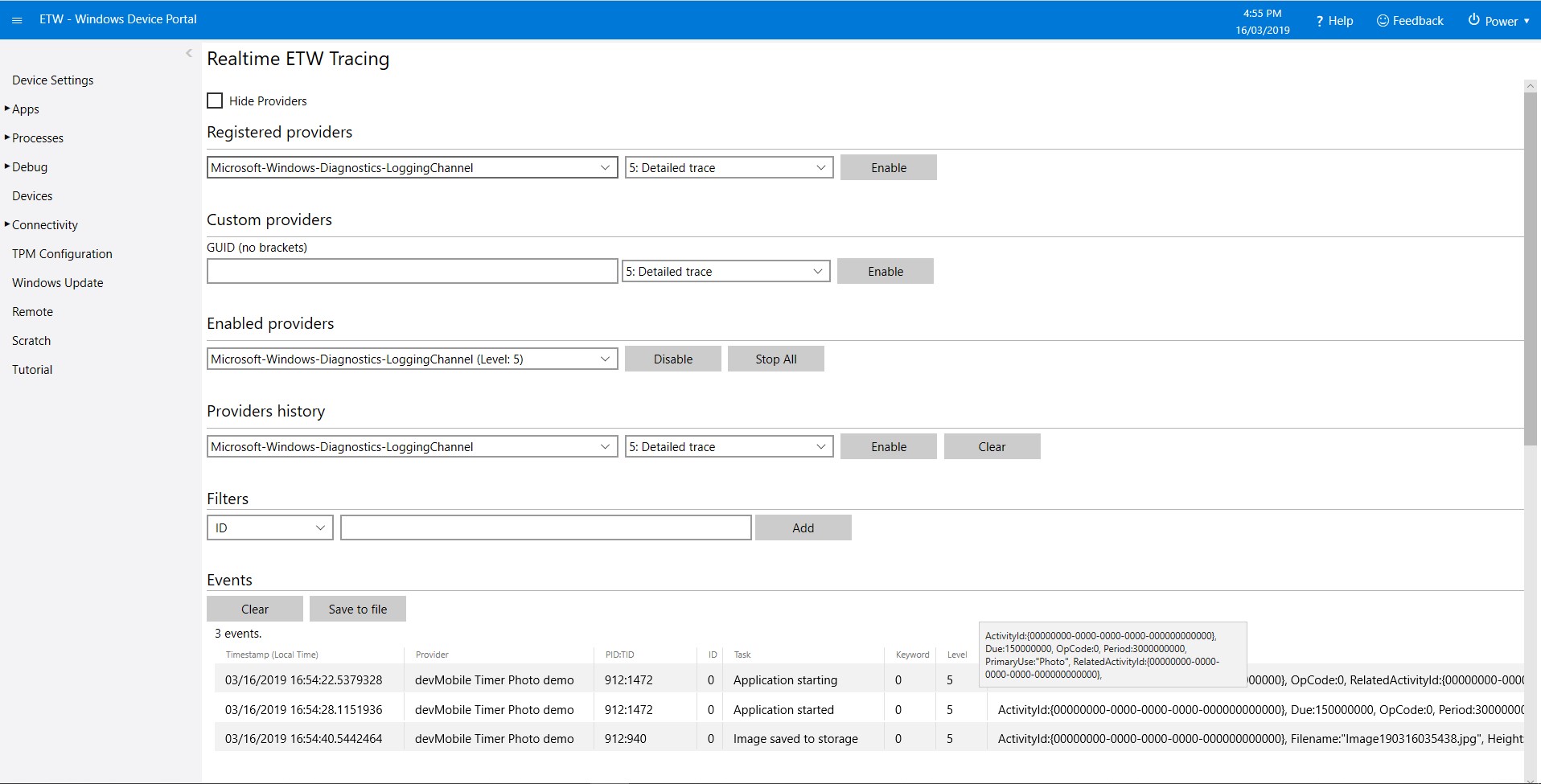
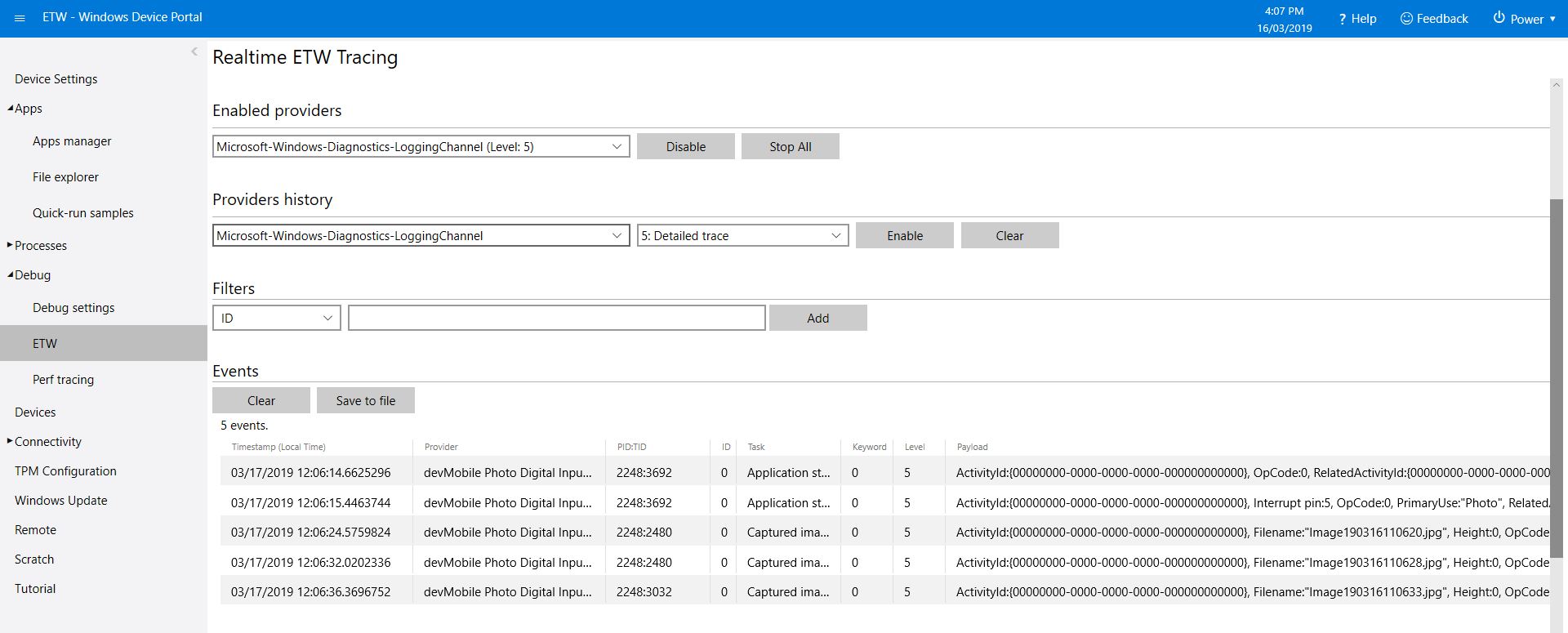
As the application starts up and captures images it logs information to the Windows 10 IoT Core ETW logging

Windows 10 IoT Core Portal ETW Logging
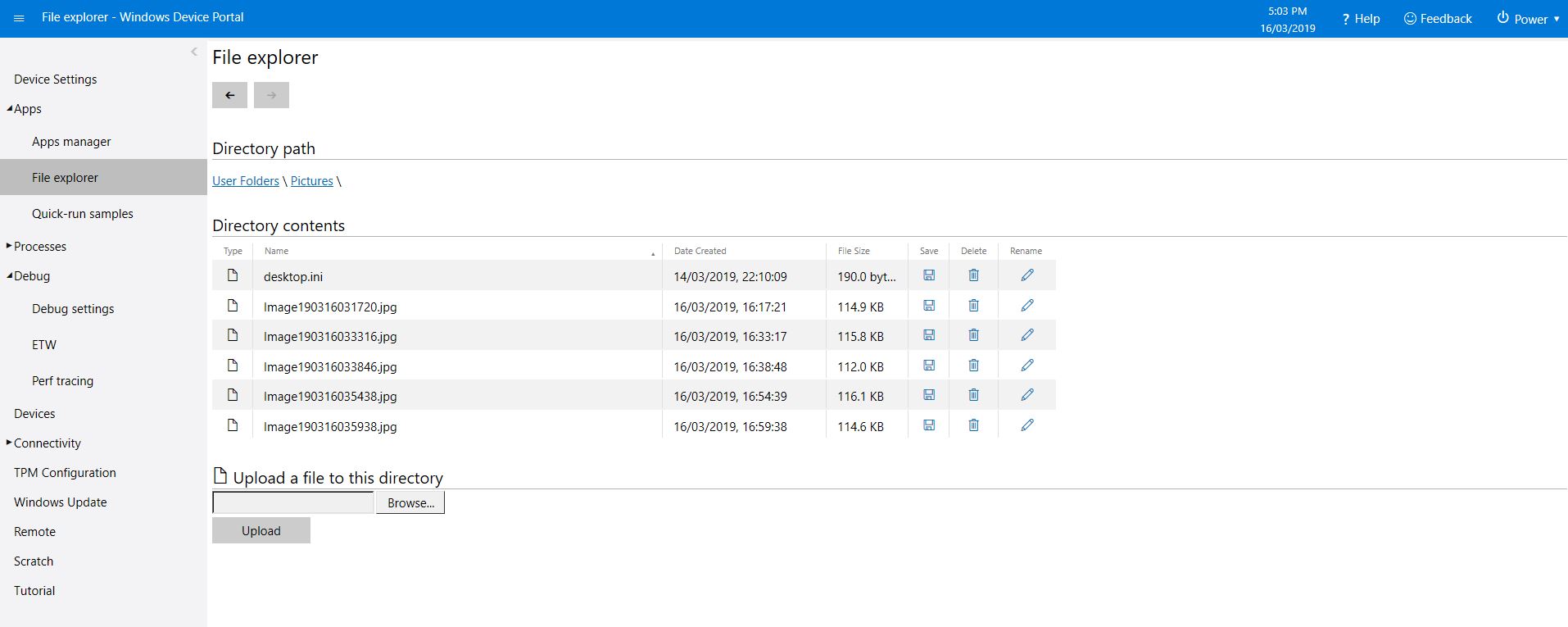
Camera images in \user folders\pictures

The code is available on GitHub and is a bit of a work in progress.