Netduino 3 Wifi pollution Sensor Part 2

In a previous post I had started building a driver for the Seeedstudio Grove Dust Sensor. It was a proof of concept and it didn’t handle some edge cases well.

While building the pollution monitor with a student we started by simulating the negative occupancy of the Shinyei PPD42NJ Particle sensor with the Netduino’s on-board button. This worked and reduced initial complexity. But it also made it harder to simulate the button being pressed as the program launches (the on-board button is also the reset button), or simulate if the button was pressed at the start or end of the period.

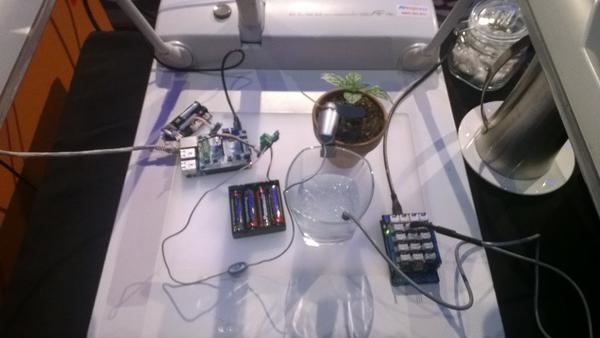
Dust sensor simulation with button

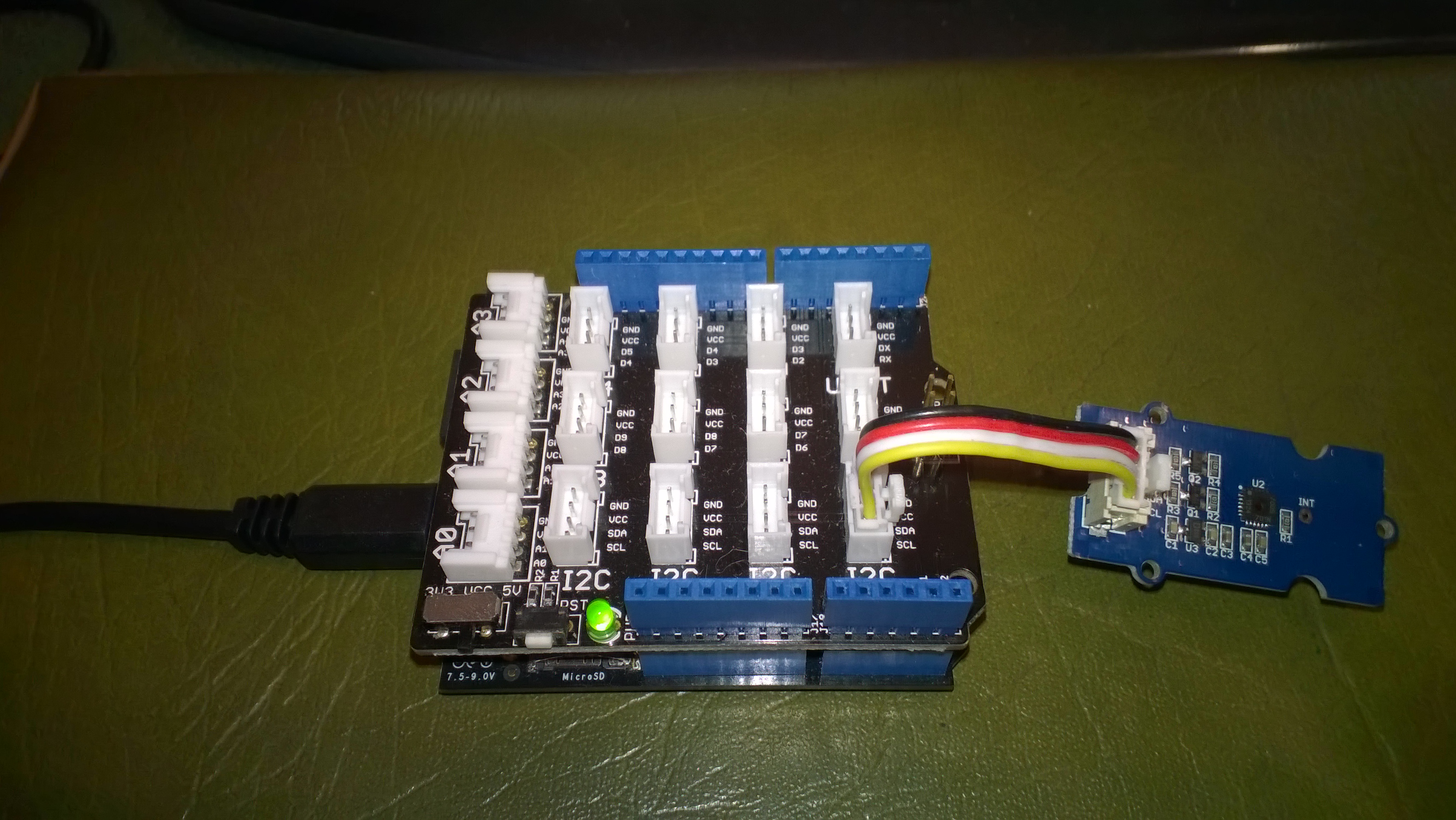
Netduino 3 Wifi Test Harness

The first sample code processes button press interrupts and displays the values of the data1 & data2 parameters

public class Program
{
   public static void Main()
   {
      InterruptPort button = new InterruptPort(Pins.GPIO_PIN_D5, false, Port.ResistorMode.Disabled, Port.InterruptMode.InterruptEdgeBoth);
      button.OnInterrupt += button_OnInterrupt;

      Thread.Sleep(Timeout.Infinite);
   }

   static void button_OnInterrupt(uint data1, uint data2, DateTime time)
   {
      Debug.Print(time.ToString("hh:mm:ss.fff") + " data1 =" + data1.ToString() + " data2 = " + data2.ToString());
   }
}

Using the debugging output from this application we worked out that data1 was the Microcontroller Pin number and data2 was the button state.

12:00:14.389 data1 =24 data2 = 0
12:00:14.389 data1 =24 data2 = 1
12:00:14.389 data1 =24 data2 = 0
12:00:15.851 data1 =24 data2 = 1
12:00:16.078 data1 =24 data2 = 0

We then extended the code to record the duration of each button press.

public class Program
{
   static DateTime buttonLastPressedAtUtc = DateTime.UtcNow;

   public static void Main()
   {
      InterruptPort button = new InterruptPort(Pins.ONBOARD_BTN, false, Port.ResistorMode.Disabled, Port.InterruptMode.InterruptEdgeBoth);
      button.OnInterrupt += button_OnInterrupt;

      Thread.Sleep(Timeout.Infinite);
   }

   static void button_OnInterrupt(uint data1, uint data2, DateTime time)
   {
      if (data2 == 0)
      {
         TimeSpan duration = time - buttonLastPressedAtUtc;

         Debug.Print(duration.ToString());
      }
      else
      {
         buttonLastPressedAtUtc = time;
      }
   }
}

The thread ” (0x4) has exited with code 0 (0x0).
00:00:00.2031790
00:00:00.1954150
00:00:00.1962350

The next step was to keep track of the total duration of the button presses since the program started executing.

public class Program
{
   static DateTime buttonLastPressedAtUtc = DateTime.UtcNow;
   static TimeSpan buttonPressedDurationTotal;

   public static void Main()
   {
      InterruptPort button = new InterruptPort(Pins.ONBOARD_BTN, false, Port.ResistorMode.Disabled, Port.InterruptMode.InterruptEdgeBoth);
      button.OnInterrupt += button_OnInterrupt;

      Thread.Sleep(Timeout.Infinite);
   }

   static void button_OnInterrupt(uint data1, uint data2, DateTime time)
   {
      if (data2 == 0)
      {
         TimeSpan duration = time - buttonLastPressedAtUtc;

         buttonPressedDurationTotal += duration;
          Debug.Print(duration.ToString() + " " + buttonPressedDurationTotal.ToString());
      }
      else
      {
         buttonLastPressedAtUtc = time;
      }
   }
}

The thread ” (0x4) has exited with code 0 (0x0).
00:00:00.2476460 00:00:00.2476460
00:00:00.2193600 00:00:00.4670060
00:00:00.2631400 00:00:00.7301460
00:00:00.0001870 00:00:00.7303330

We then added a timer to display the amount of time the button was pressed in the configured period.

public class Program
{
   static TimeSpan measurementDueTime = new TimeSpan(0, 0, 30);
   static TimeSpan measurementperiodTime = new TimeSpan(0, 0, 30);
   static DateTime buttonLastPressedAtUtc = DateTime.UtcNow;
   static TimeSpan buttonPressedDurationTotal;


   public static void Main()
   {
      InterruptPort button = new InterruptPort(Pins.GPIO_PIN_D5, false, Port.ResistorMode.Disabled, Port.InterruptMode.InterruptEdgeBoth);
      button.OnInterrupt += button_OnInterrupt;

      Timer periodTimer = new Timer(periodTimerProc, button, measurementDueTime, measurementperiodTime);

      Thread.Sleep(Timeout.Infinite);
   }

   static void periodTimerProc(object status)
   {
      InterruptPort button = (InterruptPort)status;

      if (button.Read())
      {
         TimeSpan duration = DateTime.UtcNow - buttonLastPressedAtUtc;

         buttonPressedDurationTotal += duration; 
      }

      Debug.Print(buttonPressedDurationTotal.ToString());

      buttonPressedDurationTotal = new TimeSpan(0, 0, 0);
      buttonLastPressedAtUtc = DateTime.UtcNow;
   }

   static void button_OnInterrupt(uint data1, uint data2, DateTime time)
   {
      if (data2 == 0)
      {
         TimeSpan duration = time - buttonLastPressedAtUtc;

         buttonPressedDurationTotal += duration;

         Debug.Print(duration.ToString() + " " + buttonPressedDurationTotal.ToString());
      }
      else
      {
         buttonLastPressedAtUtc = time;
      }
   }
}

The thread ” (0x4) has exited with code 0 (0x0).
00:00:00
00:00:00
00:00:00.2299050 00:00:00.2299050
00:00:00.1956980 00:00:00.4256030
00:00:00.1693190 00:00:00.5949220
00:00:00.5949220

After some testing we identified that the handling of button presses at the period boundaries was problematic and revised the code some more. We added a timer for the startup period to simplify the interrupt handling code.

public class Program
{
   static TimeSpan measurementDueTime = new TimeSpan(0, 0, 60);
   static TimeSpan measurementperiodTime = new TimeSpan(0, 0, 30);
   static DateTime buttonLastPressedAtUtc = DateTime.UtcNow;
   static TimeSpan buttonPressedDurationTotal;

   public static void Main()
   {
      InterruptPort button = new InterruptPort(Pins.GPIO_PIN_D5, false, Port.ResistorMode.Disabled, Port.InterruptMode.InterruptEdgeBoth);
      button.OnInterrupt += button_OnInterrupt;

      Timer periodTimer = new Timer(periodTimerProc, button, Timeout.Infinite, Timeout.Infinite);

      Timer startUpTImer = new Timer(startUpTimerProc, periodTimer, measurementDueTime.Milliseconds, Timeout.Infinite);

      Thread.Sleep(Timeout.Infinite);
   }

   static void startUpTimerProc(object status)
   {
      Timer periodTimer = (Timer)status;

      Debug.Print( DateTime.UtcNow.ToString("hh:mm:ss") + " -Startup complete");

      buttonLastPressedAtUtc = DateTime.UtcNow;
      periodTimer.Change(measurementDueTime, measurementperiodTime);
   }

   static void periodTimerProc(object status)
   {
      InterruptPort button = (InterruptPort)status;
      Debug.Print(DateTime.UtcNow.ToString("hh:mm:ss") + " -Period timer");

      if (button.Read())
      {
         TimeSpan duration = DateTime.UtcNow - buttonLastPressedAtUtc;

         buttonPressedDurationTotal += duration;
      }

      Debug.Print(buttonPressedDurationTotal.ToString());

      buttonPressedDurationTotal = new TimeSpan(0, 0, 0);
      buttonLastPressedAtUtc = DateTime.UtcNow;
   }

   static void button_OnInterrupt(uint data1, uint data2, DateTime time)
   {
      Debug.Print(DateTime.UtcNow.ToString("hh:mm:ss") + " -OnInterrupt");

      if (data2 == 0)
      {
         TimeSpan duration = time - buttonLastPressedAtUtc;

         buttonPressedDurationTotal += duration;

         Debug.Print(duration.ToString() + " " + buttonPressedDurationTotal.ToString());
      }
      else
      {
         buttonLastPressedAtUtc = time;
      }
   }
}

The debugging output looked positive, but more testing is required.

The thread ” (0x2) has exited with code 0 (0x0).
12:00:13 -Startup complete
12:01:13 -Period timer
00:00:00
12:01:43 -Period timer
00:00:00
12:01:46 -OnInterrupt
12:01:48 -OnInterrupt
00:00:01.2132510 00:00:01.2132510
12:01:49 -OnInterrupt
12:01:50 -OnInterrupt
00:00:01.3001240 00:00:02.5133750
12:01:53 -OnInterrupt
12:01:54 -OnInterrupt
00:00:01.1216510 00:00:03.6350260
12:02:13 -Period timer
00:00:03.6350260

Next steps – multi threading, extract code into a device driver and extend to support sensors like the SeeedStudio Smart dust Sensor which has two digital outputs, one for small particles (e.g. smoke) the other for larger particles (e.g. dust).

Netduino 3 Wifi pollution Sensor Part 1

I am working on a Netduino 3 Wifi based version for my original concept as a STEM project for high school students. I wanted to be able to upload data to a Microsoft Azure Eventhub or other HTTPS secured RESTful endpoint (e.g. xivelyIOT) to show how to build a securable solution. This meant a Netduino 3 Wifi device with the TI C3100 which does all the crypto processing was necessary.

The aim was to (over a number of blog posts) build a plug ‘n play box that initially was for measuring airborne particulates and then overtime add more sensors e.g. atmospheric gas concentrations, (Grove multichannel gas sensor), an accelerometer for earthquake early warning/monitoring (Grove 3-Axis Digital Accelerometer) etc.

Netduino 3 Wifi based pollution sensor

Bill of materials for prototype as at (October 2015)

  • Netduino 3 Wifi USD69.95
  • Seeedstudio Grove base shield V2 USD8.90
  • Seeedstudio Grove smart dust sensor USD16.95
  • Seeedstudio Grove Temperature & Humidity Sensor pro USD14.90
  • Seeedstudio ABS outdoor waterproof case USD1.65
  • Seeedstudio Grove 4 pin female to Grove 4 pin conversion cable USD3.90
  • Seeedstudio Grove 4 pin buckled 5CM cabed USD1.90

After the first assembly I have realised the box is a bit small. There is not a lot of clearance around the Netduino board (largely due to the go!bus connectors on the end making it a bit larger than a standard *duino board) and the space for additional sensors is limited so I will need to source a larger enclosure.

The dust sensor doesn’t come with a cable so I used the conversion cable instead. NOTE – The pins on the sensor are numbered right->Left rather than left->right.

The first step is to get the temperature and humidity sensor working with my driver code, then adapt the Seeedstudio Grove-Dust sensor code for the dual outputs of the SM-PWM-01 device.

According to the SM-PWM-01A device datasheet The P1 output is for small particles < 1uM (smoke) and P2 output is for large particles > 2uM (dust). The temperature & humidity sensor is included in the first iteration as other researchers have indicated that humidity levels can impact on the accuracy of optical particle counters.

Then, once the sensors are working as expected I will integrate a cut back version of the AMQPNetLite code and configuration storage code I wrote for my Netduino 3 wifi Azure EventHub Field Gateway.

Netduino 3 Wifi Azure Event Hub Field Gateway V2.0

After some testing I have improved the error handling and robustness of my Netduino 3 wifi based Azure Eventhub field gateway.

private void OnReceive(byte[] data)
{
   activityLed.Write(!activityLed.Read());

   // Ensure that we have a payload
   if (data.Length < 1 ) { Debug.Print( "ERROR - Message has no payload" ) ; return ; } string message = new String(Encoding.UTF8.GetChars(data)); Debug.Print(DateTime.UtcNow.ToString("HH:mm:ss") + " L=" + data.Length + " M=" + message); Thread thread = new Thread(() => EventHubSendMessage( data));
   thread.Start();
}

private void EventHubSendMessage( byte[] messageBody)
{
   #region Diagnostic assertions
   Debug.Assert(eventHubName != null);
   Debug.Assert(deviceId != null);
   Debug.Assert(gatewayId != null);
   Debug.Assert(messageBody != null);
   Debug.Assert(messageBody.Length > 0);
   #endregion

   if ((connection == null) || (session == null ) || (senderLink == null ))
   {
      lock (lockThis)
      {
         if (connection == null)
         {
            Debug.Print("AMQP Establish connection");
            try
            {
               connection = new Connection(new Address(serviceBusHost, serviceBusPort, serviceBusSasKeyName, serviceBusSasKey));

               connection.Closed = ConnectionClosedCallback;

               Debug.Print("AMQP Establish connection done");
            }
            catch (Exception ex)
            {
               Debug.Print("ERROR: AMQP Establish connection: " + ex.Message);
            }
         }

         if (connection == null)
         {
            return;
         }

         if (session == null)
         {
            Debug.Print("AMQP Establish session");
            try
            {
               session = new Session(connection);

               session.Closed = SessionClosedCallback;

               Debug.Print("AMQP Establish session done");
            }
            catch (Exception ex)
            {
               Debug.Print("ERROR: AMQP Establish session: " + ex.Message);
            }
         }

         if (session == null)
         {
            return;
         }

         if (senderLink == null)
         {
            Debug.Print("AMQP Establish SenderLink");
            try
            {
               senderLink = new SenderLink(session, "send-link", eventHubName);

               senderLink.Closed = SenderLinkClosedCallback;

               Debug.Print("AMQP Establish SenderLink done");
            }
            catch (Exception ex)
            {
               Debug.Print("ERROR: AMQP Establish SenderLink: " + ex.Message);
            }
         }

         if (senderLink == null)
         {
            return;
         }
      }
   }

         
   try
   {
      Debug.Print("AMQP Send start");
      DateTime startAtUtc = DateTime.UtcNow;

      Message message = new Message()
      {
         BodySection = new Data()
         {
            Binary = messageBody
         },
         ApplicationProperties = new Amqp.Framing.ApplicationProperties(),
      };

      message.ApplicationProperties["UploadedAtUtc"] = DateTime.UtcNow;
      message.ApplicationProperties["GatewayId"] = gatewayId;
      message.ApplicationProperties["DeviceId"] = deviceId;
      message.ApplicationProperties["EventId"] = Guid.NewGuid();

      senderLink.Send(message);
      DateTime finishAtUtc = DateTime.UtcNow;
      TimeSpan duration = finishAtUtc - startAtUtc;
      Debug.Print("AMQP Send done duration " + duration.ToString());
   }
   catch (Exception ex)
   {
      Debug.Print("ERROR: Publish failed with error: " + ex.Message);
   }
}

The software is quite reliable, when my internet connection fails it recovers gracefully and resumes uploading events when connectivity is restored.

The only issue is when the wireless access point is restarted, when the device reconnects it locks up and doesn’t recover. I have posted in the Netduino forums and logged at issue at the Github Netduino wifi repository.

I have been exploring rebooting the device in the NetworkChange_NetworkAvailabilityChanged handler when connectivity is restored.

Based on my logging the sending of events is pretty quick and the threads are interleaved

03:20:59 L=25 M={“D”:2,”H”:63.0,”T”:18.8}
AMQP Send start
03:20:59 L=25 M={“D”:1,”H”:54.5,”T”:18.7}
AMQP Send start
03:20:59 L=17 M={“D”:10,”P”:27.9}
AMQP Send start
AMQP Send done duration 00:00:00.2738220
AMQP Send done duration 00:00:00.4709960
AMQP Send done duration 00:00:01.0813910
03:21:01 L=17 M={“D”:10,”P”:27.4}
AMQP Send start
AMQP Send done duration 00:00:00.2820090
03:21:03 L=17 M={“D”:10,”P”:26.9}

Here is the code with usual caveats.

Next steps queuing messages in memory and then on the MicroSD card.

Netduino 3 Wifi Azure Event Hub Field Gateway V1.0

The Netduino 3 Wifi device supports TLS connectivity and looked like it could provide a low power consumption field gateway to an Azure EventHub for my nRF24L01 equipped Netduino, Arduino & devDuino 1.3, 2.0 & 3.0 devices.

Netduino 3 Wifi Azure Event Hub Field Gateway

Netduino 3 Wifi Azure Field Gateway and a selection of arduino & devDuino devices

Bill of materials for field gateway prices as at (Sept 2015)

  • Netduino 3 Wifi USD69.95
  • SeeedStudio Solar Shield USD13.95
  • Lithium Ion 3000mAH battery USD15.00
  • Embedded coolness nRF24L01 shield with high power module USD17.85

The software uses AMQPNetLite which provides a lightweight implementation of the AMQP protocol (on the .Net framework, .Net Compact Framework, .Net Micro Framework, and WindowsPhone platforms) and the Nordic nRF24L01 Net Micro Framework Driver.The first version of the software is a proof of concept and over time I will add functionality and improve the reliability.

On application start up the nRF24L01, Azure Event Hub and network settings are loaded from the built in MicroSD card.

// Write empty template of the configuration settings to the SD card if pin D0 is high
if (!File.Exists(Path.Combine("\\sd", "app.config")))
{
   Debug.Print("Writing template configuration file then stopping");

   ConfigurationFileGenerate();

   Thread.Sleep(Timeout.Infinite);
}
appSettings.Load();

If there is no configuration file on the MicroSD card an empty template is created.

private void ConfigurationFileGenerate()
{
   // Write empty configuration file
   appSettings.SetString(nRF2L01AddressSetting, "Base1");
   appSettings.SetString(nRF2L01ChannelSetting, "10");
   appSettings.SetString(nRF2L01DataRateSetting, "0");

   appSettings.SetString(serviceBusHostSetting, "serviceBusHost");
   appSettings.SetString(serviceBusPortSetting, "5671");
   appSettings.SetString(serviceBusSasKeyNameSetting, "serviceBusSasKeyName");
   appSettings.SetString(serviceBusSasKeySetting, "serviceBusSasKey");
   appSettings.SetString(eventHubNameSetting, "eventHubName");

   appSettings.Save();
}

Once the Wifi connection has been established the device connects to a specified NTP server so any messages have an accurate timestamp and then initiates an AMQP connection.

Debug.Print("Network time");
try
{
   DateTime networkTime = NtpClient.GetNetworkTime(ntpServerHostname);
   Microsoft.SPOT.Hardware.Utility.SetLocalTime(networkTime);
   Debug.Print(networkTime.ToString(" dd-MM-yy HH:mm:ss"));
}
catch (Exception ex)
{
   Debug.Print("ERROR: NtpClient.GetNetworkTime: " + ex.Message);
   Thread.Sleep(Timeout.Infinite);
}
Debug.Print("Network time done");

// Connect to AMQP gateway
Debug.Print("AMQP Establish connection");
try
{
   Address address = new Address(serviceBusHost, serviceBusPort, serviceBusSasKeyName, serviceBusSasKey);
   connection = new Connection(address);
}
catch (Exception ex)
{
   Debug.Print("ERROR: AMQP Establish connection: " + ex.Message);
   Thread.Sleep(Timeout.Infinite);
}
Debug.Print("AMQP Establish connection done");

After the device has network connectivity, downloaded the correct time and connected to AMQP hub the nRF241L01 device is initialised.

The first version of the software starts a new thread to handle each message and handles connectivity failures badly. These issues and features like local queuing of messages will be added in future iterations.

private void OnReceive(byte[] data)
{
   activityLed.Write(!activityLed.Read());

   // Ensure that we have a payload
   if (data.Length < 1 ) { Debug.Print( "ERROR - Message has no payload" ) ; return ; } string message = new String(Encoding.UTF8.GetChars(data)); Debug.Print(DateTime.UtcNow.ToString("HH:mm:ss") + " " + gatewayId + " " + data.Length + " " + message); Thread thread = new Thread(() => EventHubSendMessage(connection, eventHubName, deviceId, gatewayId, data));
   thread.Start();
}


private void EventHubSendMessage(Connection connection, string eventHubName, string deviceId, string gatewayId, byte[] messageBody)
{
   try
   {
      Session session = new Session(connection);
      SenderLink sender = new SenderLink(session, "send-link", eventHubName);

      Message message = new Message()
      {
         BodySection = new Data()
         {
            Binary = messageBody
         },
         ApplicationProperties = new Amqp.Framing.ApplicationProperties(),
      };

      message.ApplicationProperties["UploadedAtUtc"] = DateTime.UtcNow;
      message.ApplicationProperties["GatewayId"] = gatewayId;
      message.ApplicationProperties["DeviceId"] = deviceId;
      message.ApplicationProperties["EventId"] = Guid.NewGuid().ToString();

      sender.Send(message);

      sender.Close();
      session.Close();
      }
   catch (Exception ex)
   {
      Debug.Print("ERROR: Publish failed with error: " + ex.Message);
   }
}

Initially the devices send events with a JSON payload.

ServiceBus Explorer

JSON Event messages displayed in ServiceBus Explorer

The code is available NetduinoNRF24L01AMQPNetLiteAzureEventHubGatewayV1.0 and when I have a spare afternoon I will upload to github.

MS Ignite Auckland NZ Presentation now available online

My presentation “All your device are belong to us” [M240] is now online at MSDN Channel 9

So much hype, so many different devices, so many protocols, so much data, so little security, welcome to the Internet of Things. Come and see how you can build an affordable, securable, scalable, interoperable, robust & reliable solution with embedded devices, Windows 10 IoT and Microsoft Azure. By 2020 there will be 26 Billion devices and 4.5 million developers building solutions so the scope is limitless.

I had 8 devices in my presentation so the scope for disaster was high.

The first demo was of how sensors could be connected across Arduino, Netduino and Raspberry PI platforms.

The Arduino demo used

The Netduino demo used

The Raspbery PI Windows 10 IoT Core demo used

The hobbyist data acquisition demo collected data from two devduino devices that were in passed around by the audience and were each equipped with a Temperature & Humidity sensor. They uploaded data to Xively over an NRF24L01 link to a gateway running on a Netduino 3 Ethernet and the data was displayed in real-time on my house information page

The professional data acquisition demo uploaded telemetry data to an Azure ServiceBus EventHub and retrieved commands from an Azure ServiceBus Queue. Both devices were running software based on Azure ServiceBus Lite by Paolo Paiterno

The telemetry stream was the temperature of some iced water.

The commands were processed by a Raspbery PI running Windows 10 IoT Core which turned a small fan on & off to illustrate how a FrostFan could be used in a vineyard to reduce frost damage to the vines.

Frost Fan demo

MS Ignite 2015 Frost Fan demo

My demos all worked on the day which was a major win as many other presenters struggled with connectivity. Thanks to the conference infrastructure support guys who helped me sort things out.

With the benefit of hindsight, I tried to fit too much in and the overnight partial rewrite post attending the presentation Mashup the Internet of Things, Azure App Service and Windows 10 to Deliver Business Value [M387] by Rob Tiffany was a bit rushed.

Silicon Labs Si7005 Device Driver oddness

I have been working on a Netduino I2C driver for the Silicon Labs Si7005 Digital I2C Humidity & Temperature Sensor for weather station and building monitoring applications as it looks like a reasonably priced device which is not to complex to interface with.I’m using a SeeedStudio Grove – Temperature&Humidity Sensor (High-Accuracy & Mini) for development.

The first time I try and read anything from the device it fails. Otherwise my driver works as expected.

Netduino 2 Plus & Silicon Labs Si7005

Bill of materials (prices as at April 2015)

  • Netduino Plus 2 USD60 NZD108
  • Grove – Temperature&Humidity Sensor (High-Accuracy & Mini) USD11.50
  • Grove – Base Shield USD8.90

This code just shows the flow, I’ll package into a driver shortly

I strobe the I2C line which seems to help

using (OutputPort i2cPort = new OutputPort(Pins.GPIO_PIN_SDA, true))
{
   i2cPort.Write(false);
   Thread.Sleep(1000);
}

I then try and read the Device ID (0x50) from register 0X11 but this (and any other read fails)

byte[] writeBuffer = { RegisterIdDeviceId };
byte[] readBuffer = new byte[1];

I2CDevice.I2CTransaction[] action = new I2CDevice.I2CTransaction[] 
{ 
   I2CDevice.CreateWriteTransaction(writeBuffer),
   I2CDevice.CreateReadTransaction(readBuffer)
};

int length = device.Execute(action, TransactionTimeoutMilliseconds);
Debug.Print(&quot;Byte count &quot; + length.ToString());
foreach (byte Byte in readBuffer)
{
   Debug.Print(Byte.ToString(&quot;X2&quot;));
}

I can read the temperature and humidity by writing to the command register

byte[] writeBuffer = { RegisterIdConiguration, CMD_MEASURE_TEMP };

I2CDevice.I2CTransaction[] action = new I2CDevice.I2CTransaction[] 
{ 
   I2CDevice.CreateWriteTransaction(writeBuffer),
};

int length = device.Execute(action, TransactionTimeoutMilliseconds);
Debug.Print(&quot;Byte count&quot; + length.ToString());

Then poll for measurement process to finish

conversionInProgress = true
do
{
   byte[] writeBuffer = { RegisterIdStatus };
   byte[] readBuffer = new byte[1];

   I2CDevice.I2CTransaction[] action = new I2CDevice.I2CTransaction[] 
   { 
      I2CDevice.CreateWriteTransaction(writeBuffer4),
      I2CDevice.CreateReadTransaction(readBuffer4)
   };

   int length = device.Execute(action, TransactionTimeoutMilliseconds);
   Debug.Print(&quot;Byte count &quot; + length.ToString());
   foreach (byte Byte in readBuffer)
   {
      Debug.Print(Byte.ToString());
   }

   if ((readBuffer[RegisterIdStatus] &amp;&amp; STATUS_RDY_MASK) != STATUS_RDY_MASK)
   {
      conversionInProgress = false;
   }
} while (conversionInProgress);

Then finally read and convert the value

byte[] writeBuffer = { REG_DATA_H };
byte[] readBuffer = new byte[2];

I2CDevice.I2CTransaction[] action = new I2CDevice.I2CTransaction[] 
{ 
   I2CDevice.CreateWriteTransaction(writeBuffer),
   I2CDevice.CreateReadTransaction(readBuffer)
};

int length = device.Execute(action, TransactionTimeoutMilliseconds);
Debug.Print(&quot;Byte count &quot; + length.ToString());
foreach (byte Byte in readBuffer)
{
   Debug.Print(Byte.ToString());
}

int temp = readBuffer[0];

temp = temp &lt;&lt; 8;
temp = temp + readBuffer[1];
temp = temp &gt;&gt; 2;

double temperature = (temp / 32.0) - 50.0;

Debug.Print(&quot; Temp &quot; + temperature.ToString(&quot;F1&quot;));

Azure Event Hub Service Gateway V0.5

In a previous post I had developed a simple Microsoft Azure EventHubs Service Gateway for Arduino and Netduino devices which required Internet Information Server(IIS). Running IIS in some home environments could be a bit awkward so I have got a basic light weight version going which is hosted in a self installing Windows Service. The gateway supports four command line parameters.(The install and uninstall must be run as administrator otherwise the requested process will fail)

  • Install – install the service
  • Uninstall – uninstalls the service
  • Debug – runs the service in interactive mode
  • Name – allows you to specify the name of the service in the Services Manager.

The code does some basic logging to the Windows Event log and can be configured to start automatically when the computer starts.

The configuration file has two settings

<appSettings>
<add key="Microsoft.ServiceBus.ConnectionString" value="YourConnectionStringGoesHere" />
<add key="Microsoft.ServiceBus.EventHub" value="myhomemonitor" />
<add key="baseAddress" value="http://your.URL.goes.Here:8080/" />
</appSettings>

The code is based on the self installing service sample code that ships with the Wix# toolkit.

try
{
   string connectionString = ConfigurationManager.AppSettings["Microsoft.ServiceBus.ConnectionString"];
   string eventHubName = ConfigurationManager.AppSettings["Microsoft.ServiceBus.EventHub"];

   NamespaceManager namespaceManager = NamespaceManager.CreateFromConnectionString(connectionString);

   EventHubClient client = EventHubClient.Create(eventHubName);

   EventData data = new EventData(request.Content.ReadAsByteArrayAsync().Result);

   // Set user properties if needed
   data.Properties.Add("UploadedAtUTC", DateTime.UtcNow.ToString("yyyy-MM-dd HH:mm:ss"));
   data.Properties.Add("UploadedBy", "devMobileAzureEventHubGateway");

   client.Send(data);
}
catch (Exception ex)
{
   eventLog.WriteEntry(string.Format("Application initialisation failed {0}", ex.Message), EventLogEntryType.Error);
}

The Azure EventHub Service Gateway Code V0.5 is a bit rough but I will enhance it as time allows. First steps will be improving logging then creating a WIX# based installer.

Azure Event Hub Service Gateway V0.1

My Netduino and Arduino devices can’t do https so I had been looking at different approaches for uploading sensor data to a Microsoft Azure Event Hub. In a previous post I published the “simplest” possible useful program (a console application) which could upload data and this code builds on that.

In this proof of concept I have integrated the core of the console application code into an ASP.NET MVC WebAPI 2 project which acts as a service gateway. My Netduino clients now use a website hosted on my Essentials 2012 home server to forward the requests to a Microsoft Azure Event Hub .

For more detail about how to program the energy monitor shield see these posts about the Nokia 5110 display, nrf24L01 wireless link, and non invasive current sensor algorithm optimisations.

try
{
   using (HttpWebRequest request = (HttpWebRequest)WebRequest.Create( AzureGatewayUrl ))
   {
      string payload = @&quot;{&quot;&quot;DeviceId&quot;&quot;:&quot; + deviceId + @&quot;,&quot;&quot;Usage&quot;&quot;:&quot; + value + &quot;}&quot;;
      byte[] buffer = Encoding.UTF8.GetBytes(payload);
      request.Method = &quot;POST&quot;;
      request.ContentLength = buffer.Length;
      request.ContentType = &quot;text/csv&quot;;
      request.KeepAlive = false;
      request.Timeout = 5000;
      request.ReadWriteTimeout = 5000;

      using (Stream stream = request.GetRequestStream())
      {
         stream.Write(buffer, 0, buffer.Length);
      }
      using (var response = (HttpWebResponse)request.GetResponse())
      {
         Debug.Print(&quot;HTTP Status&quot; + response.StatusCode + &quot; : &quot; + response.StatusDescription);
      }
   }
}
catch (Exception ex)
{
   Debug.Print(ex.Message);
}
Netduino power consumption monitor

Netduino power consumption monitor

Azure Service Bus Explorer by  Paolo Salvatori is great for debugging and testing Service Bus applications like this.

ServiceBus Explorer Displaying event hub power consumption data

ServiceBus Explorer displaying power consumption data

Bill of materials (prices as at Feb 2015)

The Azure Event Hub Service GatewayV0.1 is pretty basic with, no security, doesn’t have a lot of logging. wouldn’t scale terribly well (Though most home systems wouldn’t have a lot of sensors) and is hosted in Internet Information Server(IIS),

In future posts I’ll fix these limitations and make the service gateway secure, easier to install, configure and operate. But, this proof of concept proves the approach is viable

// POST api/eventhub
 public void Post(HttpRequestMessage request)
      {
         try
         {
            string connectionString = ConfigurationManager.AppSettings["Microsoft.ServiceBus.ConnectionString"];
            string eventHubName = ConfigurationManager.AppSettings["Microsoft.ServiceBus.EventHub"];

            NamespaceManager namespaceManager = NamespaceManager.CreateFromConnectionString(connectionString);

            EventHubClient client = EventHubClient.Create(eventHubName);

            EventData data = new EventData(request.Content.ReadAsByteArrayAsync().Result);

            // Set user properties if needed
            data.Properties.Add("UploadedAtUTC", DateTime.UtcNow.ToString("yyyy-MM-dd HH:mm:ss"));
            data.Properties.Add("UploadedBy", "devMobileAzureEventHubGateway");

            client.Send(data);
         }
         catch (Exception ex)
         {
            Debug.WriteLine("Send failed " + ex.Message);
         }
      }

Azure Event Hubs “simplest” possible program

I want to connect several Netduino devices monitoring my house to a Microsoft Azure Event Hub, but the Netudino does not natively support https connections (required for the REST API) and AMQP looked a bit chunky.

The team at Kloud have some great posts about getting Arduino & NetMF devices connected using the Azure python SDK and an Application Request Routing based solution.

I’m going to build an ASP.NET MVC Web API 2 based Azure Event hub gateway. I aiming for a minimal install footprint and resource utilisation as I want to use my Essentials2012  home server or Windows 7 Media Centre box to host the gateway.

My first step is to create a the “simplest” possible program which connects to a Microsoft Azure Event Hub and uploads an event. (Minimal complexity, no async, no threads, and very flat), This console application uploads an event specified in a file to an Microsoft Azure Event Hub. The Azure service bus connection string is configured in the app.config file, the event hub name, file path and partition id are specified on the command line.

using System;
using System.IO;
using System.Configuration;
using Microsoft.ServiceBus;
using Microsoft.ServiceBus.Messaging;

static void Main(string[] args)
{
   if (args.Length != 3)
   {
      Console.WriteLine("Incorrect number of arguments. Expected 3 args <eventhubname> <datafilepath> <partionkey>");
      return;
   }

   string eventHubName = args[0];
   string dataFilePath = args[1];
   string partitionKey = args[2];
   Console.WriteLine("Sending file {0} to EventHub {1} Partition {2}", dataFilePath, eventHubName, partitionKey);

   try
   {
      string connectionString = ConfigurationManager.AppSettings["Microsoft.ServiceBus.ConnectionString"];
      NamespaceManager namespaceManager = NamespaceManager.CreateFromConnectionString(connectionString);

      EventHubClient client = EventHubClient.Create(eventHubName);

      using (var dataFileStream = File.Open(dataFilePath, FileMode.Open))
      {
         EventData data = new EventData(dataFileStream)
         {
            PartitionKey = partitionKey,
         };

         // Set user properties if needed
         data.Properties.Add("Acquired", DateTime.UtcNow.ToString("yyyy-MM-dd HH:mm:ss"));

         DateTime startUtc = DateTime.UtcNow;
         client.Send(data);
         DateTime finishUtc = DateTime.UtcNow;
         TimeSpan duration = finishUtc - startUtc;
         Console.WriteLine("Duration {0:F2} secs", duration.TotalSeconds);
      }
   }
   catch (Exception ex)
   {
      Console.WriteLine("Send failed {0}", ex.Message);
   }
   Console.WriteLine("Press <Enter> to exit");
   Console.ReadLine();
   }
}

Uploading an event takes roughly 2.5 seconds on my ADSL internet connection.

Netduino Water flow Sensor

A few months ago I purchased 1/2” and 3/4″ inch water flow sensors from SeeedStudio. My plan was to monitor our water and power consumption data to see what environmental impact my house has.

To see how the sensor works I built a simple proof of concept Netduino application which counted the pulses produced by the sensor and calculated the instantaneous water flow.

The next steps are to upload the water flow data to the cloud over a cabled then wireless connections.

public class Program
{
   private static int waterFlowCounter = 0;

   public static void Main()
   {
      InterruptPort flowCounterSensor = new InterruptPort(Pins.GPIO_PIN_D5, false, Port.ResistorMode.Disabled, Port.InterruptMode.InterruptEdgeHigh);
      flowCounterSensor.OnInterrupt += new NativeEventHandler(flowCounter_OnInterrupt);

      Timer waterFlowUpdate = new Timer(waterFlowUpdateProc, null, 0, 1000);
      Thread.Sleep(Timeout.Infinite);
   }

   static void flowCounter_OnInterrupt(uint data1, uint data2, DateTime time)
   {
      Interlocked.Increment(ref waterFlowCounter);
   }

   static void waterFlowUpdateProc(object status)
   {
      int flowCount = Interlocked.Exchange(ref waterFlowCounter, 0);
      double flowLitresMinute = flowCount / 5.5 ; // The q value from documentation
      Debug.Print(flowLitresMinute.ToString("F1") + "L/m";);
    }
}
Netduino based water flow sensor

water flow sensor

Bill of Materials (Prices as at 12-2014)

Netduino Plus 2 USD60 NZD108

Grove Base Shield V2 USD8.90

G3/4″ Water Flow Sensor USD14.90

G1/2″ Water Flow Sensor USD9.50 NZD8.30