Random wanderings through Microsoft Azure esp. PaaS plumbing, the IoT bits, AI on Micro controllers, AI on Edge Devices, .NET nanoFramework, .NET Core on *nix and ML.NET+ONNX
public class Config
{
   public const string DeviceID = "RAK11200-RAK19001";
   public const string SasSignature = "..."; // sig
   public const string SasExpiryTime = "..."; // se

   public const string AzureIoTHubHostName = "..";
   public const string Ssid = "...";
   public const string Password = "..";
   ...
}
 _httpClient = new HttpClient
{
   SslProtocols = System.Net.Security.SslProtocols.Tls12,
   HttpsAuthentCert = new X509Certificate(Config.DigiCertBaltimoreCyberTrustRoot),
   BaseAddress = new Uri($"https://{Config.AzureIoTHubHostName}.azure-devices.net/devices/{Config.DeviceID}/messages/events?api-version=2020-03-13"),
};

string sasKey = $"SharedAccessSignature sr={Config.AzureIoTHubHostName}.azure-devices.net%2Fdevices%2F{Config.DeviceID}&sig={Config.SasSignature}&se={Config.SasExpiryTime}";

_httpClient.DefaultRequestHeaders.Add("Authorization", sasKey);
There have been blog posts showing how to build Azure Percept integrations with Power BI, Azure Logic Appsetc. with “zero code”. But what do you do if your Azure Percept based solution needs some “glue” to connect to other systems?
I work on a SmartAg computer vision based application that uses security cameras to monitor the flow of cattle through stockyards. It has to control some local hardware, display real-time dashboards, and integrate with an existing application so a “zero code” solution wouldn’t work.
The initial plan was to take the Azure Percept to a piggery to see if I could build a Proof of Concept(PoC) of a product that the CEO and I had been discussing for a couple of weeks.
But shortly after I started working on this series of blog posts New Zealand went into strict lockdown. Only essential shops like supermarkets and petrol stations were open, our groceries were being delivered, and schools were closed.
I needed a demonstration application which used props I could source from home and the local petrol station. In addition my teenage son’s school was closed so he could be the project “intern”.
While at the local petrol station to buy milk I observed that they had a large selection of confectionary so we decided to build a series of object detection models to count different types of chocolates.
In a retail scenario this could be counting products on shelves, pallets in a cold store, or at the SmartAg start-up I work for counting cattle in a yard.
Configuring The Test Environment
I have not included screen shots of the hardware configuration process as this has been covered by other bloggers. Though, for projects like this I always create a new resource group so I can easily delete all the resources so my Azure invoice doesn’t cause “bill shock”.
Azure Resource Group Creation blade
I also created the Azure IoT Hub before configuring the Percept device rather than via the Device provisioning process.
Azure Percept configuration assigning an Azure IoT Hub
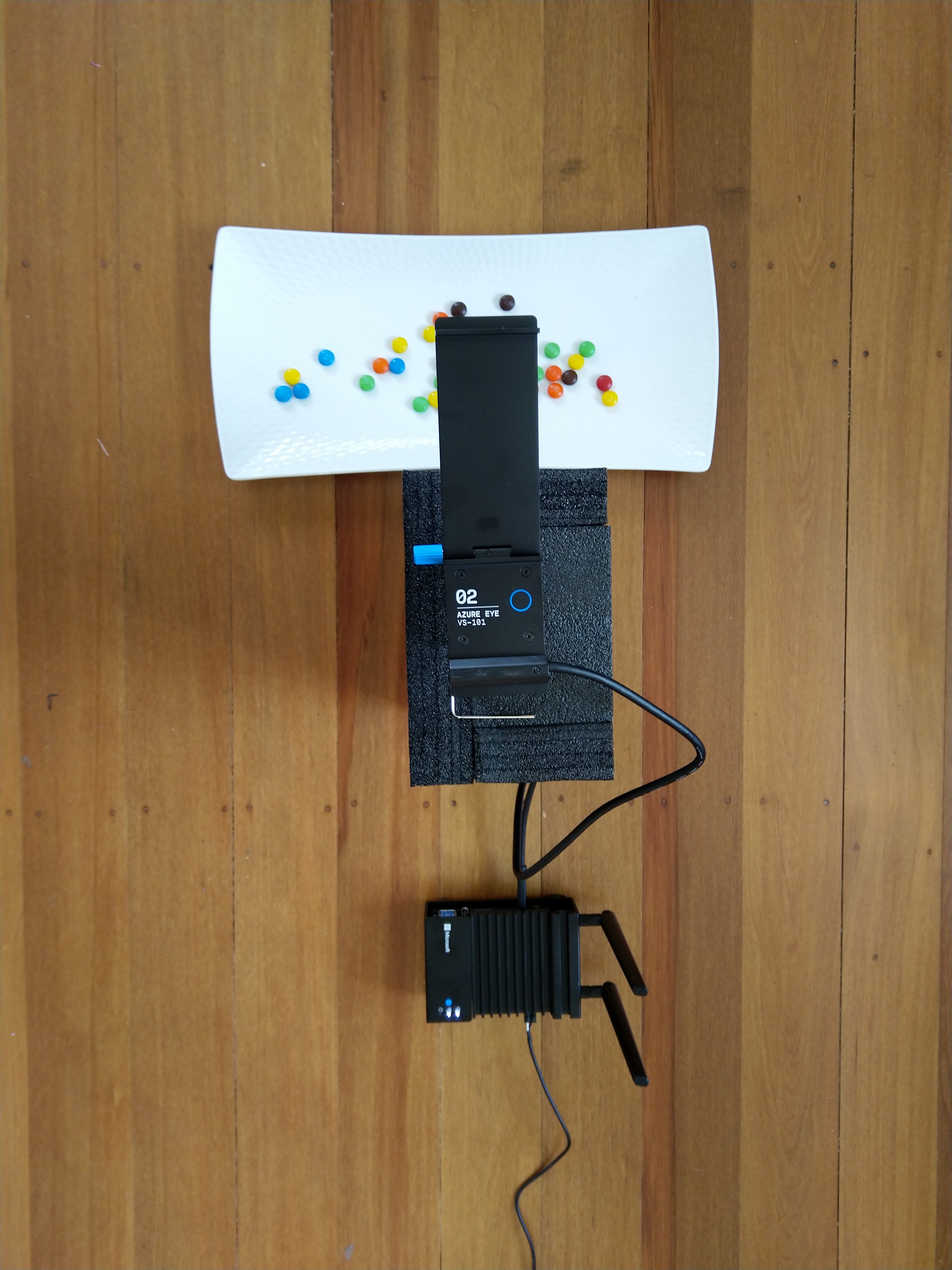
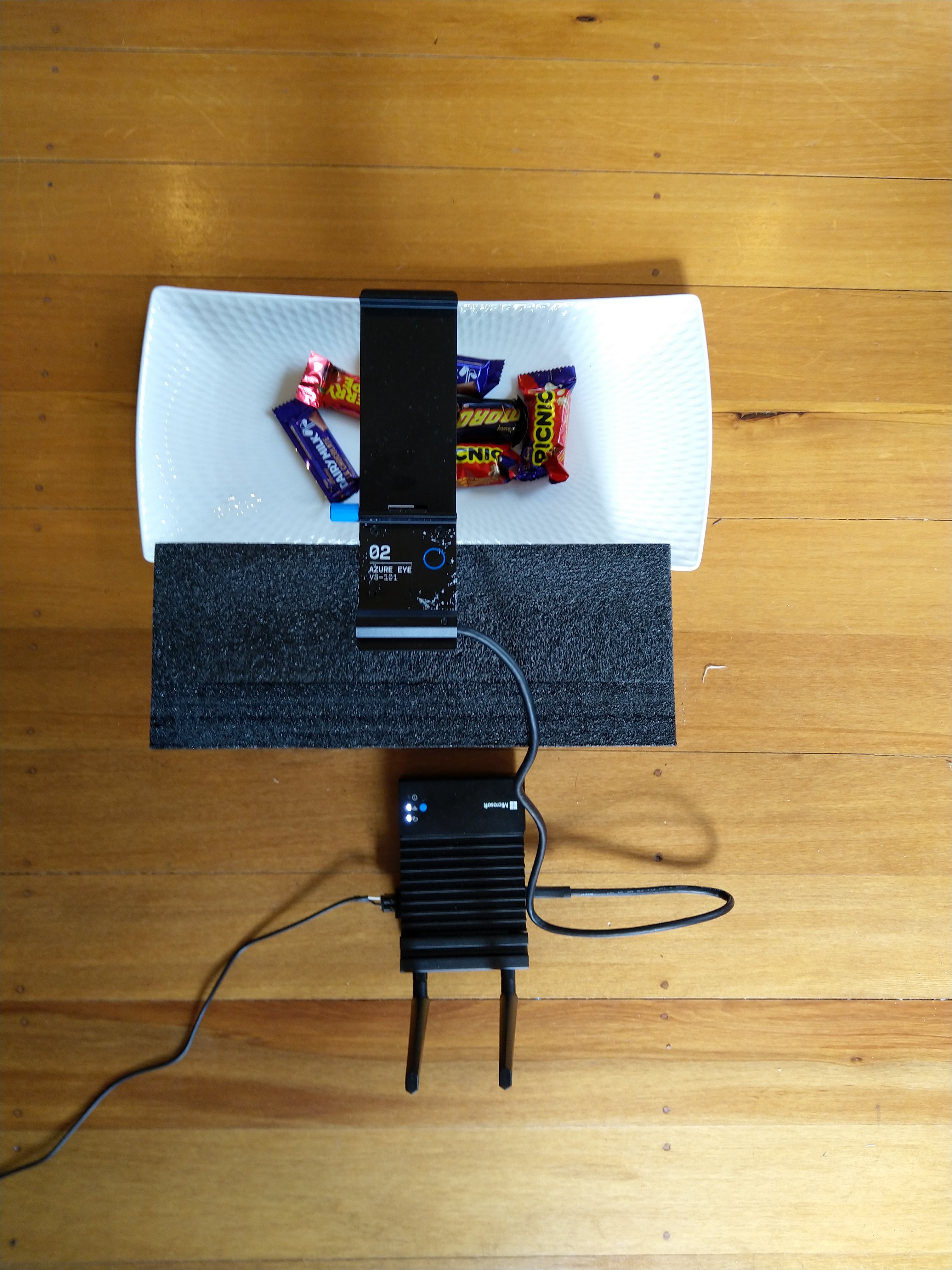
The intern trialed different trays, camera orientations, and lighting as part of building a test rig on the living room floor. After some trial and error, he identified the optimal camera orientation (on top of the packing foam) and lighting (indirect sunlight with no shadows) for reliable inferencing. As this was a proof-of-concept project we limited the number of variables so we didn’t have to collect lots of images which the intern would then have to mark up.
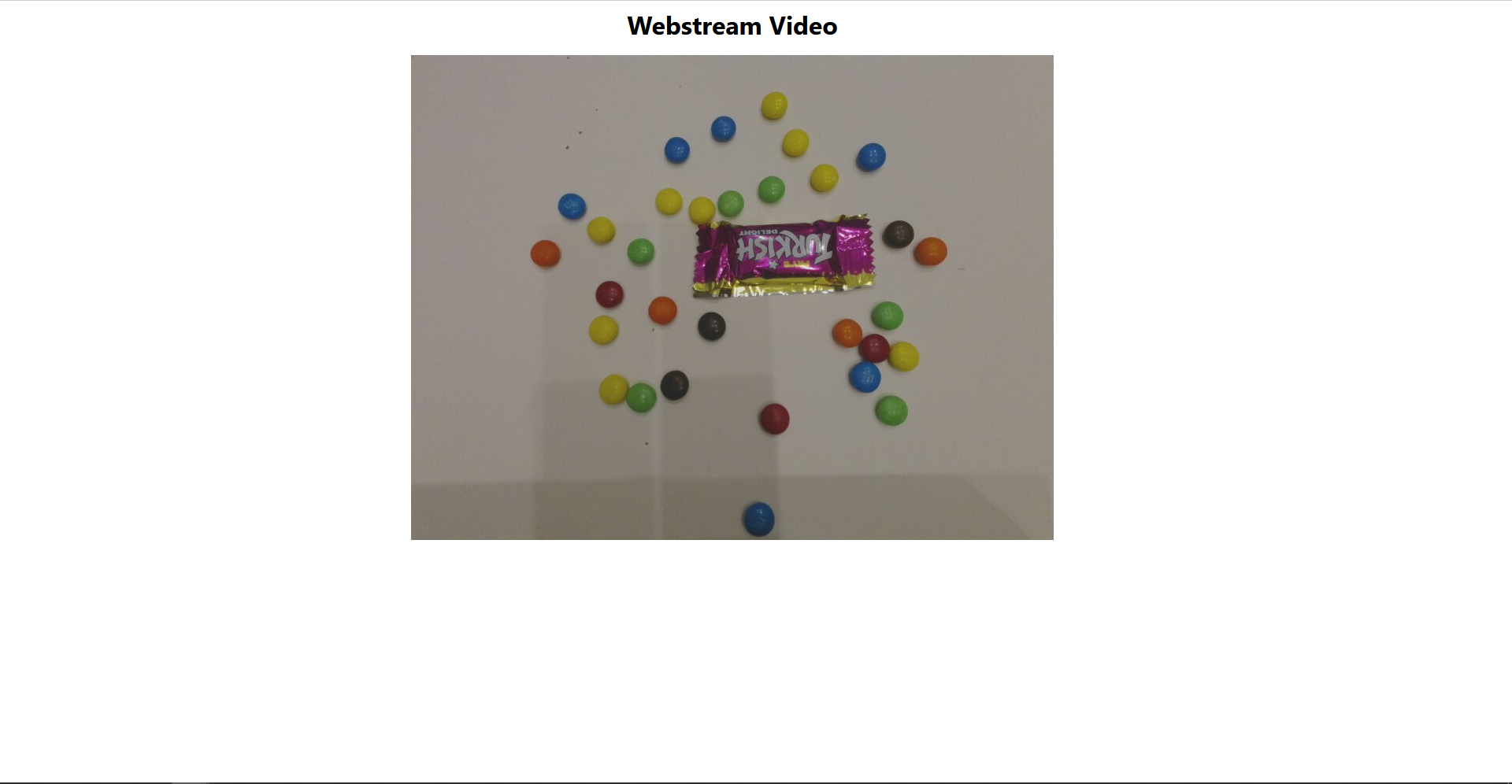
Trialing image capture with M&M’s
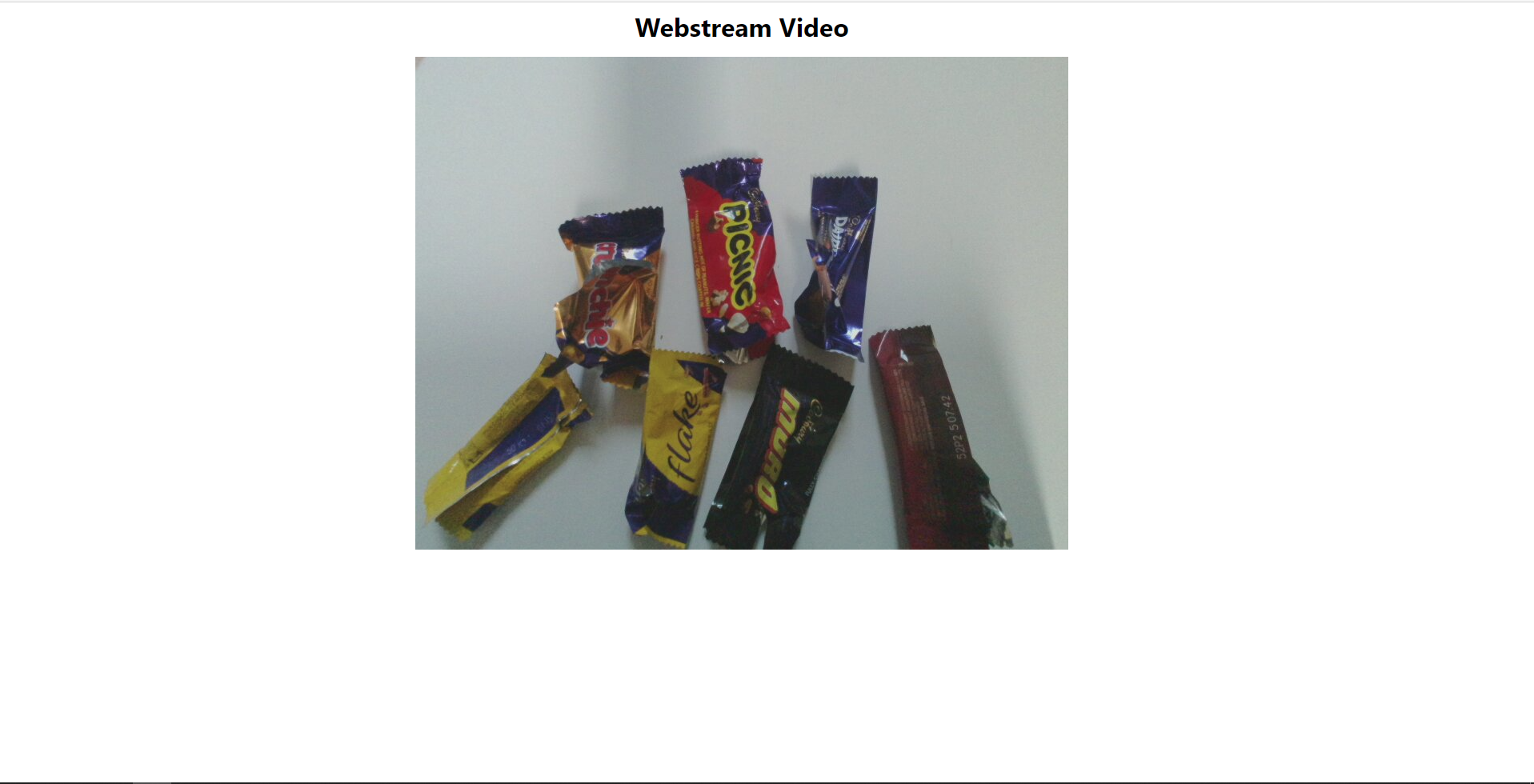
Trialling Image capture with Cadbury Favourites
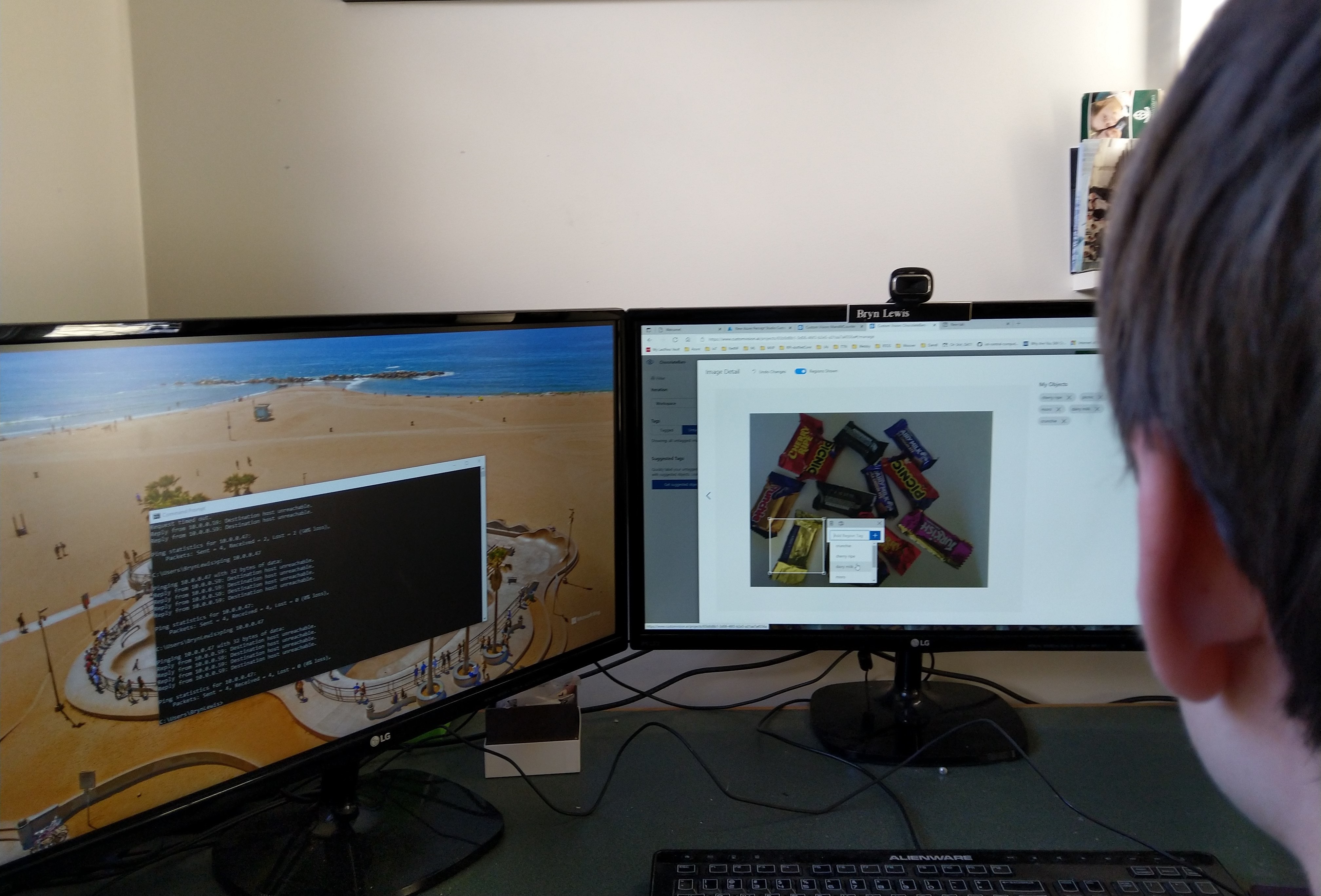
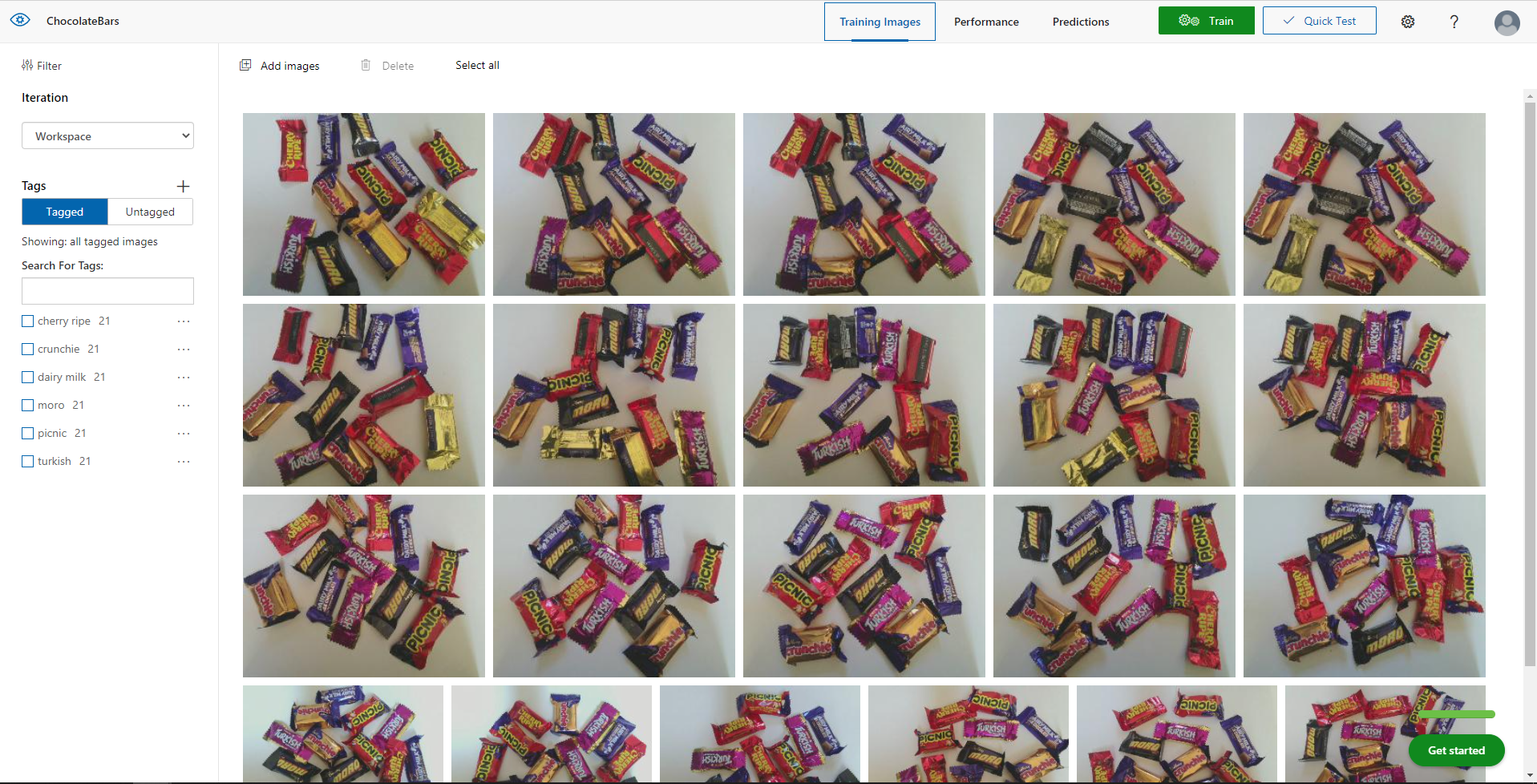
Azure Percept Studio + CustomVision.AI for capturing and marking up images
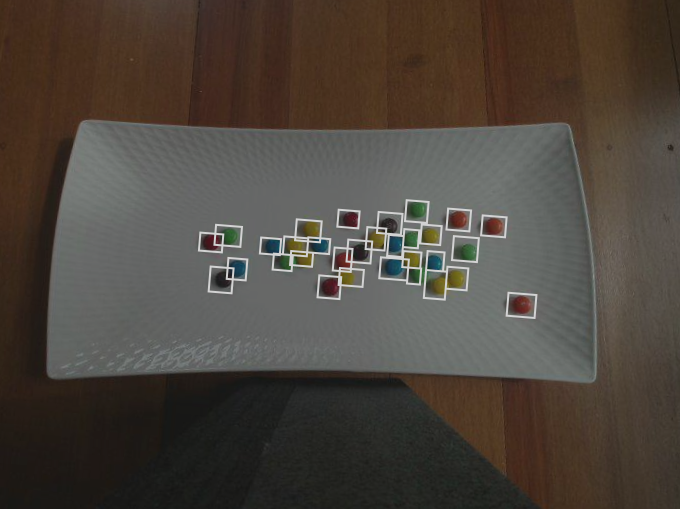
The intern then spent an afternoon drawing minimum bounding rectangles (MBRs) around the different chocolates in the images he had collected.
M&M Size issue
The intern then decided to focus on the chocolate bars after realising they were much easier and faster to markup than the M&Ms.
Cadbury Favourites images before markup
Training
The intern repeatedly trained the model adding additional images and adjusting parameters until the results were “good enough”.
Fine-tuning the Configuration
After using the test rig one evening we found the performance of the model wasn’t great, so the intern collected more images with different lighting, shadows, chocolate bar placements, and orientations to improve the accuracy of the inferencing.
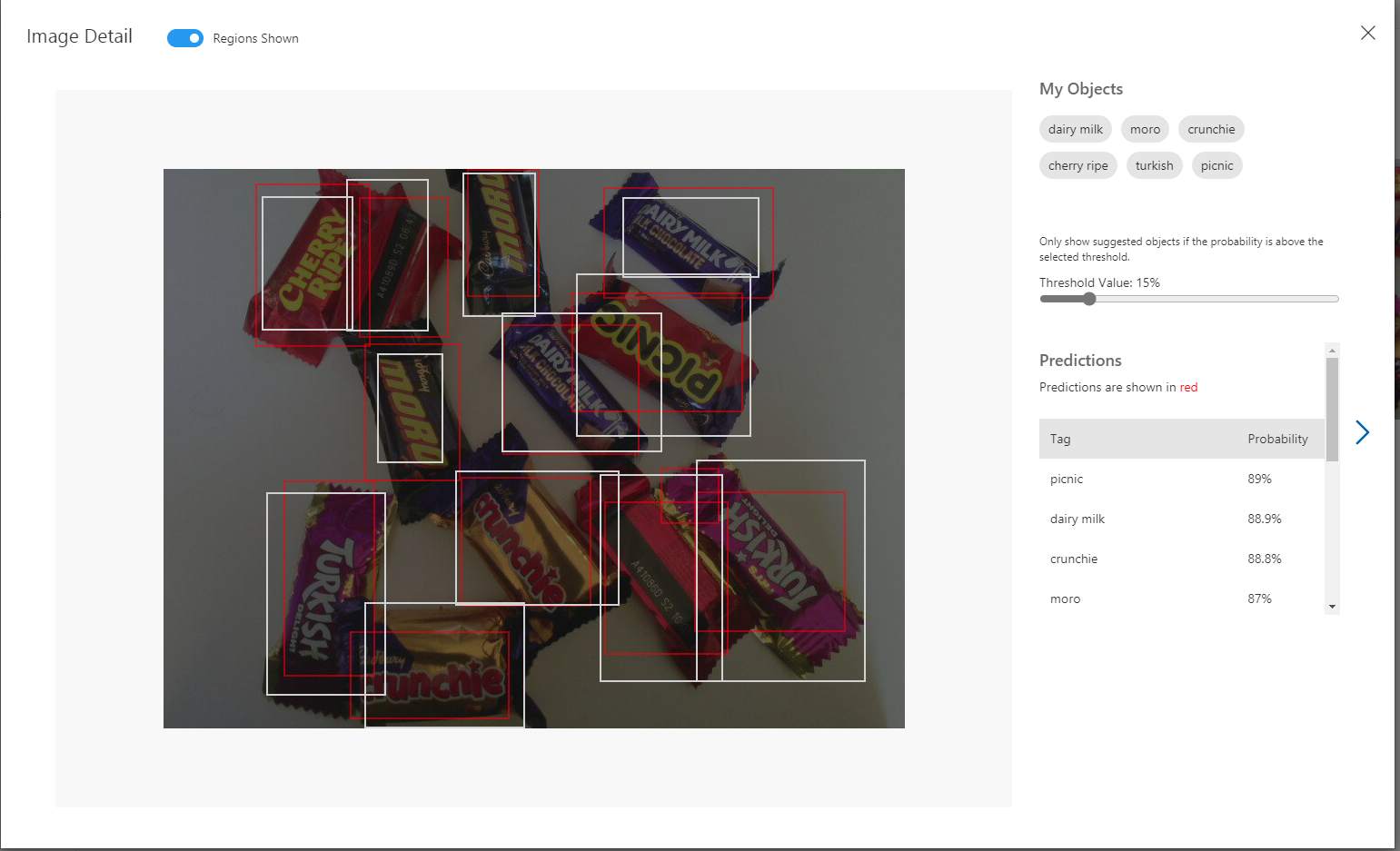
Manual reviewing of object detection results.
Inspecting the Inferencing Results
After several iterations the accuracy of the chocolate bar object detection model was acceptable I wanted to examine the telemetry that was being streamed to my Azure IoT Hub.
In Azure Percept Studio I could view (in a limited way) inferencing telemetry and check the quality and format of the results.
Azure Percept Studio device telemetry
I use Azure IoT Explorer on other projects to configure devices, view telemetry from devices, send messages to devices, view and modify device twinJSON etc. So I used it to inspect the inferencing results streamed to the Azure IoT Hub.
Azure IoT Explorer device telemetry
Summary
In an afternoon the intern had configured and trained a Custom Vision project for me that I could use to to build some “low code” integrations .
Project “Learnings”
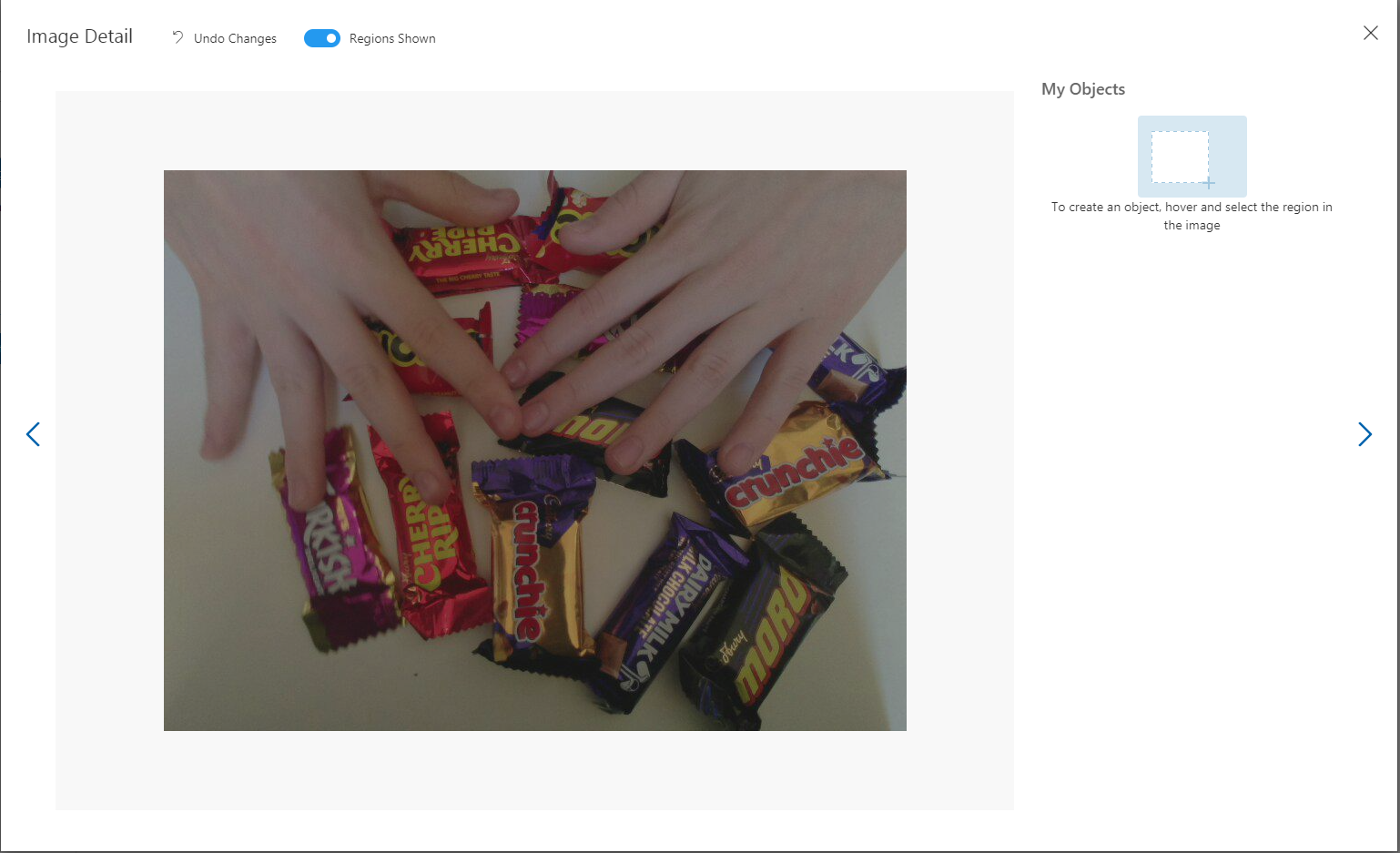
If the image capture delay is too short there will be images with hands.
Captured image with interns hands
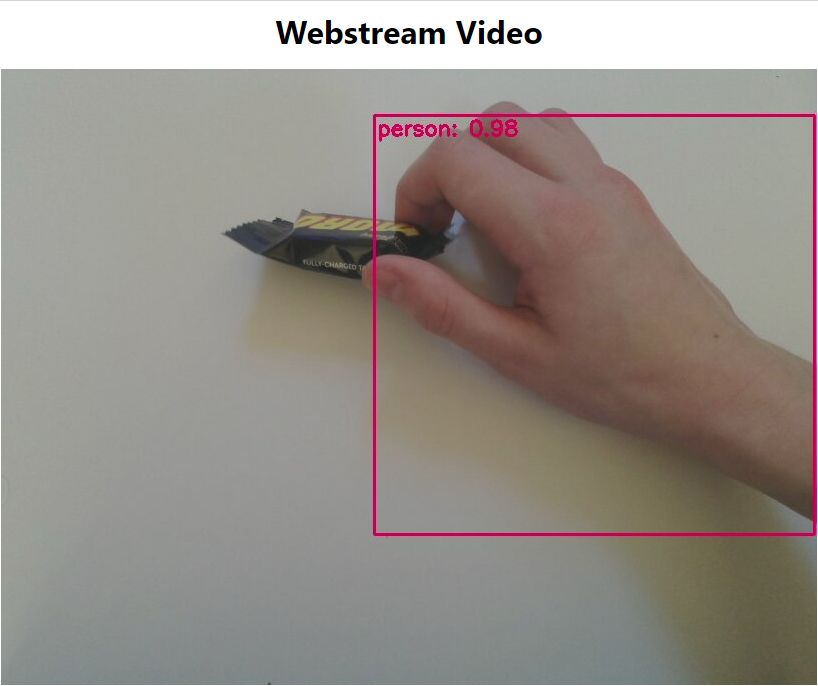
Though, the untrained model did identify the hands
The intern also discovered that by including images with “not favourites” the robustness of the model improved.
Cadbury Favourites with M&Ms
When I had to collect some more images for a blog post, I found the intern had consumed quite a few of the “props” and left the wrappers in the bottom of the Azure Percept packaging.
class Program
{
   private static string payload;

   static async Task Main(string[] args)
   {
      string filename;
      string azureIoTHubconnectionString;
      DeviceClient azureIoTHubClient;

      if (args.Length != 2)
      {
         Console.WriteLine("[JOSN file] [AzureIoTHubConnectionString]");
         Console.WriteLine("Press <enter> to exit");
         Console.ReadLine();
         return;
      }

      filename = args[0];
      azureIoTHubconnectionString = args[1];

      try
      {
         payload = File.ReadAllText(filename);

         // Open up the connection
         azureIoTHubClient = DeviceClient.CreateFromConnectionString(azureIoTHubconnectionString, TransportType.Mqtt);
         //azureIoTHubClient = DeviceClient.CreateFromConnectionString(azureIoTHubconnectionString, TransportType.Mqtt_Tcp_Only);
         //azureIoTHubClient = DeviceClient.CreateFromConnectionString(azureIoTHubconnectionString, TransportType.Mqtt_WebSocket_Only);

         await azureIoTHubClient.OpenAsync();

         await azureIoTHubClient.SetMethodDefaultHandlerAsync(MethodCallbackDefault, null);

         Timer MessageSender = new Timer(TimerCallback, azureIoTHubClient, new TimeSpan(0, 0, 10), new TimeSpan(0, 0, 10));


         Console.WriteLine("Press <enter> to exit");
         Console.ReadLine();
      }
      catch (Exception ex)
      {
         Console.WriteLine(ex.Message);
         Console.WriteLine("Press <enter> to exit");
         Console.ReadLine();
      }
   }

   public static async void TimerCallback(object state)
   {
      DeviceClient azureIoTHubClient = (DeviceClient)state;

      try
      {
         // I know having the payload as a global is a bit nasty but this is a demo..
         using (Message message = new Message(Encoding.ASCII.GetBytes(JsonConvert.SerializeObject(payload))))
         {
            Console.WriteLine(" {0:HH:mm:ss} AzureIoTHubDeviceClient SendEventAsync start", DateTime.UtcNow);
            await azureIoTHubClient.SendEventAsync(message);
            Console.WriteLine(" {0:HH:mm:ss} AzureIoTHubDeviceClient SendEventAsync finish", DateTime.UtcNow);
         }
      }
      catch (Exception ex)
      {
         Console.WriteLine(ex.Message);
      }
   }

   private static async Task<MethodResponse> MethodCallbackDefault(MethodRequest methodRequest, object userContext)
   {
      Console.WriteLine($"Default handler method {methodRequest.Name} was called.");

      return new MethodResponse(200);
   }
}
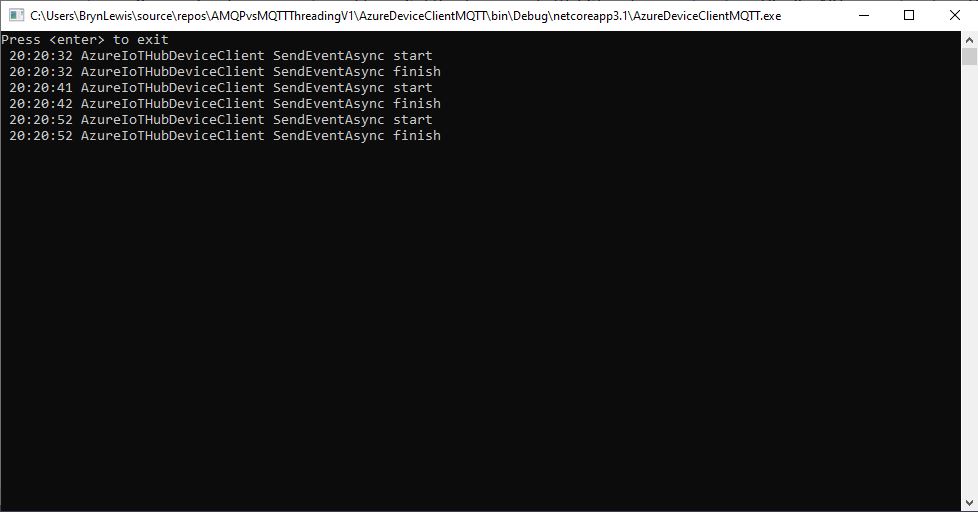
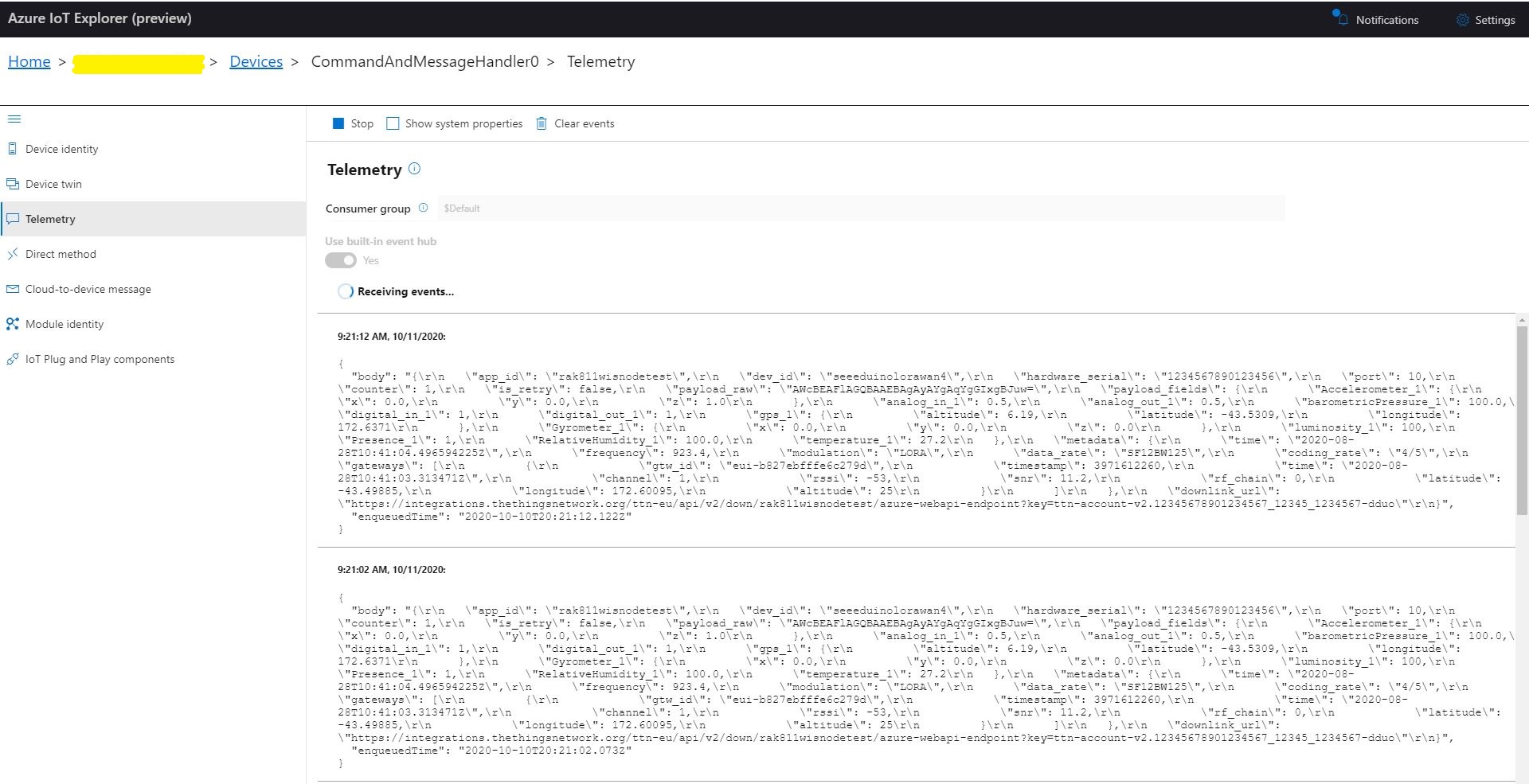
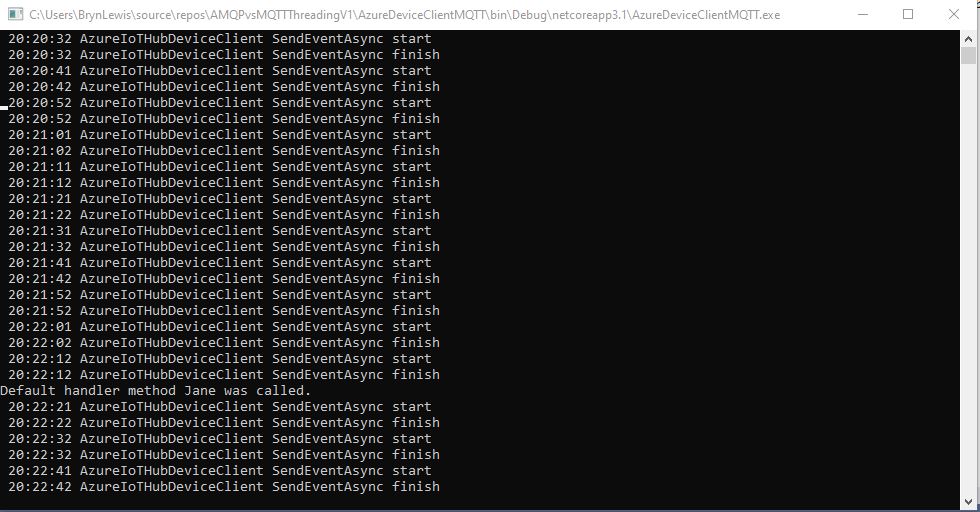
I configured an Azure IoT hub then used Azure IoT explorer to create a device and get the connections string for my application. After fixing up the application’s command line parameters I could see the timer code was successfully sending telemetry messages to my Azure IoT Hub. I also explored the different MQTT connections options TransportType.Mqtt, TransportType.Mqtt_Tcp_Only, and TransportType.Mqtt_WebSocket_Only which worked as expected.
MQTT Console application displaying sent telemetryAzure IoT Hub displaying received telemetry
I could also initiate Direct Method calls to my console application from Azure IoT explorer.
Azure IoT Explorer initiating a Direct Method MQTT console application displaying direct method call.
I then changed the protocol to AMQP
class Program
{
   private static string payload;

   static async Task Main(string[] args)
   {
      string filename;
      string azureIoTHubconnectionString;
      DeviceClient azureIoTHubClient;
      Timer MessageSender;

      if (args.Length != 2)
      {
         Console.WriteLine("[JOSN file] [AzureIoTHubConnectionString]");
         Console.WriteLine("Press <enter> to exit");
         Console.ReadLine();
         return;
      }

      filename = args[0];
      azureIoTHubconnectionString = args[1];

      try
      {
         payload = File.ReadAllText(filename);

         // Open up the connection
         azureIoTHubClient = DeviceClient.CreateFromConnectionString(azureIoTHubconnectionString, TransportType.Amqp);
         //azureIoTHubClient = DeviceClient.CreateFromConnectionString(azureIoTHubconnectionString, TransportType.Amqp_Tcp_Only);
         //azureIoTHubClient = DeviceClient.CreateFromConnectionString(azureIoTHubconnectionString, TransportType.Amqp_WebSocket_Only);

         await azureIoTHubClient.OpenAsync();

         await azureIoTHubClient.SetMethodDefaultHandlerAsync(MethodCallbackDefault, null);

         //MessageSender = new Timer(TimerCallbackAsync, azureIoTHubClient, new TimeSpan(0, 0, 10), new TimeSpan(0, 0, 10));
         MessageSender = new Timer(TimerCallbackSync, azureIoTHubClient, new TimeSpan(0, 0, 10), new TimeSpan(0, 0, 10));

#if MESSAGE_PUMP
         Console.WriteLine("Press any key to exit");
         while (!Console.KeyAvailable)
         {
            await Task.Delay(100);
         }
#else
         Console.WriteLine("Press <enter> to exit");
         Console.ReadLine();
#endif
      }
      catch (Exception ex)
      {
         Console.WriteLine(ex.Message);
         Console.WriteLine("Press <enter> to exit");
         Console.ReadLine();
      }
   }

   public static async void TimerCallbackAsync(object state)
   {
      DeviceClient azureIoTHubClient = (DeviceClient)state;

      try
      {
         // I know having the payload as a global is a bit nasty but this is a demo..
         using (Message message = new Message(Encoding.ASCII.GetBytes(JsonConvert.SerializeObject(payload))))
         {
            Console.WriteLine(" {0:HH:mm:ss} AzureIoTHubDeviceClient SendEventAsync start", DateTime.UtcNow);
            await azureIoTHubClient.SendEventAsync(message);
            Console.WriteLine(" {0:HH:mm:ss} AzureIoTHubDeviceClient SendEventAsync finish", DateTime.UtcNow);
         }
      }
      catch (Exception ex)
      {
         Console.WriteLine(ex.Message);
      }
   }

   public static void TimerCallbackSync(object state)
   {
      DeviceClient azureIoTHubClient = (DeviceClient)state;

      try
      {
         // I know having the payload as a global is a bit nasty but this is a demo..
         using (Message message = new Message(Encoding.ASCII.GetBytes(JsonConvert.SerializeObject(payload))))
         {
            Console.WriteLine(" {0:HH:mm:ss} AzureIoTHubDeviceClient SendEventAsync start", DateTime.UtcNow);
            azureIoTHubClient.SendEventAsync(message).GetAwaiter();
            Console.WriteLine(" {0:HH:mm:ss} AzureIoTHubDeviceClient SendEventAsync finish", DateTime.UtcNow);
         }
      }
      catch (Exception ex)
      {
         Console.WriteLine(ex.Message);
      }
   }


   private static async Task<MethodResponse> MethodCallbackDefault(MethodRequest methodRequest, object userContext)
   {
      Console.WriteLine($"Default handler method {methodRequest.Name} was called.");

      return new MethodResponse(200);
   }
}
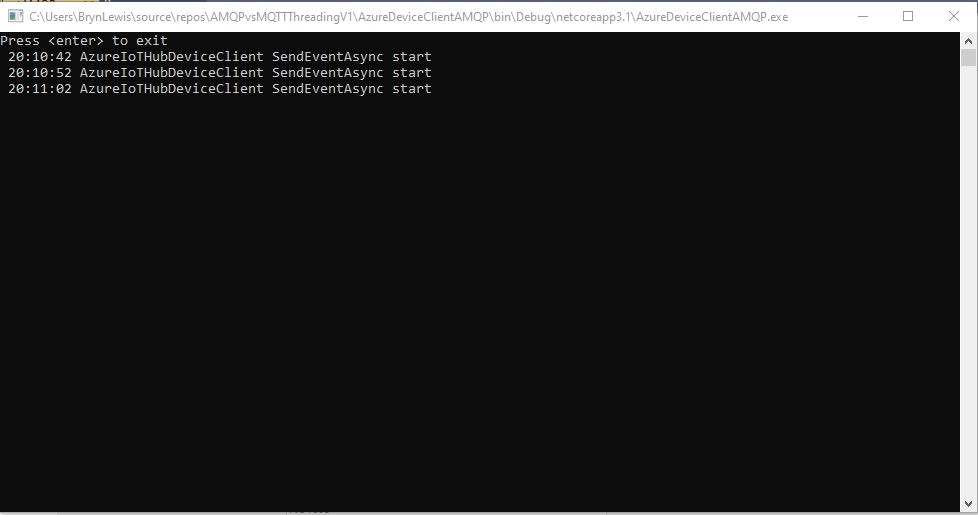
In the first version of my console application I could see the SendEventAsync method was getting called but was not returning
AMQP Console application displaying sent telemetry failure
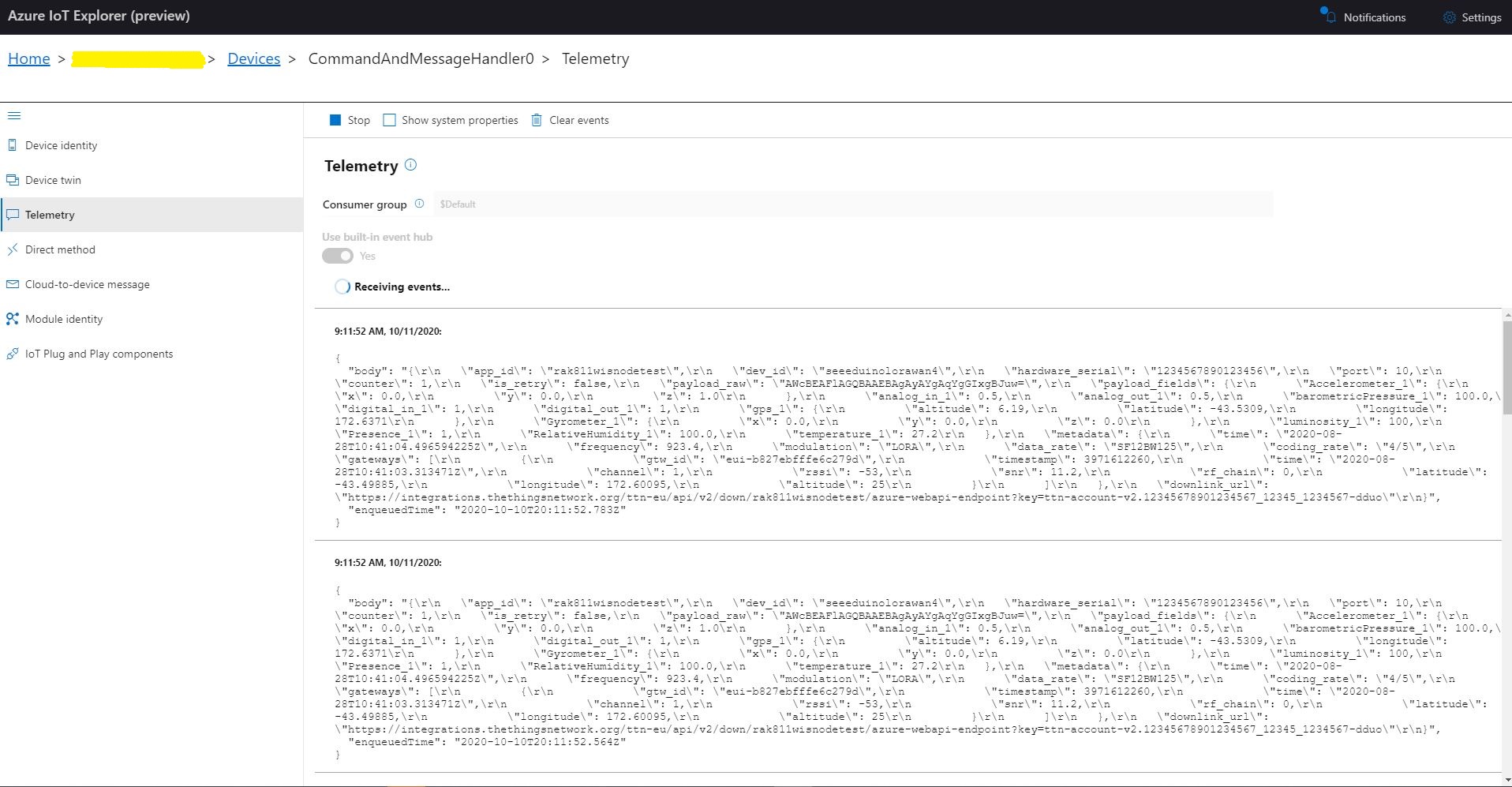
Even though the SendEventAsync call was not returning the telemetry messages were making it to my Azure IoT Hub.
Azure IoT Hub displaying AMQP telemetry
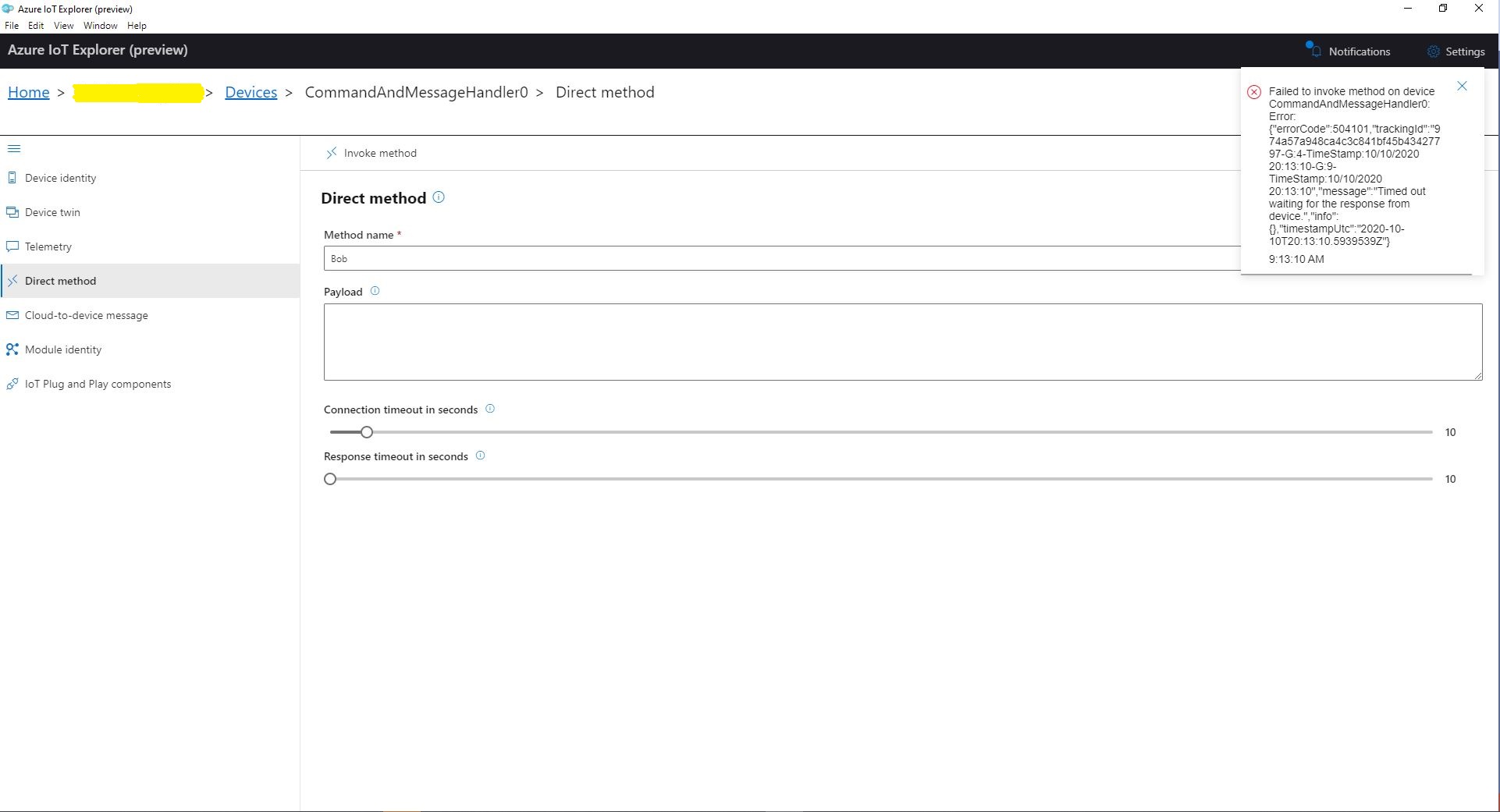
When I tried to initiate a Direct Method call from Azure IoT Explorer it failed after a while with a timeout.
Azure IoT Explorer initiating a Direct Method
The first successful approach I tried was to change the Console.Readline to a “message pump” (flashbacks to Win32 API programming).
Console.WriteLine("Press any key to exit");
while (!Console.KeyAvailable)
{
   await Task.Delay(100);
}
After some more experimentation I found that changing the timer method from asynchronous to synchronous also worked.
public static void TimerCallbackSync(object state)
{
   DeviceClient azureIoTHubClient = (DeviceClient)state;

   try
   {
      // I know having the payload as a global is a bit nasty but this is a demo..
      using (Message message = new Message(Encoding.ASCII.GetBytes(JsonConvert.SerializeObject(payload))))
      {
         Console.WriteLine(" {0:HH:mm:ss} AzureIoTHubDeviceClient SendEventAsync start", DateTime.UtcNow);
         azureIoTHubClient.SendEventAsync(message).GetAwaiter();
         Console.WriteLine(" {0:HH:mm:ss} AzureIoTHubDeviceClient SendEventAsync finish", DateTime.UtcNow);
      }
   }
   catch (Exception ex)
   {
      Console.WriteLine(ex.Message);
   }
}
I also had to change the method declaration and modify the SendEventAsync call to use a GetAwaiter.
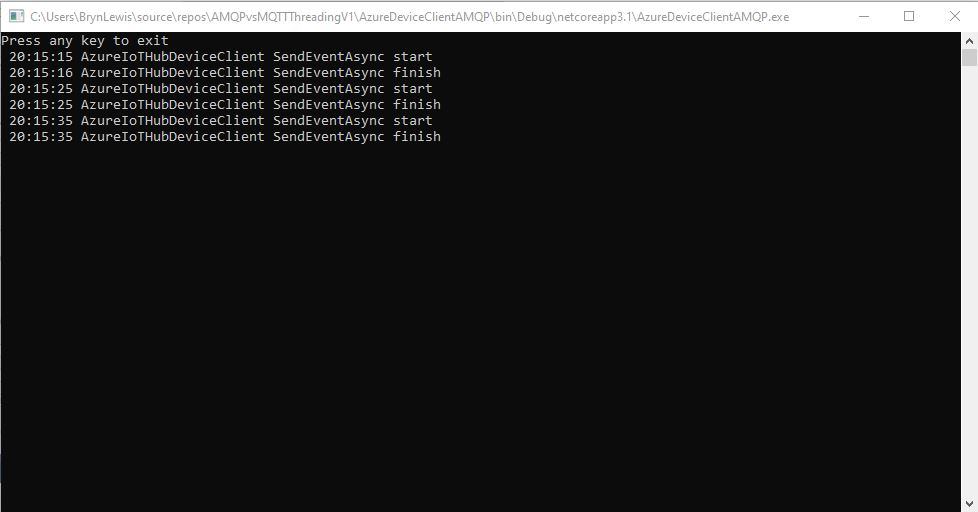
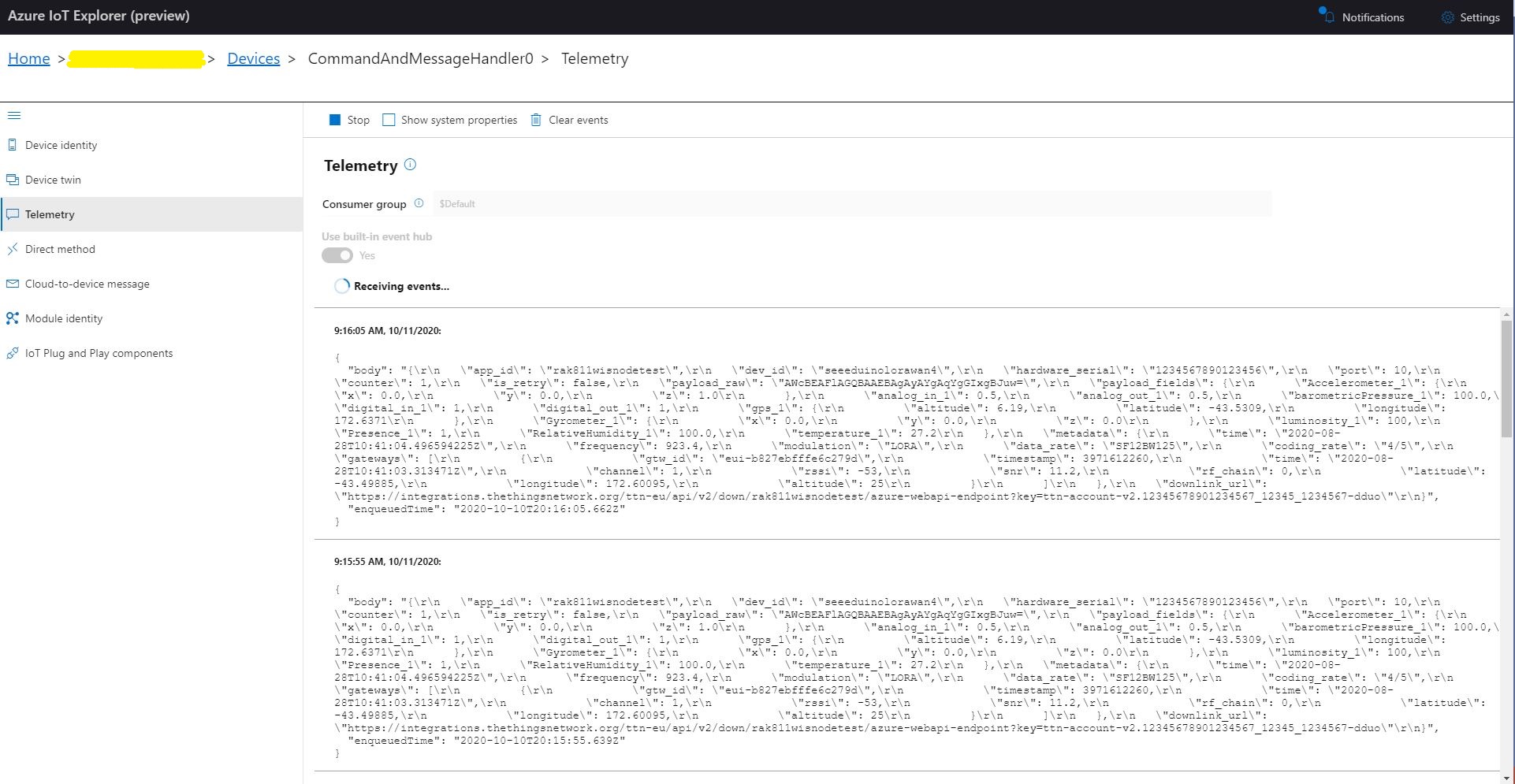
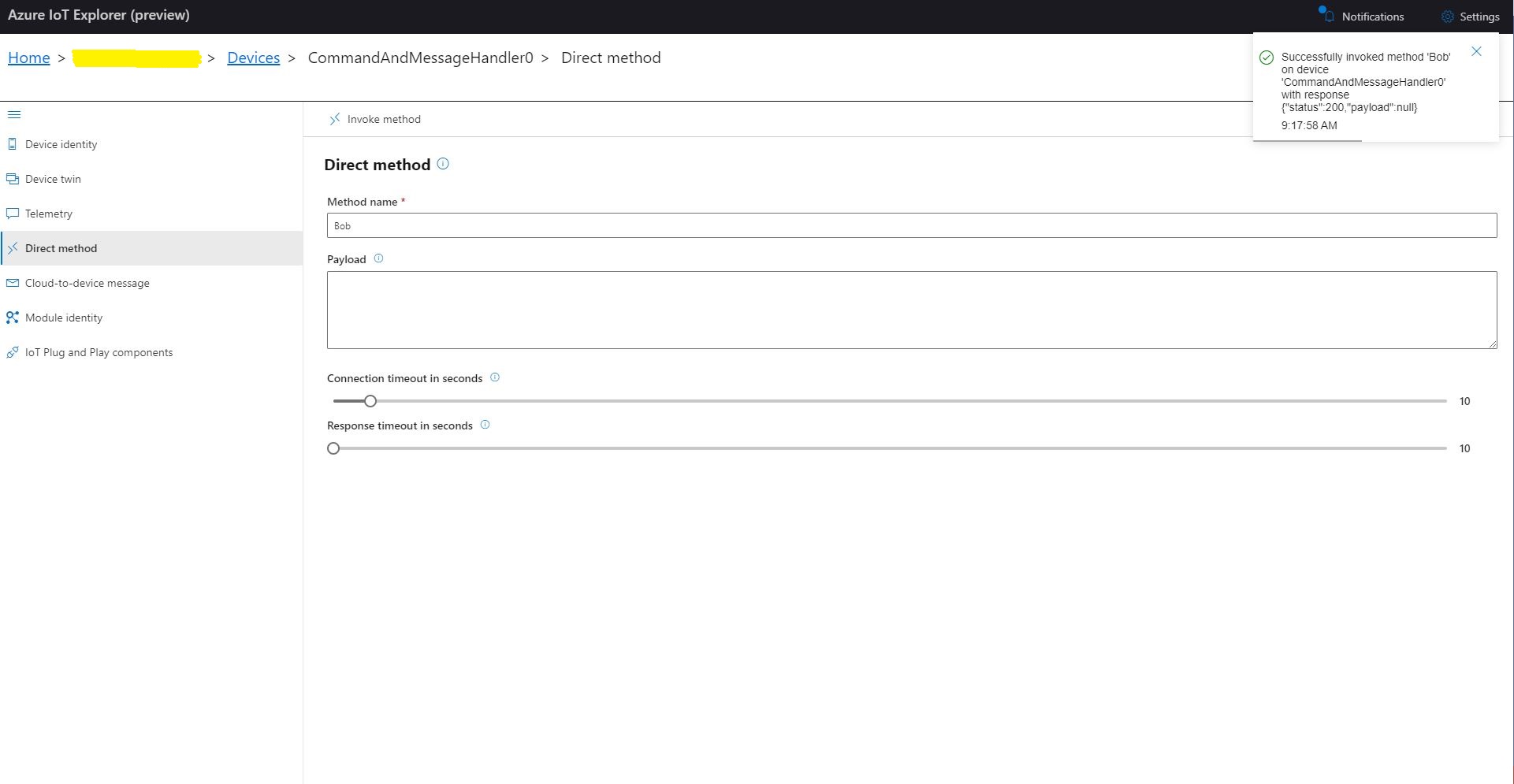
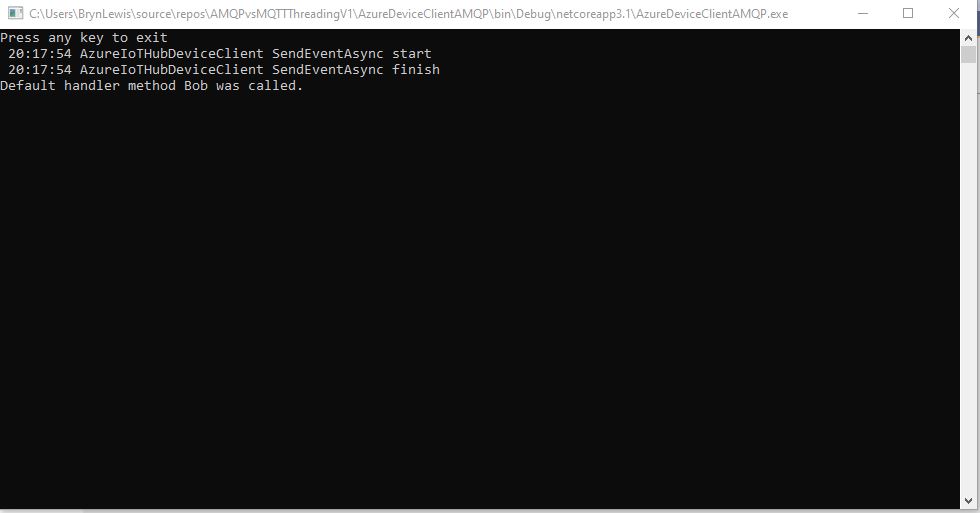
AMQP Console application displaying sent telemetryAzure IoT Hub displaying received telemetryAzure IoT Explorer initiating a Direct MethodMQTT console application displaying direct method call.
It took a while to figure out enough about what was going on so I could do a search with the right keywords (DeviceClient AMQP async await SendEventAsync) to confirm my suspicion that MQTT and AMQP clients did behave differently.







 devMobile's blog