EntLib Logging in Azure – Revisited

At one of my clients I was debugging an application which used the Microsoft Enterprise Library logging block and I added some code to log the service configuration on start up.

The odd thing was that when I turned on verbose logging I noticed the first couple of log entries were missing sometimes. After some mucking around I found that the log entries were only missing for a new deployment and everything was fine for a restart.

The missing log entries weren’t immediately obvious as I was testing an application which was clustered and there were multiple instances were logging information simultaneously.

public override bool OnStart()
{
Trace.Listeners.Add(new DiagnosticMonitorTraceListener());
Trace.AutoFlush = true;

CloudStorageAccount storageAccount = CloudStorageAccount.Parse(RoleEnvironment.GetConfigurationSettingValue("Microsoft.WindowsAzure.Plugins.Diagnostics.ConnectionString"));
RoleInstanceDiagnosticManager roleInstanceDiagnosticManager = storageAccount.CreateRoleInstanceDiagnosticManager(RoleEnvironment.DeploymentId, RoleEnvironment.CurrentRoleInstance.Role.Name, RoleEnvironment.CurrentRoleInstance.Id);

var configuration = roleInstanceDiagnosticManager.GetCurrentConfiguration();
if (configuration == null)
{
configuration = DiagnosticMonitor.GetDefaultInitialConfiguration();
}

configuration.Logs.BufferQuotaInMB = 4;
configuration.Logs.ScheduledTransferPeriod = TimeSpan.FromMinutes(1);
configuration.Logs.ScheduledTransferLogLevelFilter = LogLevel.Undefined;
roleInstanceDiagnosticManager.SetCurrentConfiguration(configuration);

EnterpriseLibraryContainer.Current = EnterpriseLibraryContainer.CreateDefaultContainer(new FileConfigurationSource("web.config", false));
Logger.Write("OnStart " + DateTime.UtcNow.ToLongTimeString());


return base.OnStart();
}

public override void Run()
{
int index = 0;

Logger.Write(“Run Start ” + DateTime.UtcNow.ToLongTimeString());

while (true)
{
Logger.Write(“Run Loop ” + index.ToString() + ” ” + DateTime.UtcNow.ToLongTimeString());
index++;
Thread.Sleep(10000);
}
}

The trace log for a new deployment looked like this (I have found it starts somewhere between loop 2 thru 6 )

Run Loop 6 8:04:09 AM
Run Loop 7 8:04:19 AM
Run Loop 8 8:04:29 AM
….

For a restart like this

OnStart 8:19:01 AM
Run Start 8:19:01 AM
Run Loop 0 8:19:01 AM
Run Loop 1 8:19:11 AM
Run Loop 2 8:19:21 AM

I’m assuming that it this is a result of the time it takes for DiagnosticsAgent.exe to spin up.

If I use the Windows Event log the results are similar but with duplicate entries every so often which is odd.
NetMF Gadgeteer SeeedStudio GPS module driver oddness

A few months ago I built a proof of concept NetMF 4.2 application for a client which uploaded data to a Windows Azure Service. Recently we had been talking about extending the application to include support for tagging of the uploaded data with position information.

I purchased a Gadgeeter GPS Module from SeeedStudio and did a trial integration of the module into the client’s application. Initially it was working but I noticed that after a while (I monitored the application using MF Deploy) it would start displaying buffer overflow messages. I did the usual thing and went looking for “slow” code in the GPS events, removed debug print statements and made sure my application and the GPS were “playing nice” but the problem persisted.

My modifications seemed to make little difference so I downloaded the Microsoft Gadgeeter source code from codeplex so I could have a closer look at how the GPS driver worked. (I also personally would also like the driver to return the HDoP, VDoP or PDoP so there is an indication of the accuracy of the position data)

I noticed that there was a GPSTestApp and fired it up to see what would happen. I connected to my FEZ Spider device using MF Deploy and below is the output. The GPS Test application threw an exception shortly after I started it, then started displaying “Buffer OVFLW”. (Odd thing is I it must still be processing some NMEA1803 strings)

I need to do some digging to figure out what’s going on as initially thought it was my code but as the demo application fails I’m not so sure 🙂

Found debugger!
Create TS.
Loading start at a0e00000, end a0e1383c
Assembly: mscorlib (4.2.0.0)     Assembly: Microsoft.SPOT.Native (4.2.0.0)     Assembly: Microsoft.SPOT.Security.PKCS11 (4.2.0.0)     Assembly: System.Security (4.2.0.0)  Loading Deployment Assemblies.
Attaching deployed file.
Assembly: Microsoft.SPOT.IO (4.2.0.0)  Attaching deployed file.
Assembly: GTM.Seeed.GPS (1.6.0.0)  Attaching deployed file.
Assembly: Microsoft.SPOT.Graphics (4.2.0.0)  Attaching deployed file.
Assembly: Microsoft.SPOT.Hardware (4.2.0.0)  Attaching deployed file.
Assembly: Microsoft.SPOT.Hardware.PWM (4.2.0.1)  Attaching deployed file.
Assembly: GHI.Premium.Hardware (4.2.9.0)  Attaching deployed file.
Assembly: System (4.2.0.0)  Attaching deployed file.
Assembly: Gadgeteer.Serial (2.42.0.0)  Attaching deployed file.
Assembly: Microsoft.SPOT.TinyCore (4.2.0.0)  Attaching deployed file.
Assembly: GHI.Premium.System (4.2.9.0)  Attaching deployed file.
Assembly: GPSTestApp (1.0.0.0)  Attaching deployed file.
Assembly: Microsoft.SPOT.Net (4.2.0.0)  Attaching deployed file.
Assembly: System.IO (4.2.0.0)  Attaching deployed file.
Assembly: GHI.Premium.IO (4.2.9.0)  Attaching deployed file.
Assembly: Gadgeteer (2.42.0.0)  Attaching deployed file.
Assembly: Microsoft.SPOT.Hardware.SerialPort (4.2.0.0)  Attaching deployed file.
Assembly: GHIElectronics.Gadgeteer.FEZSpider (1.1.1.0)  Resolving.
GC: 1msec 28272 bytes used, 7311396 bytes available
Type 0F (STRING              ):     24 bytes
Type 15 (FREEBLOCK           ): 7311396 bytes
Type 17 (ASSEMBLY            ):  28176 bytes
Type 34 (APPDOMAIN_HEAD      ):     72 bytes
GC: performing heap compaction...
Ready.

Using mainboard GHI Electronics FEZSpider version 1.0
Program Started
#### Exception System.InvalidOperationException – 0x00000000 (4) ####
#### Message:
#### System.IO.Ports.SerialPort::set_ReadTimeout [IP: 0009] ####
#### Gadgeteer.Interfaces.Serial::ReadLineProcess [IP: 0015] ####
Uncaught exception
GPS last position NO POSITION FIX age 10675199.02:48:05.4775807
Buffer OVFLW
Buffer OVFLW
Buffer OVFLW
Buffer OVFLW
Buffer OVFLW

95 x Buffer OVFLW

Buffer OVFLW
Buffer OVFLW
Buffer OVFLW
Buffer OVFLW
GPS last position NO POSITION FIX age 10675199.02:48:05.4775807
Buffer OVFLW
Buffer OVFLW

FEZ Spider NetMF 4.2 Wifi with Designer Support

I now have a GHI Wifi RS21 Module which I needed get working with a FEZ Spider running NetMF 4.2 (I have upgraded both my FEZ Spiders to 4.2 so no 4.1 vs. 4.2 comparison this time). Other developers seemed to be struggling to get connectivity with various earlier versions of the NetMF going working robustly.

(http://www.tinyclr.com/forum/topic?id=9404)
(http://www.tinyclr.com/forum/topic?id=9388)
(http://www.tinyclr.com/forum/topic?id=9502)
(http://www.tinyclr.com/forum/topic?id=9538)

So after flashing my device to 4.2.9.0 I built a quick and dirty demo to illustrate how I got my RS9110 based Wifi module working with designer support. For a real application I would move the initialisation out of the ProgramStarted and improve the exception handling but this sample code should be enough to get you started. I have checked and this code works after both a device reset or re-flashing.

FezSpider + Wifi

Christchurch DNUG Internet of Things Presentation 5:30PM 26th March

I’m doing a presentation at the EPIC centre on the 26th of March about Windows Azure and the Internet of Things.

The local Java user group have been invited as well so I’ll be going into interop and connectivity considerations as well.  More information about the location and time is available from here.

Tim Carr from Mindkits has also kindly provided some swag. I have got a Fez Panda II and Robot Chassis to give away for the best two questions.

NetMF HTTP Client Possible Memory Leak

As part of another project I was using the .NetMF HTTPClient functionality to initiate an HTTP GET.

I was having problems with the application crashing after a while so fired up the Visual Studio debugger. Due to a configuration problem the application was kicking of a WebRequest every 10 secs which was significantly faster than intended.

After some poking around I found the application was crashing due to a memory leak of roughly 45K per https call (http is okay). I tried several different ways of declaring/loading the x509 certificate to see if that impacted what the GC could collect but it made little or no difference. I tried forcing a GC after each webrequest but this also appeared to make little or no difference. Basically the BINARY_BLOB_HEAD value increases until the application runs out of memory and then crashes.

To help identify the problem I built a small test harness which reliably reproduces the problem with minimum overhead. The code is available here my HTTP Client Sample.

HTTPS + certificate loaded into a global variable

7120164 bytes
7074420
7029252
6984036
6938952
6893736
6848520
6803304
6758088
6712740

HTTP + certificate loaded into a global variable

7165980 bytes
7167840
7167840
7167708
7167840
7167840
7167840
7167708
7167708
7167840

HTTP – no certificate

7165980 bytes
7167840
7167840
7167840
7167840
7167840
7167840
7167708
7167840
7167840

HTTPS – certificate loaded for every webrequest

7118640 bytes
7073028
7027860
6982644
6937296
6892080
6846864
6801780
6756432
6711348

HTTPS + certificate loaded into a global readonly variable

7118664 bytes
7072920
7027752
6982668
6937452
6892236
6846888
6801804
6756588
6711372

HTTPS Memory info – Start

Type 0F (STRING ): 3084 bytes
Type 11 (CLASS ): 14352 bytes
Type 12 (VALUETYPE ): 1512 bytes
Type 13 (SZARRAY ): 7860 bytes
Type 03 (U1 ): 3192 bytes
Type 04 (CHAR ): 852 bytes
Type 07 (I4 ): 1044 bytes
Type 0F (STRING ): 72 bytes
Type 11 (CLASS ): 2616 bytes
Type 12 (VALUETYPE ): 84 bytes
Type 15 (FREEBLOCK ): 7118664 bytes
Type 16 (CACHEDBLOCK ): 216 bytes
Type 17 (ASSEMBLY ): 32688 bytes
Type 18 (WEAKCLASS ): 96 bytes
Type 19 (REFLECTION ): 192 bytes
Type 1B (DELEGATE_HEAD ): 864 bytes
Type 1D (OBJECT_TO_EVENT ): 240 bytes
Type 1E (BINARY_BLOB_HEAD ): 152496 bytes
Type 1F (THREAD ): 1536 bytes
Type 20 (SUBTHREAD ): 144 bytes
Type 21 (STACK_FRAME ): 1632 bytes
Type 22 (TIMER_HEAD ): 216 bytes
Type 27 (FINALIZER_HEAD ): 144 bytes
Type 31 (IO_PORT ): 108 bytes
Type 34 (APPDOMAIN_HEAD ): 72 bytes
Type 36 (APPDOMAIN_ASSEMBLY ): 3552 bytes

HTTPS Memory info – Finish

Type 0F (STRING ): 3084 bytes
Type 11 (CLASS ): 14364 bytes
Type 12 (VALUETYPE ): 1512 bytes
Type 13 (SZARRAY ): 7860 bytes
Type 03 (U1 ): 3192 bytes
Type 04 (CHAR ): 852 bytes
Type 07 (I4 ): 1044 bytes
Type 0F (STRING ): 72 bytes
Type 11 (CLASS ): 2616 bytes
Type 12 (VALUETYPE ): 84 bytes
Type 15 (FREEBLOCK ): 6711372 bytes
Type 16 (CACHEDBLOCK ): 96 bytes
Type 17 (ASSEMBLY ): 32688 bytes
Type 18 (WEAKCLASS ): 96 bytes
Type 19 (REFLECTION ): 192 bytes
Type 1B (DELEGATE_HEAD ): 828 bytes
Type 1D (OBJECT_TO_EVENT ): 240 bytes
Type 1E (BINARY_BLOB_HEAD ): 559476 bytes
Type 1F (THREAD ): 1920 bytes
Type 20 (SUBTHREAD ): 192 bytes
Type 21 (STACK_FRAME ): 1632 bytes
Type 22 (TIMER_HEAD ): 216 bytes
Type 27 (FINALIZER_HEAD ): 168 bytes
Type 31 (IO_PORT ): 108 bytes
Type 34 (APPDOMAIN_HEAD ): 72 bytes
Type 36 (APPDOMAIN_ASSEMBLY ): 3552 bytes


...
using (HttpWebRequest request = (HttpWebRequest)HttpWebRequest.Create(@"https://www.google.co.nz"))
{
request.Method = "GET";

request.HttpsAuthentCerts = caCerts;

using (HttpWebResponse response = (HttpWebResponse)request.GetResponse())
{
if (response.StatusCode == HttpStatusCode.OK)
{
PulseDebugLED();
}
Debug.Print(response.StatusDescription);
}
}
Debug.Print("Memory: " + Microsoft.SPOT.Debug.GC(true).ToString());
...

Time to run Reflector over the system.http assembly and see what is going on. I will also post on tinyclr.com to see if anyone else has encountered anything like this. Without my typo I most probably never have noticed this possible problem before deployment.

HTTPS with NetMF HTTP Client managing certificates

One of the services I needed to call from my Fez Spider required an HTTPS connection. The HTTP client sample located at

C:\Users\…\Documents\Microsoft .NET Micro Framework 4.2\Samples\HttpClient

shows how to load a certificate and use it when making a request.

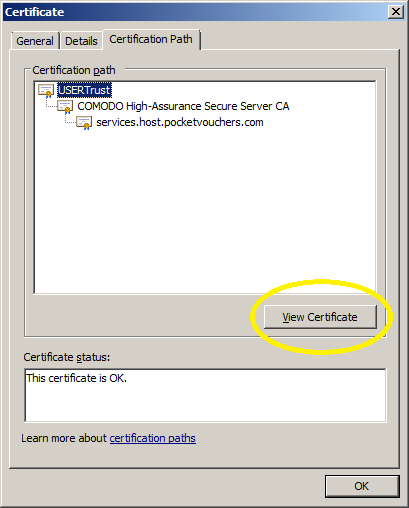
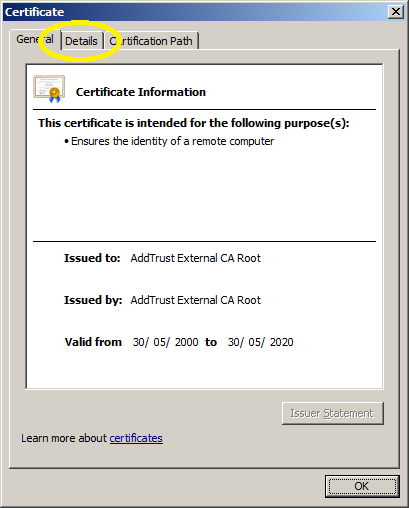
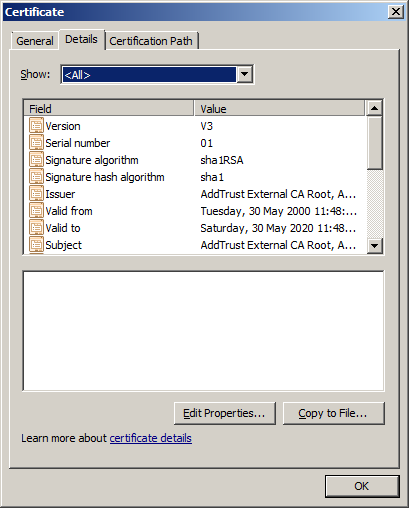
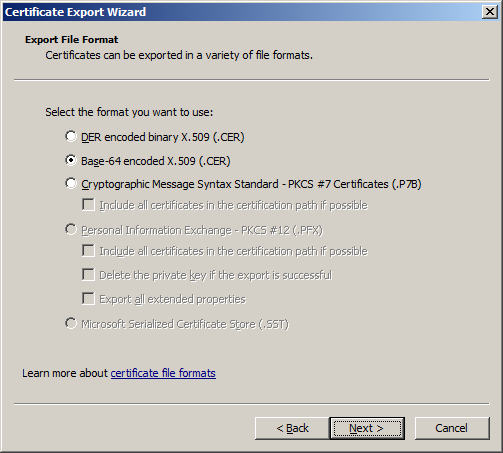
There wasn’t a lot of information about getting the required certificate so I decided to document how I did it. On my Windows Server 2k8 box I use either a web browser or the Certificate Manager for exporting certificates. The easiest way is to use your preferred browser to access the service endpoint (To enable the export functionality you need to “Run as administrator”).

1.IECertificate

View the certificate

2.CertificateDetails

Select the root certificate

3.CertificatePath

View the root certificate information

4.CertificateRoot

View the root certificate details

5.CertificateRootDetails

Export the certificate

6.CertificateRootExport

Save CER file in the resources directory of your NetMF Project and then add it to the application resources.

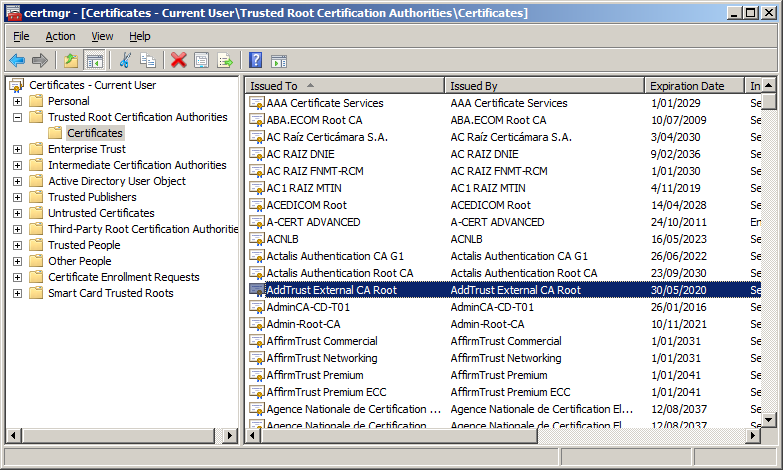
If you know the Root Certification Authority you can export the certificate using Certificate Manager

Certificate Manager

Don’t forget to Update the SSL Seed using MF Deploy and ensure that the device clock is correct.

I use either an Network Time Protocol (NTP) Client or an RTC (Realtime Clock) module to set the device clock.

Depending on the application and device you might need to set the device clock every so often.

HTTP Headers GPRS Modem HTTP Post

All my initial deployments used a CAT5 cable and my ADSL connection which was great for testing and debugging but not really representative of the connectivity a mobile solution would experience.

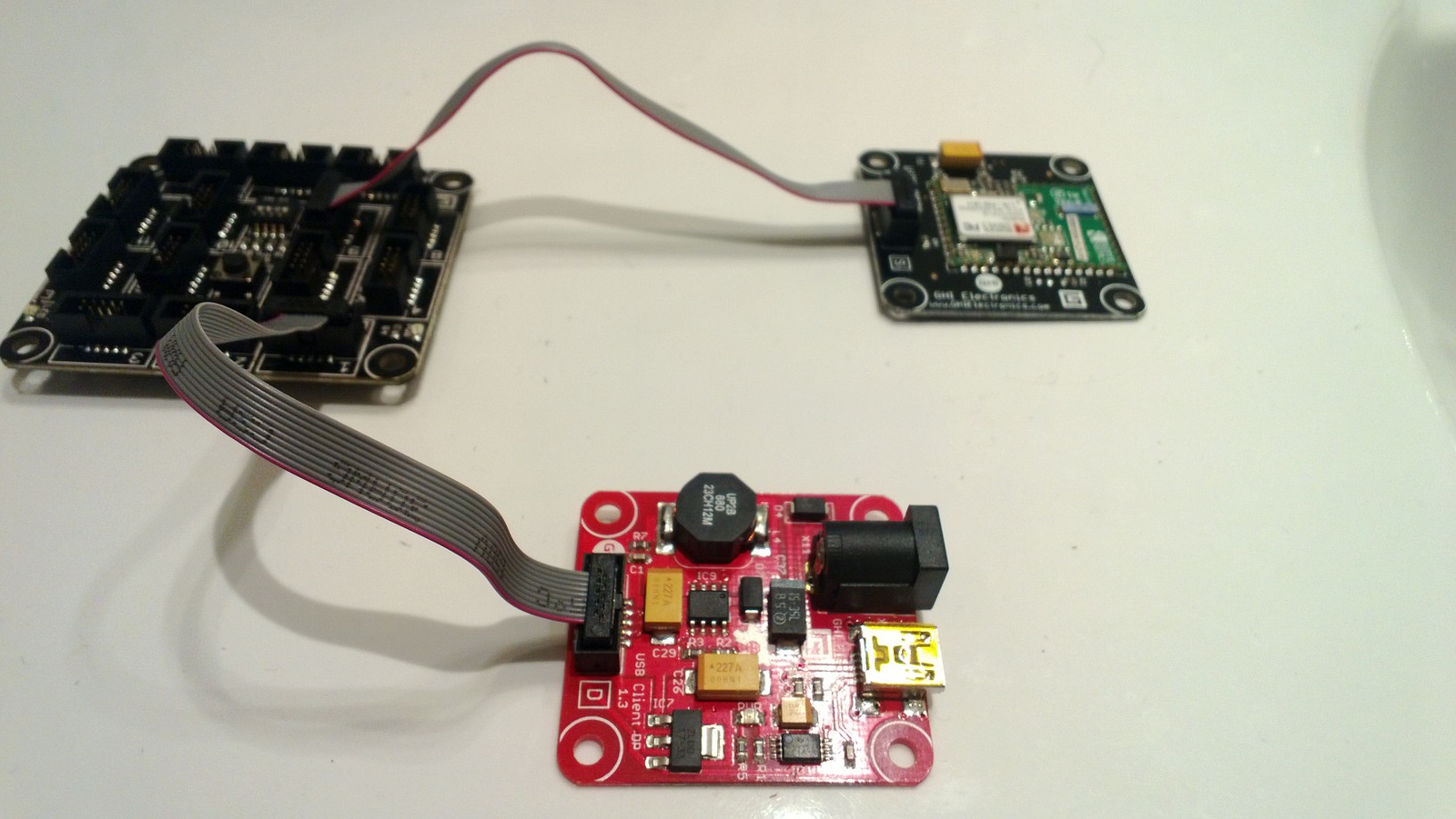
For this test I used a seeedstudio GPRS shield on top of a Netduino Plus.

Netduino + SeeedStudio GPRS Modem

SeedStudio GPRS Modem on top of Netduino Plus

The shield is based on a SIM900 module from SIMCom Wireless and can also initiate HTTP requests. This functionality looked useful as it could make my code a bit simpler and reduce the load on the Netduino CPU.

I initially looked at a the Netduino driver for Seeeduino GSM shield on codeplex but it appeared to only support the sending of SMS messages. (Feb2012)

After some more searching I stumbled across the CodeFreak Out SeeedStudio GPRS Driver which is available as a Nuget package or source code. I had to modify the code to allow me to pass a list of HTTP headers to be added into the request

var gsm = new GPRSShield("www.vodafone.net.nz", SerialPorts.COM1);
gsm.Post(@"gpstrackerhttpheaders.cloudapp.net", 80, @"/posV4.aspx", httpHeaders, "application/html", "");

My simulated data used the same header format as in my earlier testing

x-Pos: 5C-86-4A-00-3F-63 20130218081228 F -43.00000 172.00000 31.4 1.31 0 0

I timed 10 requests

4789,3778,3793,3756,3796,3825,3806,3817,3795,3877

Average 3903 mSec

This was a bit slower than I was expecting so i’ll have to do some digging into the code and see if anything looks a bit odd.

HTTP Headers Payload encryption

So far the content of the messages has been sent as clear text which would not be acceptable for many applications. The requirement for data privacy causes a problem on the Netduino+ (Nov 2012) as the standard NetMF crypto libraries are not baked into the platform.

I then set about finding some crypto libraries which were NetMF friendly. RSA and Xtea are included in some of other NetMF platforms in the Microsoft.SPOT.Cryptography assembly so Xtea seemed like a reasonable choice to ensure interoperability.

When looking for crypto implementations one of the best sources is the Legion of the Bouncy Castle which was where I started. I downloaded the the V17.7 zip file had a look at the size of the Xtea code & all the associated support libraries and then parked that approach as I was worried about the size and performance of the resulting binaries.

I then looked at other possible tea, xtea & xxtea implementations (including porting the original C code to C#)

I am not a cryptographer so I can’t personally confirm the quality and correctness of an implementation. So after having interop problems I went back to the Legion of the Bouncy Castle which has been peer reviewed by experts and had another look. To get an Xtea implementation working on a .NetMF platform like the Netduino+ you need to include the following files…

  • CryptoException.cs
  • DataLengthException.cs
  • IBlockCipher.cs
  • ICipherParameters.cs
  • KeyParameter.cs
  • XTEAEngine.cs

On the Azure side of things where size is not so critical I just added a reference to the Bouncy Castle main project.

Xtea requires 128 bit blocks so you need to pad out the data on the client, then trim off the padding on the server.
// Pad out the data to a multiple of 8 bytes with spaces
if (xPosition.Length % 8 != 0)
{
xPosition += new string(' ', 8 - xPosition.Length % 8);
}

The key and the data need to be converted to byte arrarys, the Xtea engine initialised and a buffer for storing the encrypted data created.

byte[] dataBytes = Encoding.UTF8.GetBytes(xPosition);
byte[] keyBytes = Encoding.UTF8.GetBytes(key);

xteaEngine.Init(true, new KeyParameter(keyBytes));

Then the data can be encrypted in 8 byte chunks
byte[] cryptoBytes = new byte[dataBytes.Length];
for (int i = 0; i < dataBytes.Length; i += 8)
{
xteaEngine.ProcessBlock(dataBytes, i, cryptoBytes, i);
}

I hex encoded the encrypted data for transmission. Downside to this was it doubled the size of the payload
string hexEncodedCryptoBytes = ByteArrayToHex(cryptoBytes);

I added a StopWatch so I could measure the time taken to encrypt the position data (roughly 72 chars) on my Netduino+
285,342,277,345,282,345,342,350,278,343
Average 318mSec

The size of the payload had grown a bit
Request - Bytes Sent: 262
POST http://gpstrackerhttpheaders.cloudapp.net/posV7.aspx HTTP/1.1
Host: gpstrackerhttpheaders.cloudapp.net
x-Pos: 693A7AC6EBF4E5848CE8ABBA2BC6CAC1ED20574C1B2384E7E246A202C8A67E3DE14EE5231A5DF98C211F64F8402547F8BFDCC2241AAE3782A820086E5EF37AA2C50744941F588442
Content-Length: 0
Connection: Close

Response - Bytes Received: 132
HTTP/1.1 200 OK
Cache-Control: private
Content-Type: text/html
Date: Sun, 03 Feb 2013 04:53:30 GMT
Content-Length: 0

This increase in size had an impact on the time taken to send the message

1123,1144,1122,1142,1125,1125,1138,1111,1099,1141
Average 1127mSec

The binary downloaded to the Netduino+ had grown to 28K which still left plenty of space for additional functionality.

HTTP Headers Request reduction

The requests generated by the HTTP_Client were a bit chunky with user-agent strings, content type etc.

POST http://gpstrackerhttpheaders.cloudapp.net/posV4.aspx HTTP/1.1
Accept: */*
Accept-Language: en
User-Agent: NETMFToolbox/0.1 (textmode; Netduino; IntegratedSocket; HTTP_Client)
Host: gpstrackerhttpheaders.cloudapp.net
x-Pos: 5C-86-4A-00-3F-63 20130130080711 F -43.00000 172.00000 16.9 1.28 0 0
Content-Type: application/x-www-form-urlencoded
Content-Length: 0
Connection: Close

I then modified the HTTP_Client so that the accept, accept language, user agent, and content Type headers could be removed if not necessary.

POST http://gpstrackerhttpheaders.cloudapp.net/posV4.aspx HTTP/1.1
Host: gpstrackerhttpheaders.cloudapp.net
x-Pos: 5C-86-4A-00-3F-63 20130130081228 F -43.00000 172.00000 31.4 1.31 0 0
Content-Length: 0
Connection: Close

This reduced the size of the request down to 186 bytes which was comparable with the smallest System.http HTTPRequest. But, the durations looked a bit odd..

1295,1381,1323,1347,1281,1264,1351,1305,1350,1269
Average duration 1317 mSec

This was roughly 200mSec slower than the larger request version. After some digging I think the TCP socket was buffering (Nagle algorithm send coalescing) the send.

I then modified IntegratedSocket.cs connect method to disable this buffering

EndPoint Destination = new IPEndPoint(address.AddressList[0], (int)this._Port);
// Connects to the socket
this._Sock.Connect(Destination);
this._Sock.SetSocketOption(SocketOptionLevel.Tcp, SocketOptionName.NoDelay, true);

I then checked the request durations again

10 requests to gpstrackerhttpheaders.cloudapp.net
1026,1248,983,1027,966,843,1009,983,834,915
Average duration 983 mSec

10 requests to IP Address
584, 595,578,597,581,595,577,593,580,599
Average duration 588 mSec

These were faster than any of the results with the baked in HttpWebRequest in System.http.

So I fired up .Net Reflector and had a look at the decompiled System.http code and though there are calls socket.SetSocketOption in EstablishConnection I can’t see any way for a user to set the NoDelay socket option as allowWriteStreamBuffering appears not to be used.

HTTP Headers NetMF Toolbox

The system.http assembly adds roughly 40K to the size of an application download. The NetMF toolbox has an HTTP client implementation which should significantly reduce the size of the download.

For my first proof of concept attempt, I downloaded the latest version of the NetMF toolbox (21733) and

  • Removed system.http reference
  • Added Toolbox.NETMF.NET.HTTP_Client (4.2)
  • AddedToolbox.NETMF.NET.Core (4.2)
  • Added Toolbox.NETMF.NET.Integrated (4.2)
  • Added Toolbox.NETMF.Core (4.2)
  • Modified code to use HTTP_Client instead of HttpWebRequest

The standard NetMF Toolbox HTTP_Client didn’t support adding HTTP headers to a request so I modified HTTP_Client.cs adding my code in the style of the cookies implementation. After a look at the HTTP request generation code I was interested to see what the performance of the NetMF Toolbox HTTP client was compared to the Microsoft one with my payload reducing tweaks.

gpstrackerhttpheaders.cloudapp.net
1122, 1175, 1200, 1169, 1162, 1153, 1150, 1262, 1171, 1152
Average 1171 mSec

Which was a bit slower than I expected

I then hacked the HTTP client code so I could use Fiddler to inspect the request & response payloads
Request Bytes Sent:351
POST http://gpstrackerhttpheaders.cloudapp.net/posV4.aspx HTTP/1.1
Accept: */*
Accept-Language: en
User-Agent: NETMFToolbox/0.1 (textmode; Netduino; IntegratedSocket; HTTP_Client)
Host: gpstrackerhttpheaders.cloudapp.net
x-Pos: 5C-86-4A-00-3F-63 20000101025524 F -43.00000 172.00000 25.2 0.80 0 0
Content-Type: application/x-www-form-urlencoded
Content-Length: 0
Connection: Close


Bytes Received:132
HTTP/1.1 200 OK
Cache-Control: private
x-UpdMin: 30
Date: Tue, 29 Jan 2013 02:55:25 GMT
Connection: close
Content-Length: 0

The downloaded went from 57K to 25k which is roughly a 32K reduction in size. The HTTP Request was a bit more chunky at 351 chars vs. 192 chars, but in a future post I’ll look into reducing it.