HTTP Headers request duration Netduino+

After the byte counting I figured it was time to check the duration of the requests. I used a stopwatch class which was an approximate equivalent of the full .Net BCL one from netduino.com.

My house is cabled with CAT5 and I have a patch panel in a hall cupboard with gigabit switch and ADSL modem (Fibre is coming to my street soon). The Netduino was plugged into one of the spare ports and was running MF V4.2.

I then timed 10 requests to gpstrackerhttpheaders.cloudapp.net
1780, 1512, 1621, 1516, 1617, 1544, 1672, 1618,1490, 1614
Average 1599 mSec

My initial thought was maybe name resolution was broken so I replaced the hostname in the MF client with its IP address

1099, 1006, 1182, 1006, 1008, 1104,1030, 1092,1002, 1170
Average 1070 mSec – faster but not great

I then built a quick ‘n’ dirty desktop console application for comparison purposes.

gpstrackerhttpheaders.cloudapp.net
965, 243, 246, 242, 242, 249, 240, 242, 241, 518
Average 343 mSec

IP Address
603, 247, 241, 240, 241, 240, 239, 253, 243, 251
Average 280 mSec

The desktop times tally with what I see with other client applications calling Azure instances in the Singapore, West US and South Central US data centres.

I then did some digging and found others with similar results. These durations would go some way to explaining why the NMEA stack was having problems with buffer over runs and data corruption.

Time to move the HTTP request code off to a separate thread. Then have a look at system.http with Redgate Reflector  and see if anything looks suspicious.

HTTP Headers response reduction

In the previous post the response was still looking a bit chunky

Response – Bytes Received: 217
HTTP/1.1 200 OK
Cache-Control: private
Content-Type: text/html
Server: Microsoft-IIS/7.0
x-UpdMin: 30
X-AspNet-Version: 4.0.30319
X-Powered-By: ASP.NET
Date: Sat, 19 Jan 2013 10:25:12 GMT
Content-Length: 0

The HTTP headers returned by IIS were a significant portion of the response. I found that there were several different approaches but the simplest to setup was discussed here.

Response – Bytes Received: 113
HTTP/1.1 200 OK
Cache-Control: private
x-UpdMin: 30
Date: Sun, 20 Jan 2013 01:51:37 GMT
Content-Length: 0

V1 573 bytes
V2 480 bytes
V3 376 bytes

With a little effort roughly 200 bytes or 1/3 reduction in payload size. Still some scope for further reductions…

HTTP Headers request reduction

The HTTP protocol is pretty light weight but in some cases the overhead can impact on performance\operational costs\scalability etc. So I fired up Fiddler to have a look at what was going on.

Request – Bytes Sent: 305
POST http://gpstrackerhttpheaders.cloudapp.net/posV1.aspx HTTP/1.1
x-DeviceMacAddress: 5C-86-4A-00-3F-63
x-3DFix: True
x-GPSTime: 2011 06 01 01:52:05
x-Latitude: -43.XXXXX
x-Longitude: 172.XXXXX
x-HDoP: 0.83
x-Altitude: 24.1
x-Speed: 0
x-Heading: 0
Content-Length: 0
Connection: Keep-Alive
Host: gpstrackerhttpheaders.cloudapp.net

Response – Bytes Received: 278
HTTP/1.1 200 OK
Cache-Control: private
Server: Microsoft-IIS/7.0
Set-Cookie: ASP.NET_SessionId=2giugnxvke4iv3vtekln1n0k; path=/; HttpOnly
x-UpdateIntervalSecs: 30
X-AspNet-Version: 4.0.30319
X-Powered-By: ASP.NET
Date: Sat, 19 Jan 2013 10:00:49 GMT
Content-Length: 0

The first step was to shorten the header names (this could be taken to extremes with short names and a limited number of headers) which would reduce the size of the request and remove the ASP.Net session state information from the response.

Request – Bytes Sent: 263
POST http://gpstrackerhttpheaders.cloudapp.net/posV2.aspx HTTP/1.1
x-ID: 5C-86-4A-00-3F-63
x-3D: True
x-Time: 2011 06 01 02:16:26
x-Lat: -43.XXXXX
x-Lon: 172.XXXXX
x-HDoP: 0.92
x-Alt: 25.0
x-Spd: 1
x-Hdg: 0
Content-Length: 0
Connection: Keep-Alive
Host: gpstrackerhttpheaders.cloudapp.net

Response – Bytes Received: 217
HTTP/1.1 200 OK
Cache-Control: private
Content-Type: text/html
Server: Microsoft-IIS/7.0
x-UpdMin: 30
X-AspNet-Version: 4.0.30319
X-Powered-By: ASP.NET
Date: Sat, 19 Jan 2013 10:25:12 GMT
Content-Length: 0

With minimal effort the payloads were reduced by roughly 90 bytes (V1 573 bytes V2 480 bytes),

HTTP Headers baseline

Using the HttpWebRequest functionality in system.http and using the HTTP headers to upload the GPS position data is a pretty simple and low code approach. For this initial version I’m uploading the

  • Device Mac Address
  • 2D vs 3D fix
  • Latitude
  • Longitude
  • Horizontal dilution of position (HDoP)
  • Altitude
  • Speed
  • Heading

The server responds with

  • Minimum time between position reports

This approach does have some disadvantages

Adding system.http increases the size of the download to by roughly 40K which on the Netduino Plus could be a problem. The HTTP requests and responses can also be a bit chunky. The HttpWebRequest.GetResponse call is synchronous which could cause some issues with the processing of the GPS NMEA data stream (particularly when there are connectivity problems).

I’ll be looking at solutions to these issues in future posts

Client application

using (HttpWebRequest request = (HttpWebRequest)HttpWebRequest.Create(CloudServerUrl))
{
request.Method = "POST";
request.Headers.Add("x-DeviceMacAddress", DeviceMacAddress());
request.Headers.Add("x-3DFix", Gps.Fix3D.ToString());
request.Headers.Add("x-GPSTime", DateTime.Now.ToString("yyyy MM dd hh:mm:ss"));
request.Headers.Add("x-Latitude", Gps.Latitude.ToString("F5"));
request.Headers.Add("x-Longitude", Gps.Longitude.ToString("F5"));
request.Headers.Add("x-HDoP", Gps.HDoP.ToString("F2"));
request.Headers.Add("x-Altitude", Gps.Altitude.ToString("F1"));
request.Headers.Add("x-Speed", Gps.Kmh.ToString("F0"));
request.Headers.Add("x-Heading", Gps.TrackAngle.ToString("F0"));
request.ContentLength = 0;


using (HttpWebResponse response = (HttpWebResponse)request.GetResponse())
{
Debug.Print(" HTTP Status:" + response.StatusDescription);

if (response.StatusCode == HttpStatusCode.OK)
{
if (response.Headers["x-UpdateIntervalSecs"] != null)
{
positionUpdateIntervalMinimum = new TimeSpan(0, 0, int.Parse(response.Headers["x-UpdateIntervalSecs"].ToString()));
}
}
}

On the server side

protected void Page_Load(object sender, EventArgs e)
{
if (this.Request.Headers["x-DeviceMacAddress"] == null)
{
return;
}
string deviceMacAddress = this.Request.Headers["x-DeviceMacAddress"];


if (this.Request.Headers["x-GPSTime"] == null)
{
return;
}
DateTime gpsTime = DateTime.ParseExact(this.Request.Headers["x-GPSTime"], "yyyy MM dd hh:mm:ss", CultureInfo.InvariantCulture);

if (this.Request.Headers["x-3DFix"] == null)
{
return;
}
bool is3DFix = bool.Parse(this.Request.Headers["x-3DFix"]);

if (this.Request.Headers["x-Latitude"] == null)
{
return;
}
Double latitude = Double.Parse(this.Request.Headers["x-Latitude"]);

if (this.Request.Headers["x-Longitude"] == null)
{
return;
}
Double longitude = Double.Parse(this.Request.Headers["x-Longitude"]);

if (this.Request.Headers["x-HDoP"] == null)
{
return;
}
Double hDoP = Double.Parse(this.Request.Headers["x-HDoP"]);

if (this.Request.Headers["x-Altitude"] == null)
{
return;
}
Double altitude = Double.Parse(this.Request.Headers["x-Altitude"]);

if (this.Request.Headers["x-Speed"] == null)
{
return;
}
int speed = int.Parse(this.Request.Headers["x-Speed"]);

if (this.Request.Headers["x-Heading"] == null)
{
return;
}
int heading = int.Parse(this.Request.Headers["x-Heading"]);

this.Response.Headers.Add("x-UpdateIntervalSecs", "30") ;
}

Source for HTTP Headers Client V1, and HTTP Headers ServiceV1

GPS Netduino Plus demo platform

For the initial posts the platform will be a Netduino Plus based and connected to the internet via cable. Once the application is robust enough I’ll take make it portable using a GSM Modem.

The BoM for the Netduino client posts is

Netduino Plus and GPS

NetMF cloud connectivity options

I do most of my dev work with NetMF devices and Windows Azure so I though it would be useful\interesting to explore the different cloud connectivity options.

I’ll start with the simplest possible HTTP based approach, look at how to reduce the device memory footprint, reduce traffic on the wire, secure the data, and take the solution mobile.

Then, as time allows I’ll build clients which use

The initial scenario is a GPS equiped NetMF device reporting position information to an application running in Windows Azure. Rather than reinventing the wheel I have used the NetMF Toolbox NMEA GPS module but have added HDoP reporting.

The samples will run on a Netduino, Netduino Plus or Fez Spider.

For the netduino based examples the BoM is

NetMF HTTP Debugging with Fiddler

Debugging problems with HTTP based connectivity on NetMF clients can be a bit awkward, particularly if the server side application is Azure based. You can debug an Azure application locally and call if from a NetMF device attached to you local network with a couple of hacks….

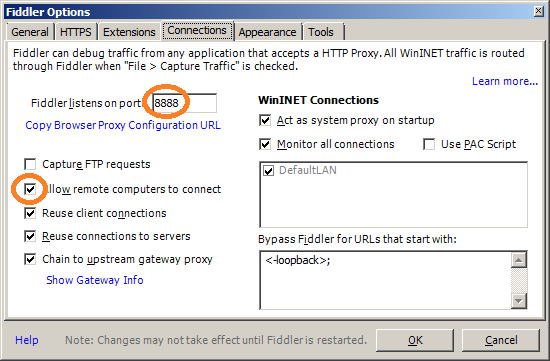
First configure fiddler to accept connections from remote clients and note down the port number

Fiddler Options

Connections Tab

On the device change the request URL to be a machine local one (cut n paste from the browser) for debugging using the Azure emulator or cloud one

private const string CloudServerUrl = @"http://127.0.0.1:81/positionUpdate.aspx";
or
private const string CloudServerUrl = @"http://myapplication.cloudapp.net/PositionUpdate.aspx";

Then setup the NetMF HTTP request proxy endpoint to be Fiddler

request.Headers.Add("x-DeviceMacAddress", DeviceMacAddress());
request.Headers.Add("x-3DFix", Gps.Fix3D.ToString());
request.Headers.Add("x-GPSTime", Gps.GPSTime.ToString("yyyy MM dd hh:mm:ss"));
request.Headers.Add("x-Latitude", Gps.Latitude.ToString("F6"));
request.Headers.Add("x-Longitude", Gps.Longitude.ToString("F6"));
request.Headers.Add("x-HDoP", Gps.hDop.ToString("F2"));
request.Headers.Add("x-Altitude", Gps.Altitude.ToString("F1"));
request.ContentLength = 0;

request.Proxy = new WebProxy("10.0.0.56", 8888 );

using (HttpWebResponse response = (HttpWebResponse)request.GetResponse())
{
Debug.Print(" HTTP Status:" + response.StatusDescription);
if (response.StatusCode != HttpStatusCode.OK)
{
....
}
}

Then you should be able to see the requests & responses in Fiddler

POST http://127.0.0.1:81/positionUpdate.aspx HTTP/1.1
x-DeviceMacAddress: 5C-86-4A-00-3E-6B
x-3DFix: True
x-GPSTime: 2013 01 09 08:31:32
x-Latitude: -43.XXXX
x-Longitude: 172.XXXX
x-HDoP: 1.21
x-Altitude: 1.6
Content-Length: 0
Connection: Keep-Alive
Host: 127.0.0.1:81

HTTP/1.1 200 OK
Cache-Control: private
Content-Type: text/html; charset=utf-8
Server: Microsoft-IIS/7.5
X-AspNet-Version: 4.0.30319
X-Powered-By: ASP.NET
Date: Wed, 09 Jan 2013 08:31:32 GMT
Content-Length: 17

FEZ Spider NetMF 4.2 Networking revisited

I was determined to get the J11D Ethernet module working in the graphical Designer so after a lot of reading + trial and error….

http://www.tinyclr.com/forum/topic?id=9438
http://www.tinyclr.com/forum/topic?id=9661
http://www.tinyclr.com/forum/topic?id=9816
http://www.tinyclr.com/forum/topic?id=9845
http://www.tinyclr.com/forum/topic?id=10120

Making the J11D work after both reflashing the firmware & reboot was critical

Custom MMA8451Q SeeedStudio Twig

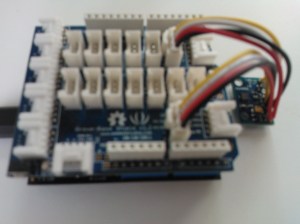
Lastnight wired up a SeeedStudio Grove system compatible twig based on one of the MMA8451Q breakout boards I bought. It has two connectors one for the I2C interface the other for the two interrupt lines which the device has.

MMA8451Q SeeedStudio Twig

I can read acceleration values from the device and once I have the 14bit 2s complement value conversion thouroughly tested I will add code to to configure the interrupt functionality.

Need to make connector leads a bit longer on V2…

FEZ Spider MF 4.1 and 4.2 Networking differences

I upgraded one of the two FEZ Spider boards I have to Version 4.2 of the .NETMF and this has caused some problems with the MF Deploy Network Configuration and also broke some networking code.

The MFDeploy Network configuration save fails with “Invalid configuration data from Plug-In” which others in the GHI Forums have also encountered e.g. http://www.tinyclr.com/forum/topic?id=9661

When I ran up my code the client IP address, gateway address etc. weren’t getting setup properly, My home network uses DHCP and this was fixed with .EnableDhcp(). I then noticed that the DNS address was not what I was expecting. It was pointing to one of the OpenDNS project servers. This was fixed by the .EnableDynamicDns();

This code works with V4.1

// This could be configured via MFDeploy
networkInterface.EnableDhcp();
networkInterface.EnableDynamicDns();

// error checking etc. removed

Debug.Print("Client IP address:" + networkInterface.IPAddress.ToString());
Debug.Print("MAC Address: " + BytesToHexString(networkInterface.PhysicalAddress));
Debug.Print("IP Address: " + networkInterface.IPAddress.ToString());
Debug.Print("Subnet Mask: " + networkInterface.SubnetMask.ToString());
Debug.Print("Gateway: " + networkInterface.GatewayAddress.ToString());
foreach (string dnsAddress in networkInterface.DnsAddresses)
{
Debug.Print("DNS Server: " + dnsAddress.ToString());
}

After some mucking around I found this code works for a Fez SPider running V4.2
static readonly EthernetBuiltIn Ethernet = new EthernetBuiltIn();


void ProgramStarted()
{
Ethernet.Open();

if (!Ethernet.IsActivated)
{
NetworkInterfaceExtension.AssignNetworkingStackTo(Ethernet);
}

// This code could be removed once the MFDeploy issue is sorted
Ethernet.NetworkInterface.EnableDhcp();
Ethernet.NetworkInterface.EnableDynamicDns();

// error checking etc. removed

Debug.Print("Client IP address:" + Ethernet.NetworkInterface.IPAddress.ToString());
Debug.Print("MAC Address: " + BytesToHexString( Ethernet.NetworkInterface.PhysicalAddress));
Debug.Print("IP Address: " + Ethernet.NetworkInterface.IPAddress.ToString());
Debug.Print("Subnet Mask: " + Ethernet.NetworkInterface.SubnetMask.ToString());
Debug.Print("Gateway: " + Ethernet.NetworkInterface.GatewayAddress.ToString());
foreach( string dnsAddress in Ethernet.NetworkInterface.DnsAddresses )
{
Debug.Print("DNS Server: " + dnsAddress.ToString());
}