My first AzureSBLite program

Extending on the theme for my previous post I decided to take a look at Azure ServiceBus Lite by Paolo Patierno. Same objective as last time, a minimalist application running on my Netduino 3 Wifi which connects to my home wifi, waits for an IP address then uploads an event to an Azure EventHub.

public class Program
{
   private const string connectionString = "Endpoint=sb://[YourNamespace].servicebus.windows.net/;SharedAccessKeyName=[YourKeyName];SharedAccessKey=[YourSaSKey]";
   private const string eventHub = "[YourEventHub]";

...

// Wait for Network address if DHCP
NetworkInterface networkInterface = NetworkInterface.GetAllNetworkInterfaces()[0];
if (networkInterface.IsDhcpEnabled)
{
   Debug.Print(" Waiting for IP address ");

   while (NetworkInterface.GetAllNetworkInterfaces()[0].IPAddress == IPAddress.Any.ToString())
   {
      Debug.Print(".");
   }
}

// Display network config for debugging
Debug.Print("Network configuration");
Debug.Print(" Network interface type: " + networkInterface.NetworkInterfaceType.ToString());
Debug.Print(" MAC Address: " + BytesToHexString(networkInterface.PhysicalAddress));
Debug.Print(" DHCP enabled: " + networkInterface.IsDhcpEnabled.ToString());
Debug.Print(" Dynamic DNS enabled: " + networkInterface.IsDynamicDnsEnabled.ToString());
Debug.Print(" IP Address: " + networkInterface.IPAddress.ToString());
Debug.Print(" Subnet Mask: " + networkInterface.SubnetMask.ToString());
Debug.Print(" Gateway: " + networkInterface.GatewayAddress.ToString());

foreach (string dnsAddress in networkInterface.DnsAddresses)
{
   Debug.Print(" DNS Server: " + dnsAddress.ToString());
}

string deviceId = BytesToHexString(networkInterface.PhysicalAddress);
Debug.Print("DeviceId " + deviceId.ToString());

A bit less code is required to send an event using AzureSBLite

try
{
   MessagingFactory factory = MessagingFactory.CreateFromConnectionString(connectionString);

   EventHubClient client = factory.CreateEventHubClient(eventHub);

   string messageBody = @"{""DeviceId"":""" + deviceId + @""",""Time"":""" + DateTime.Now.ToString("yy-MM-dd hh:mm:ss") + @"""}";
   EventData data = new EventData(Encoding.UTF8.GetBytes(messageBody));

   //EventData data = new EventData();
   //data.Properties.Add("Time", DateTime.Now);
   //data.Properties.Add("DeviceId", deviceId);

   client.Send(data);
   client.Close();

   factory.Close();
}
catch (Exception ex)
{
   Debug.Print("ERROR: Send failed with error: " + ex.Message);
}

Over all, a very similar experience to “MyFirst AMQPNetLite” program, after a couple of typos, and fixing a copy ‘n’ paste issue with the connection string my application worked, with the bonus of less code. Both AMQPNetLite and AzureSBLite look suitable for my application so I’ll need to evaluate them in more detail.

My first AMQPNetLite program

After having some problems with my Netduino 3 wifi Azure Event Hub client code (which are most probably due to the issues discussed here) I decided to have a look at AMQPNetLite which had been suggested by Paolo Patierno in a response to one of my posts in the Netduino forums.

I usually create a “minimalist” project so I can figure out how a new library works without an domain specific code getting in the way. Overall, my first experience was pretty positive, the code compiled first time, ran second time and worked third time.

The objective for my first AMQPNetLite application running on my Netduino 3 Wifi was to connect to my home wifi, wait for an IP address then upload an event to an Azure EventHub

private const int amqpPortNumber = 5671;
private const string sbNamespace = "ServiceBus Namespace";
private const string keyName = "SaS Key name";
private const string keyValue = "SaS Key value";
private const string eventHub = "EventHub name";

...

// Wait for Network address if DHCP
NetworkInterface networkInterface = NetworkInterface.GetAllNetworkInterfaces()[0];
if (networkInterface.IsDhcpEnabled)
{
   Debug.Print(" Waiting for IP address ");

   while (NetworkInterface.GetAllNetworkInterfaces()[0].IPAddress == IPAddress.Any.ToString())
   {
      Debug.Print(".");
   }
}

// Display network config for debugging
Debug.Print("Network configuration");
Debug.Print(" Network interface type: " + networkInterface.NetworkInterfaceType.ToString());
Debug.Print(" MAC Address: " + BytesToHexString(networkInterface.PhysicalAddress));
Debug.Print(" DHCP enabled: " + networkInterface.IsDhcpEnabled.ToString());
Debug.Print(" Dynamic DNS enabled: " + networkInterface.IsDynamicDnsEnabled.ToString());
Debug.Print(" IP Address: " + networkInterface.IPAddress.ToString());
Debug.Print(" Subnet Mask: " + networkInterface.SubnetMask.ToString());
Debug.Print(" Gateway: " + networkInterface.GatewayAddress.ToString());

foreach (string dnsAddress in networkInterface.DnsAddresses)
{
   Debug.Print(" DNS Server: " + dnsAddress.ToString());
}

string deviceId = BytesToHexString(networkInterface.PhysicalAddress);
Debug.Print("DeviceId " + deviceId.ToString());

Then I constructed the AMQP address for the event hub, started an AMQP session and sent the message. I tried sending a message with a JSON payload and also using the “type safe” application properties.

try
{
   Address address = new Address(sbNamespace, amqpPortNumber, keyName, keyValue);
   Connection connection = new Connection(address);

   Session session = new Session(connection);

   SenderLink sender = new SenderLink(session, "send-link", eventHub);

   string messageBody = @"{""DeviceId"":""" + deviceId + @""",""Time"":""" + DateTime.Now.ToString("yy-MM-dd hh:mm:ss") + @"""}";

   Message message = new Message()
   {
      //BodySection = new Data() { Binary = Encoding.UTF8.GetBytes(messageBody)},
      ApplicationProperties = new Amqp.Framing.ApplicationProperties(),
   };

   message.ApplicationProperties["Time"] = DateTime.Now;
   message.ApplicationProperties["DeviceId"] = deviceId;

   sender.Send(message);

   sender.Close();
   session.Close();
   connection.Close();
}
catch (Exception ex)
{
   Debug.Print("ERROR: Publish failed with error: " + ex.Message);
}

For my scenario I was pleasantly surprised how easy it was to get working.

AMQP has a non TLS option (only for non sensitive data) and if this is supported I could use a device like a Netduino 3 Ethernet which don’t have baked in TLS support.

Netduino 3 Wifi Azure Service Bus client certificate issue

A few months ago I wrote a post about using a Netduino 3 wifi device to push data to an Azure Event Hub. Last week I wanted to reuse some of the code for another gateway I was building but it didn’t appear to work. When my application made an HTTPS request to the service bus endpoint of my Event Hub it failed with an exception. Initially I though it might be a problem with wildcard certificates so I build a small demo program which makes three HTTPS requests to endpoints with different certificate configurations (for more detail see the code below).

using System;
using System.Net;
using System.Threading;
using Microsoft.SPOT;
using Microsoft.SPOT.Net.NetworkInformation;

namespace devMobile.Netduino3WifiCertificateQuery
{
   public class Program
   {
      public static void Main()
      {
         // Wait for Network address if DHCP
         NetworkInterface networkInterface = NetworkInterface.GetAllNetworkInterfaces()[0];
         if (networkInterface.IsDhcpEnabled)
         {
            Debug.Print(" Waiting for IP address ");
            while (NetworkInterface.GetAllNetworkInterfaces()[0].IPAddress == IPAddress.Any.ToString())
            {
               Debug.Print(".");
               Thread.Sleep(250);
            }
         }

         // Baseline check with google
         Debug.Print("https://www.google.co.nz");
         try
         {
            using (HttpWebRequest request = (HttpWebRequest)WebRequest.Create(@"https://www.google.co.nz"))
            {
               request.Method = "GET";
               request.KeepAlive = false;
               request.Timeout = 5000;
               request.ReadWriteTimeout = 5000;
               request.KeepAlive = false;

               using (var response = (HttpWebResponse)request.GetResponse())
               {
                  Debug.Print("HTTP Status:" + response.StatusCode + " : " + response.StatusDescription);
               }
            }
         }
         catch (Exception ex)
         {
            Debug.Print(ex.Message);
         }

         /*
         DNS Name=*.wordpress.com
         DNS Name=wordpress.com
         */
         Debug.Print("https://wordpress.wordpress.com/");
         try
         {
            using (HttpWebRequest request = (HttpWebRequest)WebRequest.Create(@"https://wordpress.wordpress.com/"))
            {
               //request.Proxy = proxy; 
               request.Method = "GET";
               request.KeepAlive = false;
               request.Timeout = 5000;
               request.ReadWriteTimeout = 5000;
               request.KeepAlive = false;


               using (var response = (HttpWebResponse)request.GetResponse())
               {
                  Debug.Print("HTTP Status:" + response.StatusCode + " : " + response.StatusDescription);
               }
            }
         }
         catch (Exception ex)
         {
            Debug.Print(ex.Message);
         }


         /*
         DNS Name=*.servicebus.windows.net
         DNS Name=servicebus.windows.net
         */
         Debug.Print(@"https://myhomemonitor.servicebus.windows.net/");
         try
         {
            using (HttpWebRequest request = (HttpWebRequest)WebRequest.Create(@"https://myhomemonitor.servicebus.windows.net/"))
            {
               //request.Proxy = proxy; 
               request.Method = "GET";
               request.KeepAlive = false;
               request.Timeout = 5000;
               request.ReadWriteTimeout = 5000;
               request.KeepAlive = false;

               using (var response = (HttpWebResponse)request.GetResponse())
               {
                  Debug.Print("HTTP Status:" + response.StatusCode + " : " + response.StatusDescription);
               }
            }
         }
         catch (Exception ex)
         {
            Debug.Print(ex.Message);
         }
      }
   }
}

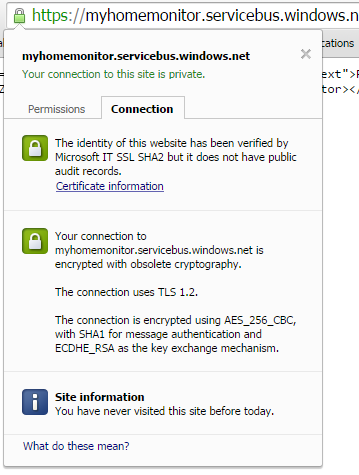
I then noticed that when I looked at the certificate details of the endpoint where the requests were failing in Google Chrome (only occurred in Chrome) there was a warming about “obsolete cryptography”.

Google Chrome info about ok certificate

Google Chrome info about ok certificate

Google Chrome info about error causing certificate

Google Chrome info about possibly error causing certificate

I have downloaded the Netduino 3 Wifi IP stack code from github and have traced down to the native interop call which appears to be failing at the very bottom of the stack. My post at Netduino.com has additional detail about my debugging efforts.

Now I’m wondering if the crypto required by newish certificate for the service bus endpoint is not supported/needs to be enabled for the TI CC3100 SimpleLink Wifi network processor.


Netduino 3 wifi Azure Event Hub client

Over the last couple of weeks I have been beta testing a Netduino 3 Wifi board. One of the great features of the new board is baked in support for SSL 3.0 and TLS 1.2 which enables direct connection to services which require https.

EDIT: The device has been running under my desk powered by a wall wart for a week. It has been monitoring the temperature of my office and the air gap between the curtains and the glass. My ADSL has gone down a couple of times but the N3 has recovered all by itself and kept on going.

In a couple of previous blog posts I have shown how to upload data to an Azure Event Hub from other NetMFdevices. I built an application that runs on a FEZ Spider and a lightweight Service Gateway so I was keen to see how well a Netduino 3 Wifi based solution worked.

To get something working on my Netduino 3 device I started with the application I had written for the FEZ spider. The code is based on OBD Recorder for .Net Micro Framework with ServiceBus, AMQP (for IoT) samples. The test client used a couple of DS18B20 temperature sensors to monitor the temperature of my fridge and freezer.

Netduino 3 device with temperature sensors

Netduino 3 device with Seeedstudio Shield and two temperature sensors

I created an Event Hub and associated device access keys and fired up Service Bus Explorer so I could see what was happening.ServiceBus Explorer showing my fridge and freezer temperatures

In the application the first step was to add code to wait for the device to acquire an IP address. (Will replace this code with a more efficient approach)

// Wait for Network address if DHCP
NetworkInterface networkInterface = NetworkInterface.GetAllNetworkInterfaces()[0];

if (networkInterface.IsDhcpEnabled)
{
   Debug.Print(" Waiting for IP address " );

   while (NetworkInterface.GetAllNetworkInterfaces()[0].IPAddress == IPAddress.Any.ToString()) ;
}

// Display network config for debugging
Debug.Print("Network configuration");
Debug.Print(" Network interface type: " + networkInterface.NetworkInterfaceType.ToString());
Debug.Print(" MAC Address: " + BytesToHexString(networkInterface.PhysicalAddress));
Debug.Print(" DHCP enabled: " + networkInterface.IsDhcpEnabled.ToString());
Debug.Print(" Dynamic DNS enabled: " + networkInterface.IsDynamicDnsEnabled.ToString());
Debug.Print(" IP Address: " + networkInterface.IPAddress.ToString());
Debug.Print(" Subnet Mask: " + networkInterface.SubnetMask.ToString());
Debug.Print(" Gateway: " + networkInterface.GatewayAddress.ToString());

foreach (string dnsAddress in networkInterface.DnsAddresses)
{
   Debug.Print(" DNS Server: " + dnsAddress.ToString());
}

deviceId = BytesToHexString(networkInterface.PhysicalAddress);

Then to send the message to the event hub the request has to have a authorisation token attached

private void EventHubSendMessage(string eventHubAddressHttps, string messageBody)
{
   string token = CreateSasToken(eventHubAddressHttps + "/messages", sasKeyName, sasKeyText);

   try
   {
      using( HttpWebRequest request = (HttpWebRequest)HttpWebRequest.Create(eventHubAddressHttps + "/messages" + "?timeout=60" + ApiVersion))
      {
         request.Timeout = 2500;
         request.Method = "POST";

         // Enable these options to suit your environment
         //request.Proxy = new WebProxy("myproxy.myorganisation.com", true);
         //request.Credentials = new NetworkCredential("myusername", "mytopsecretpassword"); 

         request.Headers.Add("Authorization", token);
         request.Headers.Add("ContentType", "application/json;charset=utf-8");

         byte[] buffer = Encoding.UTF8.GetBytes(messageBody);

         request.ContentLength = buffer.Length;

         // request body
         using (Stream stream = request.GetRequestStream())
         {
            stream.Write(buffer, 0, buffer.Length);
         }

         using (HttpWebResponse response = (HttpWebResponse)request.GetResponse())
         {
            Debug.Print("HTTP Status:" + response.StatusCode + " : " + response.StatusDescription);
         }
      }
   }
   catch (WebException we)
   {
      Debug.Print(we.Message);
   }
}

// Create a SAS token for a specified scope. SAS tokens are described in http://msdn.microsoft.com/en-us/library/windowsazure/dn170477.aspx.
private static string CreateSasToken(string uri, string keyName, string key)
{
   // Set token lifetime to 20 minutes. When supplying a device with a token, you might want to use a longer expiration time.
   uint tokenExpirationTime = GetExpiry(20 * 60);

   string stringToSign = HttpUtility.UrlEncode(uri) + "\n" + tokenExpirationTime;

   var hmac = SHA.computeHMAC_SHA256(Encoding.UTF8.GetBytes(key), Encoding.UTF8.GetBytes(stringToSign));
   string signature = Convert.ToBase64String(hmac);

   signature = Base64NetMf42ToRfc4648(signature);

   string token = "SharedAccessSignature sr=" + HttpUtility.UrlEncode(uri) + "&sig=" + HttpUtility.UrlEncode(signature) + "&se=" + tokenExpirationTime.ToString() + "&skn=" + keyName;

   return token;
}

private static string Base64NetMf42ToRfc4648(string base64netMf)
{
   var base64Rfc = string.Empty;

   for (var i = 0; i < base64netMf.Length; i++)
   {
      if (base64netMf[i] == '!')
      {
         base64Rfc += '+';
      }
      else if (base64netMf[i] == '*')
      {
         base64Rfc += '/';
      }
      else
      {
         base64Rfc += base64netMf[i];
      }
   }
   return base64Rfc;
}

static uint GetExpiry(uint tokenLifetimeInSeconds)
{
   const long ticksPerSecond = 1000000000 / 100; // 1 tick = 100 nano seconds

   DateTime origin = new DateTime(1970, 1, 1, 0, 0, 0, 0);
   TimeSpan diff = DateTime.Now.ToUniversalTime() - origin;

   return ((uint)(diff.Ticks / ticksPerSecond)) + tokenLifetimeInSeconds;
}

The initial version of the Netduino TI CC3100 driver has some limitations e.g. no server certificate validation but these should be attended to in future releases.

The software was based on Brad’s One-Wire and DS18B20 library with fixes from here.

Azure Event Hub Service Gateway V0.5

In a previous post I had developed a simple Microsoft Azure EventHubs Service Gateway for Arduino and Netduino devices which required Internet Information Server(IIS). Running IIS in some home environments could be a bit awkward so I have got a basic light weight version going which is hosted in a self installing Windows Service. The gateway supports four command line parameters.(The install and uninstall must be run as administrator otherwise the requested process will fail)

  • Install – install the service
  • Uninstall – uninstalls the service
  • Debug – runs the service in interactive mode
  • Name – allows you to specify the name of the service in the Services Manager.

The code does some basic logging to the Windows Event log and can be configured to start automatically when the computer starts.

The configuration file has two settings

<appSettings>
<add key="Microsoft.ServiceBus.ConnectionString" value="YourConnectionStringGoesHere" />
<add key="Microsoft.ServiceBus.EventHub" value="myhomemonitor" />
<add key="baseAddress" value="http://your.URL.goes.Here:8080/" />
</appSettings>

The code is based on the self installing service sample code that ships with the Wix# toolkit.

try
{
   string connectionString = ConfigurationManager.AppSettings["Microsoft.ServiceBus.ConnectionString"];
   string eventHubName = ConfigurationManager.AppSettings["Microsoft.ServiceBus.EventHub"];

   NamespaceManager namespaceManager = NamespaceManager.CreateFromConnectionString(connectionString);

   EventHubClient client = EventHubClient.Create(eventHubName);

   EventData data = new EventData(request.Content.ReadAsByteArrayAsync().Result);

   // Set user properties if needed
   data.Properties.Add("UploadedAtUTC", DateTime.UtcNow.ToString("yyyy-MM-dd HH:mm:ss"));
   data.Properties.Add("UploadedBy", "devMobileAzureEventHubGateway");

   client.Send(data);
}
catch (Exception ex)
{
   eventLog.WriteEntry(string.Format("Application initialisation failed {0}", ex.Message), EventLogEntryType.Error);
}

The Azure EventHub Service Gateway Code V0.5 is a bit rough but I will enhance it as time allows. First steps will be improving logging then creating a WIX# based installer.

Azure Event Hub Service Gateway V0.1

My Netduino and Arduino devices can’t do https so I had been looking at different approaches for uploading sensor data to a Microsoft Azure Event Hub. In a previous post I published the “simplest” possible useful program (a console application) which could upload data and this code builds on that.

In this proof of concept I have integrated the core of the console application code into an ASP.NET MVC WebAPI 2 project which acts as a service gateway. My Netduino clients now use a website hosted on my Essentials 2012 home server to forward the requests to a Microsoft Azure Event Hub .

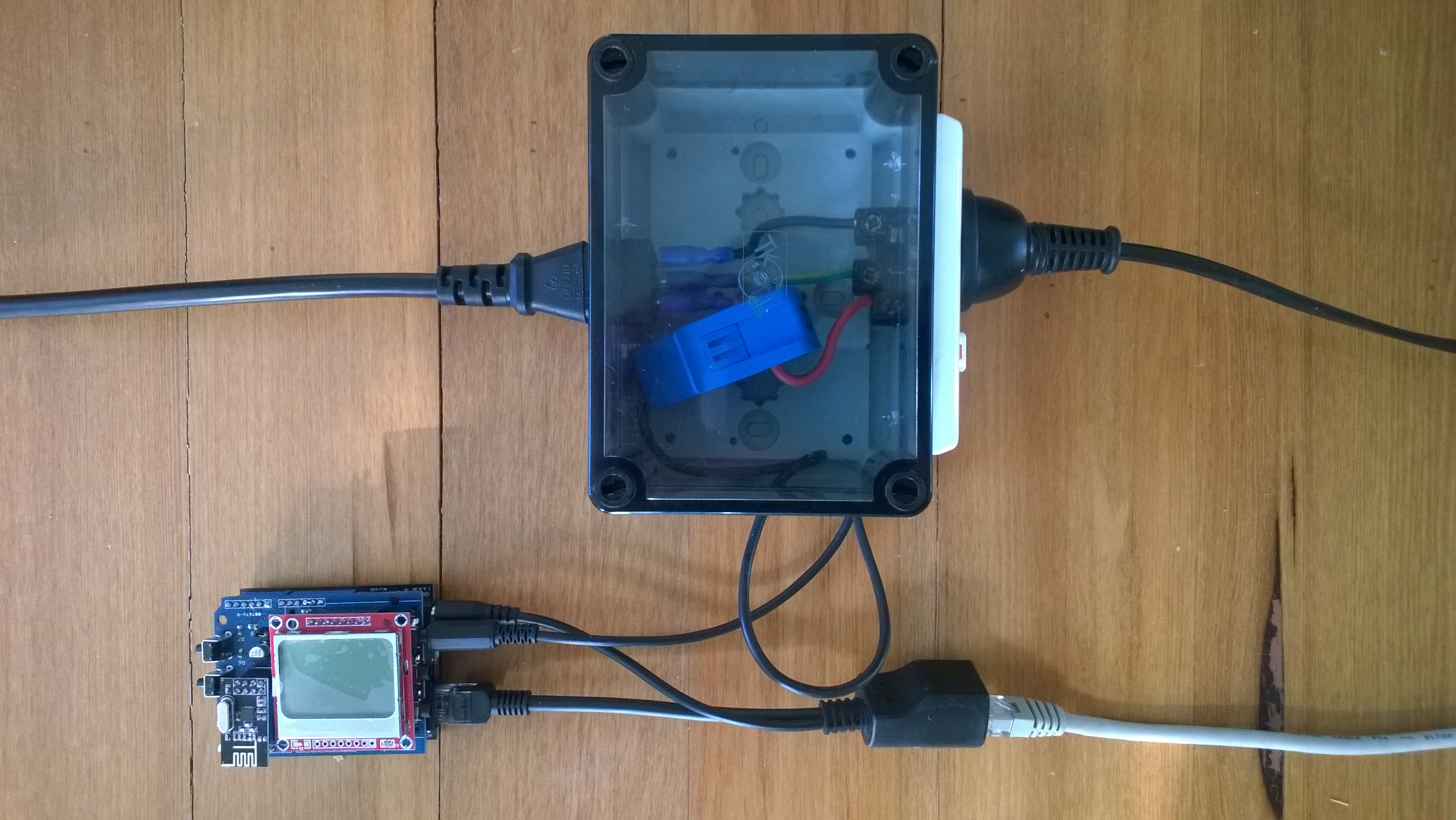
For more detail about how to program the energy monitor shield see these posts about the Nokia 5110 display, nrf24L01 wireless link, and non invasive current sensor algorithm optimisations.

try
{
   using (HttpWebRequest request = (HttpWebRequest)WebRequest.Create( AzureGatewayUrl ))
   {
      string payload = @&quot;{&quot;&quot;DeviceId&quot;&quot;:&quot; + deviceId + @&quot;,&quot;&quot;Usage&quot;&quot;:&quot; + value + &quot;}&quot;;
      byte[] buffer = Encoding.UTF8.GetBytes(payload);
      request.Method = &quot;POST&quot;;
      request.ContentLength = buffer.Length;
      request.ContentType = &quot;text/csv&quot;;
      request.KeepAlive = false;
      request.Timeout = 5000;
      request.ReadWriteTimeout = 5000;

      using (Stream stream = request.GetRequestStream())
      {
         stream.Write(buffer, 0, buffer.Length);
      }
      using (var response = (HttpWebResponse)request.GetResponse())
      {
         Debug.Print(&quot;HTTP Status&quot; + response.StatusCode + &quot; : &quot; + response.StatusDescription);
      }
   }
}
catch (Exception ex)
{
   Debug.Print(ex.Message);
}
Netduino power consumption monitor

Netduino power consumption monitor

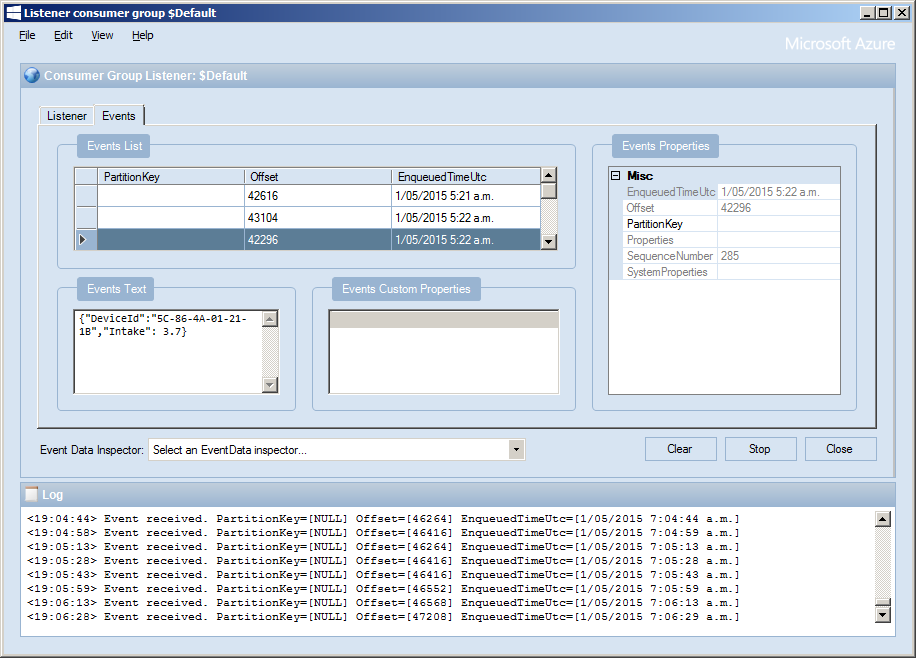
Azure Service Bus Explorer by  Paolo Salvatori is great for debugging and testing Service Bus applications like this.

ServiceBus Explorer Displaying event hub power consumption data

ServiceBus Explorer displaying power consumption data

Bill of materials (prices as at Feb 2015)

The Azure Event Hub Service GatewayV0.1 is pretty basic with, no security, doesn’t have a lot of logging. wouldn’t scale terribly well (Though most home systems wouldn’t have a lot of sensors) and is hosted in Internet Information Server(IIS),

In future posts I’ll fix these limitations and make the service gateway secure, easier to install, configure and operate. But, this proof of concept proves the approach is viable

// POST api/eventhub
 public void Post(HttpRequestMessage request)
      {
         try
         {
            string connectionString = ConfigurationManager.AppSettings["Microsoft.ServiceBus.ConnectionString"];
            string eventHubName = ConfigurationManager.AppSettings["Microsoft.ServiceBus.EventHub"];

            NamespaceManager namespaceManager = NamespaceManager.CreateFromConnectionString(connectionString);

            EventHubClient client = EventHubClient.Create(eventHubName);

            EventData data = new EventData(request.Content.ReadAsByteArrayAsync().Result);

            // Set user properties if needed
            data.Properties.Add("UploadedAtUTC", DateTime.UtcNow.ToString("yyyy-MM-dd HH:mm:ss"));
            data.Properties.Add("UploadedBy", "devMobileAzureEventHubGateway");

            client.Send(data);
         }
         catch (Exception ex)
         {
            Debug.WriteLine("Send failed " + ex.Message);
         }
      }

Azure Event Hubs “simplest” possible program

I want to connect several Netduino devices monitoring my house to a Microsoft Azure Event Hub, but the Netudino does not natively support https connections (required for the REST API) and AMQP looked a bit chunky.

The team at Kloud have some great posts about getting Arduino & NetMF devices connected using the Azure python SDK and an Application Request Routing based solution.

I’m going to build an ASP.NET MVC Web API 2 based Azure Event hub gateway. I aiming for a minimal install footprint and resource utilisation as I want to use my Essentials2012  home server or Windows 7 Media Centre box to host the gateway.

My first step is to create a the “simplest” possible program which connects to a Microsoft Azure Event Hub and uploads an event. (Minimal complexity, no async, no threads, and very flat), This console application uploads an event specified in a file to an Microsoft Azure Event Hub. The Azure service bus connection string is configured in the app.config file, the event hub name, file path and partition id are specified on the command line.

using System;
using System.IO;
using System.Configuration;
using Microsoft.ServiceBus;
using Microsoft.ServiceBus.Messaging;

static void Main(string[] args)
{
   if (args.Length != 3)
   {
      Console.WriteLine("Incorrect number of arguments. Expected 3 args <eventhubname> <datafilepath> <partionkey>");
      return;
   }

   string eventHubName = args[0];
   string dataFilePath = args[1];
   string partitionKey = args[2];
   Console.WriteLine("Sending file {0} to EventHub {1} Partition {2}", dataFilePath, eventHubName, partitionKey);

   try
   {
      string connectionString = ConfigurationManager.AppSettings["Microsoft.ServiceBus.ConnectionString"];
      NamespaceManager namespaceManager = NamespaceManager.CreateFromConnectionString(connectionString);

      EventHubClient client = EventHubClient.Create(eventHubName);

      using (var dataFileStream = File.Open(dataFilePath, FileMode.Open))
      {
         EventData data = new EventData(dataFileStream)
         {
            PartitionKey = partitionKey,
         };

         // Set user properties if needed
         data.Properties.Add("Acquired", DateTime.UtcNow.ToString("yyyy-MM-dd HH:mm:ss"));

         DateTime startUtc = DateTime.UtcNow;
         client.Send(data);
         DateTime finishUtc = DateTime.UtcNow;
         TimeSpan duration = finishUtc - startUtc;
         Console.WriteLine("Duration {0:F2} secs", duration.TotalSeconds);
      }
   }
   catch (Exception ex)
   {
      Console.WriteLine("Send failed {0}", ex.Message);
   }
   Console.WriteLine("Press <Enter> to exit");
   Console.ReadLine();
   }
}

Uploading an event takes roughly 2.5 seconds on my ADSL internet connection.

Azure Event Hub Updates from a NetMF Device

I had read about how Azure Event Hubs supported both Advanced Message Queuing Protocol(AMQP) & Hypertext Transfer Protocol (HTTP) access and was keen to see how easy the REST API was to use from a .Net Microframework (NetMF) device.

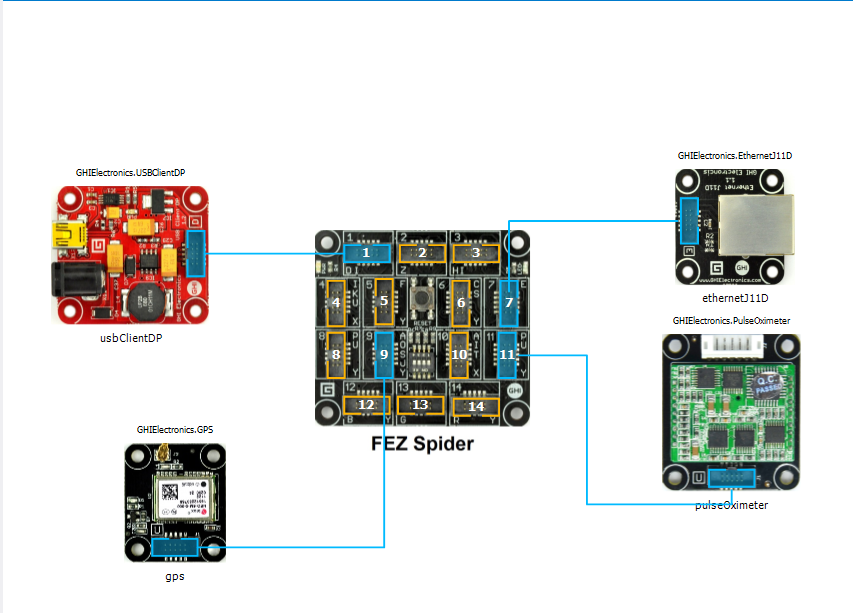
My initial concept was an exercise monitoring system with a Global Positioning System (GPS) unit and a pulse oximeter connected to a FEZ Spider device. My posting GPS Tracker Azure Service Bus has more info about GPS Drivers  and Azure Service Bus connectivity.

FEZ Spider, GPS and PulseOximeter

Fez spider and sensors for exercise monitoring device

The software was inspired by the Service Bus Event Hubs Getting started, Scale Out Event Processing with Event Hubs,Service Bus Event Hubs Large Scale Secure Publishing and OBD Recorder for .Net Micro Framework with ServiceBus, AMQP (for IoT) samples. I created an Event Hub and associated device access keys and fired up Service Bus Explorer so I could monitor and tweak the configuration.

I started by porting the REST API SendMessage implementation of Service Bus Event Hubs Large Scale Secure Publishing sample to NetMF. My approach was to get the application into my local source control and then cut ‘n’ paste the code into a NetMF project and see what breaks. I then modified the code over several iterations so it ran on both the desktop and NetMF clients.

The next step was to download the HTTPS certificates and add them to the project as resources so the requests could be secured. See this post for more detail.

For the connection to be secured you need to set the local time (so the certificate valid to/from can be checked) and load the certificates so they can be attached to the HTTP requests

void ProgramStarted()
{
   ...
   Microsoft.SPOT.Hardware.Utility.SetLocalTime(NtpClient.GetNetworkTime());
   caCerts = new X509Certificate[] { new X509Certificate(Resources.GetBytes(Resources.BinaryResources.Baltimore)) };

I used the Network Time Protocol (NTP) library from the OBD Recorder for .Net Micro Framework sample to get the current time.

The Service Bus Event Hubs Large Scale Secure Publishing uses an asynchronous HTTP request which is not available on the NetMF platform. So I had to replace it with a synchronous version.

static void EventHubSendMessage(string eventHubAddressHttps, string token, string messageBody)
{
   try
   {
      HttpWebRequest request = (HttpWebRequest)HttpWebRequest.Create(eventHubAddressHttps + "/messages" + "?timeout=60" + ApiVersion);
      {
         ...
         request.Headers.Add("Authorization", token);
         request.Headers.Add("ContentType", "application/atom+xml;type=entry;charset=utf-8");
         byte[] buffer = Encoding.UTF8.GetBytes(messageBody);
         request.ContentLength = buffer.Length;

         // request body
         using (Stream stream = request.GetRequestStream())
         {
            stream.Write(buffer, 0, buffer.Length);
         }
         using (HttpWebResponse response = (HttpWebResponse)request.GetResponse())
         {
            Debug.Print("HTTP Status:" + response.StatusCode + " : " + response.StatusDescription);
         }
      }
   }
   catch (WebException we)
   {
      Debug.Print(we.Message);
   }
}

The code to generate the SAS Token also required some modification as string.format, timespan, and SHA256 functionality are not natively available on the .NetMF platform. The GetExpiry, and SHA256 implementations were part of the OBD Recorder for .Net Micro Framework sample.

static string CreateSasToken(string uri, string keyName, string key)
{
   // Set token lifetime to 20 minutes. When supplying a device with a token, you might want to use a longer expiration time.
   uint tokenExpirationTime = GetExpiry(20 * 60);

   string stringToSign = HttpUtility.UrlEncode(uri) + "\n" + tokenExpirationTime;
   var hmac = SHA.computeHMAC_SHA256(Encoding.UTF8.GetBytes(key), Encoding.UTF8.GetBytes(stringToSign));

   string signature = Convert.ToBase64String(hmac);
   signature = Base64NetMf42ToRfc4648(signature);

   string token = "SharedAccessSignature sr=" + HttpUtility.UrlEncode(uri) + "&sig=" + HttpUtility.UrlEncode(signature) + "&se=" + tokenExpirationTime.ToString() + "&skn=" + keyName;
   return token;
}

static uint GetExpiry(uint tokenLifetimeInSeconds)
{
   const long ticksPerSecond = 1000000000 / 100; // 1 tick = 100 nano seconds</code>

   DateTime origin = new DateTime(1970, 1, 1, 0, 0, 0, 0);
   TimeSpan diff = DateTime.Now.ToUniversalTime() - origin;

   return ((uint)(diff.Ticks / ticksPerSecond)) + tokenLifetimeInSeconds;
}

private static string Base64NetMf42ToRfc4648(string base64netMf)
{
   var base64Rfc = string.Empty;
   for (var i = 0; i < base64netMf.Length; i++)
   {
      if (base64netMf[i] == '!')
      {
         base64Rfc += '+';
      }
      else if (base64netMf[i] == '*')
      {
         base64Rfc += '/';
      }
      else
      {
         base64Rfc += base64netMf[i];
      }
   }
return base64Rfc;
}

The HttpUtility class came from the OBD Recorder for .Net Micro Framework sample. The Base64NetMf42ToRfc4648 functionality is still necessary on NetMF 4.3.

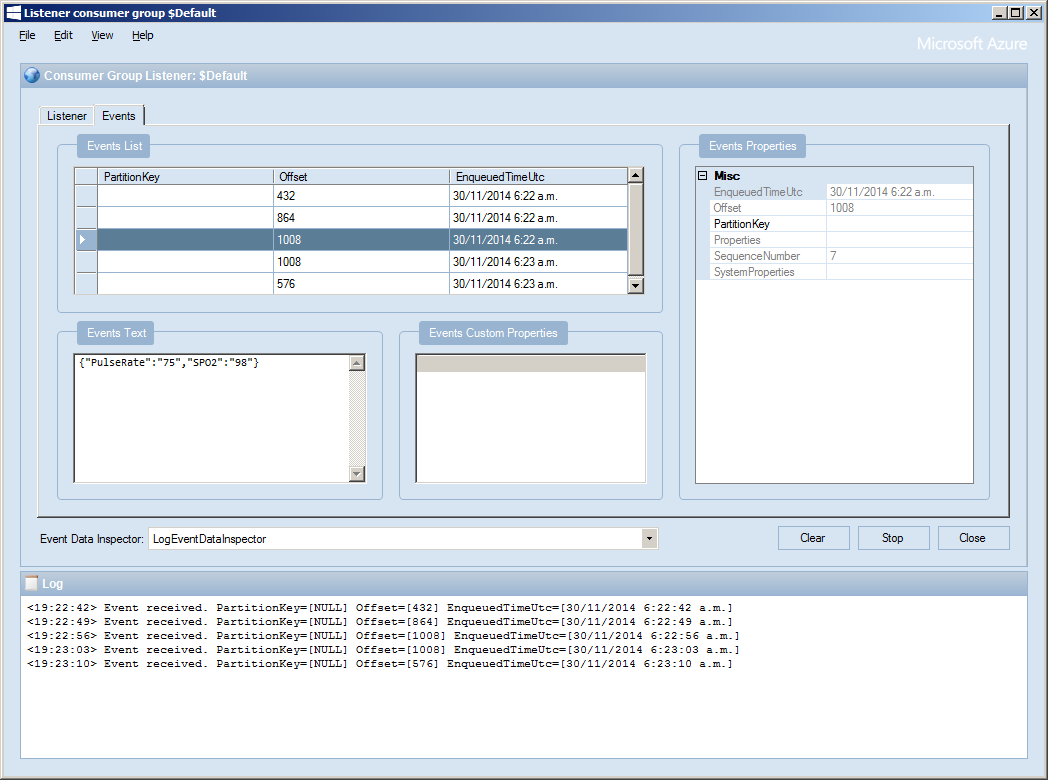
After a couple of hours I had data upload working.(No GPS data as the device was running on my desk where GPS coverage is poor)

ServiceBusExplorerEventHub